

Prerequisites to install Unified Agent (Windows + CAuth)
- OS: Windows 11 (64-bit)
- RAM: 8GB minimum
- Storage: 2GB free space
- Internet: Required for cloud connectivity
- Ensure that your network allows connection to the TruU servers (no firewalls, blockers, disallow lists, etc)
Computer Policy
To apply CAuth policy for the standard TruU Desktop Authenticator: In the admin console, open Policies and go to the Computer tab. You can either create a new Computer policy (use the blue plus) or edit an existing one. When you save the policy, set Applies to so it applies to all groups or only specific groups, depending on your rollout. That Computer policy works together with the TruU Desktop Authenticator agent on CAuth endpoints.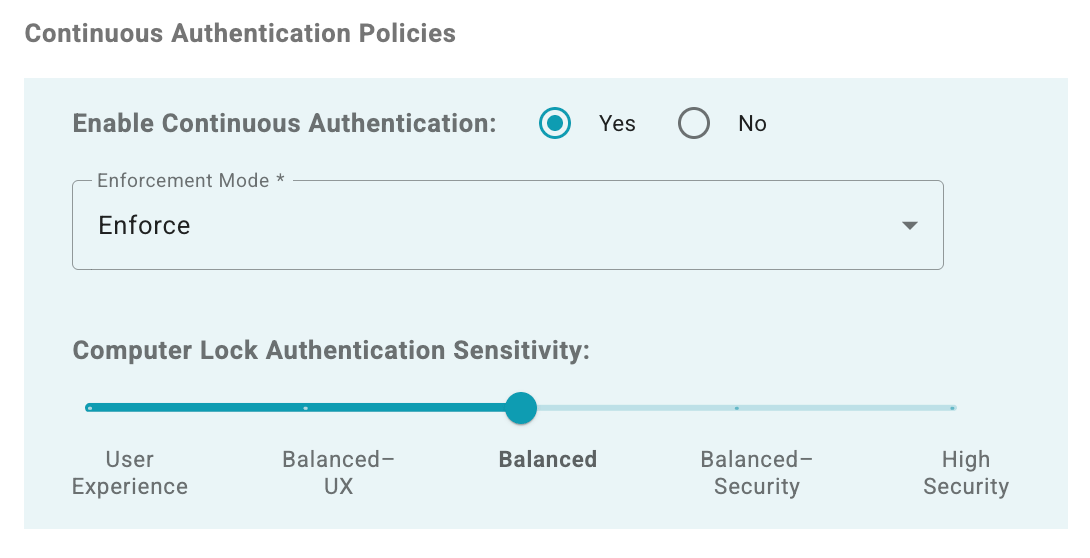
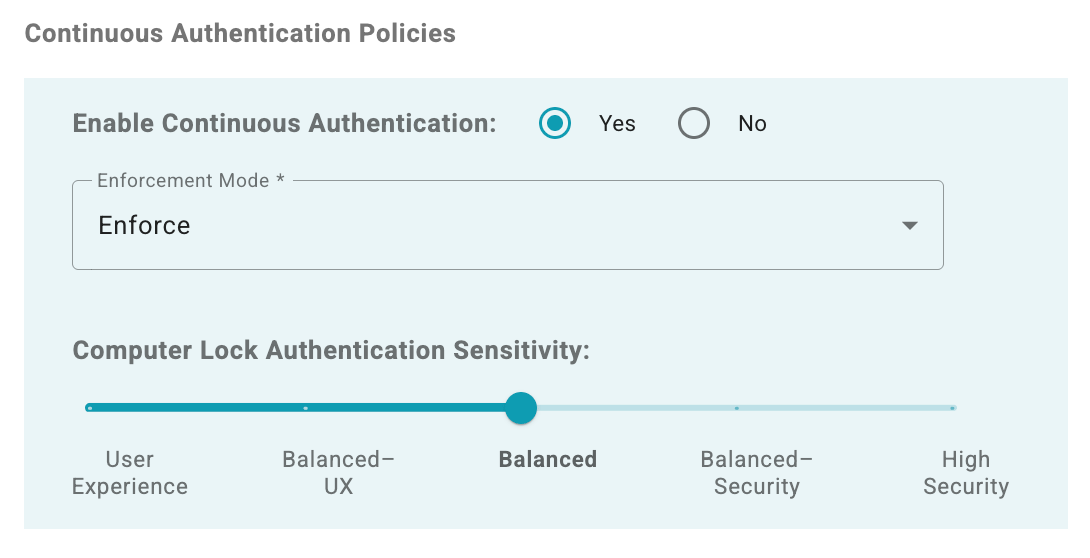
Option: Setting the policy to Yes
- Enables continuous authentication on the computer.
- The agent continuously collects behavioral signals (keyboard, mouse, WiFi location).
- Risk evaluation occurs in real-time – prompting user for reauthentication at any time where risk associated with the user’s behavior is high
- If a user fails to promptly validate their identity the system will lock
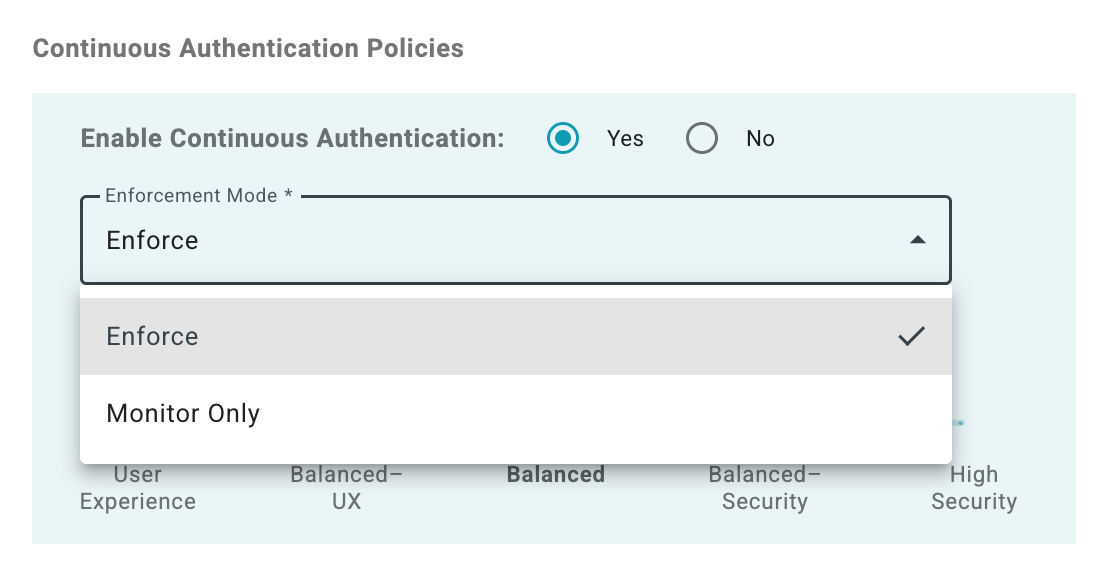
Option: Mode selection
Option: Tune Continuous Authentication Sensitivity
- The Sensitivity slider controls how sensitive TruU is when determining whether to prompt for reauthentication based on detected risk signals.
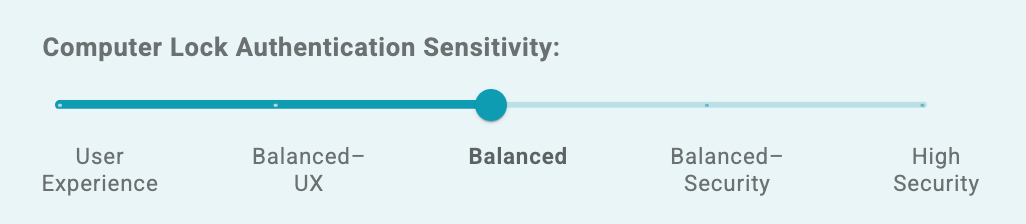
- User Experience: “Prioritize user experience. Fewest authentication prompts. Challenge only with strong indicators or insufficient signals.”
- Balanced - UX: “Favor user experience. Fewer prompts. Standard verification thresholds for challenging users.”
- Balanced: “Balanced. Moderate prompts. Challenge when signals show deviation or are insufficient.”
- Balanced - Security: “Favor Security. More prompts. Challenge readily when signals deviate or lack sufficient data.”
- High Security: “Prioritize Security. Most prompts. Challenge at earliest deviation or insufficient signals.”
Lower sensitivity (left side) = Higher risk tolerance = Fewer lock events
Higher sensitivity (right side) = Lower risk tolerance = More lock events
Option: Setting the policy to No
- Disables continuous authentication
- No continuous risk evaluation or behavioral monitoring is performed
- Devices operate without CAuth system-level protection
Application Policy
Use an Application Policy to define which applications should have SSO access governed by Continuous Authentication. This works in conjunction with the TruU Desktop Authenticator agent so that seamless SSO can be allowed when the user is low-risk (genuine) and continuously monitored for the selected applications. To configure this, open the admin console and navigate to Policies → Application. From there, an admin can either create a new Application Policy (click the blue plus) or edit an existing policy, then set Applies to so the policy targets all groups or specific groups , depending on your rollout. That application policy works together with the TruU Desktop Authenticator agent on CAuth endpoints.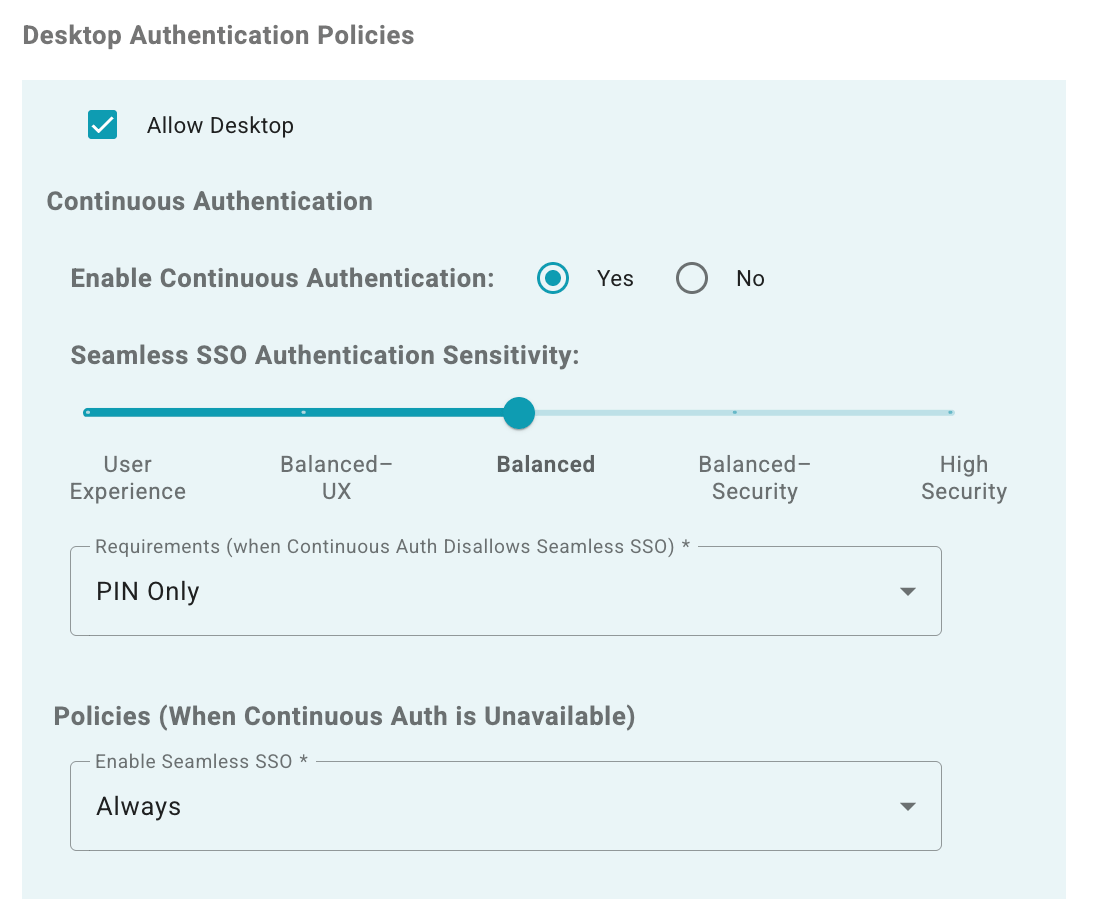
Option: Setting the policy to Yes
- Enables continuous authentication for application access.
- The agent continuously collects behavioral signals (keyboard, mouse, WiFi location).
- Risk evaluation occurs in real-time.
- SSO decisions are based on calculated risk levels - Seamless SSO is allowed when risk is low.
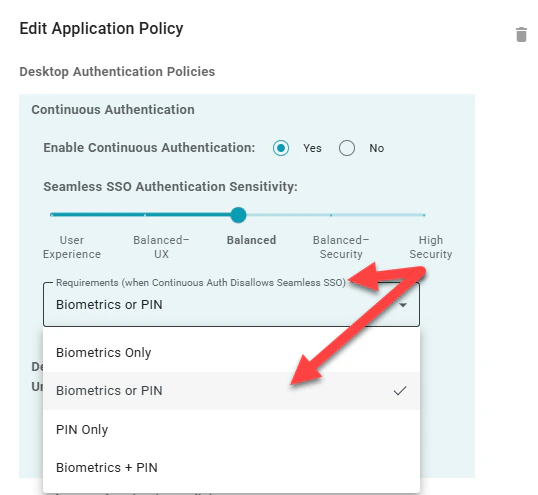
- When an imposter is identified (elevated risk detected), seamless SSO authentication will not go through and falls back to the authentication method specified in “Requirements (when Continuous Auth Disallows Seamless SSO)”. For example, “Biometrics or PIN” (as shown in screenshot):
Option: Tune Continuous Authentication Sensitivity
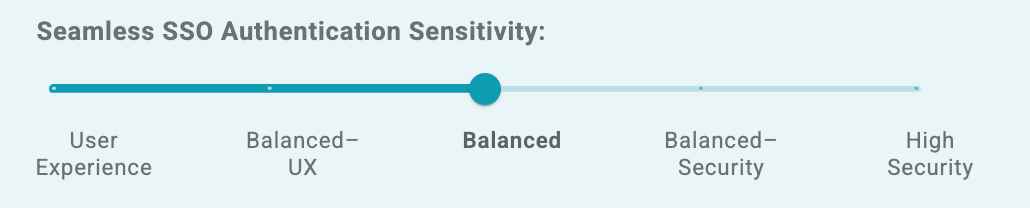
- User Experience: “Prioritize user experience. Fewest authentication prompts. Challenge only with strong indicators or insufficient signals.”
- Balanced - UX: “Favor user experience. Fewer prompts. Standard verification thresholds for challenging users.”
- Balanced: “Balanced. Moderate prompts. Challenge when signals show deviation or are insufficient.”
- Balanced - Security: “Favor Security. More prompts. Challenge readily when signals deviate or lack sufficient data.”
- High Security: “Prioritize Security. Most prompts. Challenge at earliest deviation or insufficient signals.”
Lower sensitivity (left side) = Higher risk tolerance = Fewer lock events
Higher sensitivity (right side) = Lower risk tolerance = More lock events
Option: Setting the policy to No
- Disables continuous authentication.
- No continuous risk evaluation or behavioral monitoring is performed.
- Devices operate without CAuth protection.
- SSO decisions follow traditional policy rules (see “Desktop Authentication Policies (When Continuous Auth is Unavailable)”)