

- Log in to the “Admin Portal”
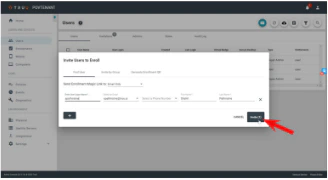
- Click on Users in the left hand panel. Then, click the blue mail icon on the top of the page

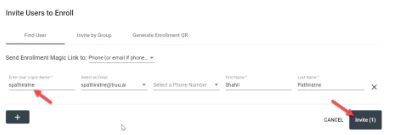
- Enter the User’s Login Name and then click invite
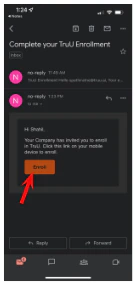
- Open the email invite generated by your admin and click Enroll
- Create a 6-digit TruU PIN then confirm the PIN for the TruU App
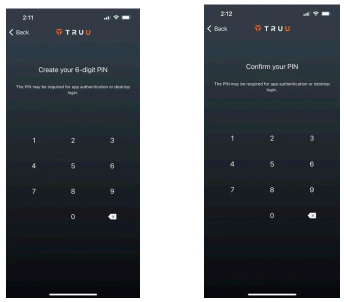
- This PIN is specific to TruU and not used to unlock your phone
- The TruU PIN is required to unlock/login to the computer during offline mode (or when the mobile phone is not connected to the Internet and is operating on Bluetooth only)
- The PIN is also required and used for phones that do not Face ID or Fingerprint capabilities
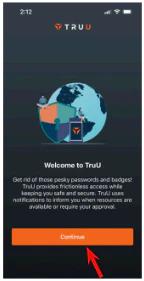
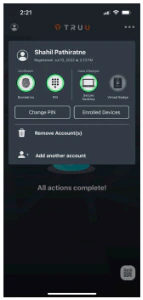
- Press Continue and select allow to all the following prompts on the following screen. You can also confirm enrollment and information by clicking on the user icon in the top left corner of the homepage
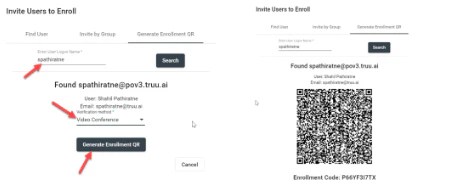
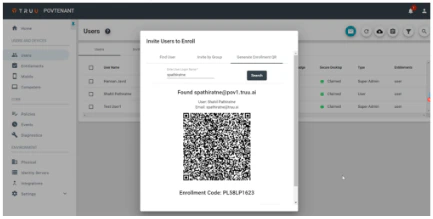
- Admin generates an Enrollment QR code for the user after the user verifies identity via Zoom call
- On your phone, open the “TruU Mobile App” and click Begin Enrollment
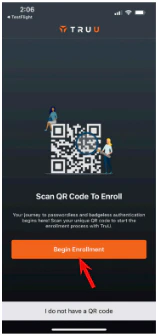
- Scan the QR code on your computers browser using the “TruU Mobile App”
- Create a 6-digit TruU PIN then confirm the PIN for the TruU App
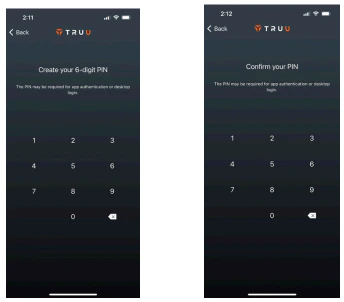
- This PIN is specific to TruU and not used to unlock your phone
- The TruU PIN is required to unlock/login to the computer during offline mode (or when the mobile phone is not connected to the Internet and is operating on Bluetooth only)
- The PIN is also required and used for phones that do not Face ID or Fingerprint capabilities
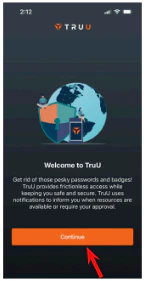
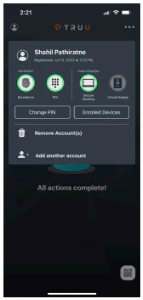
- Press Continue and select allow to all the following prompts on the following screen. You can also confirm enrollment and information by clicking on the user icon in the top left corner of the homepage
Frontline Access 25.3.0 Release Notes Admin Console Overview