Manual Installation

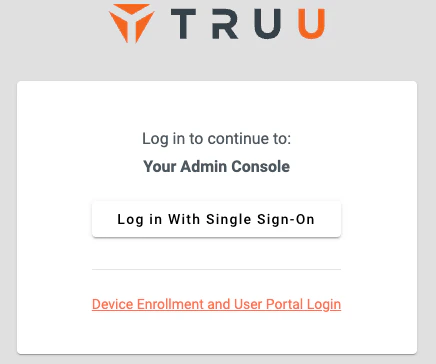
  1. Login to your TruU Admin Console
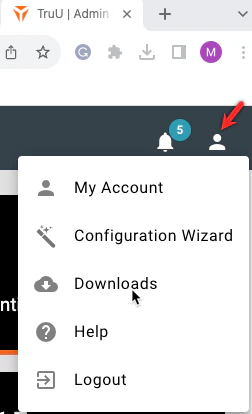
  1. Top right corner, Click on the user icon and select Downloads
  1. Accept EULA terms to download software
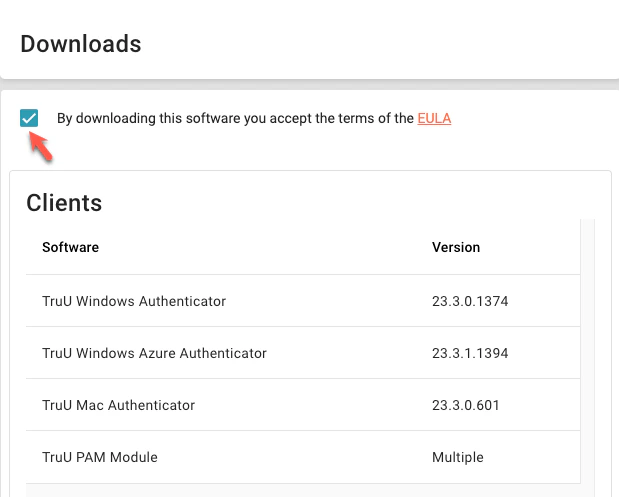
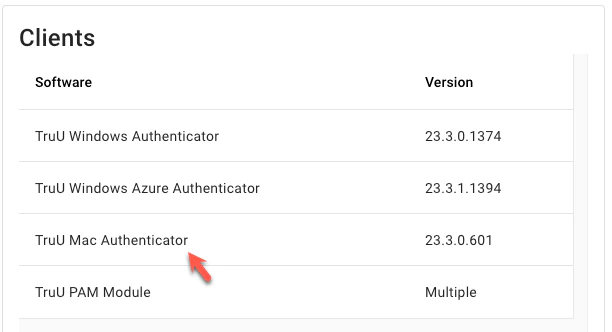
  1. Click on the Mac Authenticator
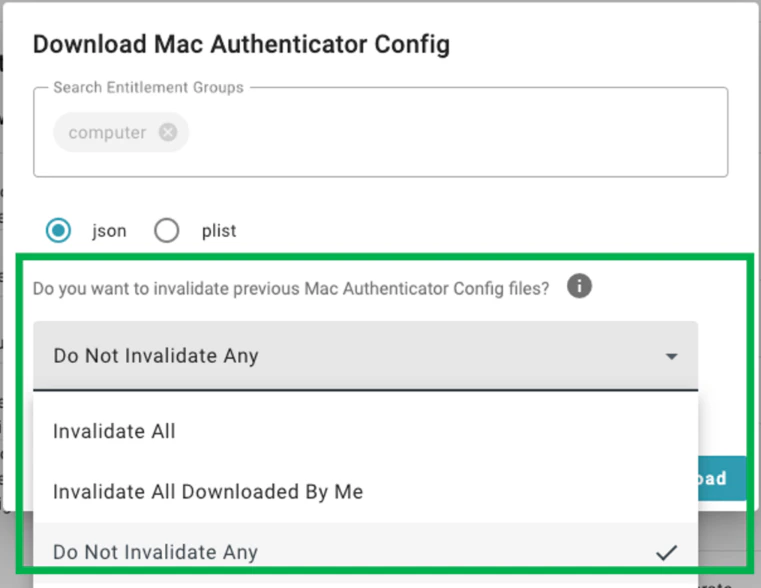
Note: Ensure the “TruUInstallerBundle.exe” and “application. config” files are located in the same directory on the workstation before launching the installer NOTE: Admins are presented with choices to invalidate previously downloaded config files, as whenever an Admin downloads a new TruUInstallerBundle, a new config file is created. The Admin must remember to invalidate the old clients to prevent further usage when new config files are created. This option is seen in the screenshot below:
  1. Copy the installer to the local disk
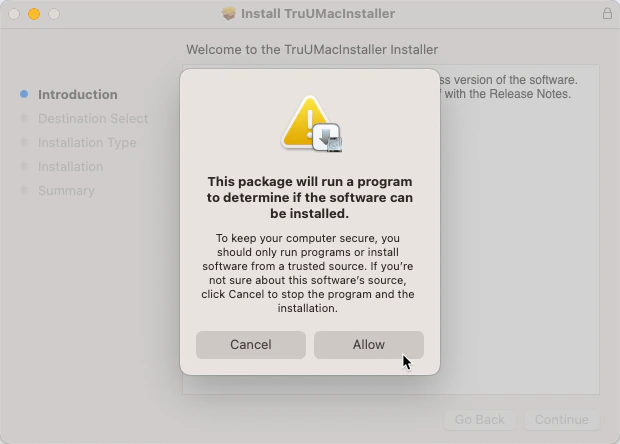
  2. Run the installer and click Allow
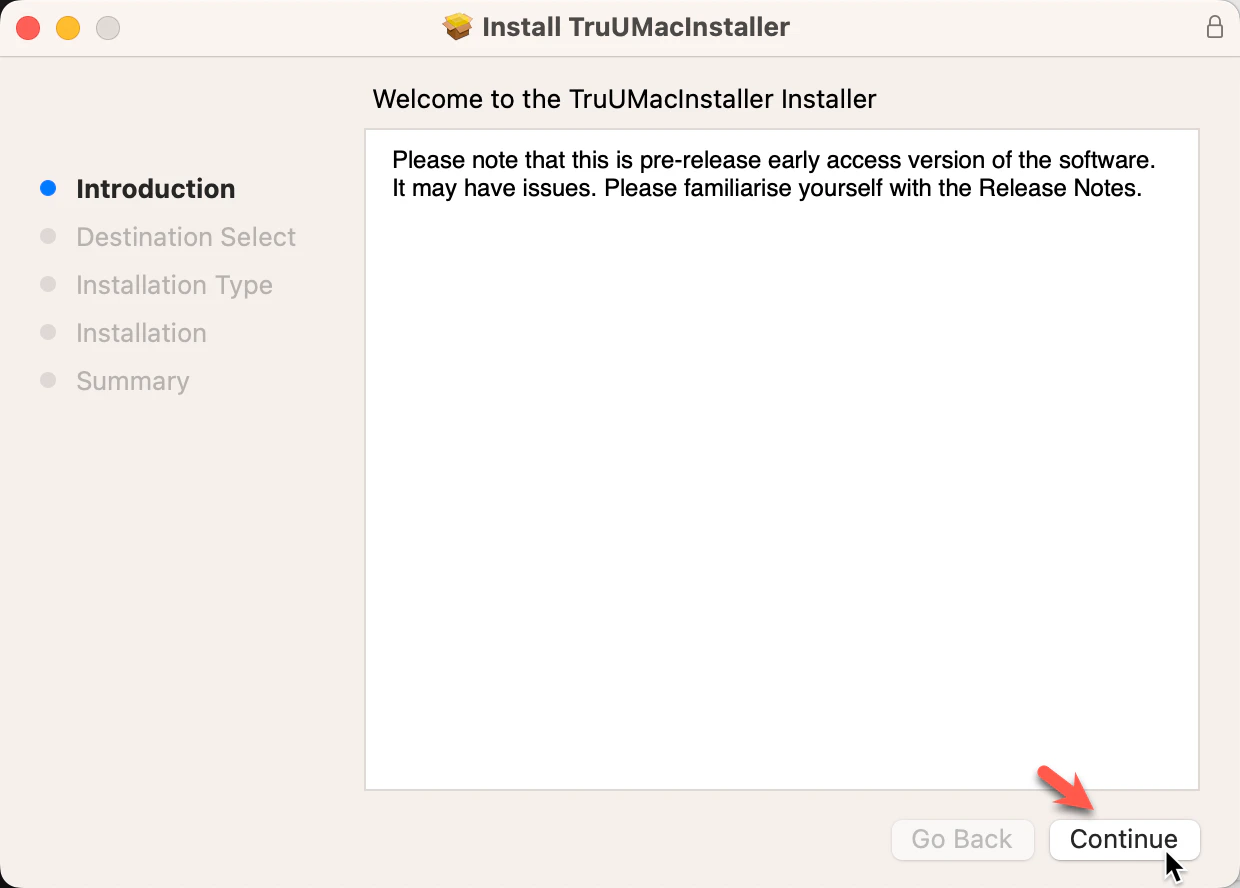
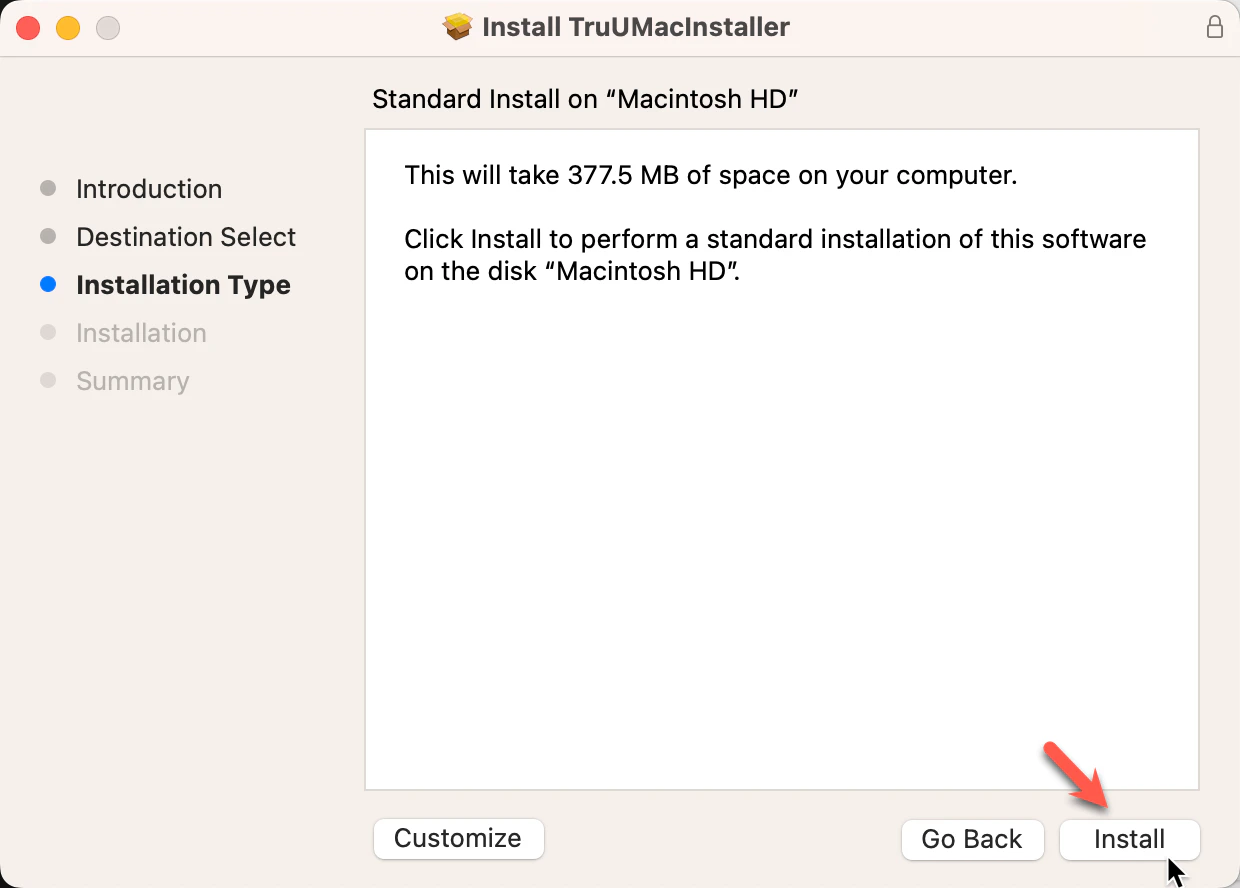
  1. Click Continue and then click Install
  1. Click Install
  1. Use TouchID or enter your password to allow installation
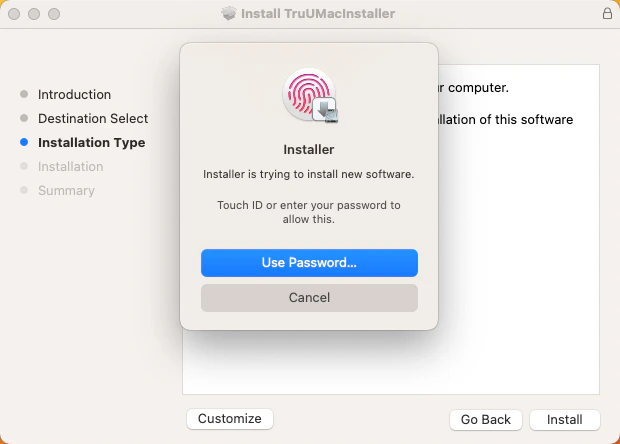
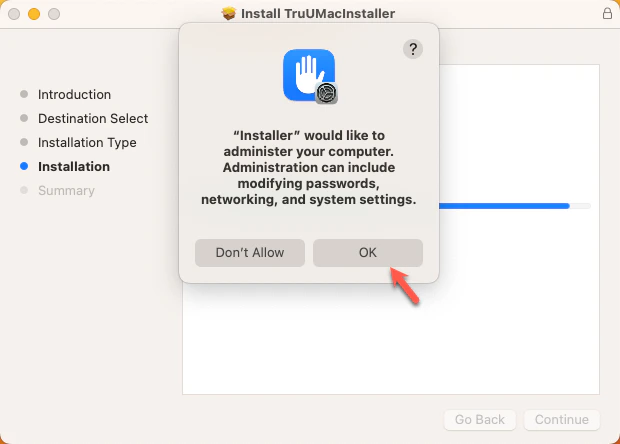
Installation may require administrative access in compliance with your company’s policy.
  1. Click OK
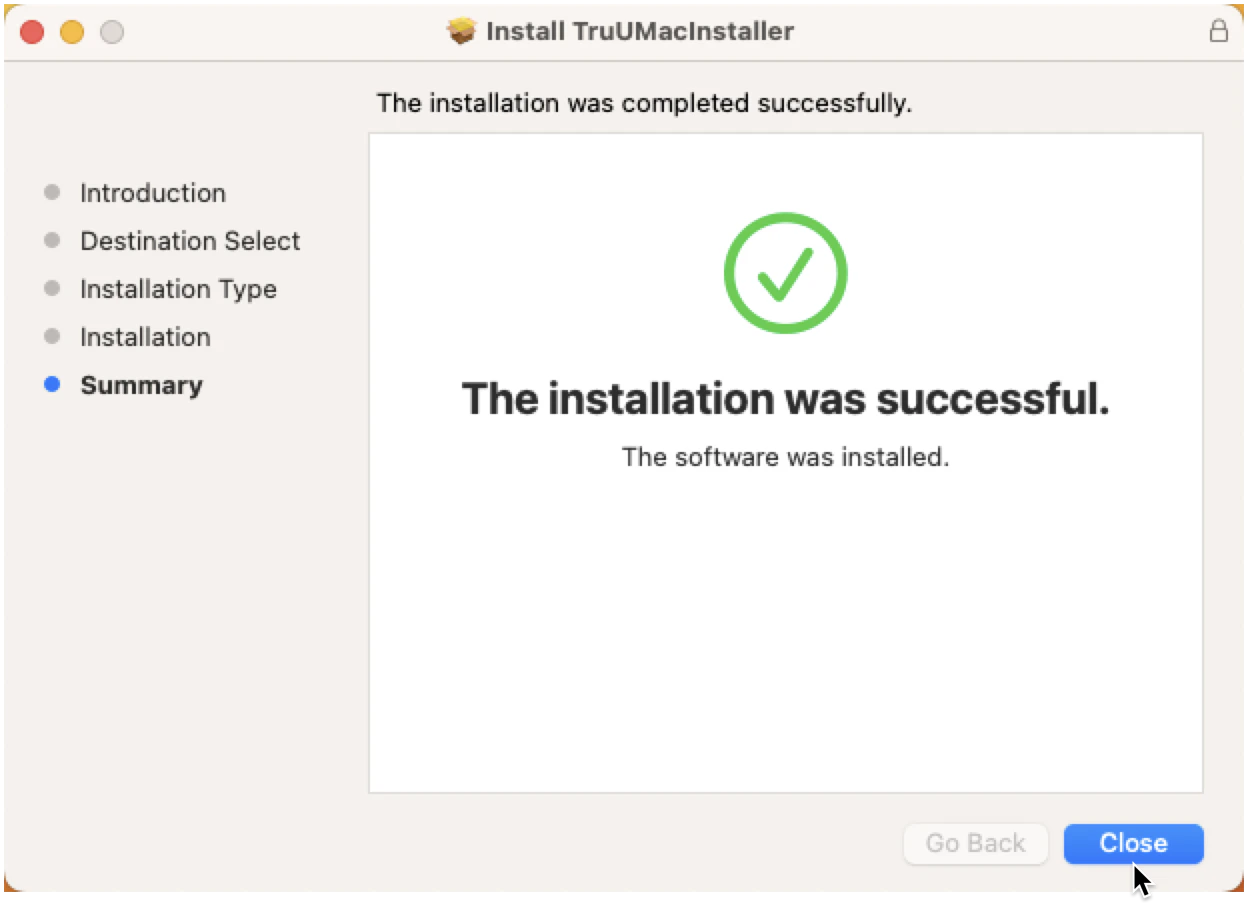
  1. Click Close to start your passwordless journey
NOTE: With this process, the MDM creates an Admin account and enables TruU to: Enable FileVault, create local accounts, and use the TruU login window instead of the native macOS login window
MA Configuration Options MDM Install TruU