System Requirements
- Windows 11 version 23H2 or later
- Approximately 200 MB of available disk space
- TPM 2.0 or higher
- Windows Hello-compatible biometric device
The required Microsoft .NET Runtime is bundled with the TruU installer. You do not need to install it separately.
Installation Steps
- Sign in to your TruU Admin Console.
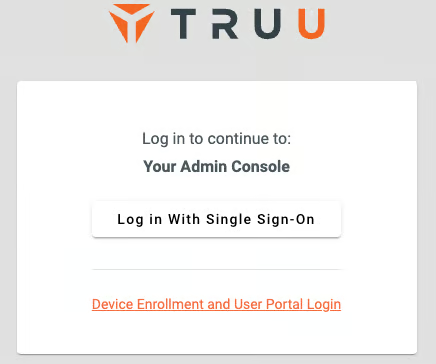
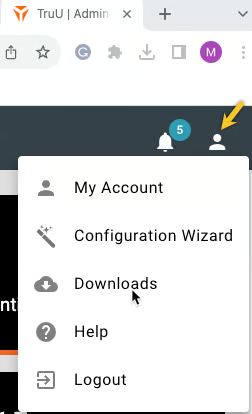
- In the top-right corner, click the user icon and select Downloads.
- Accept the EULA terms to proceed to the download page.
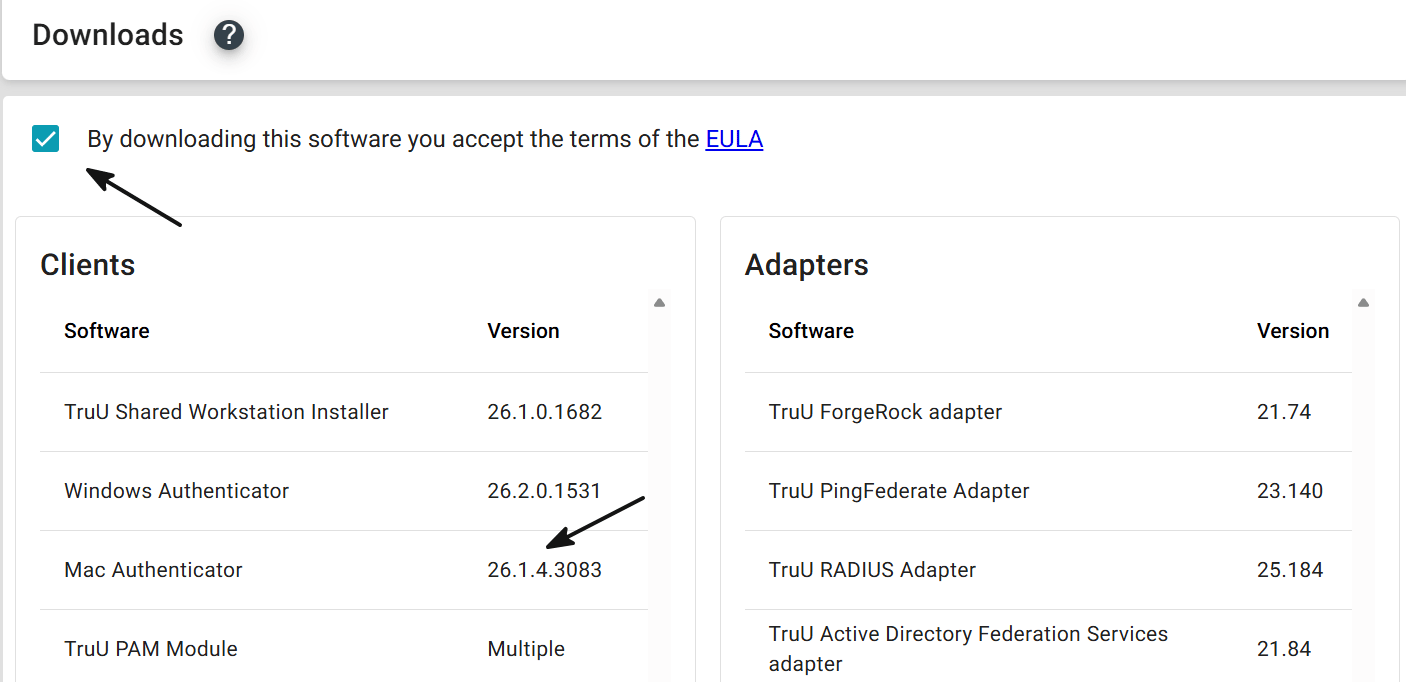
- Select the Windows Authenticator version you want to deploy and click Download.
The installer bundle (
TruUInstallerBundle-xx.x.x.x.exe) and the application.config file must be in the same directory on the workstation before you launch the installer.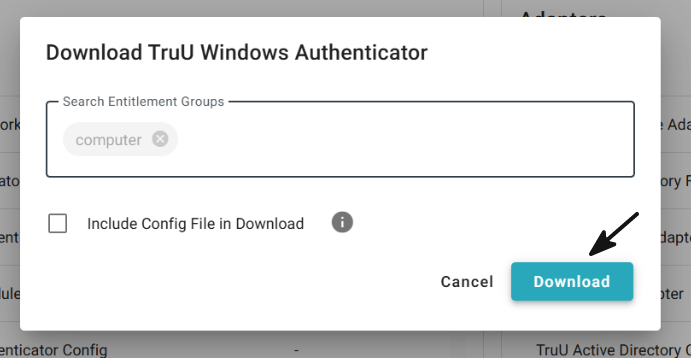
- Launch the installer and click Next to begin.
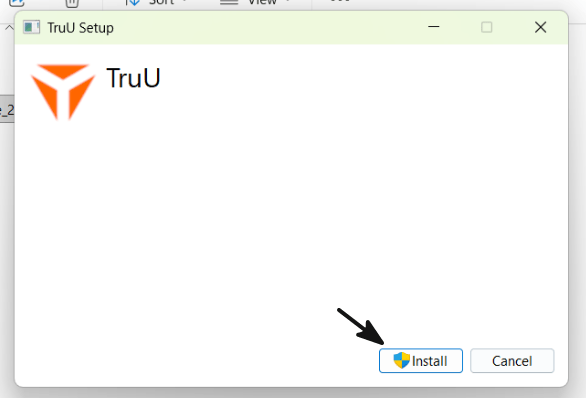
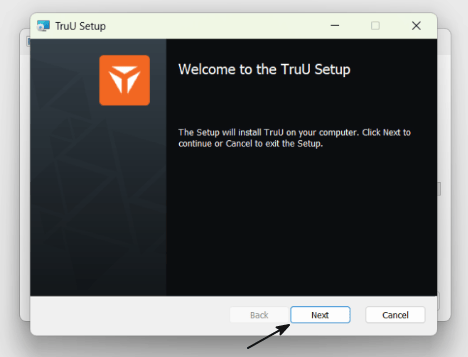
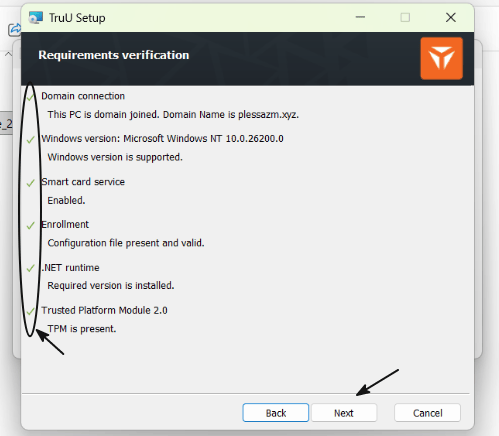
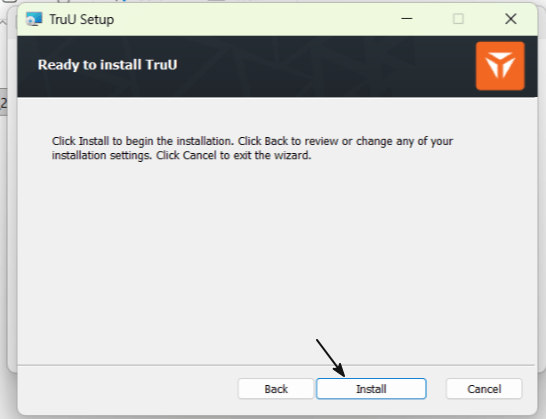
- On the verification screen, confirm that all items show a green check mark, then click Next, followed by Install.
If the Enrollment check shows a red X, the
application.config file is missing from the installer directory. Place the config file in the same folder as the installer and relaunch.