

- Click the (+) button
- Give the attribute a “Name”: this is how the attribute will be labeled in an Identify Verification Workflow
- Enter in “Help Text” that will appear in the input field as an example of what the attribute should look like
- Identify the attribute “Type” by selecting the type in the drop-down
- Map the User Attribute or a Transformation for each Directory in the tenant for this Global Attribute
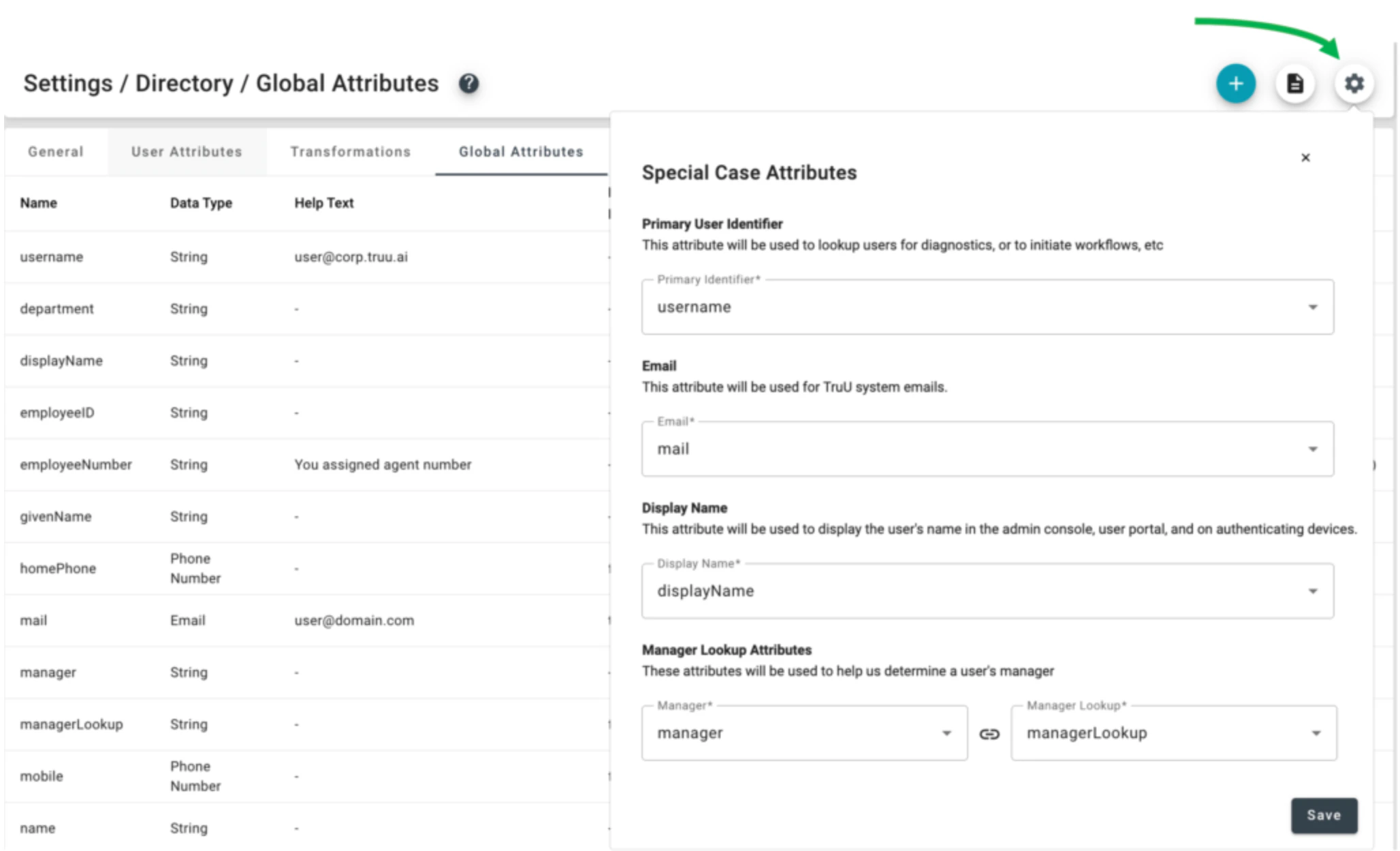
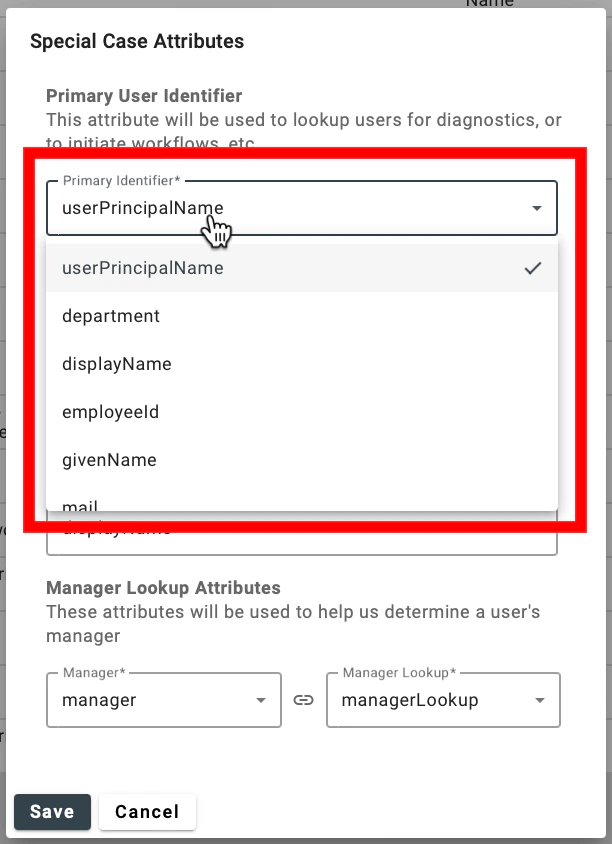
- Primary User Identifier: this is the attribute that is used for user search in the Admin Console and the primary attribute that is used to identify a user in all identity verification workflows
- Email: this is the email attribute that TruU will use for any system generated emails
- Display Name: this allows you to specify which attribute will be used as the display name for users in the Admin Console, User Portal and on authenticating devices
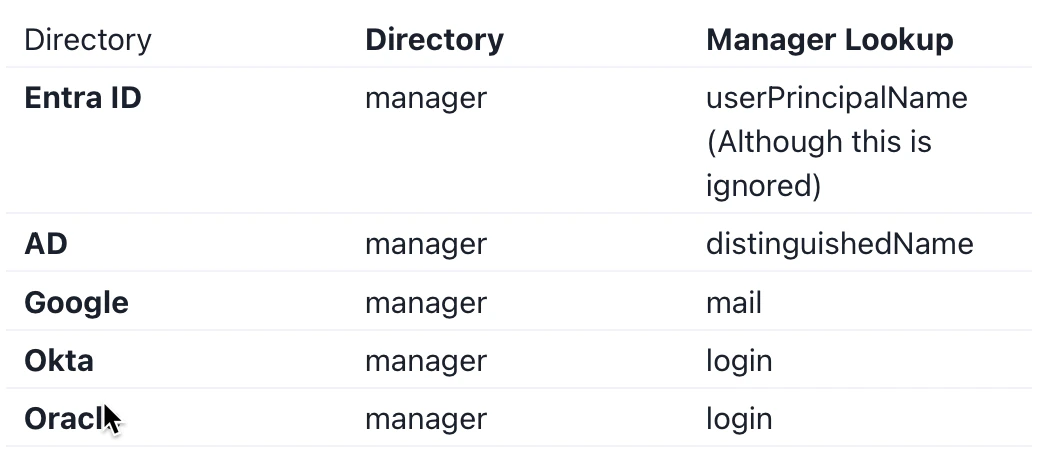
- Manager Lookup Attributes: this allows you to specify which user attribute your directory uses to indicate who is the manger and which attribute TruU should use to look up the manager in the directory. When using cloud directories to lookup a user’s manger (either for sending an invitation or for routing an identity verification request), the way in which the manager attribute may be stored can vary
- Entra ID: Entra ID has a special api call for retrieving the manager. If the Entra ID attribute configured as the “Manager” attribute is “manager” then the second attribute will be ignored
- Google Cloud Directory: The GCD LDAP schema does not support the built in manager attribute in GCD. In order to use manager lookup with GCD, you will need to add a custom attribute and use that as the “Manager” attribute
- Navigate to the “Setting” tab, then the “Directory” drop down on the TruU Admin Console
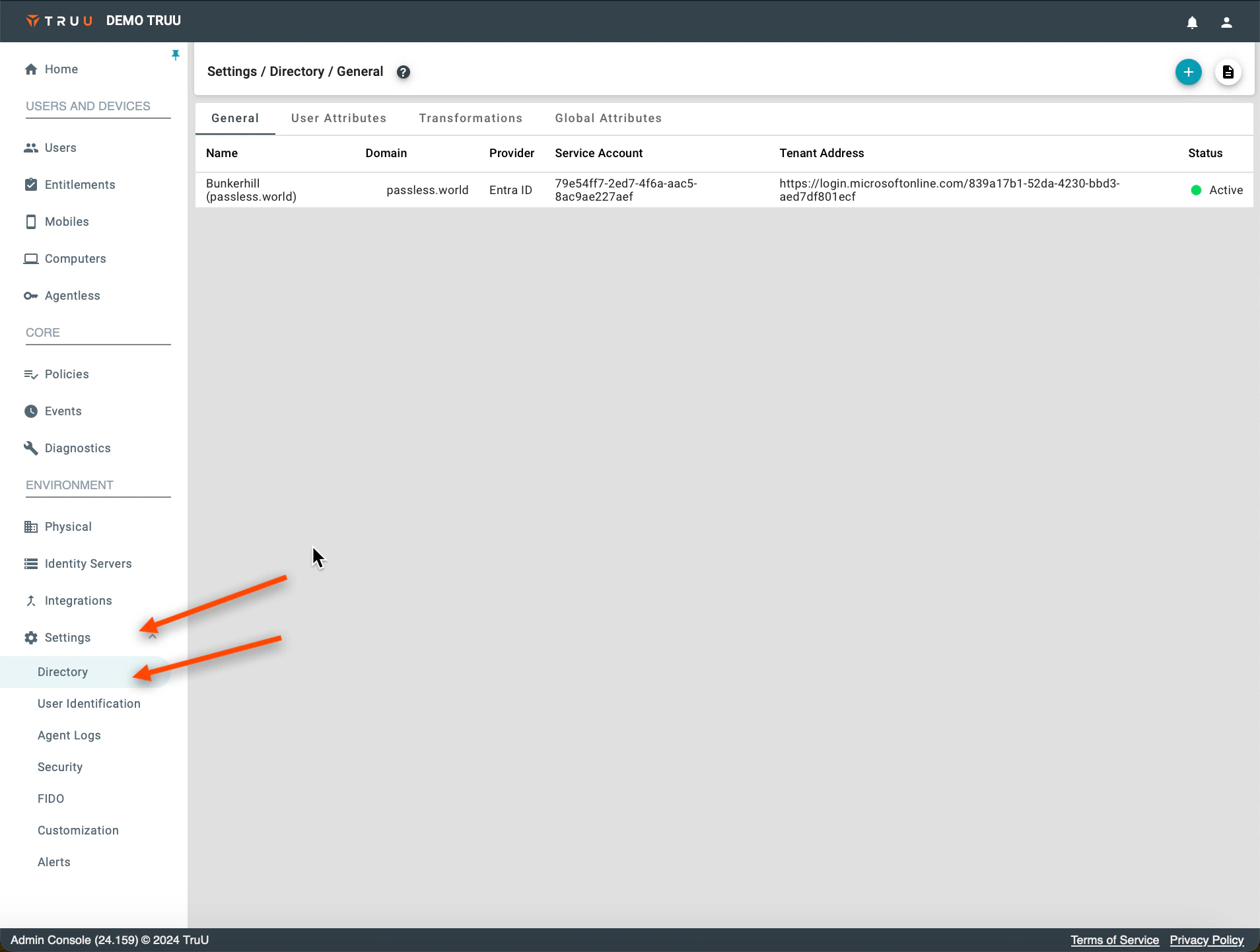
- Click Global Attributes

- Click the Gear icon
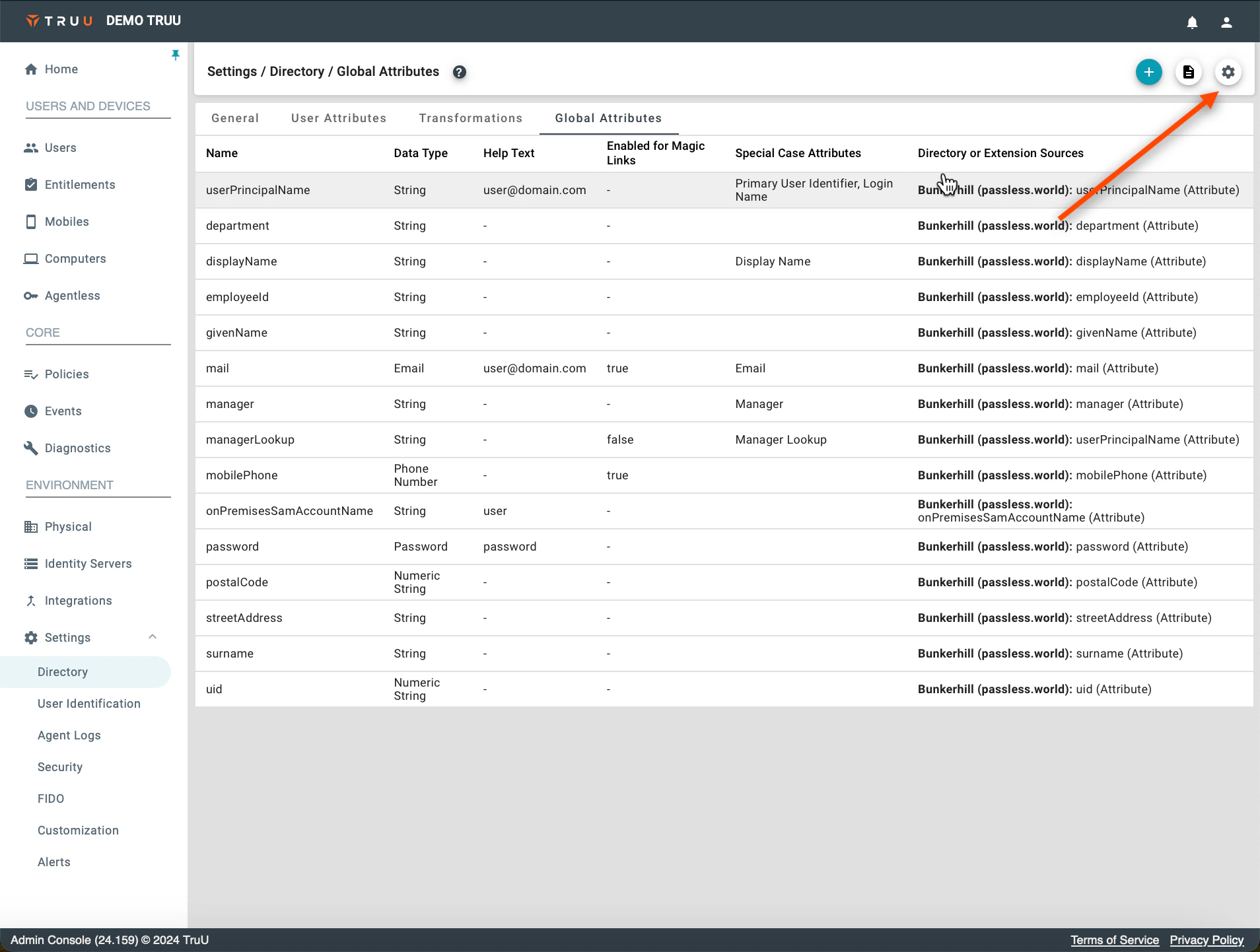
- Click the Primary Identifier of your choice
Importing CyberArk ZTPKI certificates into Active Directory Configuring Identity Verification Workflows