


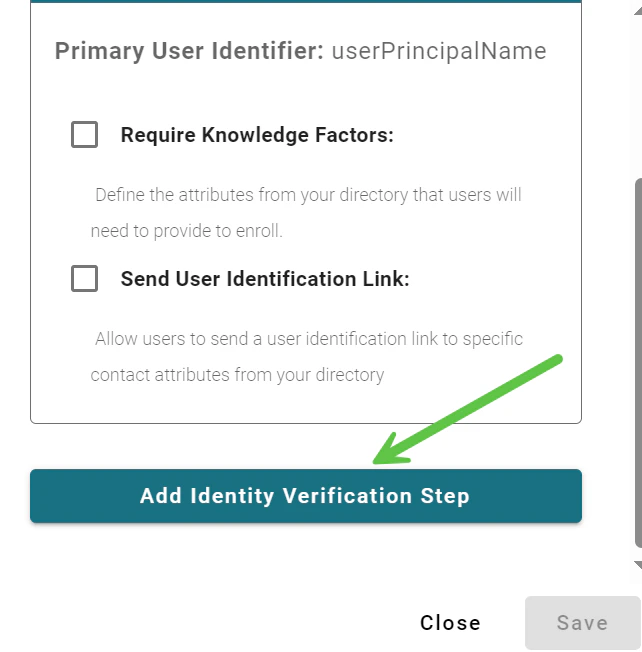
- User Self-Service: Users must provide an attribute (or attributes) that exist in the corporate directory (custom attributes are supported)
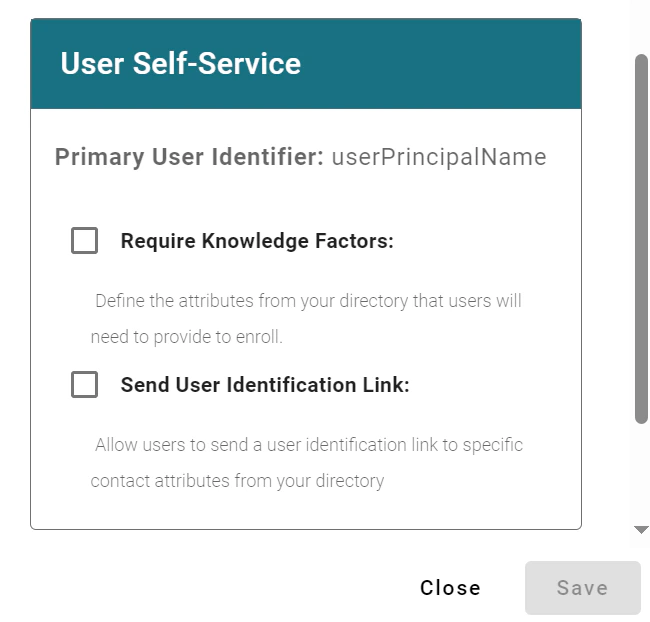
- Primary User Identifier: The attribute that every user in your organization must provide so that TruU can find the user in your directory to determine which enrollment workflow applies for that user. This value cannot be edited in the workflow itself
- Require Knowledge Factors: This enables you to specify additional directory attributes that the user must provide in order to complete the self-service step
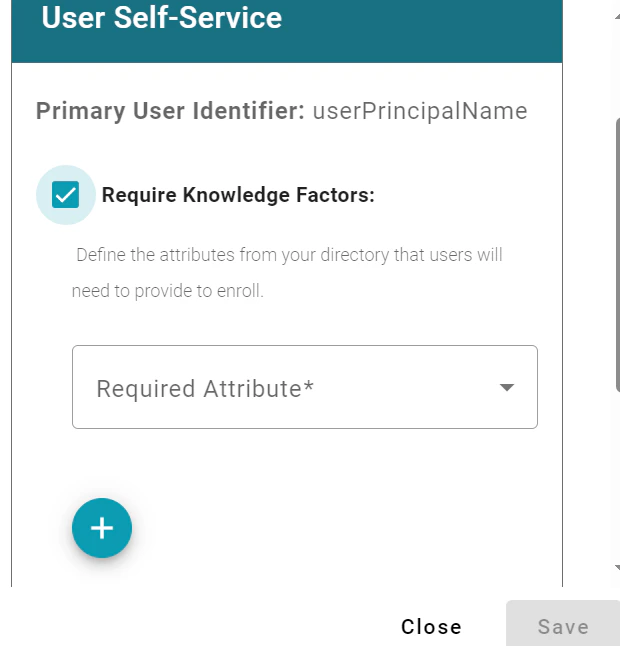
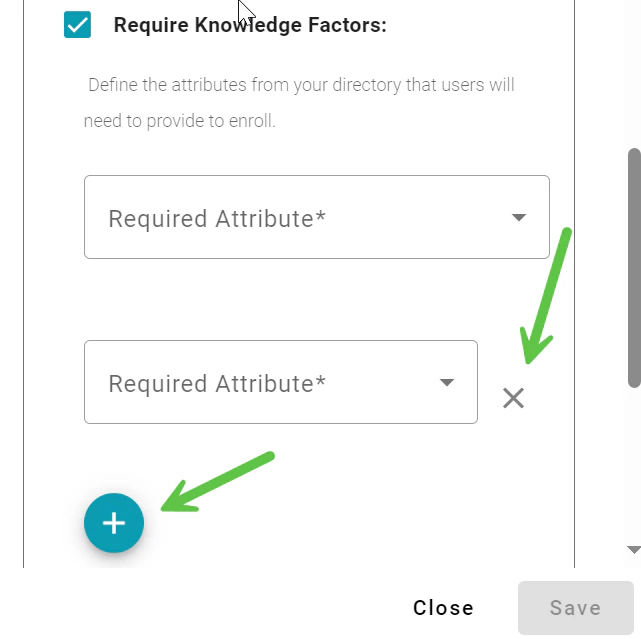
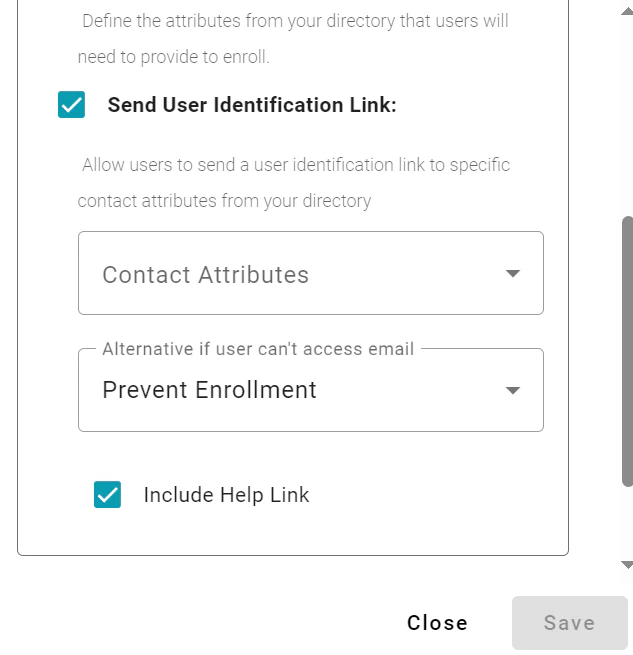
- Users will be presented with the options in their user identification workflow based on what you have selected here and what is populated for the user in your directory
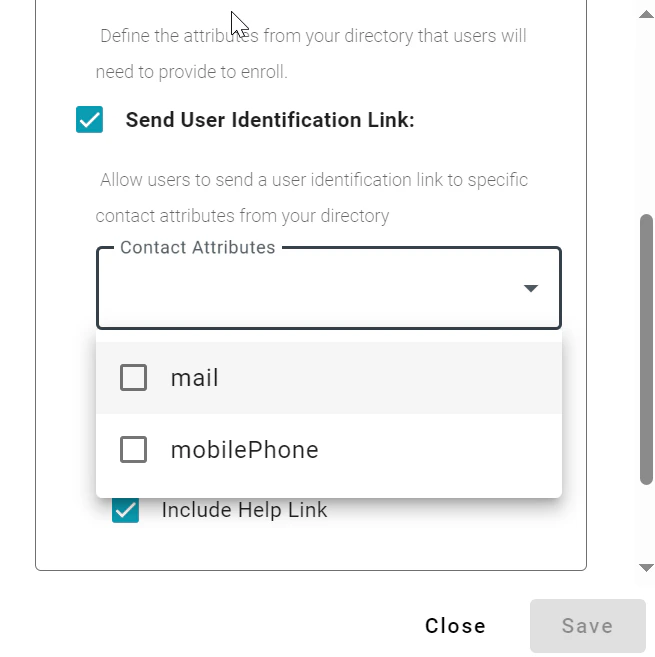
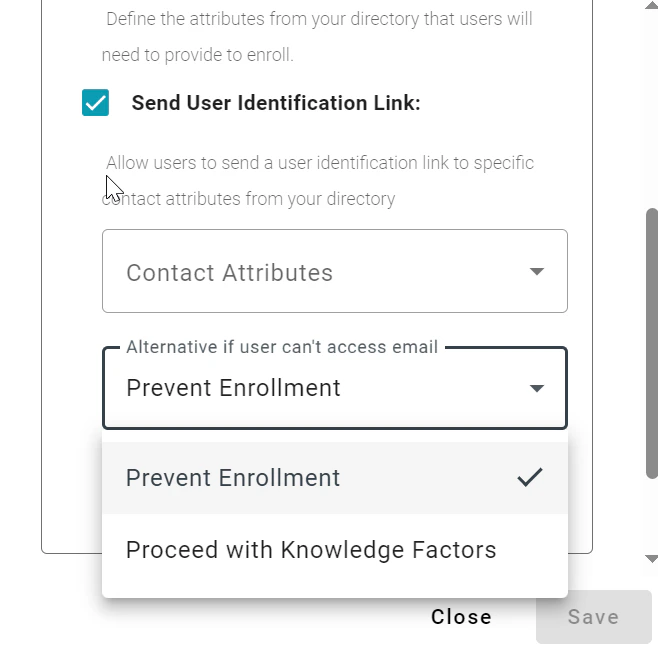
- Prevent Enrollment: selecting this means that the user cannot proceed without the ability to access a known delivery address. If you select this option, you can also choose to
- Proceed with Knowledge Factors: where you can choose to allow the user to complete self-service by answering questions that can be validated against the directory
- Include Help Link: this option presents a link in the enrollment stating “I do not have access to my email or phone”. This link presents the user with an “Access Denied” screen informing them the organization requires the use of the magic link to proceed. They are further instructed to select a contact option or contact the Help Desk for support
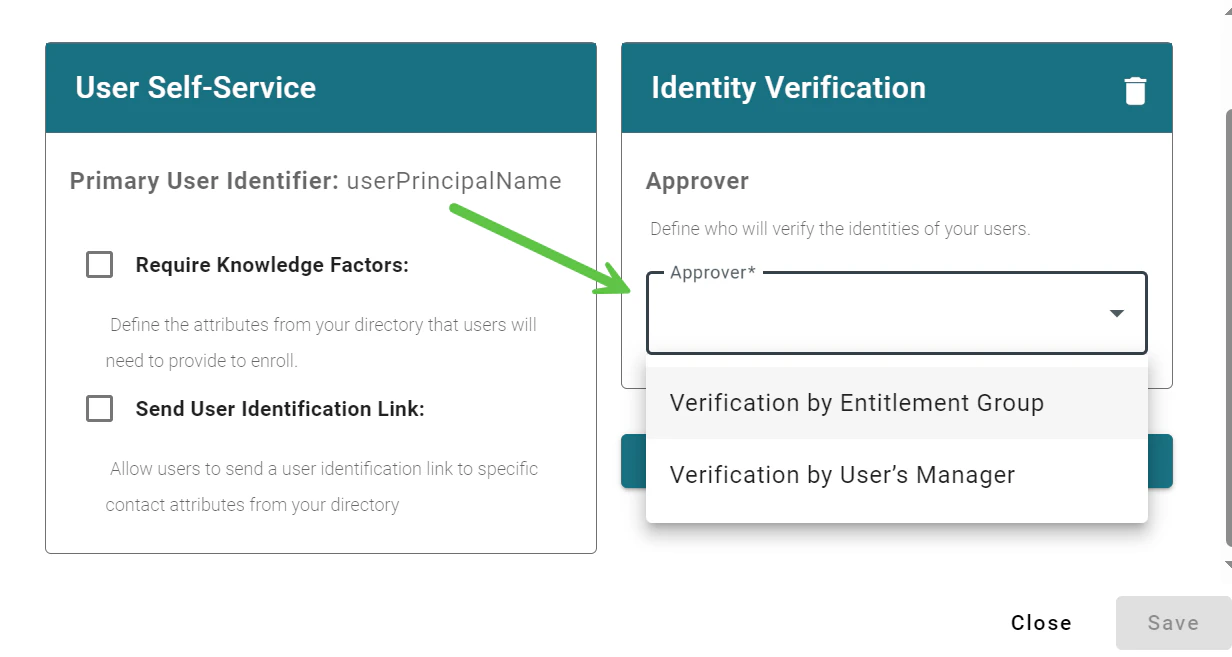
- Entitlement Group: as defined here by selecting an Entitlement Group that has been created in TruU under “Entitlements”
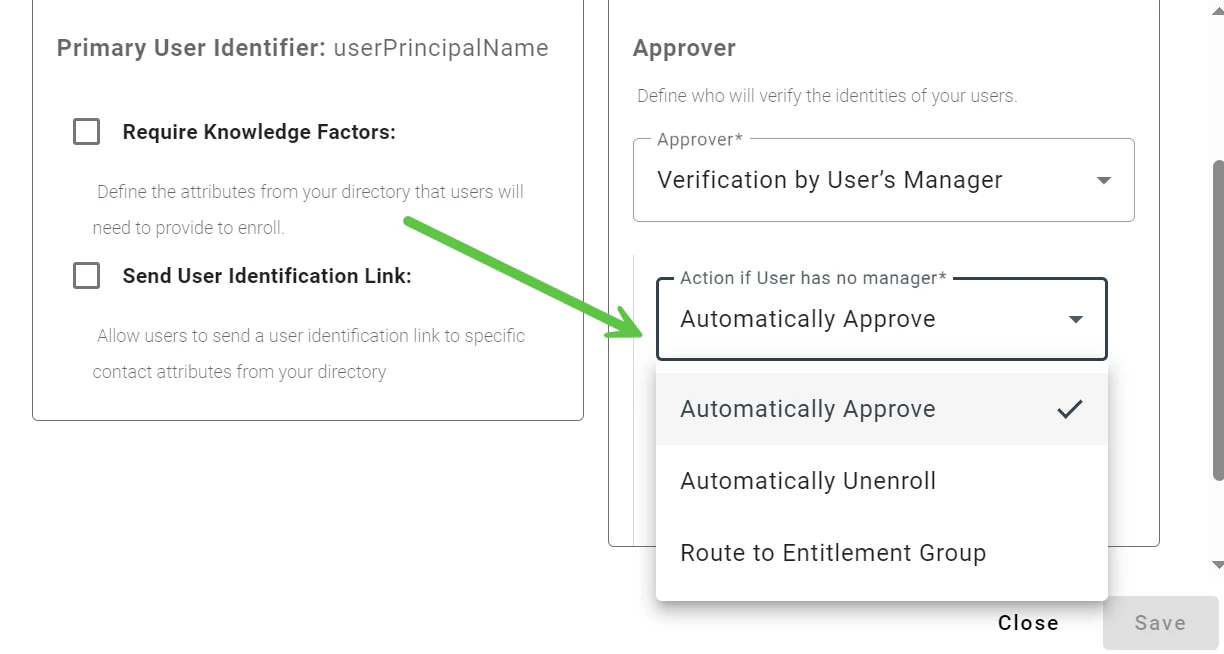
- User’s Manager: as defined in the user directory
- Automatically Approve
- Automatically Unenroll
- Route to an Entitlement Group
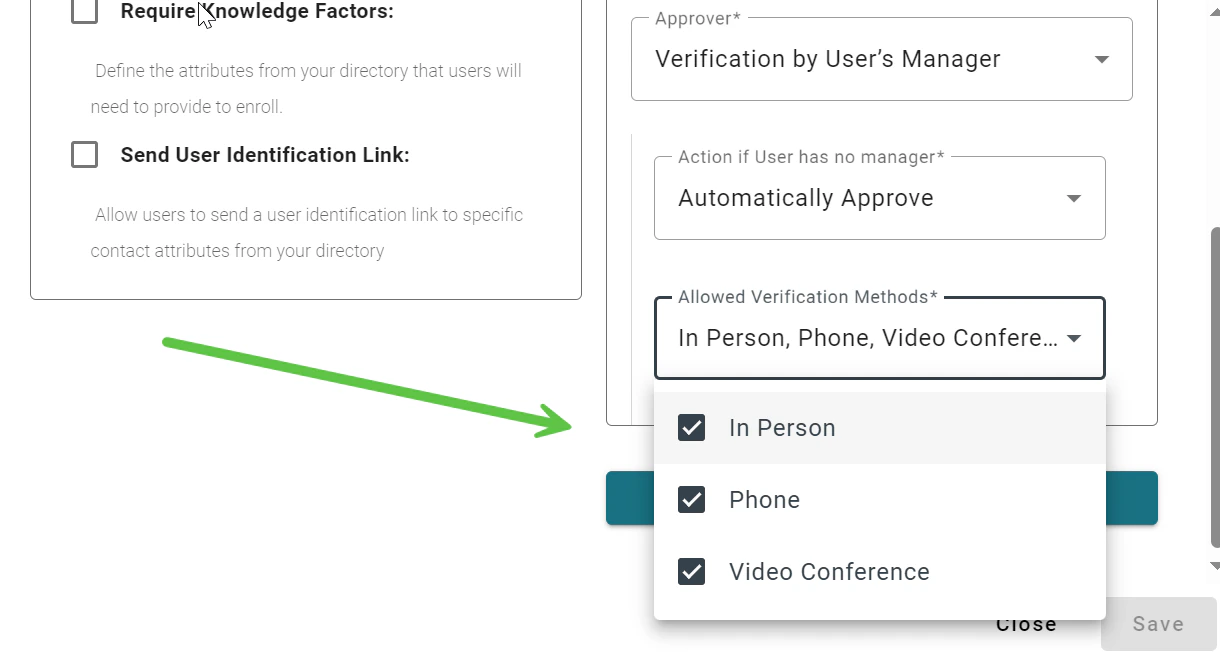
- In Person
- Phone
- Video Conference
Configuring Primary User Identifier Configuring Policies