

For prerequisites, config file requirements, and firewall rules, see TruU Authentication Modalities.
- Windows 11 version 24H1 or later
If you are using a directory other than Entra ID, you need the Entra ID FIDO2 Enrollment Adapter. This adapter lets TruU verify that a FIDO2 security key has been registered with Entra ID using an OAuth client and mapping attributes. It is required for Windows Authenticator version 24.2 or later in FIDO2 mode. If you are using Entra ID as your directory, this is not needed.Entra ID FIDO2 Enrollment Adapter Guide
Enable FIDO2 Security Keys in Entra ID
- Sign in to Microsoft Entra ID (Azure AD)
- Go to Security > Authentication Methods
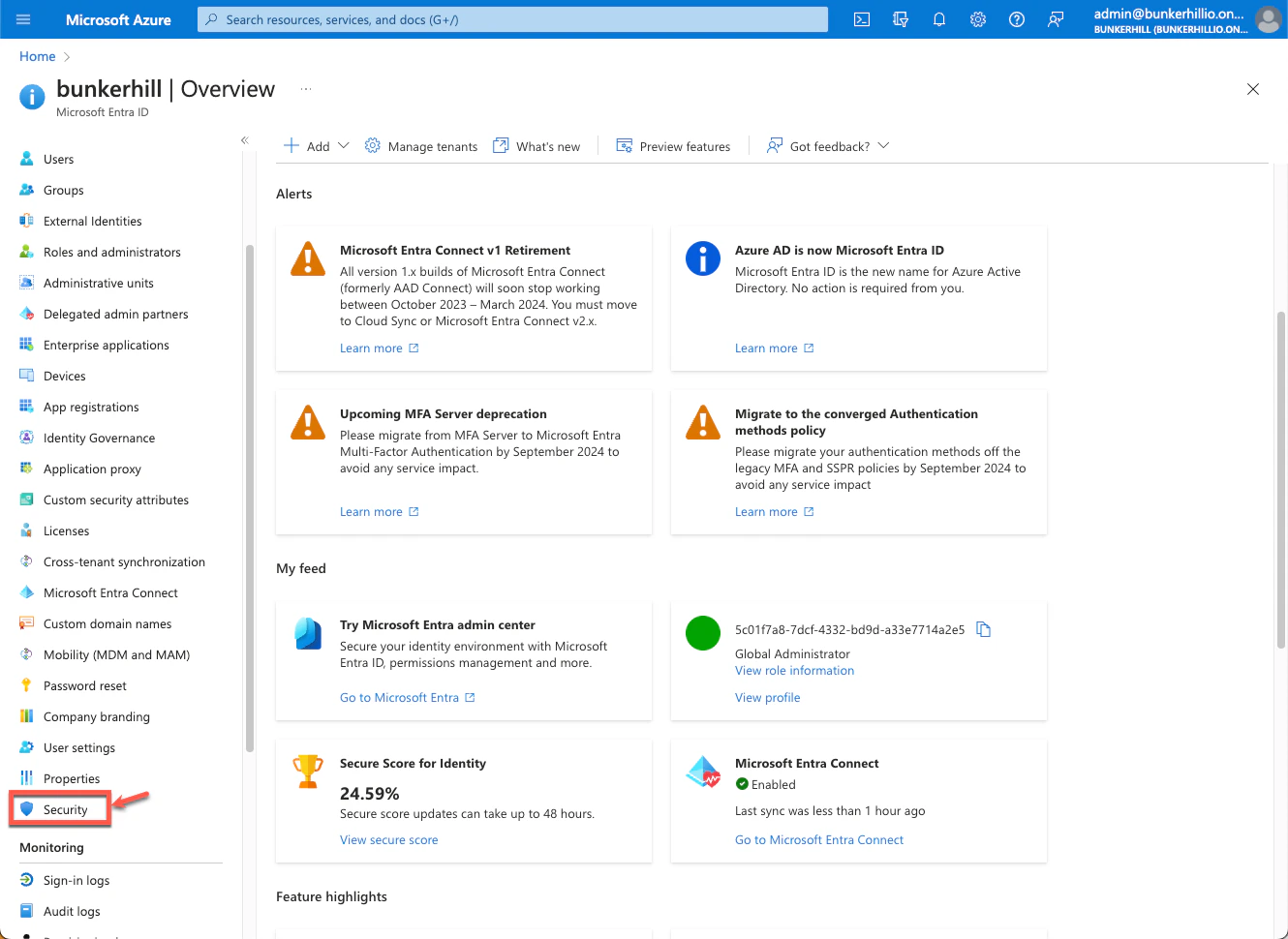
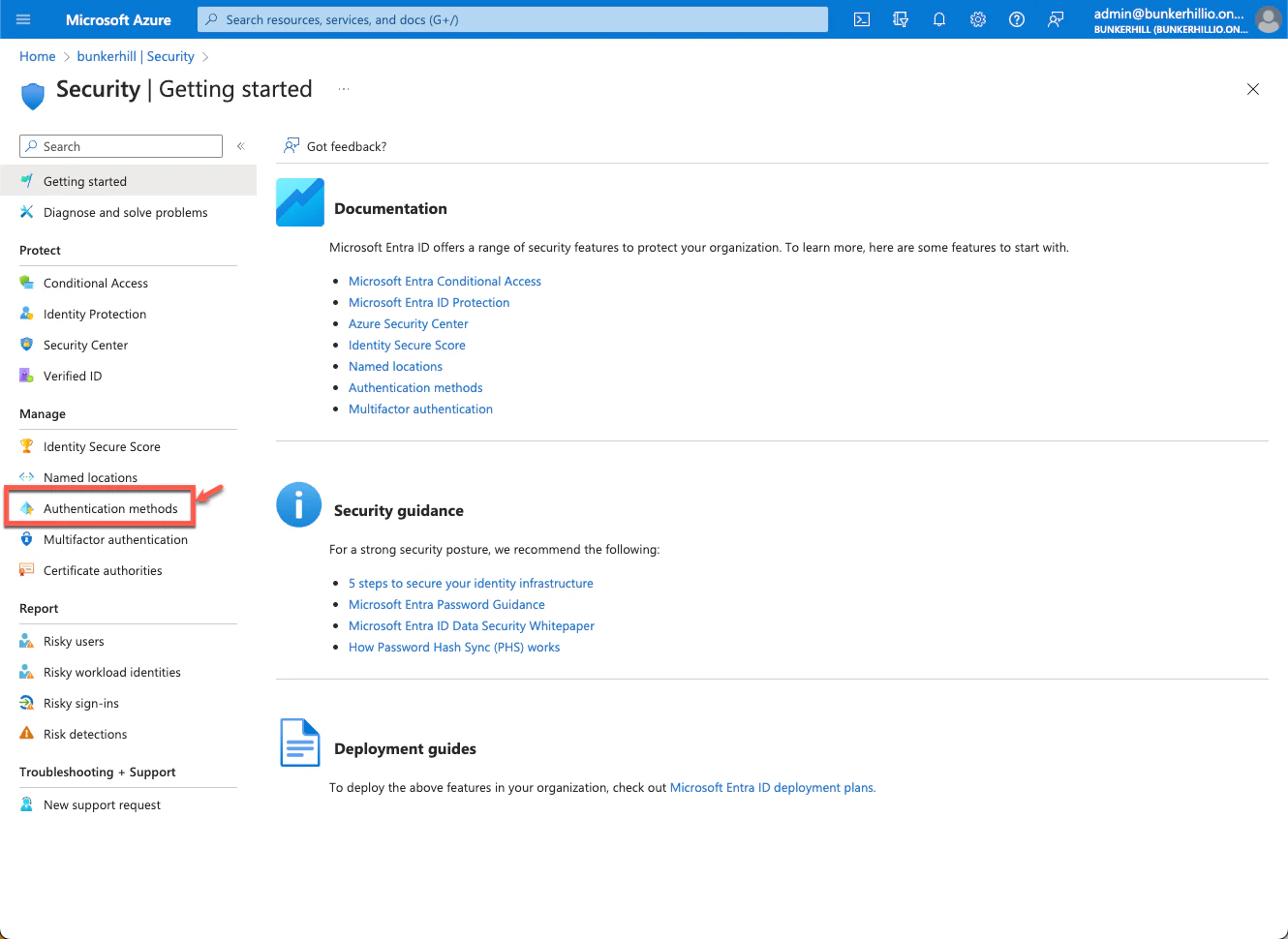
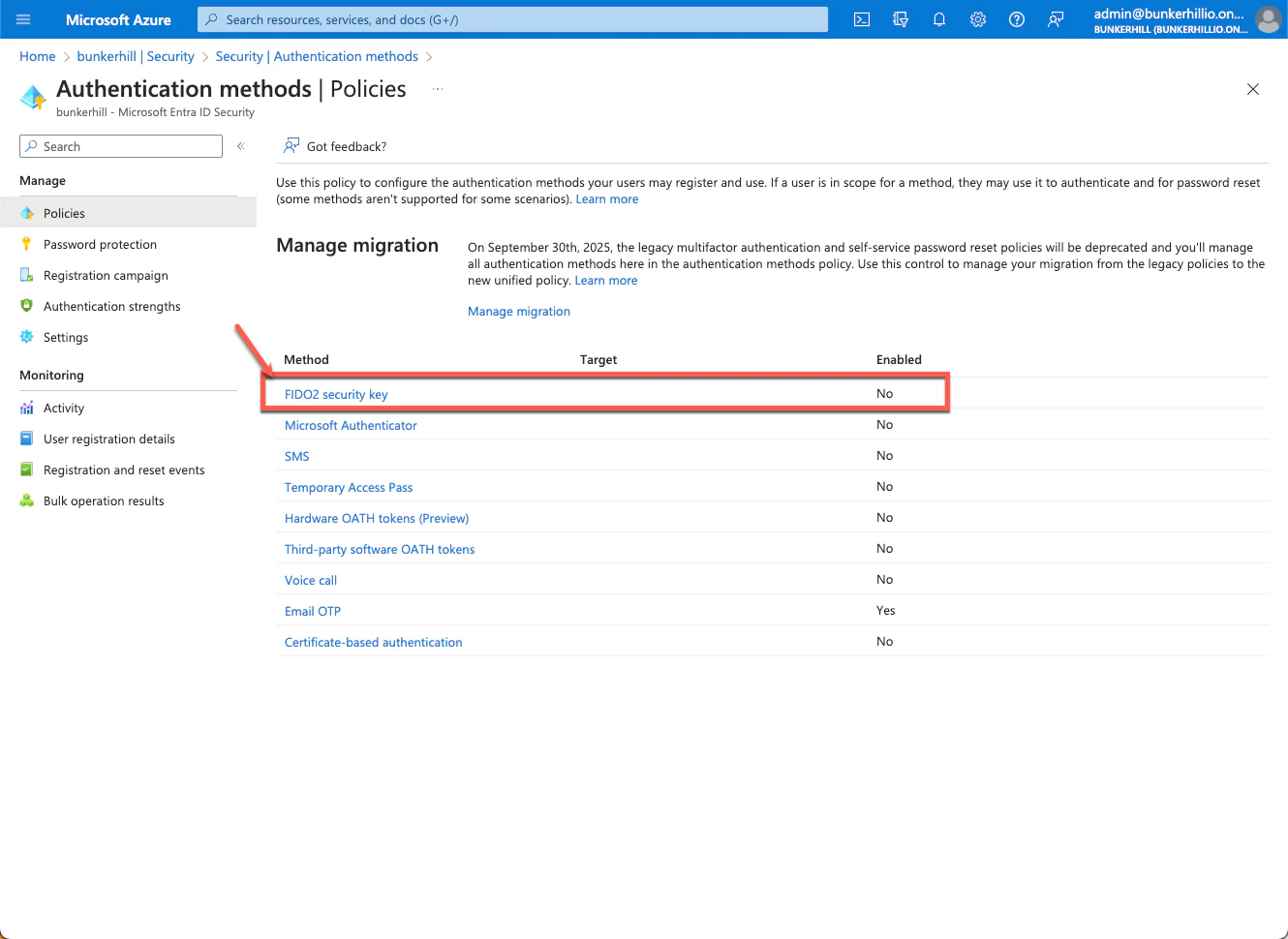
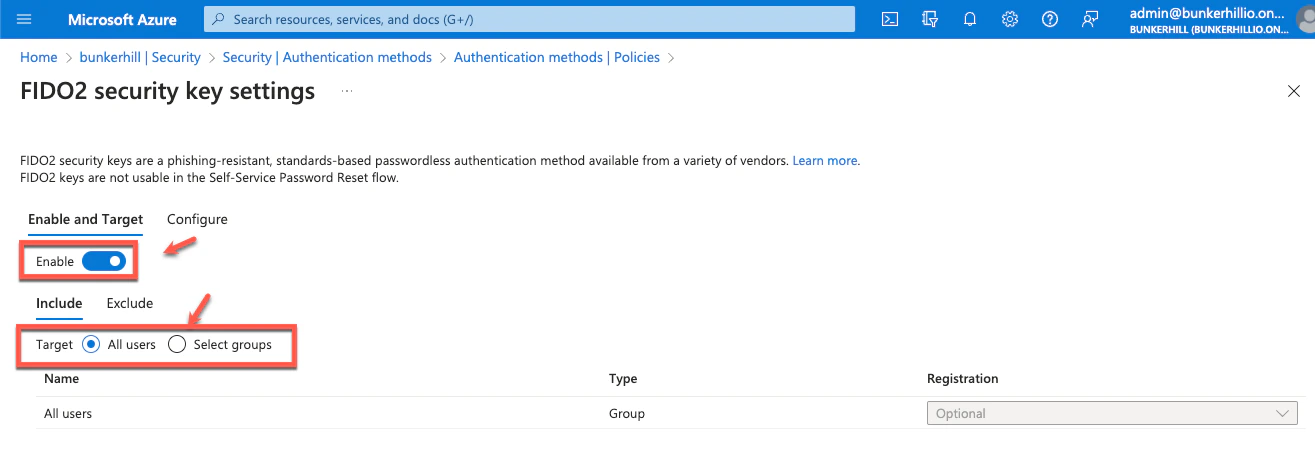
- Click FIDO2 Security Keys, enable it for all users or a selected group, then click Save
If FIDO2 Security Keys are already enabled, proceed to Configure FIDO2 security key settings below.
Configure FIDO2 Security Key Settings
- Go to the Configure tab and set the following:
- Allow self-service set up: Yes
- Enforce attestation: No
Attestation verifies hardware manufacturing processes to prevent rogue hardware. TruU is a software-based (virtualized) solution that runs on Microsoft-verified hardware and does not require hardware attestation.- Enforce key restrictions: No
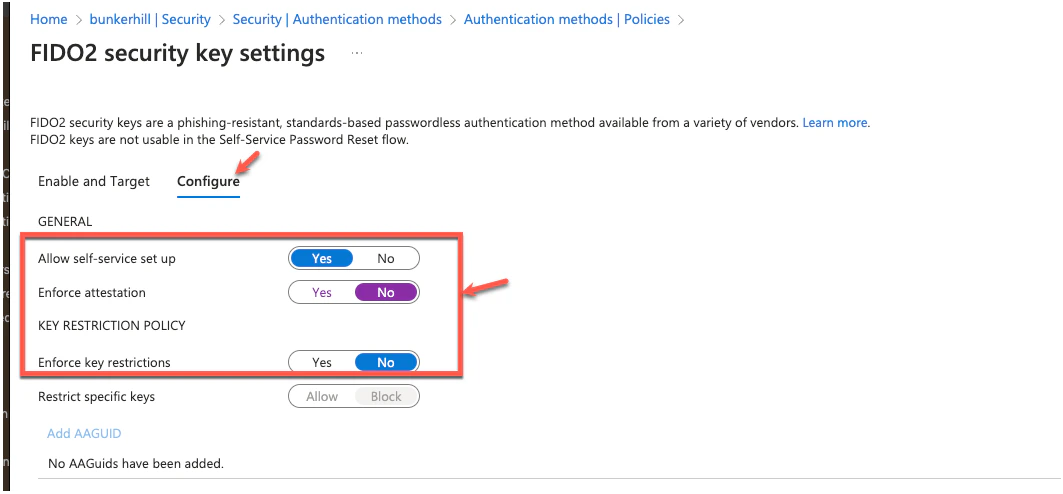
- Click Save
Enable FIDO2 Login via Group Policy
Follow the steps in Enable TruU FIDO2 Login using Windows.
- Allow self-service set up: Yes