

- Open the Intune Admin Console and navigate to the Devices tab.
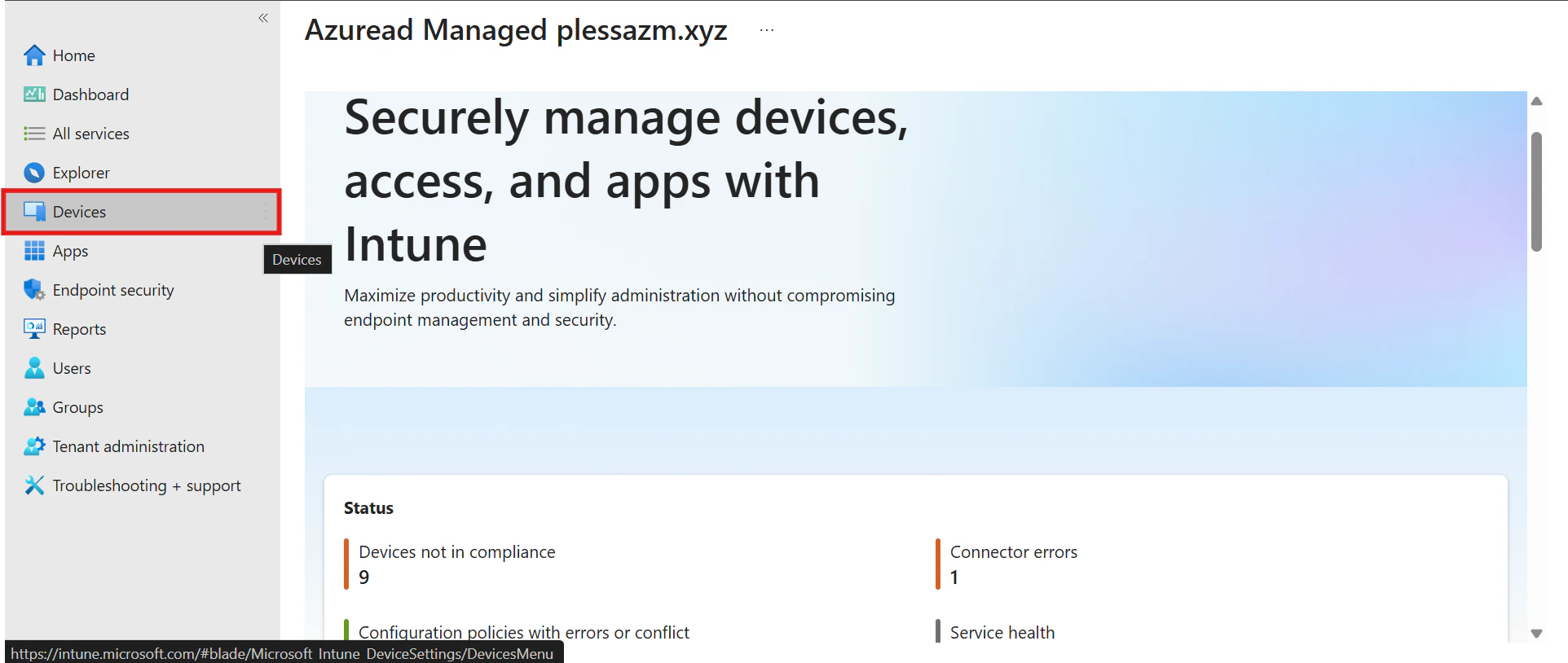
- Under the Manage Devices section, choose Configuration, then click Create, followed by New Policy.
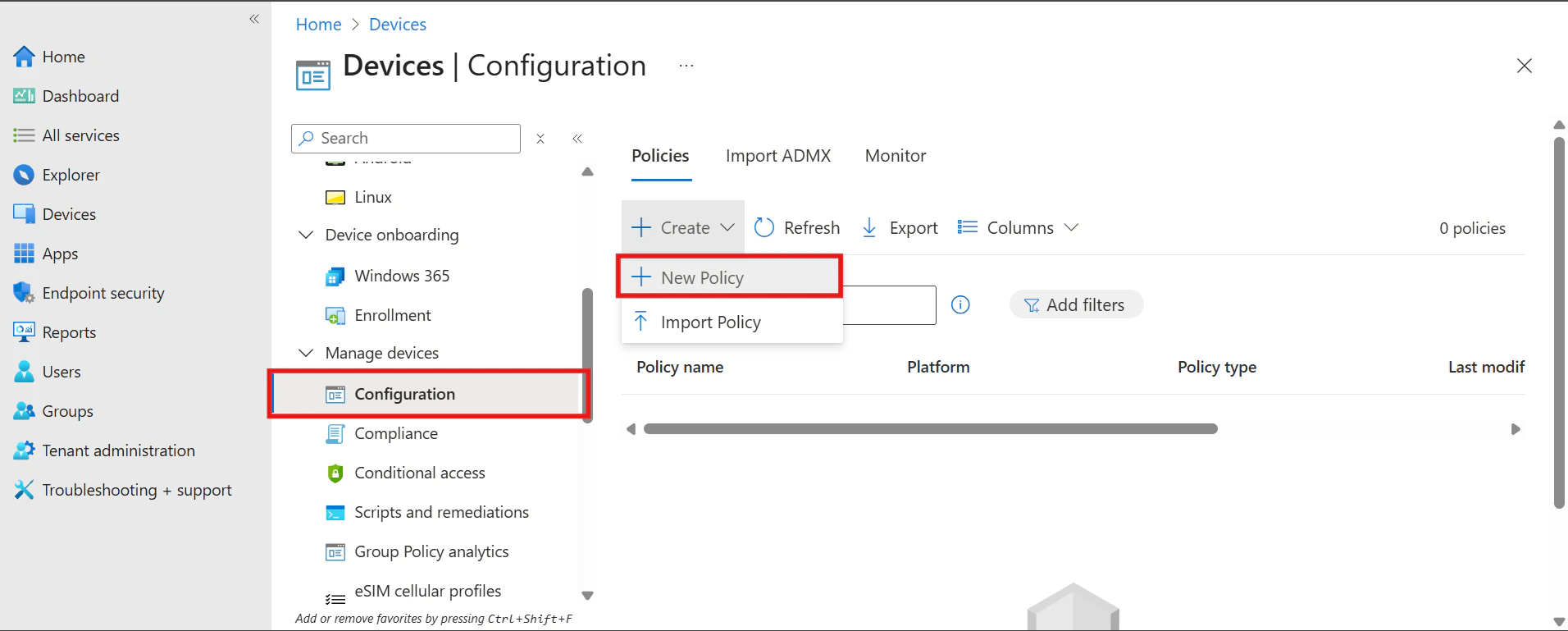
- In the Platform dropdown, select Windows 10 and later. For the Profile type, select Settings catalog and then click Create.
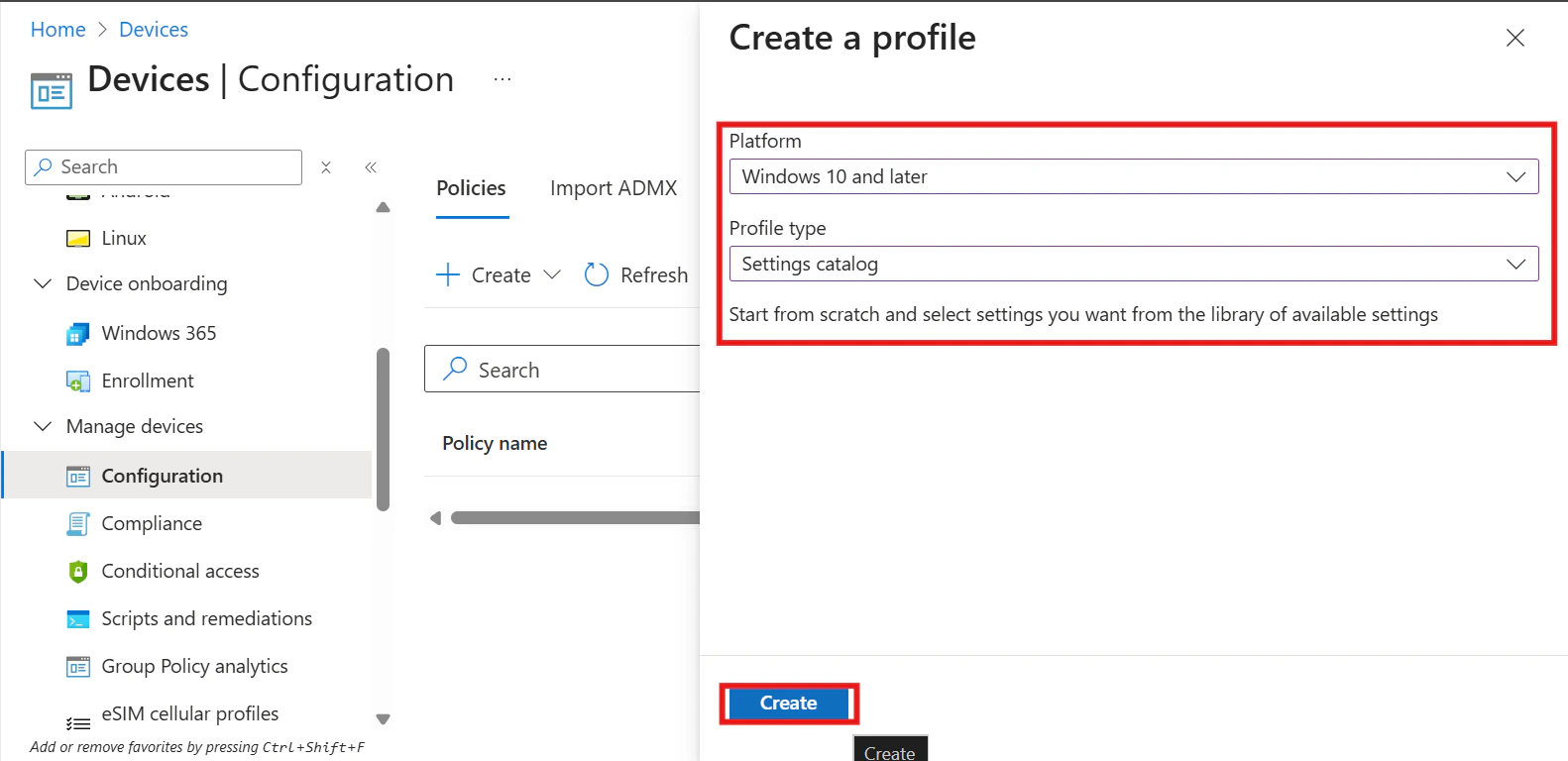
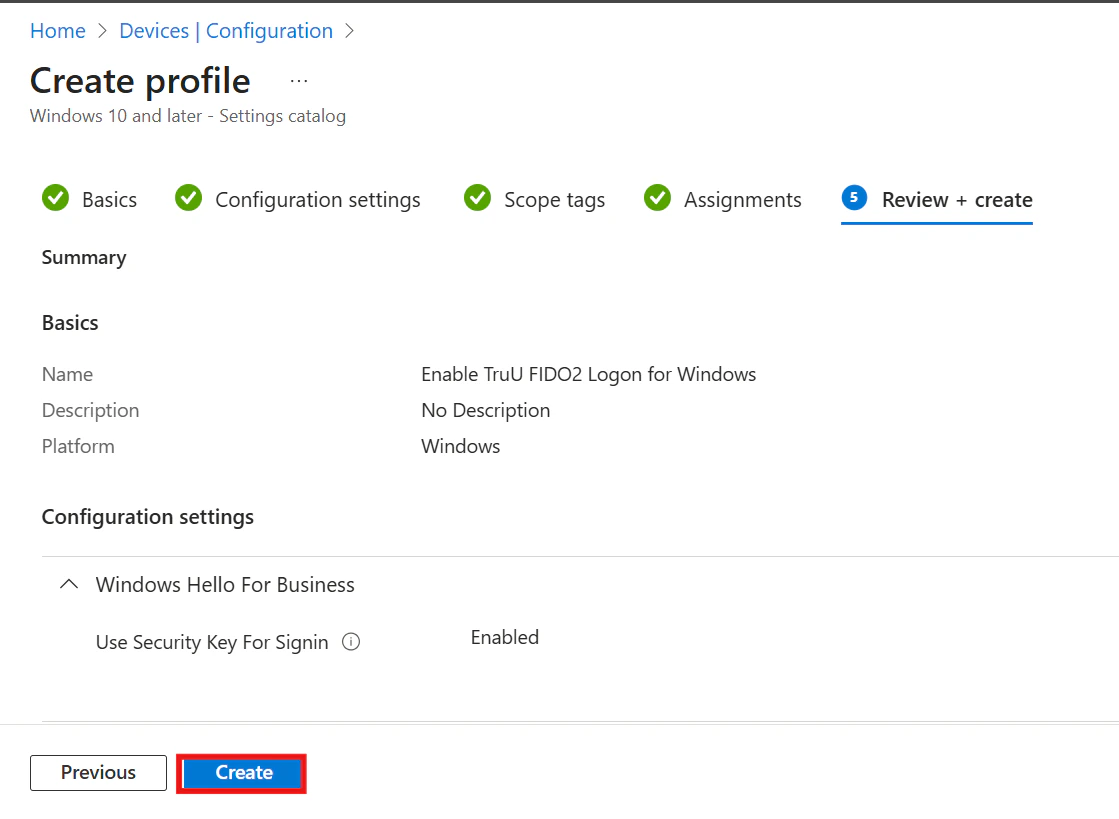
- Enter a name for the policy, such as Enable TruU FIDO2 Logon for Windows, and click Next.
- Click Add Settings. In the Settings picker, search for and select Windows Hello for Business. From the available options in that category, choose Use Security Key for Sign-in.
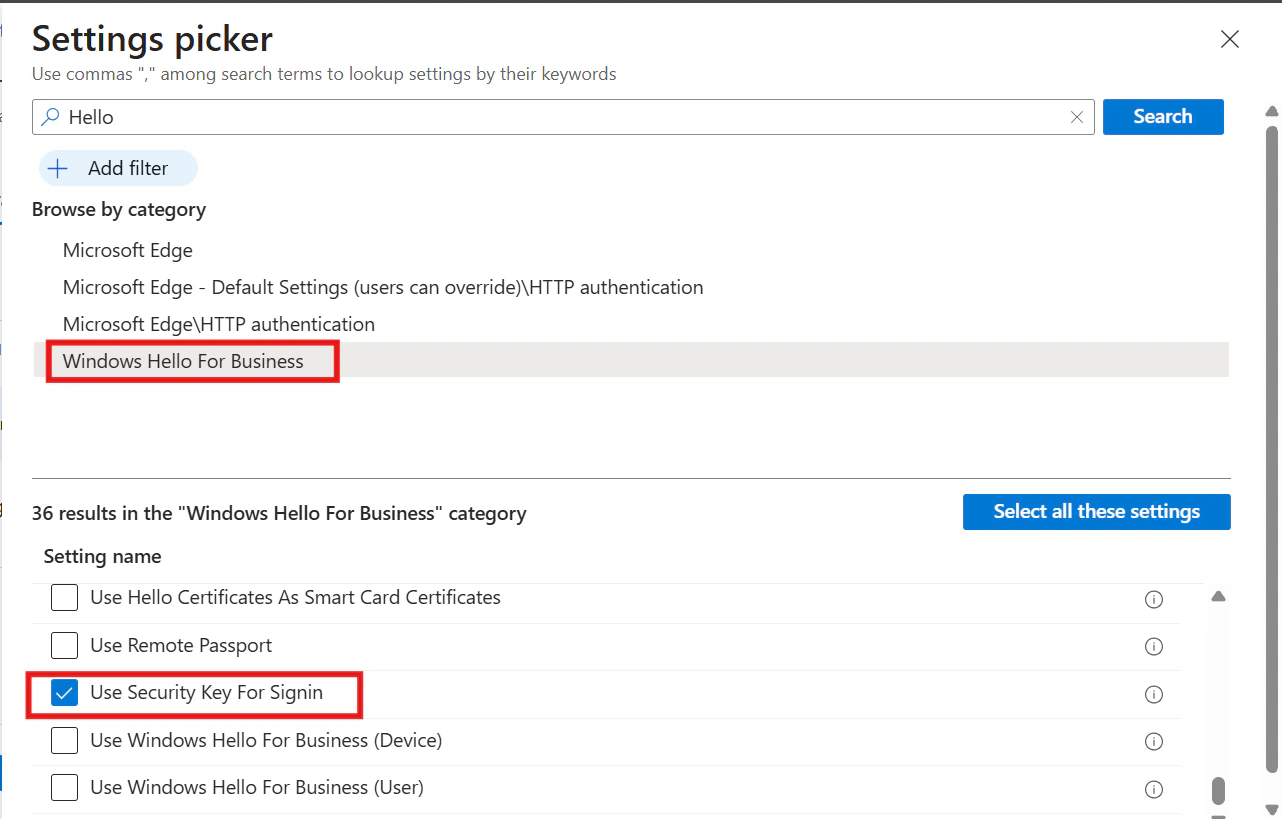
- Note: Ensure the Use Security Key for Sign-in setting is set to Enabled and Click Next.
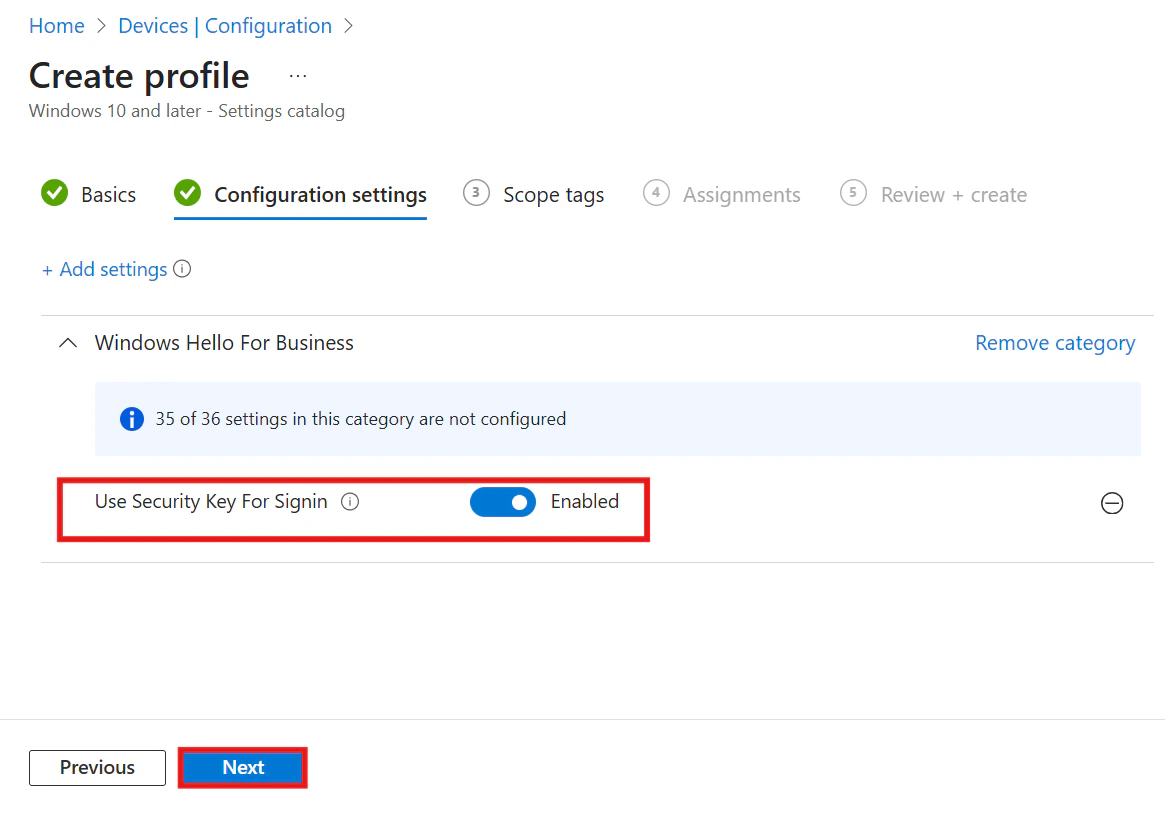
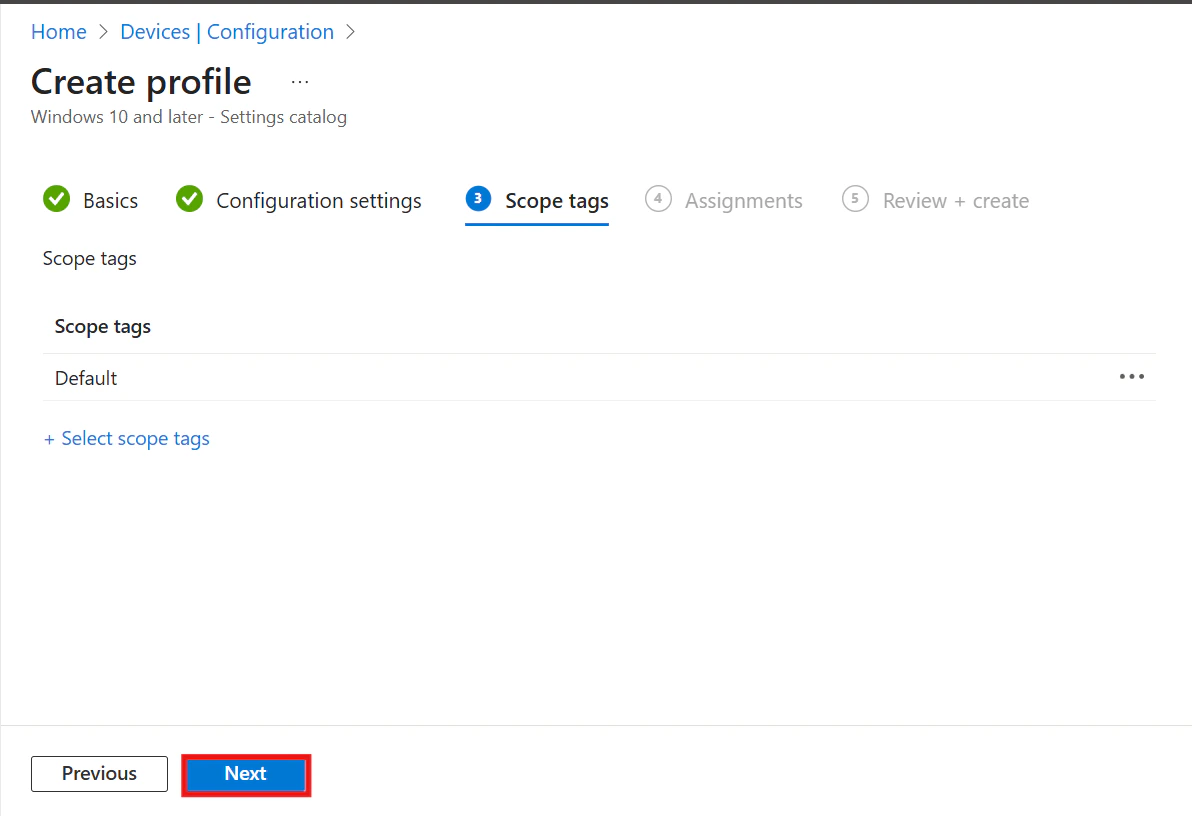
- Click Next.
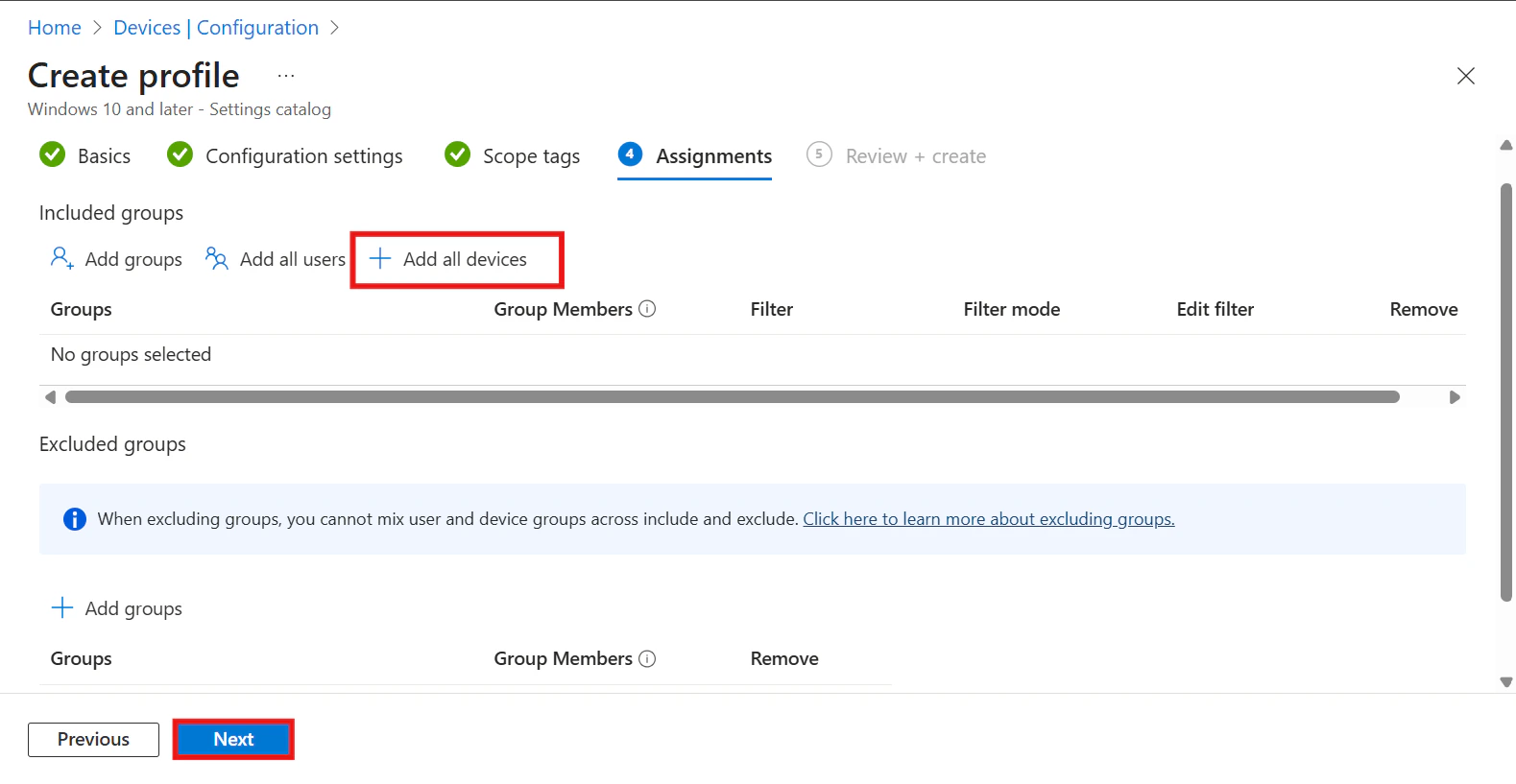
- On the assignment screen, choose Add all devices, then click Next
- Finally, click Create to deploy the policy.
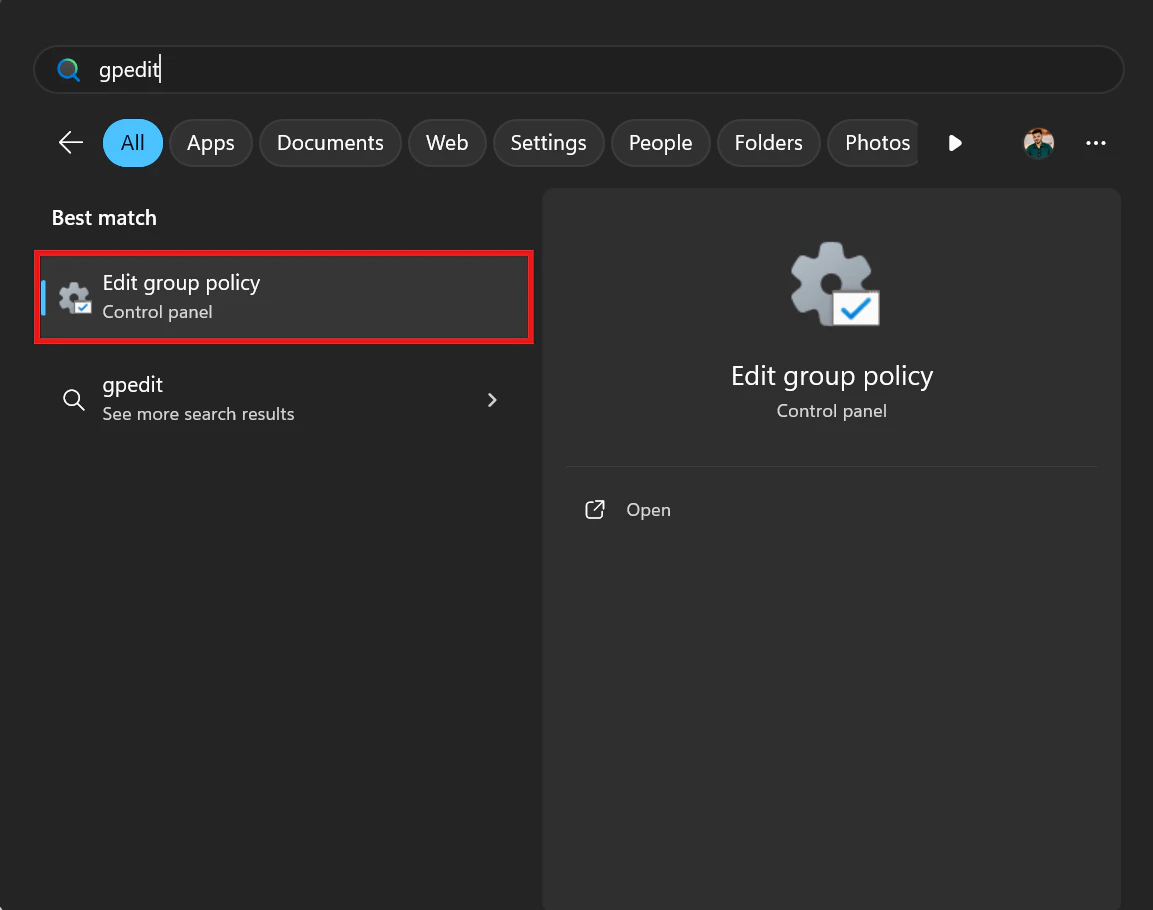
- Press the Windows key and type gpedit, then select Run as Administrator.
- When prompted, click Yes to allow the app to run in elevated mode.
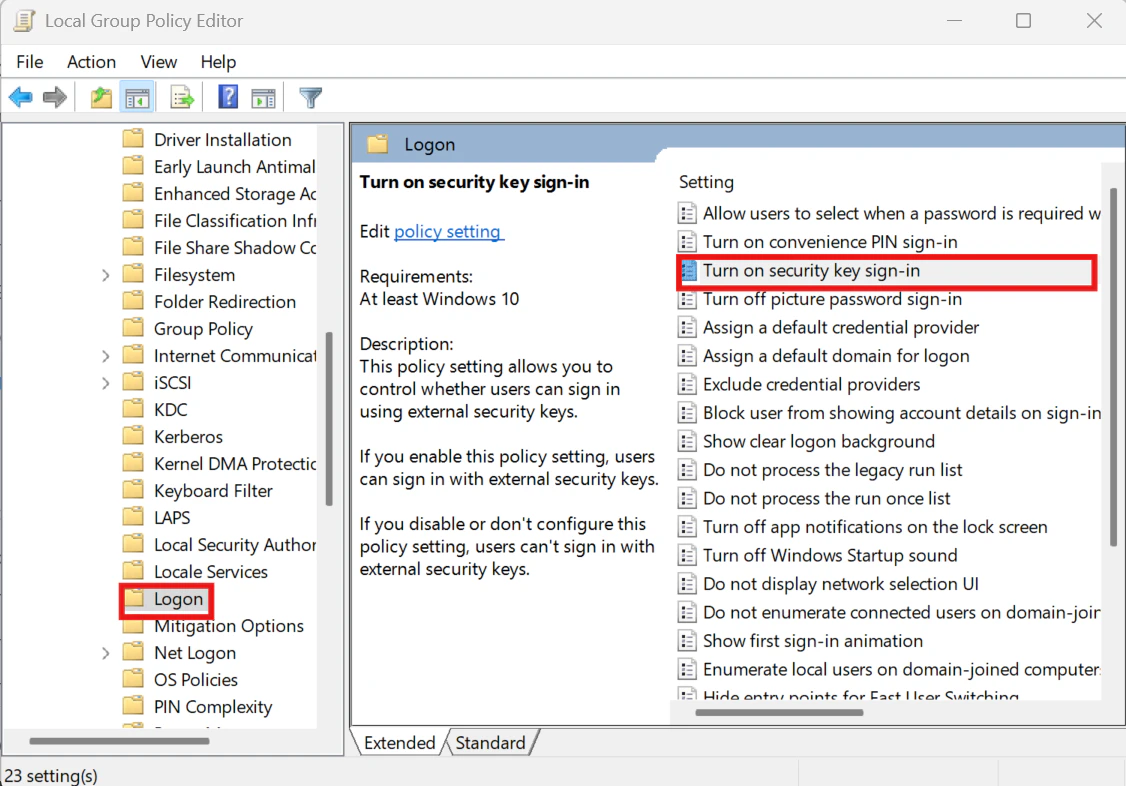
- In the Group Policy Editor, navigate to: Computer Configuration → Administrative Templates → System → Logon→Turn on security key sign-in
- Double-click on Turn on security key sign-in** and set the policy to Enabled, then click OK.
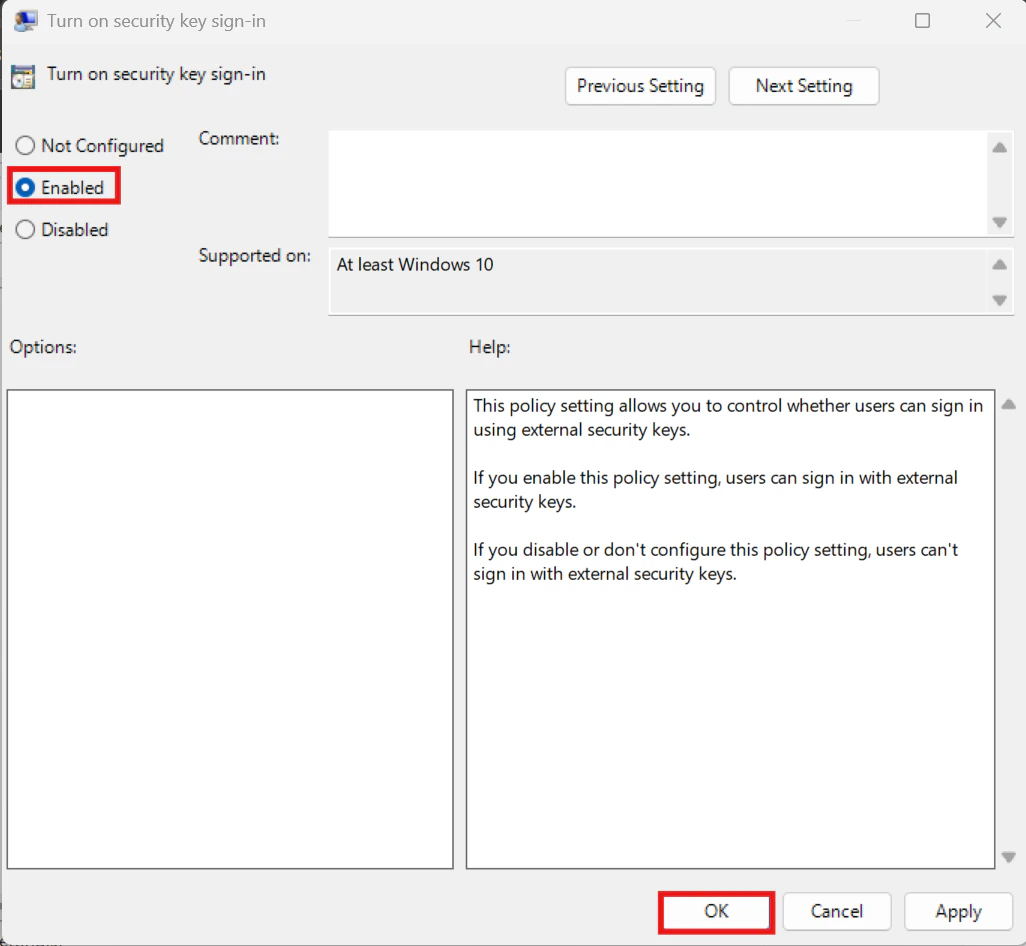
- Close the Group Policy Editor and restart your computer for the changes to take effect.
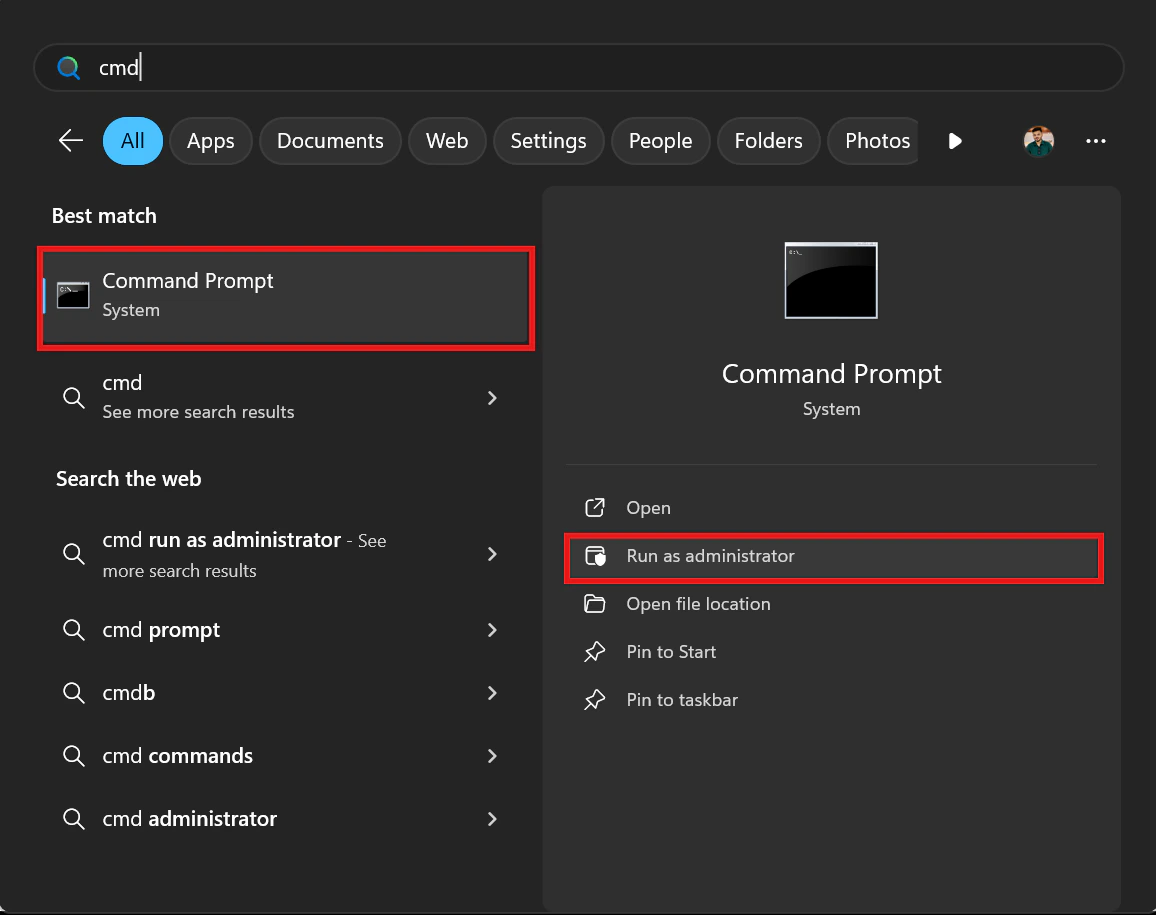
- Press the Windows key and type
cmdand select Run as administrator - When prompted, click Yes to allow the app to run in elevated mode.
- Enter the following input and press Enter
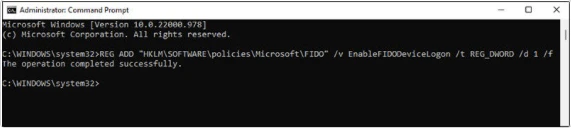
- Type exit to close the Command Prompt.
- Then restart your PC to finish applying the changes.
MacOS: Known Locations Where Users Encounter Password Prompts vs. PIN MacOS Binding to AD: Consider the Alternatives