Overview
This article covers the reason and resolution for the customer where users are unexpectedly prompted to use a Microsoft passkey or certificate-based authentication (CBA) when authenticating to Entra ID Federated applications or Office 365 either as managed domain or even when their domain is federated to another identity provider (TruU, Okta, PingFed etc) .Why This Happens
Customer has Microsoft’s System-preferred authentication Enabled by default for their Entra ID tenants and this feature automatically selects what it considers the most secure MFA method registered for a user. Even when a domain is federated to TruU, Okta, or another identity provider, Microsoft can override that federation at the point of authentication and present FIDO2 or certificate-based authentication (CBA) instead — methods the user may not have directly available through Microsoft. The result is a passkey or certificate prompt the user cannot complete, causing sign-in failures or a confusing experience. To resolve this issue customer must disable Microsoft default System Preferred Authentication.How to Disable System Preferred Authentication
Step 1: Go to Authentication Methods Settings
- Sign in to the Microsoft Entra admin center.
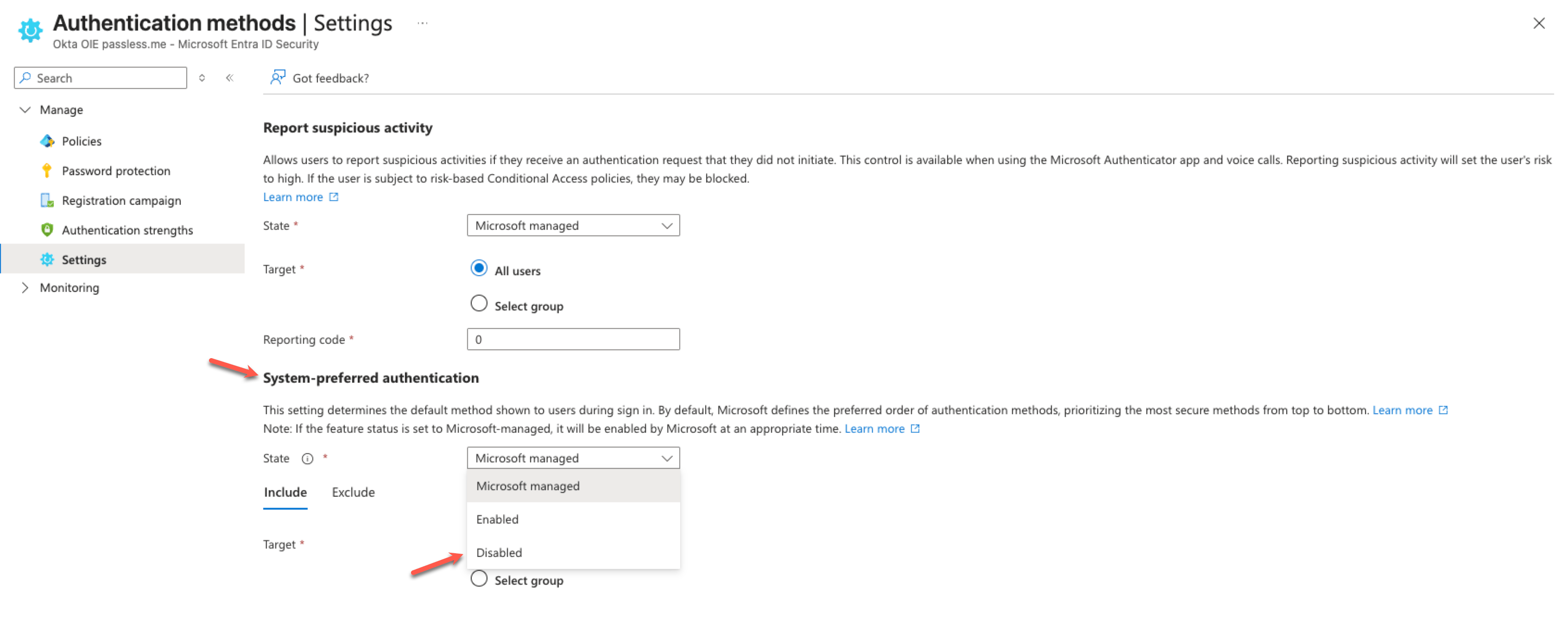
- Navigate to Microsoft Entra ID → Security → Authentication methods → Settings.
- Scroll down to the System-preferred authentication section.
- Change the State dropdown from
Microsoft managed(orEnabled) toDisabled. - Click Save.
Disabling System-preferred authentication does not reduce security. Users still can cancel authentication prompt and choose the desired method . This change restores user choice and prevents Microsoft from overriding the federation flow. Entra ID will still require MFA and user will use their choice of MFA method than the one forced by Microsoft.
How to Verify the Impact on a User
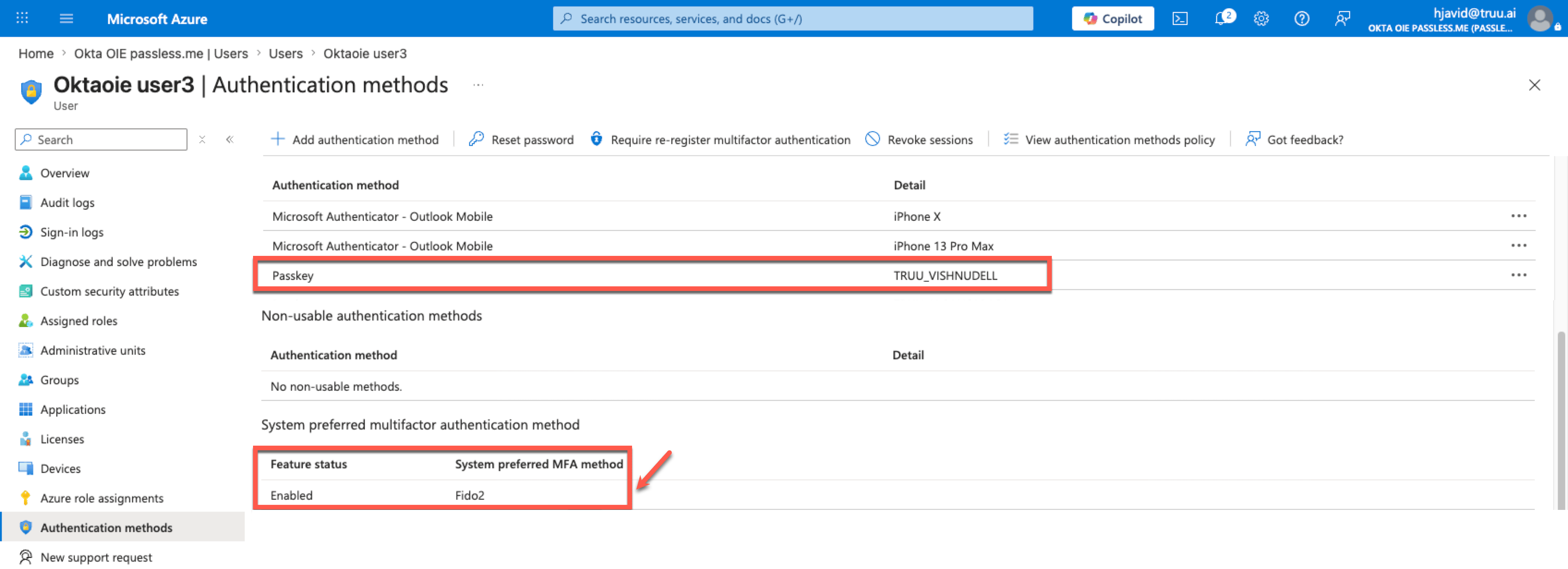
To check whether a specific user is affected by this setting:- In the Entra admin center, go to Users and select the affected user account.
- In the left menu, select Authentication methods.
- Look for the System preferred MFA authentication method field.
- If this shows FIDO2 Security Key or Certificate-based authentication (CBA), Microsoft is selecting one of these as the preferred method — neither of which may be directly available to the user through Microsoft at sign-in time. This confirms the issue. After disabling System-preferred authentication at the tenant level (Step 1 above), this field will no longer drive the sign-in experience.