


-
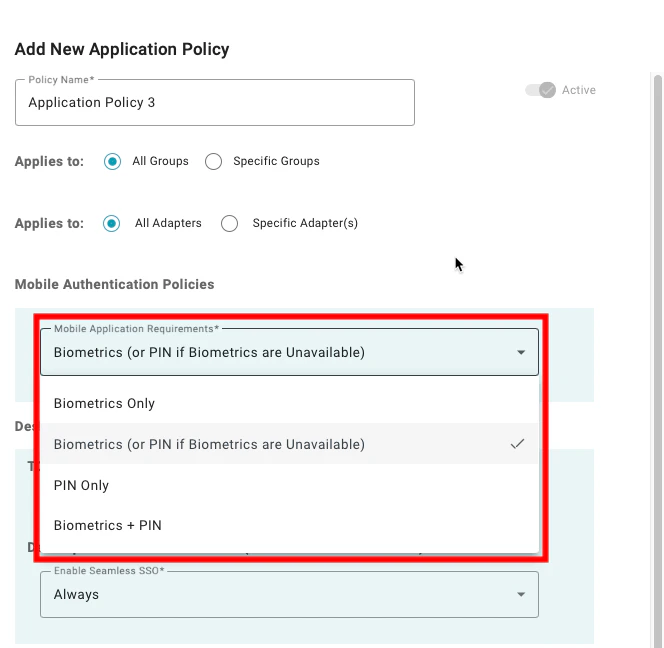
Mobile Authentication Requirements: This setting defines what the user must provide to authenticate with the TruU Mobile App. The available options are:
- Biometrics Only: When this is selected, the user must authenticate using the built-in biometrics from the mobile device. This means, that users who don’t have supported biometrics on their device will not be able to authenticate to this resource.
- Biometrics (or PIN if Biometrics are Unavailable): When this is selected, the user will be asked to provide biometrics if the device is capable of using biometrics but will accept the application PIN created during enrollment if biometrics are not available.
- PIN Only: When this is selected, the user must provide the application PIN created during enrollment to authenticate.
- Biometrics + PIN: When this is selected, the user must provide both the built-in biometrics from the mobile device and the application PIN created during enrollment to authenticate.
-
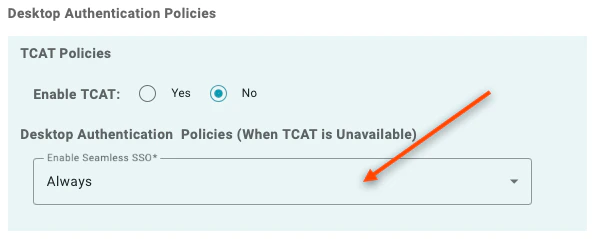
Desktop Authentication Policies: These policies define how users authenticate to SSO applications using the TruU Windows Authenticator. The available options are:
- Enable Seamless SSO: By setting this to “Always,” the identity server will check whether the Windows Authenticator is installed and enrolled on the machine. In addition, the user must have logged into the desktop using the Windows Authenticator. If these conditions are satisfied, the user will seamlessly login to the application. If these conditions are not met, the user will be use certificate based authentication (or a mobile device or hardware key) to authenticate.
-
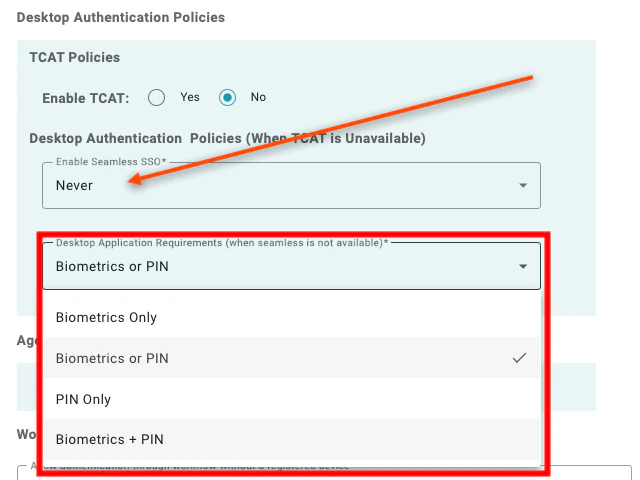
Desktop Application Requirements (when seamless in not available): If Seamless SSO is set to “Never,” then the following configuration options are available:
- Biometrics Only: User will be prompted to provide the local device biometrics which have been enrolled with the Windows Authenticator. Note: If biometric hardware is not available on the device or if biometrics cannot be provided, the authentication will not succeed.
- Biometrics or PIN (default and recommended): User will have the option to either provide device biometrics or enter their TruU PIN (which was created at the time of enrollment)
- PIN Only: User is only prompted to enter their TruU PIN
- Biometrics + PIN: User is prompted to enter both their TruU PIN as well as their device biometrics
-
NOTES:
- The “Seamless SSO” policy requires Identity Server version 23.128.11 (or higher)
- The “Desktop Authentication Requirements” policy is supported by the Windows Authenticator version 3.0 and above
- The Mac Authenticator does not enforce the Desktop Authentication Policies. The Mac Authenticator supports PIN or Bio for application login
-
Agentless Authentication Policies: Setting to “True” enables users with a registered FIDO security key to authenticate using a FIDO key instead of a mobile device or desktop authenticator. A value of ‘False’ prevents users from authenticating with a FIDO security key.
 Note: 3rd party FIDO devices are currently only supported for application login.
-
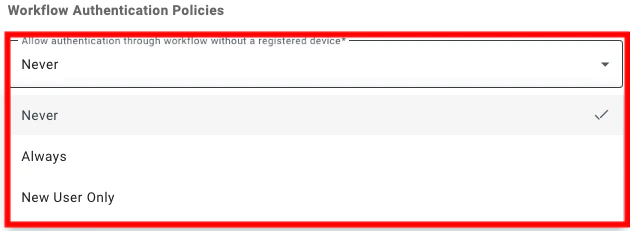
Allow authentication through workflow without a registered device: This setting determines if users are allowed to login to an application using an Identity Verification Workflow rather than a registered device. The available options are:
- Never: When this is selected, users must authenticate with an enrolled device.
- Always: When this is selected, users always have the option to authenticate using an Identity Verification Workflow (and you will be prompted to select a workflow to use for authentication).
- New User Only: When this is selected, users who have not yet enrolled a device will have the option to authenticate using an Identity Verification Workflow (and you will be prompted to select a workflow to use for authentication).
-
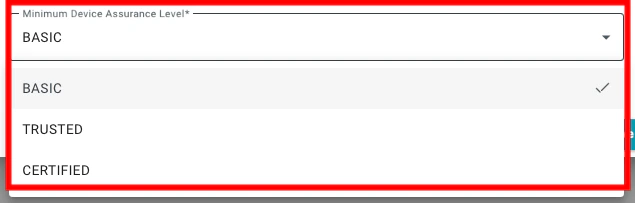
Minimum Device Assurance Level: This setting defines the required assurance level for the authenticating device for the user to access the resource. The available options are:
- Basic: When this is selected, users can authenticate with any enrolled device. If you are using an enrollment workflow that requires an identity verification step, users will be able to authenticate to applications under this policy setting before the identity verification step has been completed.
- Trusted: When this is selected, users can authenticate using a device that has been enrolled using any form of identity verification.
- Certified: When this is selected, access is restricted to users who have performed an in-person identity verification step.
Configuring Registration Policies Configuring Physical Policies