

-
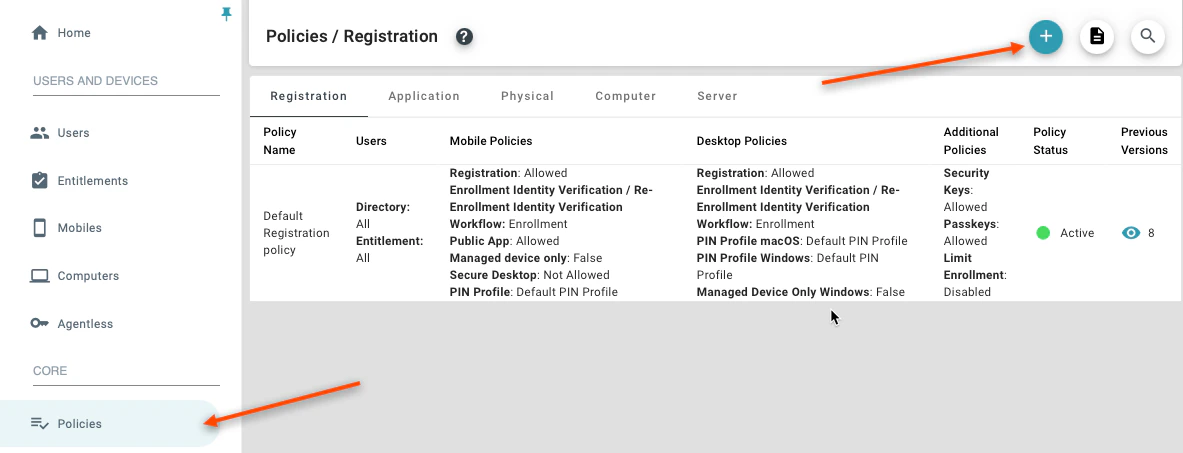
Allow Mobile Registration:
-
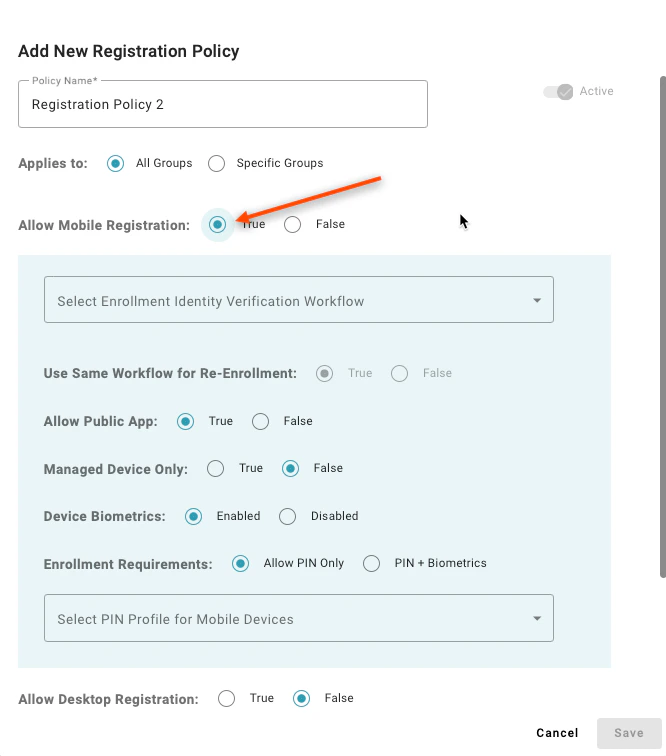
Setting to “True” enables users in the matching group to register a mobile app, with TruU as an authenticating device. A value of “False” will prevent users from registering
-
Setting to “True” enables users in the matching group to register a mobile app, with TruU as an authenticating device. A value of “False” will prevent users from registering
-
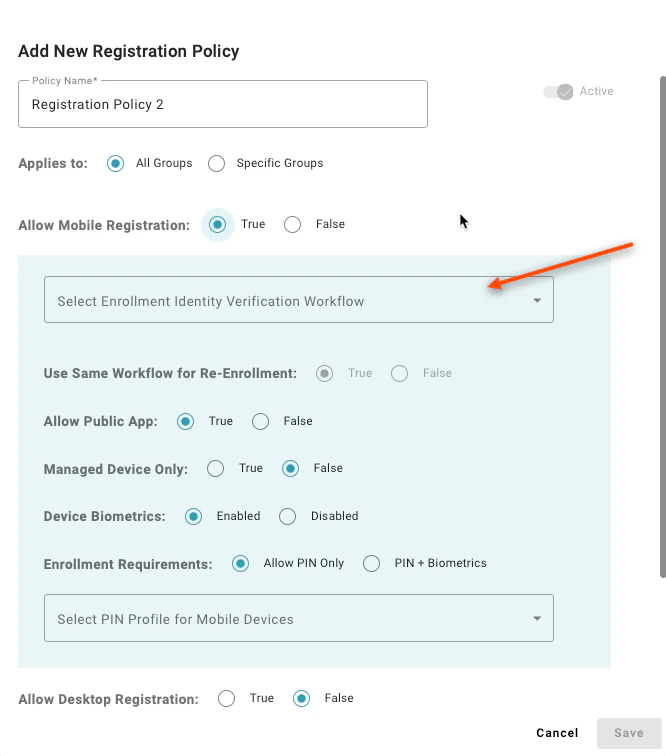
Select Enrollment Workflow:
-
Enrollment workflows require a self-service component from the registering user, and optionally allow for up to 2 additional identity verification steps (by a manager, and/or an Entitlement Group)
-
Enrollment workflows require a self-service component from the registering user, and optionally allow for up to 2 additional identity verification steps (by a manager, and/or an Entitlement Group)
-
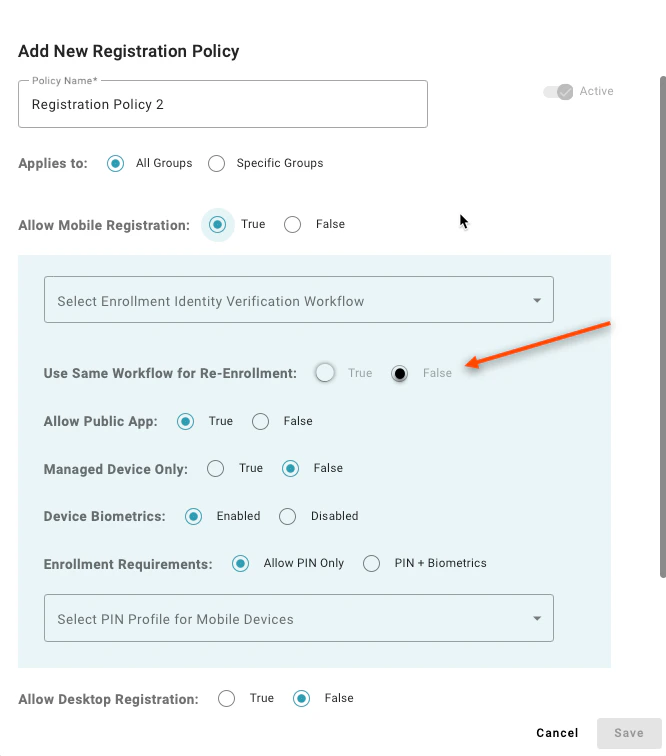
Use same workflow for Re-enrollment:
-
By setting this to “False”, you can specify a different enrollment workflow for a first time user vs an existing user. For example, you might wish to allow a new hire to enroll with a password on their first day, but then use a passwordless flow for enrollment thereafter
-
By setting this to “False”, you can specify a different enrollment workflow for a first time user vs an existing user. For example, you might wish to allow a new hire to enroll with a password on their first day, but then use a passwordless flow for enrollment thereafter
-
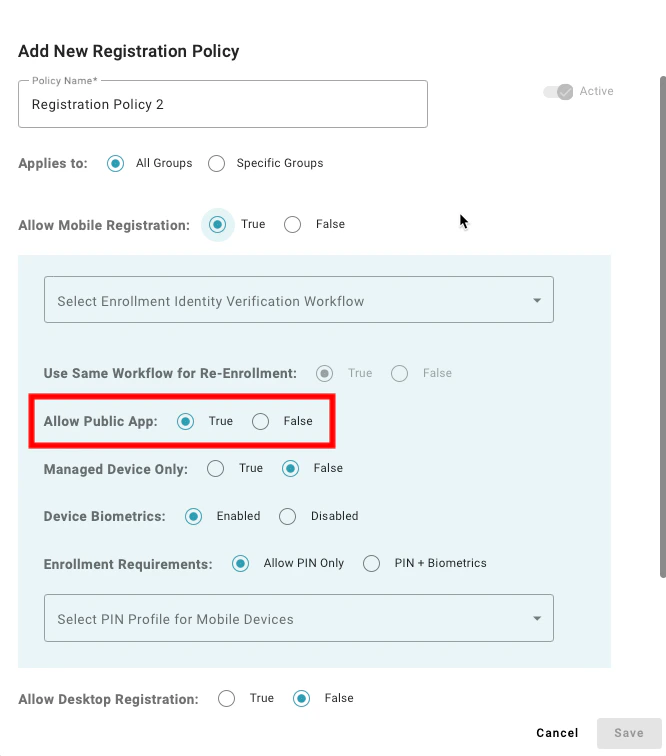
Allow Public App:
-
Setting to “True” enables user to register using the TruU mobile app from the public app stores. A value of “False” will prevent use of the public apps; this should only be selected if deploying TruU by integrating our technology with another app using the TruU SDK, and/or if enabling users for FIDO security keys only
-
Setting to “True” enables user to register using the TruU mobile app from the public app stores. A value of “False” will prevent use of the public apps; this should only be selected if deploying TruU by integrating our technology with another app using the TruU SDK, and/or if enabling users for FIDO security keys only
-
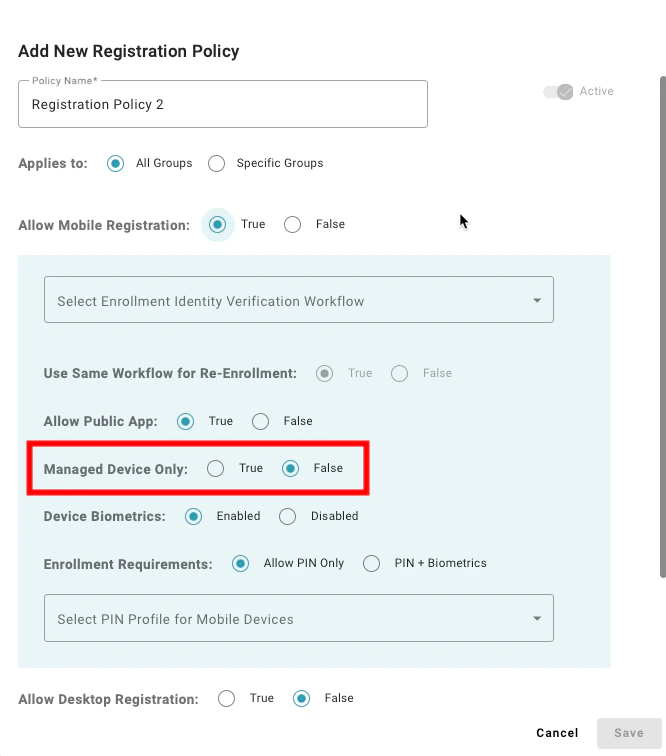
Managed Device Only:
-
Setting to “True” restricts TruU enrollment to corporate managed mobile devices only
-
Setting to “True” restricts TruU enrollment to corporate managed mobile devices only
-
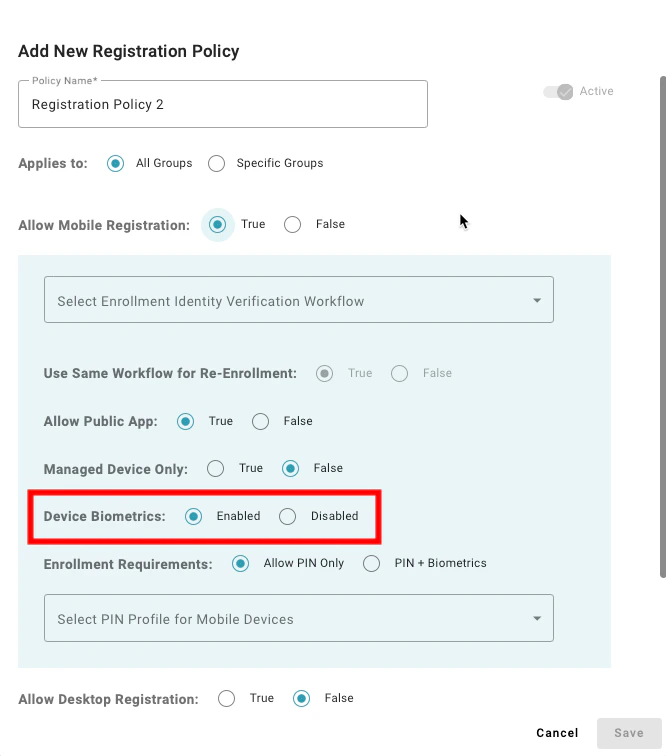
Device Biometrics:
-
Setting to “Enabled” informs the mobile app to have the user enroll their device using the device biometrics. Setting to “Disabled” informs the mobile app that your organization does not wish to use biometrics with TruU and will result in enrollment asking the user to create a TruU app PIN only
-
Setting to “Enabled” informs the mobile app to have the user enroll their device using the device biometrics. Setting to “Disabled” informs the mobile app that your organization does not wish to use biometrics with TruU and will result in enrollment asking the user to create a TruU app PIN only
-
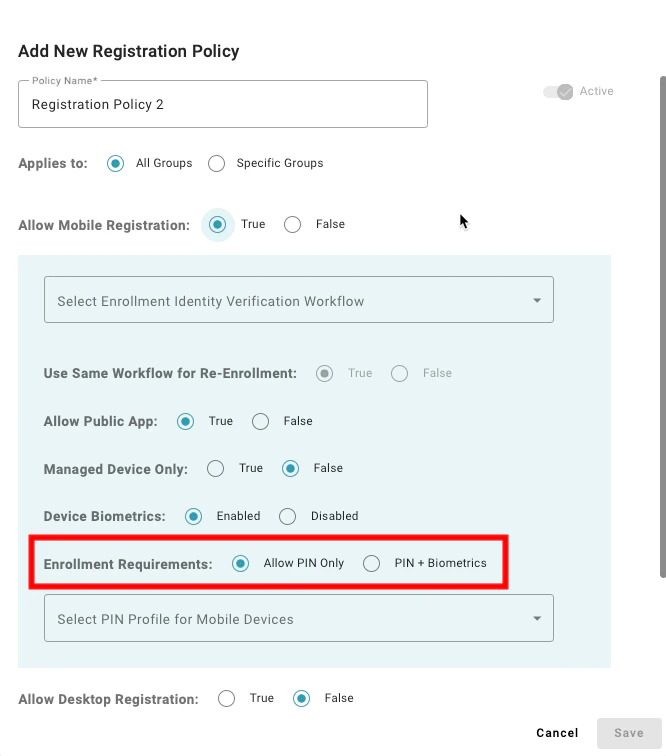
Enrollment Requirements:
-
Setting to “Allow PIN Only” enables users to register a mobile device that does not have supported biometrics to enroll. A value of “PIN + Biometrics” will prevent users from enrolling a mobile device if the device does not have supported biometrics
-
Setting to “Allow PIN Only” enables users to register a mobile device that does not have supported biometrics to enroll. A value of “PIN + Biometrics” will prevent users from enrolling a mobile device if the device does not have supported biometrics
-
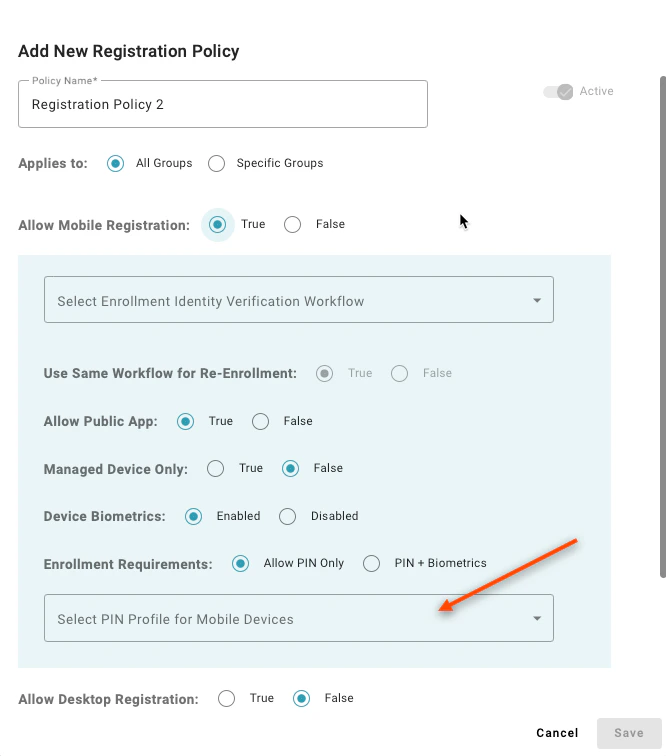
Select PIN Profile for Mobile Devices:
-
Choose a PIN Profile to specify the required PIN length and complexity rules for users enrolling mobile devices
-
Choose a PIN Profile to specify the required PIN length and complexity rules for users enrolling mobile devices
-
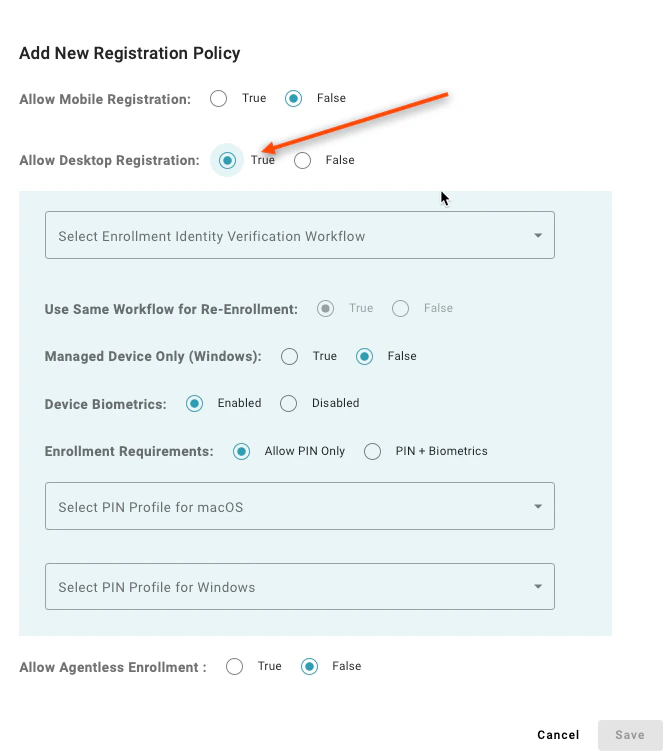
Allow Desktop Registration:
-
Setting to “True” enables users in the matching group to register a computer, with TruU as an authenticating device. A value of “False” will prevent users from registering
-
Setting to “True” enables users in the matching group to register a computer, with TruU as an authenticating device. A value of “False” will prevent users from registering
-
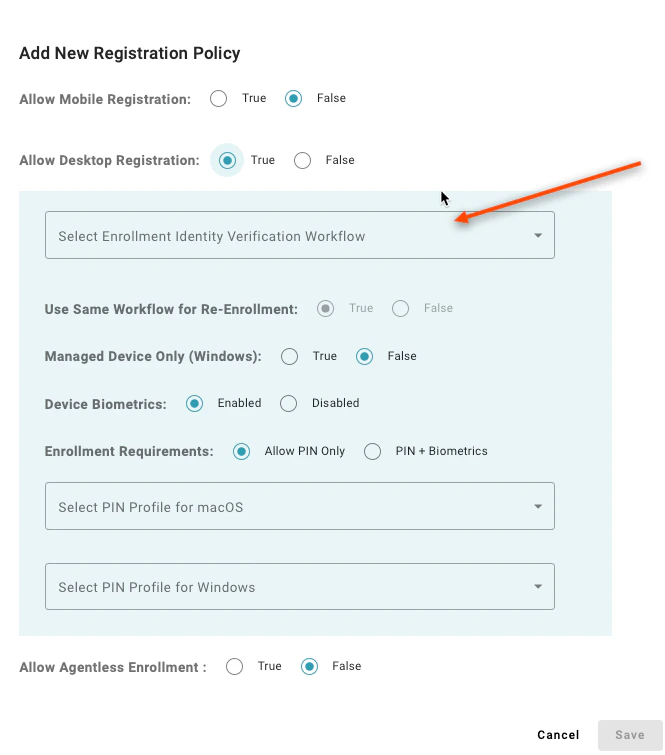
Select Enrollment Workflow:
-
Here you can define how your users will enroll with TruU. Enrollment workflows require a self-service component from the registering user, and optionally allow for up to 2 additional identity verification steps (by a manager, and/or an Entitlement Group)
-
Here you can define how your users will enroll with TruU. Enrollment workflows require a self-service component from the registering user, and optionally allow for up to 2 additional identity verification steps (by a manager, and/or an Entitlement Group)
-
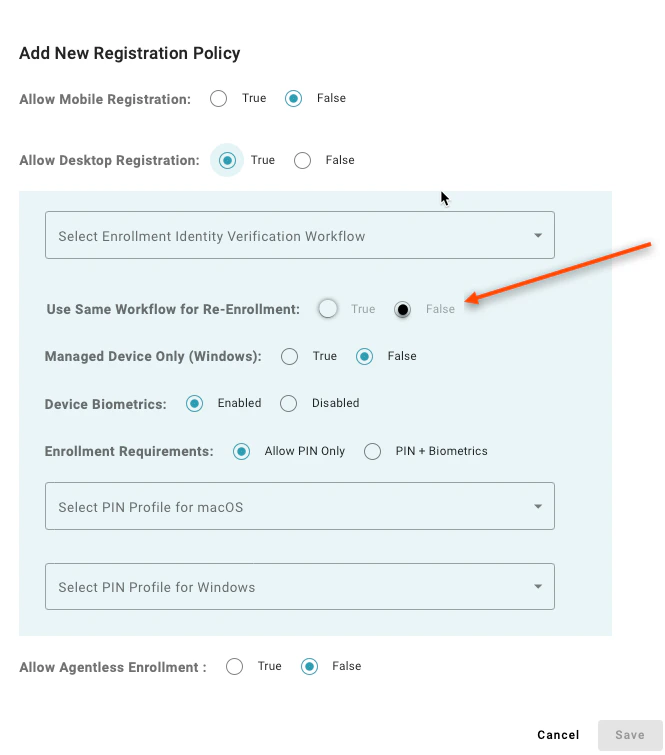
Use same workflow for Re-enrollment:
-
By setting this to “False” you can specify a different enrollment workflow for a first time user vs an existing user. For example, you might wish to allow a new hire to enroll with a password on their first day, but then use a passwordless flow for enrollment thereafter
-
By setting this to “False” you can specify a different enrollment workflow for a first time user vs an existing user. For example, you might wish to allow a new hire to enroll with a password on their first day, but then use a passwordless flow for enrollment thereafter
-
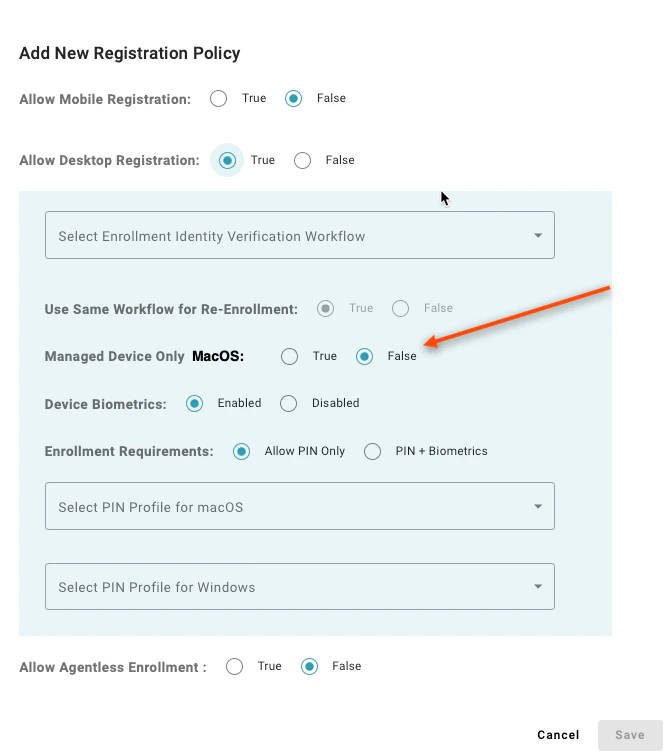
Managed Device Only (MacOS):
-
Setting to “True” restricts TruU enrollment to corporate managed Mac computers only
-
Setting to “True” restricts TruU enrollment to corporate managed Mac computers only
-
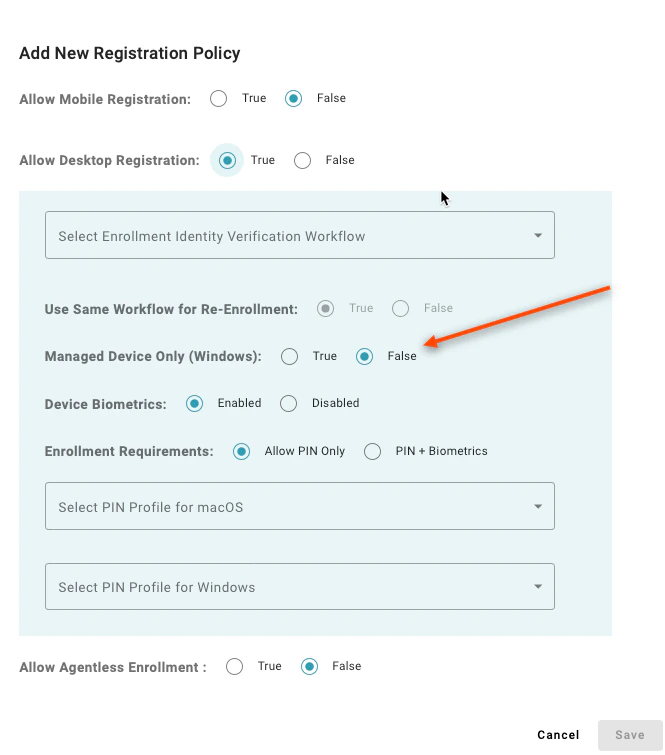
Managed Device Only (Windows):
-
Setting to “True” restricts TruU enrollment to corporate managed Windows computers only
-
Setting to “True” restricts TruU enrollment to corporate managed Windows computers only
-
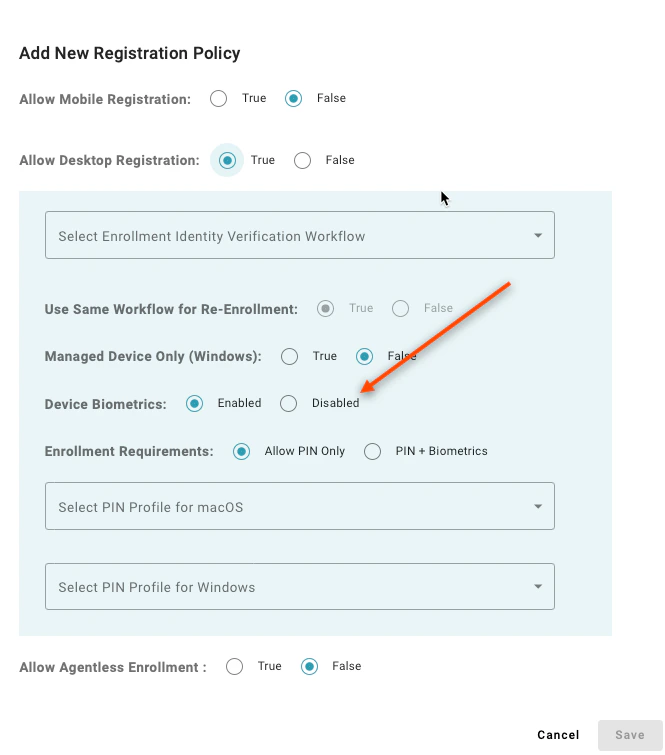
Device Biometrics:
-
Setting to “Enabled’ informs the desktop authenticator to have the user enroll their device using the device biometrics. Setting to “Disabled” informs the desktop authenticator that your organization does not wish to use biometrics with TruU and will result in enrollment asking the user to create a TruU app PIN only
-
Setting to “Enabled’ informs the desktop authenticator to have the user enroll their device using the device biometrics. Setting to “Disabled” informs the desktop authenticator that your organization does not wish to use biometrics with TruU and will result in enrollment asking the user to create a TruU app PIN only
-
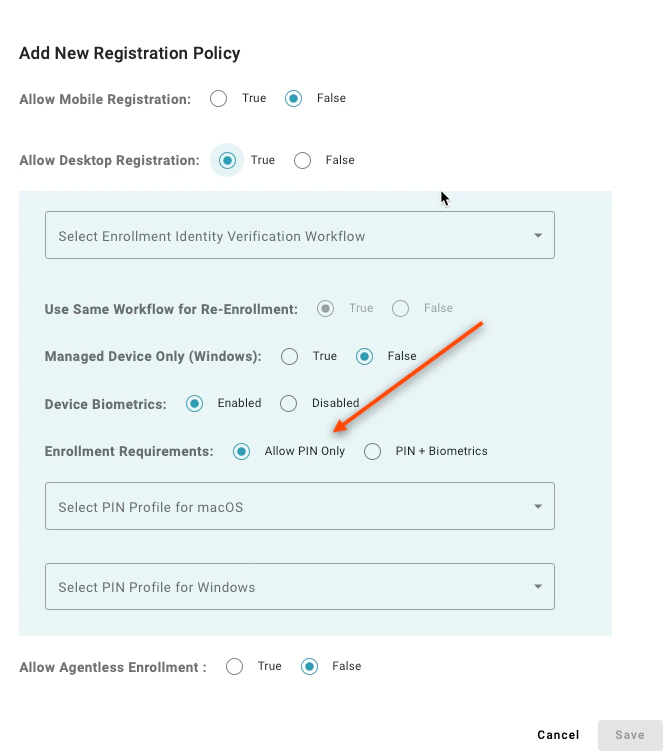
Enrollment Requirements:
-
Setting to “Allow PIN Only” enables users to register a desktop authenticator that does not have supported biometrics to enroll. A value of “PIN + Biometrics” will prevent users from enrolling a desktop authenticator if the device does not have supported biometrics
-
Setting to “Allow PIN Only” enables users to register a desktop authenticator that does not have supported biometrics to enroll. A value of “PIN + Biometrics” will prevent users from enrolling a desktop authenticator if the device does not have supported biometrics
-
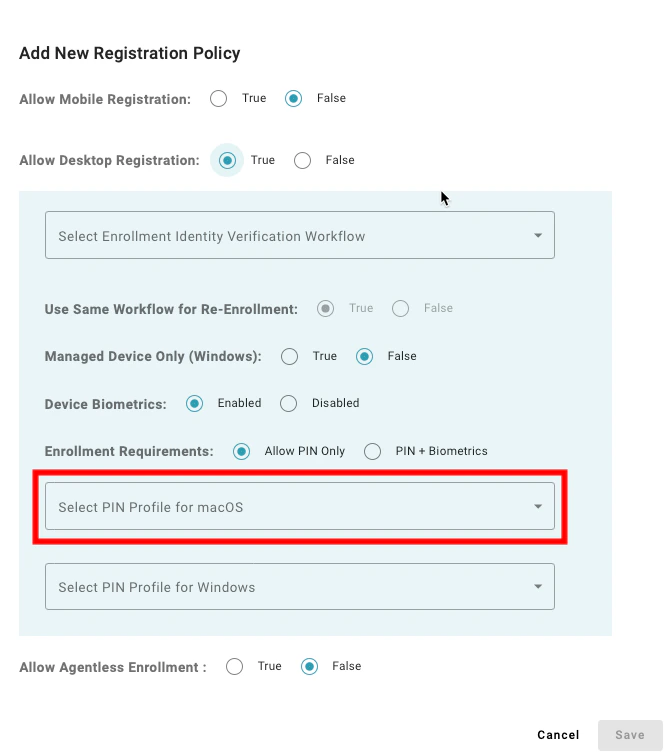
Select PIN Profile for macOS:
-
Choose a PIN Profile to specify the required PIN length and complexity rules for users enrolling Macs (Mac Authenticator is currently available for Early Access customers only)
-
Choose a PIN Profile to specify the required PIN length and complexity rules for users enrolling Macs (Mac Authenticator is currently available for Early Access customers only)
-
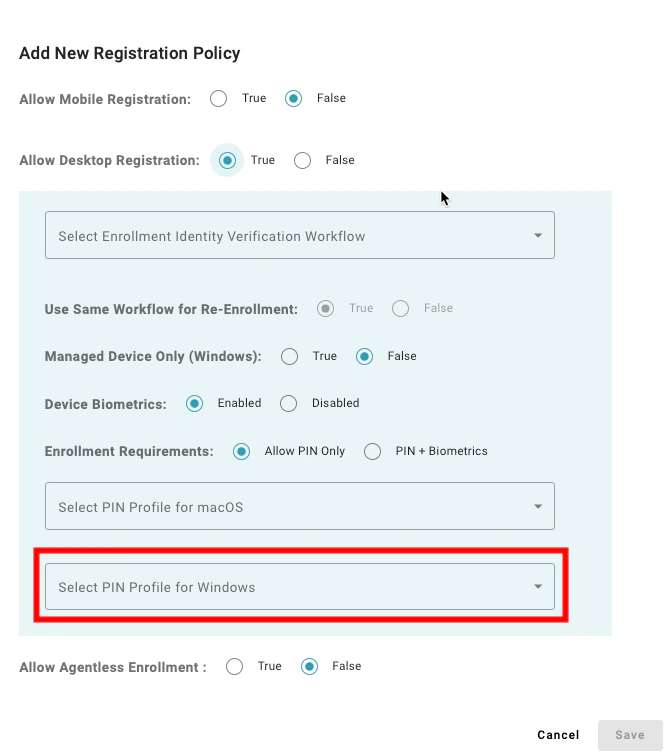
Select PIN Profile for Windows:
-
Choose a PIN Profile to specify the required PIN length and complexity rules for users enrolling Windows
-
Choose a PIN Profile to specify the required PIN length and complexity rules for users enrolling Windows
- Allow Security Keys:
- Setting to “True” enables users to register a FIDO security key to use as an authenticating device for TruU. A value of “False” prevents the registration of FIDO security keys
- Allowed Verification Types:
- Setting to “Passcodes or Biometrics” allows users to enroll any device. Setting to “Passcodes” limits device enrollment to non-biometric hardware keys; whereas “Biometrics” limits enrollment to biometric hardware keys only Note: (1) This feature requires the 24.150 (or higher) Identity Servers. (2) If an allowed list has been created, this policy will be ignored, and the allowed list will be honored
- Allow Passkeys:
- Setting to “True” enables users to register a FIDO passkey to use as an authenticating device for TruU. A value of “False” prevents the registration of passkeys Note: while security keys and passkeys use the same FIDO standard, we differentiate between the two so that you can choose if you want to require a device bound security key or wish to allow a passkey which can be shared across devices (e.g. through iCloud)
-
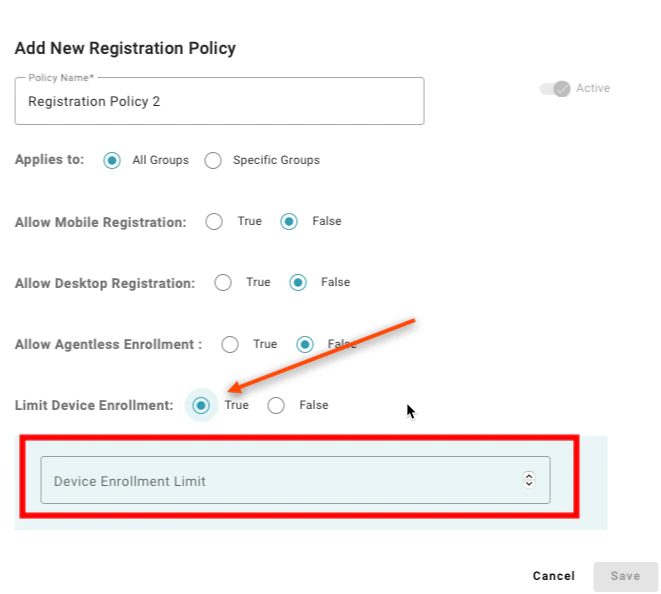
Limit Device Enrollment:
-
Setting to “True” allows you to specify how many devices a user can enroll for authentication. When set to “True”, you must specify how many devices can be enrolled. If you allow multiple device types to be enrolled by a user (e.g. mobile, computer and 3rd party FIDO devices), you can optionally set limits for each.. A value of “False” enables users to enroll as many devices as they’d like
-
Setting to “True” allows you to specify how many devices a user can enroll for authentication. When set to “True”, you must specify how many devices can be enrolled. If you allow multiple device types to be enrolled by a user (e.g. mobile, computer and 3rd party FIDO devices), you can optionally set limits for each.. A value of “False” enables users to enroll as many devices as they’d like
Configuring Policies Configuring Application Policies