Enabling FIDO2 Logon using Intune
Create a Device configuration profile
Option 1: Settings Catalog
- Sign in to the Microsoft Intune admin center.
- Browse to Devices > Windows > Configuration profiles > Create new policy.
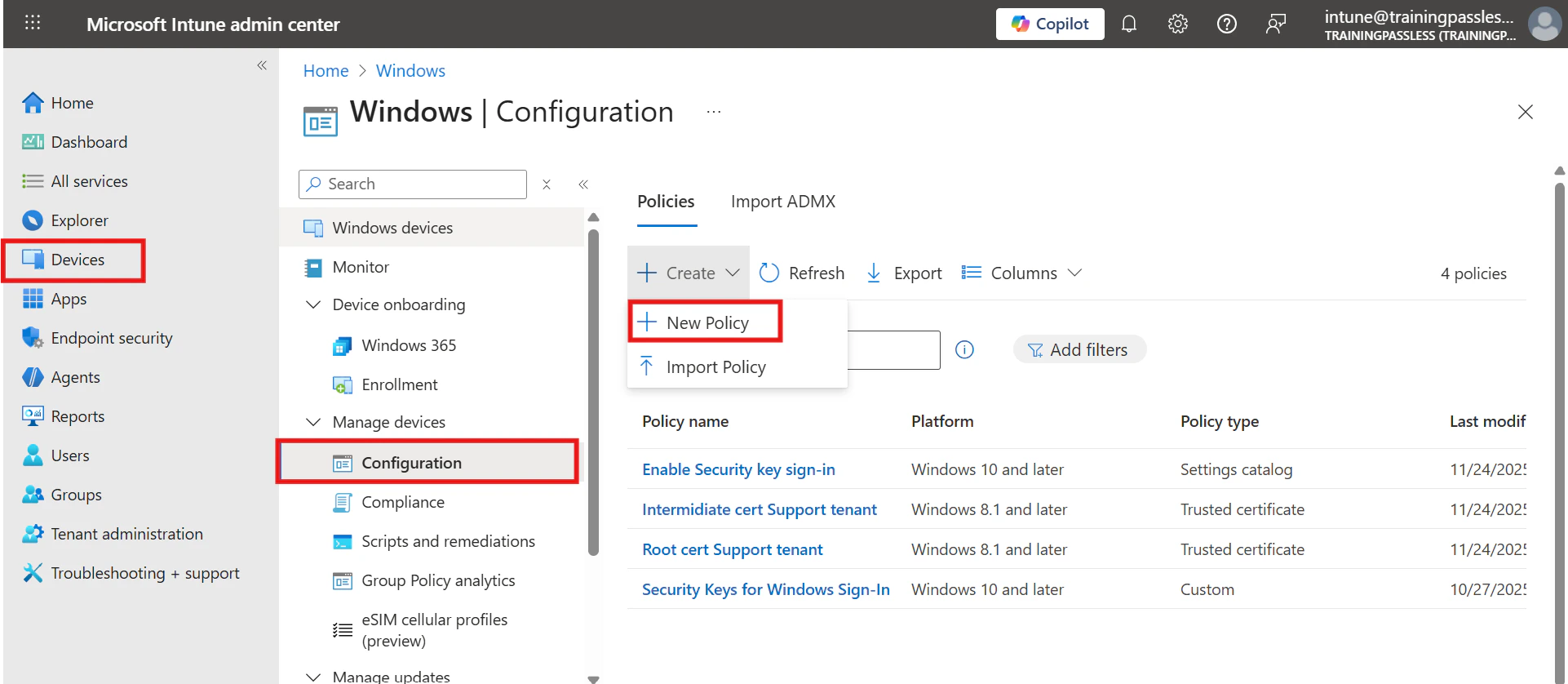
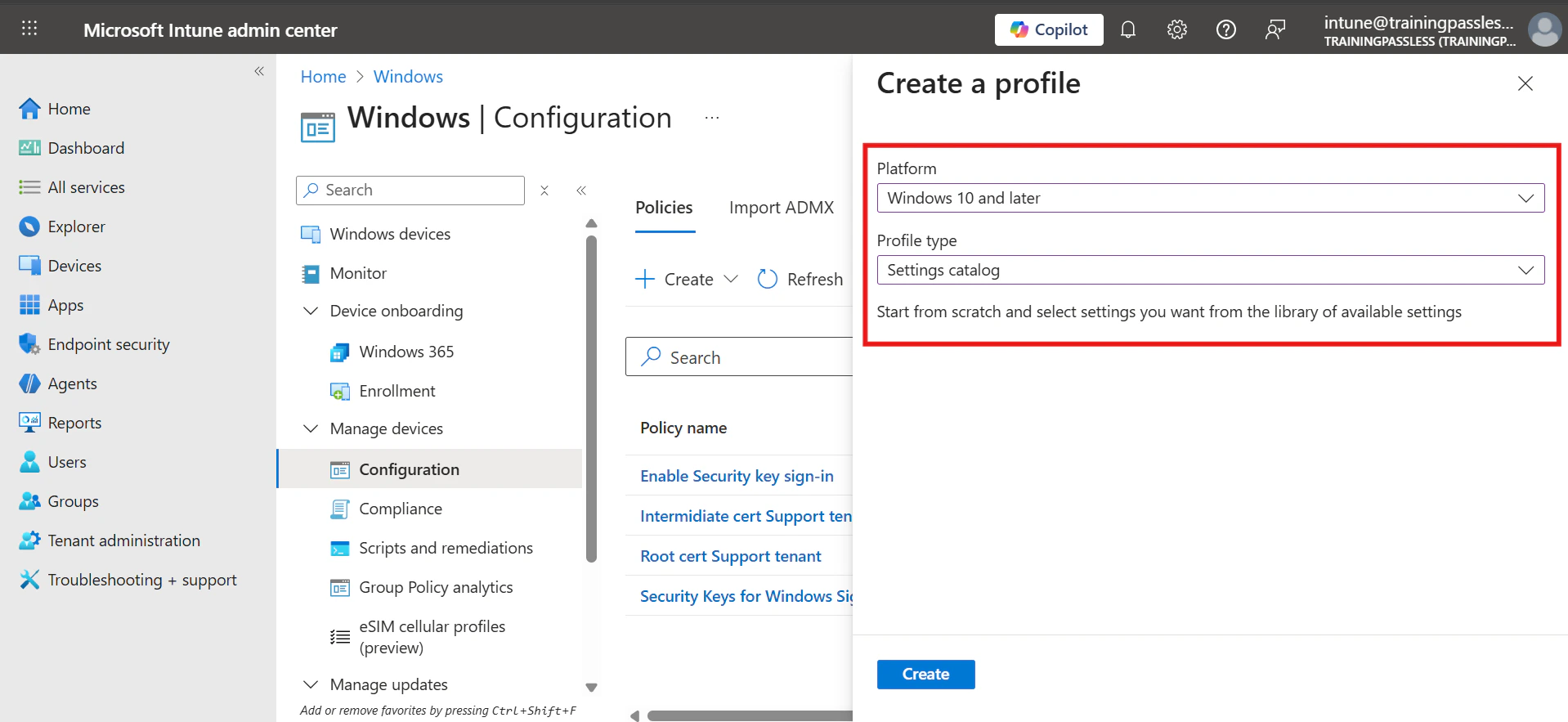
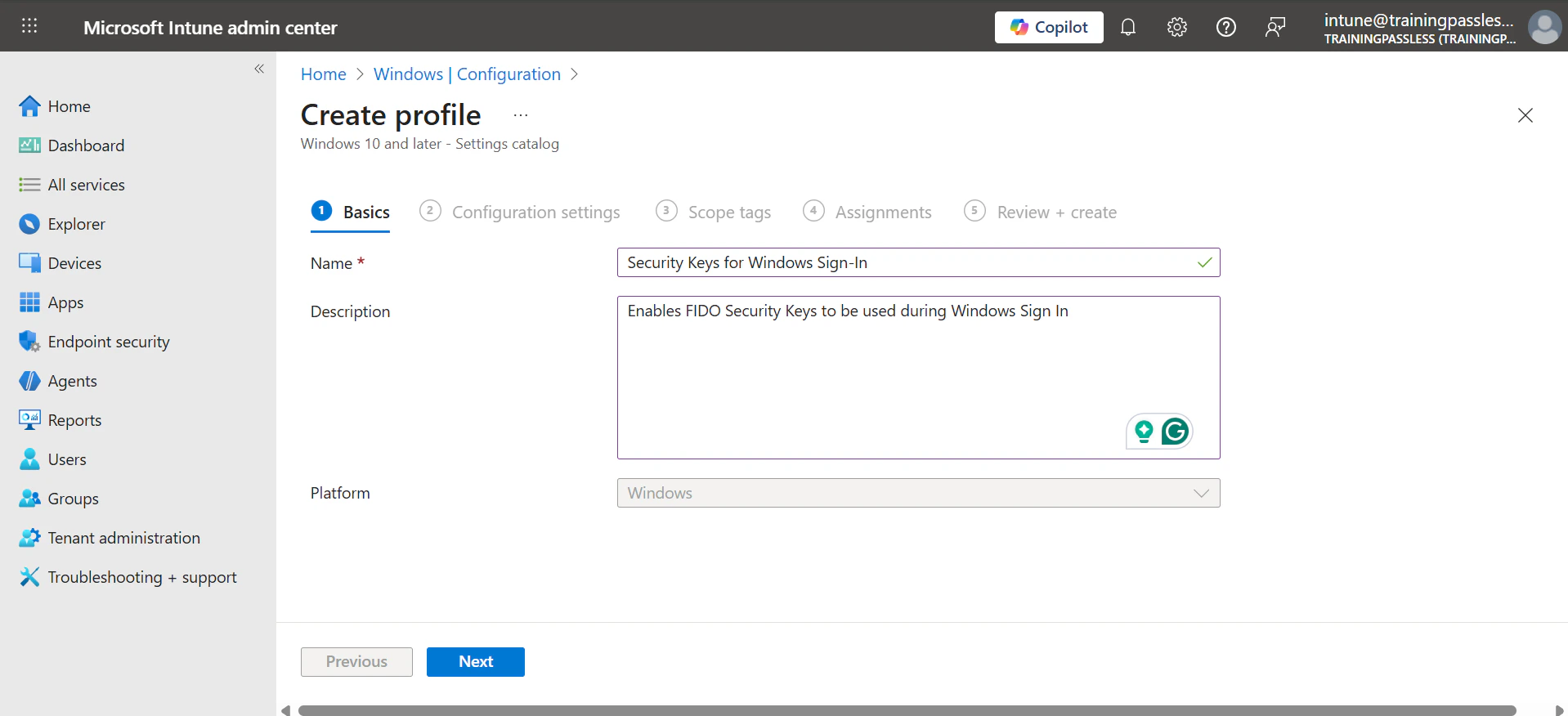
- Configure the New Policy with the following settings:
- Platform: Windows 10 and later
- Profile type: Setting catalog
- Name: Security Keys for Windows Sign-In
- Description: Enables FIDO Security Keys to be used during Windows Sign In
- Under Configuration settings, click Add settings, select Windows Hello For Business, and add:
- Use Security Key For Sign-in
- Assign the policy to the groups that should support TruU login.
Once configured, deploy to test group and validate your FIDO2 setup before rolling out to users.
Option 2: OMA-URI method
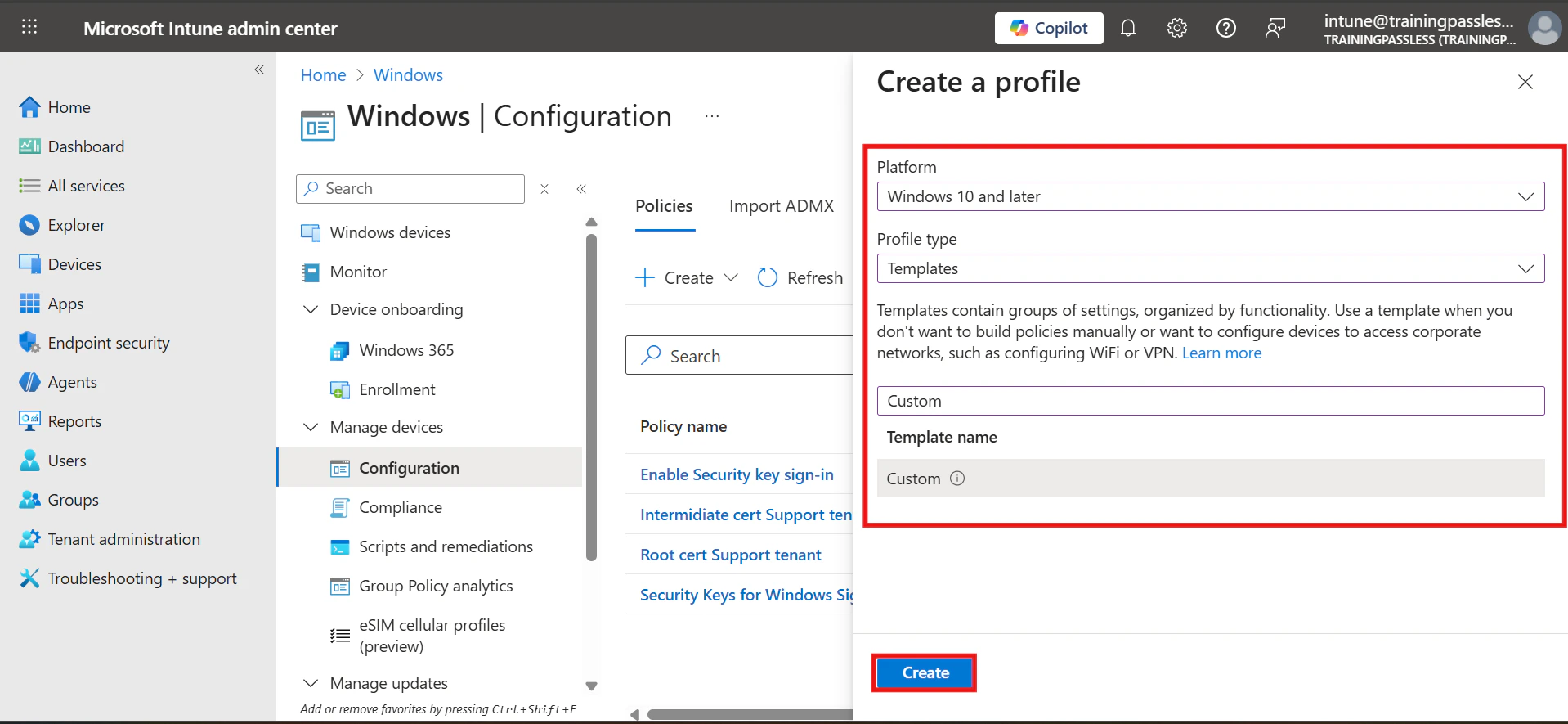
- To target specific device groups, use the following custom settings via Intune:
- Platform: Windows 10 and later
- Profile type: Template and select Custom
- Name: Security Keys for Windows Sign-In
- Description: Enables FIDO Security Keys to be used during Windows Sign In
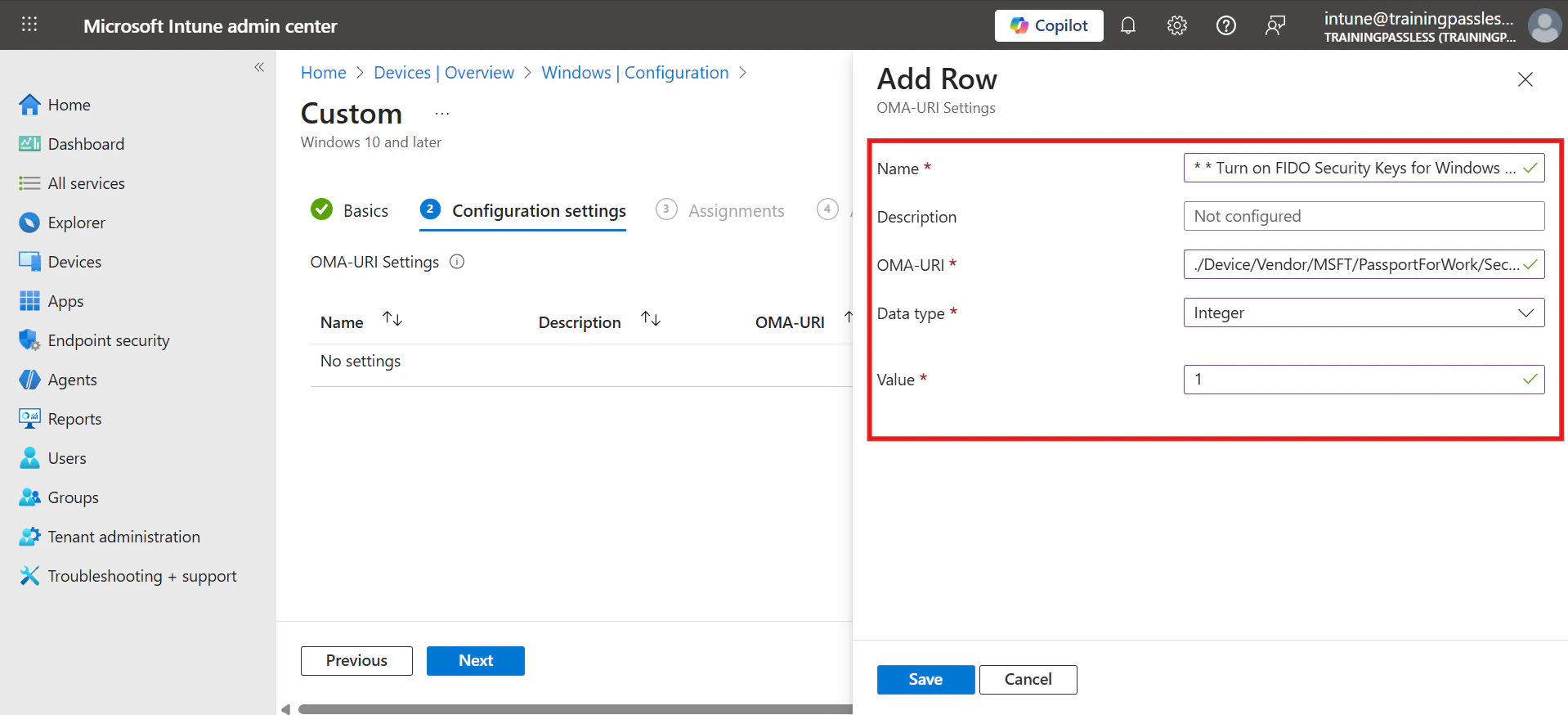
- In the Configuration Settings tab, click Add and enter the following:
- Name: Turn on FIDO Security Keys for Windows Sign-In
- Description: (Optional)
- OMA-URI: ./Device/Vendor/MSFT/PassportForWork/SecurityKey/UseSecurityKeyForSignin
- Data Type: Integer
- Value: 1
- Assign the policy to the groups that should support TruU login.
Once configured, deploy to test group and validate your FIDO2 setup before rolling out to users.
Enable FIDO2 Logon using Group Policy
- Open the Group Policy Management Console.
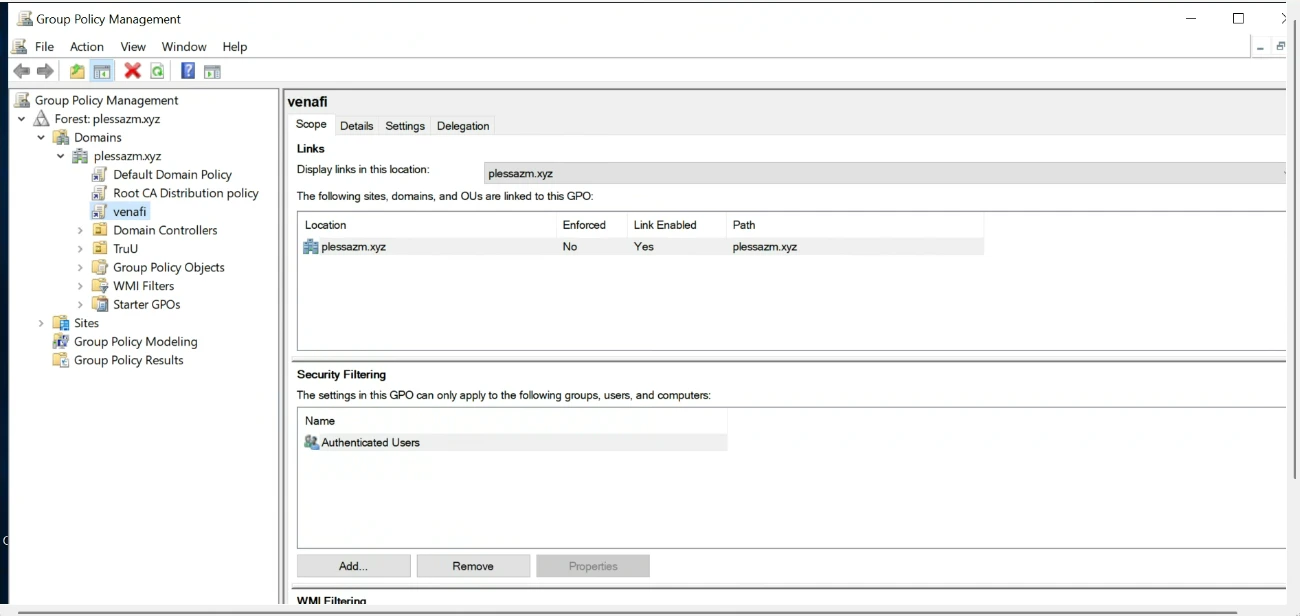
- Locate the policy you want to apply as a GPO to your Windows clients.
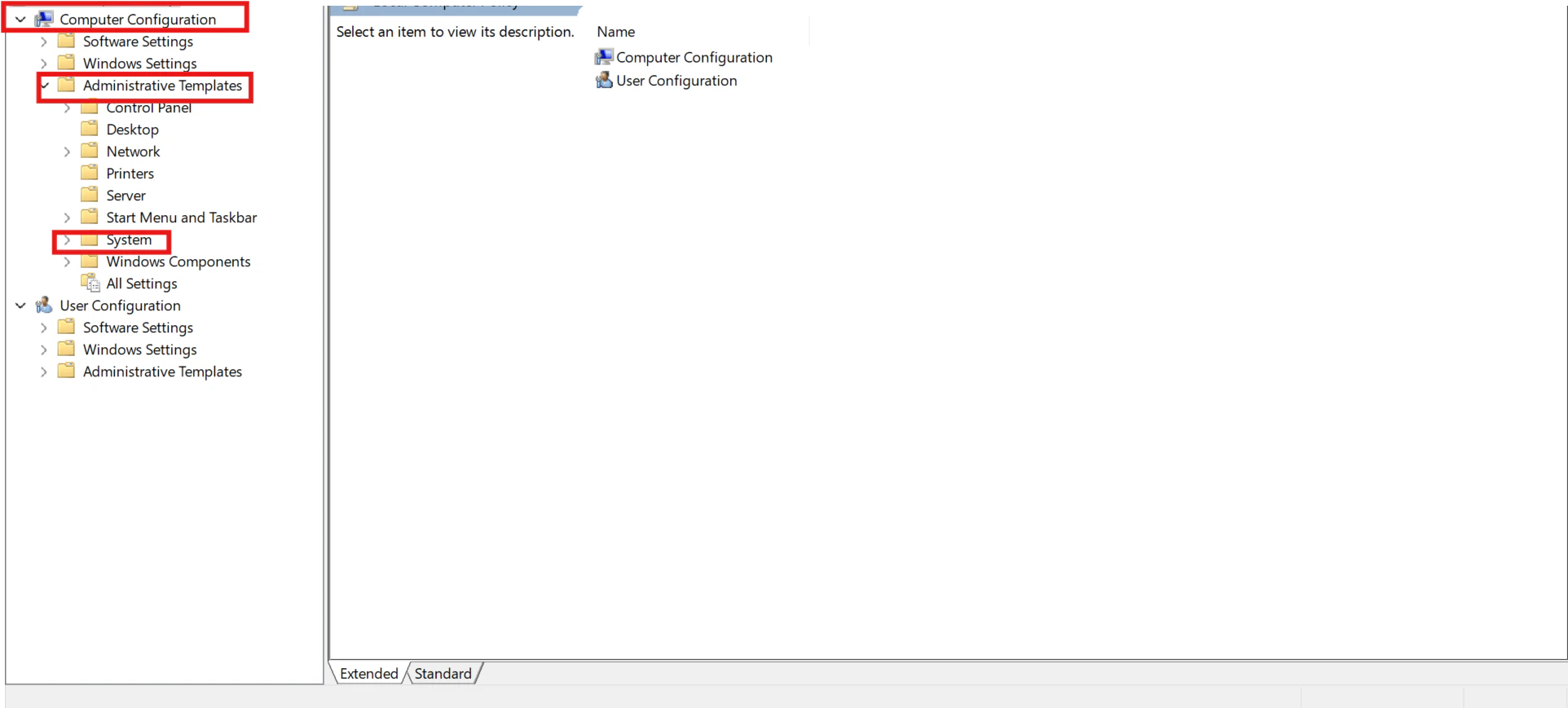
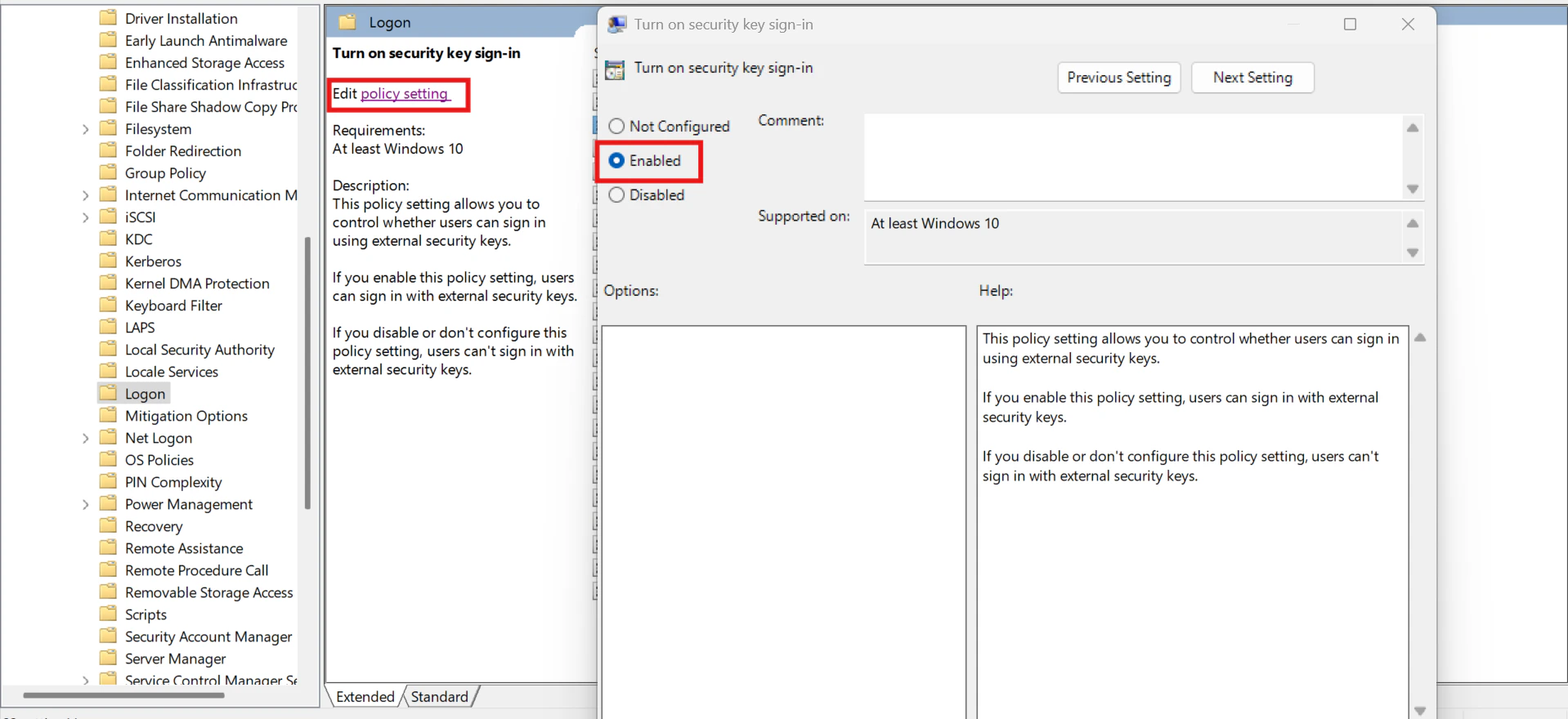
- Edit the policy, navigate to the Computer Configuration tab, then go to Administrative Templates > System > Logon, and select Turn on Security Key Sign-in.
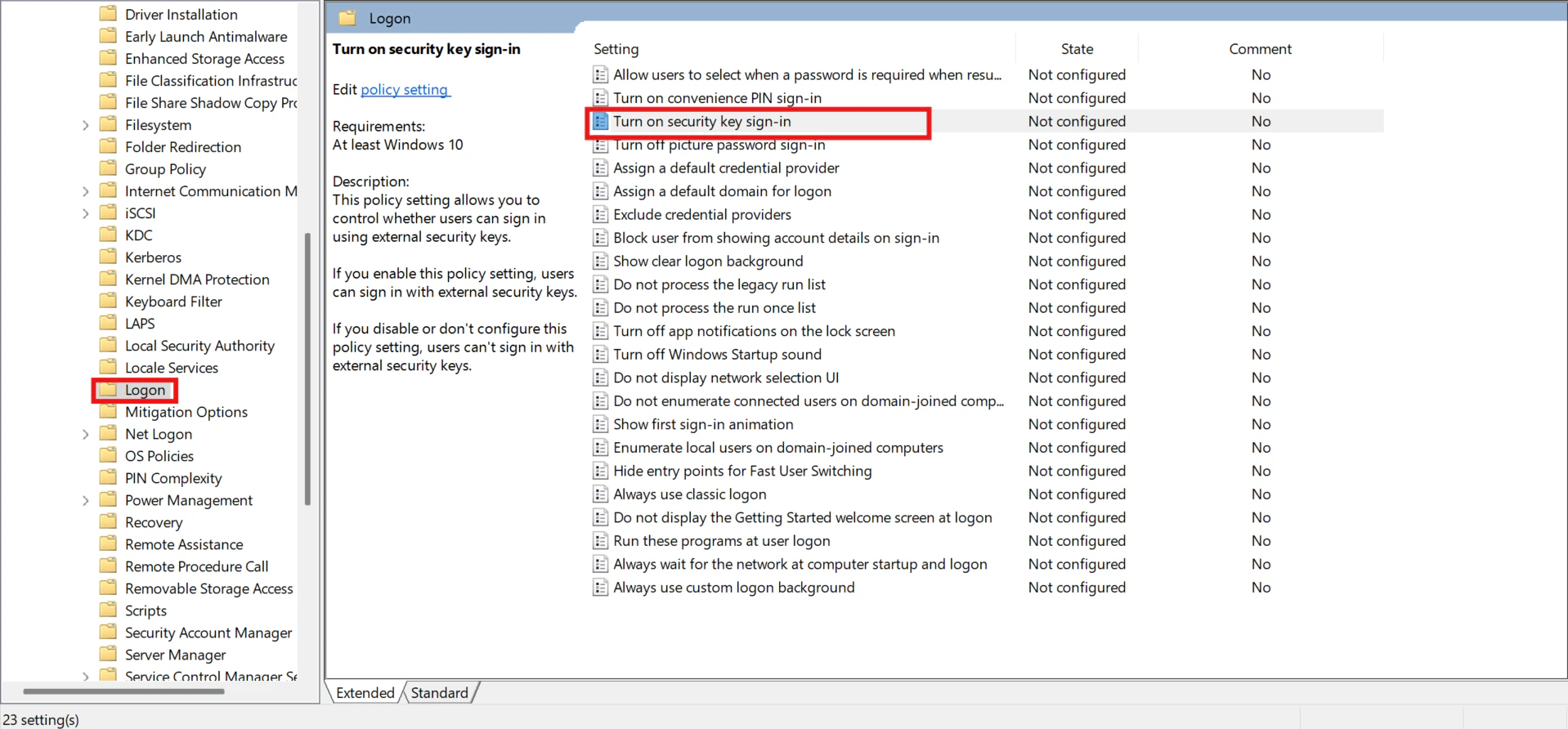
- Setting this policy to Enabled allows users to sign in using security keys.
- Setting this policy to Disabled or Not Configured disables security key sign-in for users.
Enable FIDO2 logon manually using a Registry Key
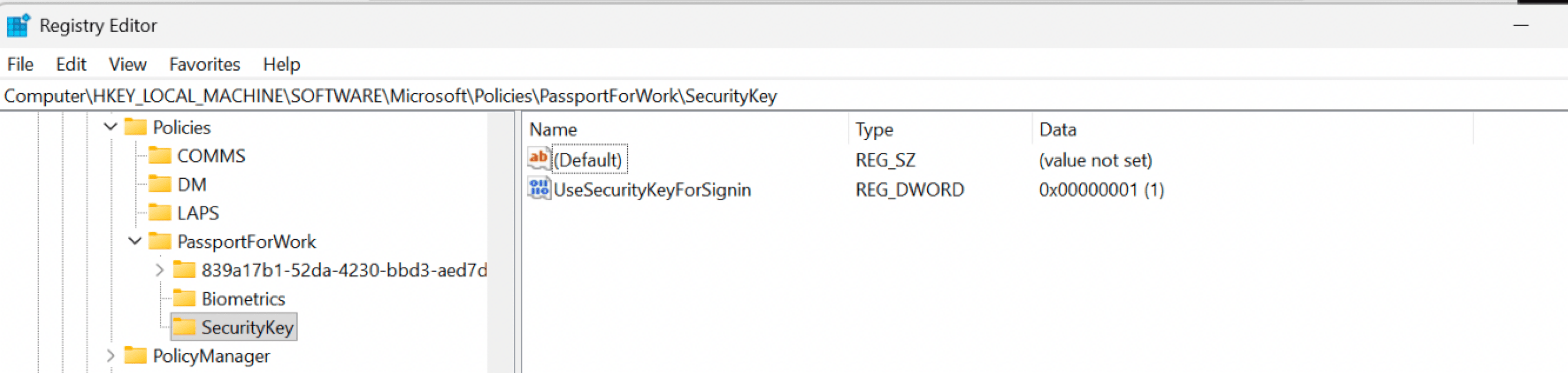
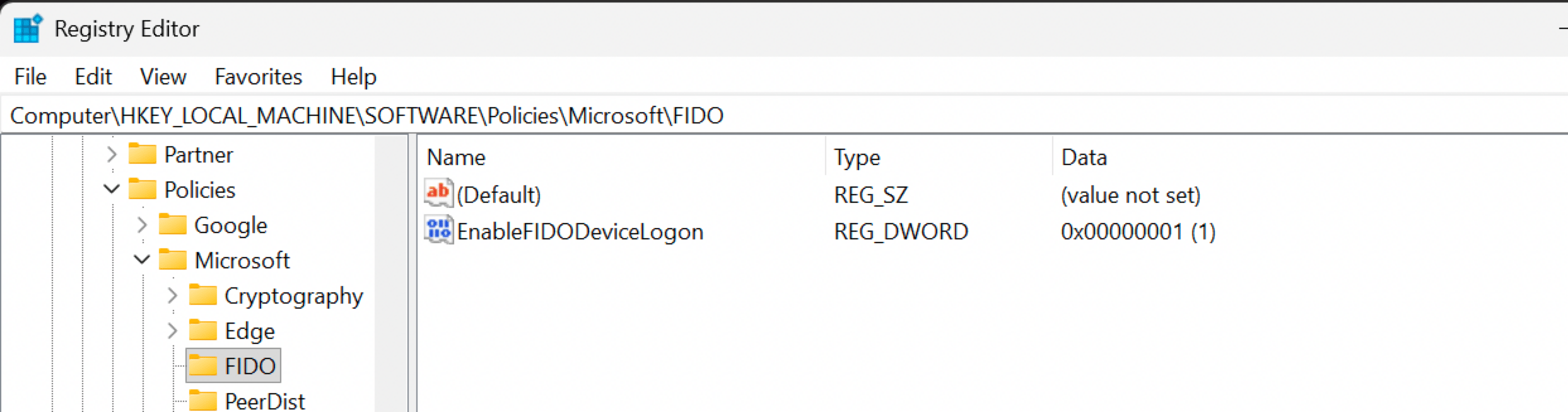
- To enable security key sign-in using a registry key, deploy the following to all your Windows clients using your preferred deployment tool:
Once configured, deploy to test group and validate your FIDO2 setup before rolling out to users.
Validate FIDO2 Enablement
After deploying the policy, verify that FIDO2 sign-in is available on the device. On the Windows sign-in screen, click the username and select Sign-in options. The FIDO2 security key option should appear as shown below.