

- Log in to “Jamf Pro”

- Click Computers at the top of the page

- Click Policies

- Click New

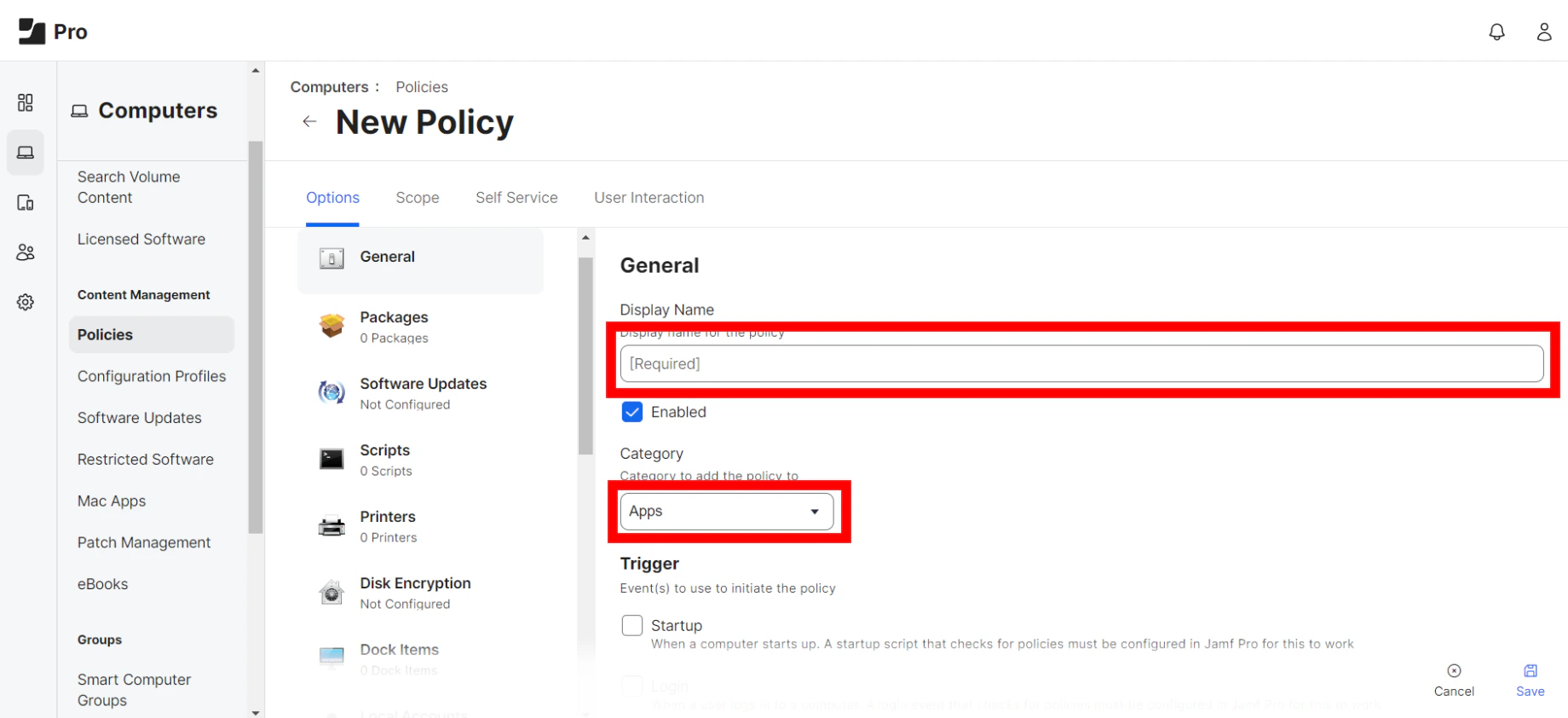
- Use the General payload to configure basic settings for the policy, including the trigger and execution frequency

- Select the Packages payload and click Configure

- Click Packages Settings

- Click New

- Add Display Name and Select Apps Category
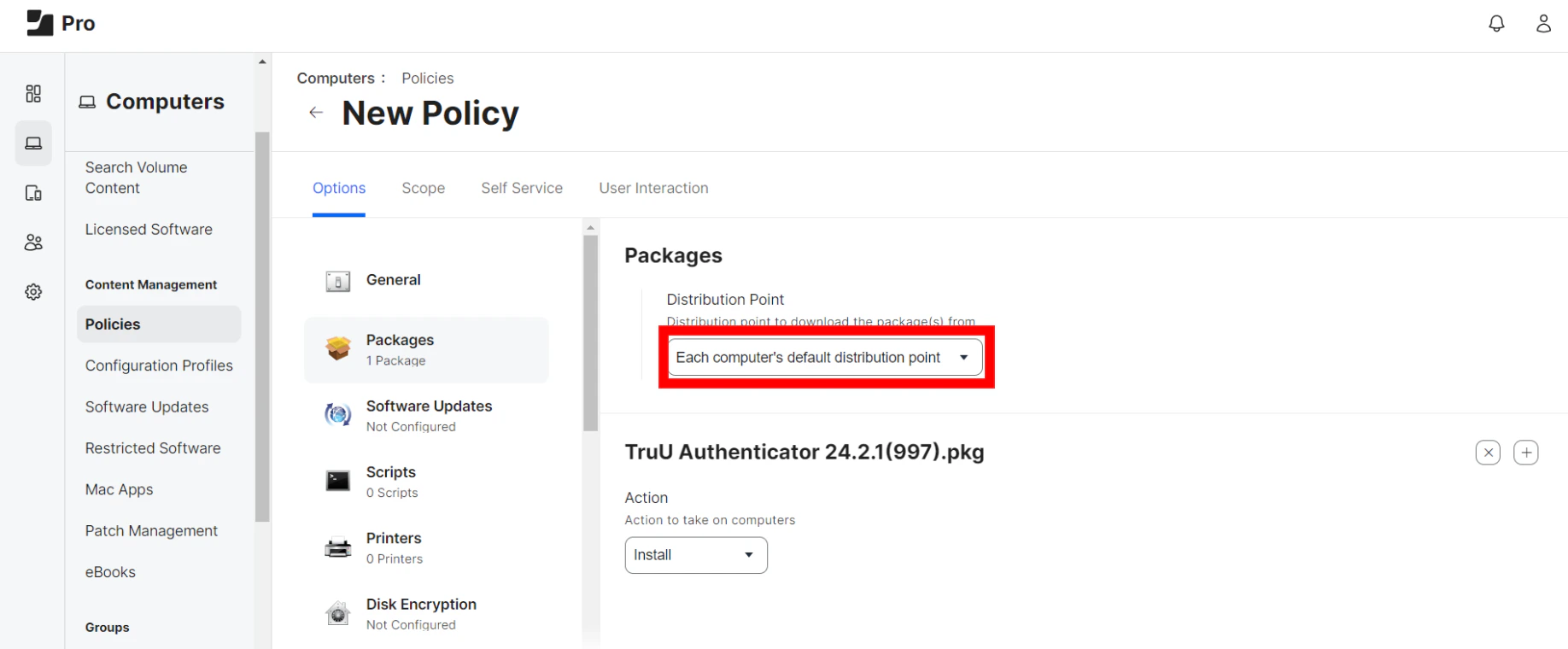
- Click Add for the package you want to install. Then, choose Install from the Action pop-up menu
- Configure the settings for the package. Make sure to specify a distribution point for computers to download the package from. Then, use the Restart Options payload to configure settings for restarting computers
Manual Install TruU TruU JAMF Pre-Stage Deployment using JAMF Setup Manager