

- Log in to the TruU Admin Console.
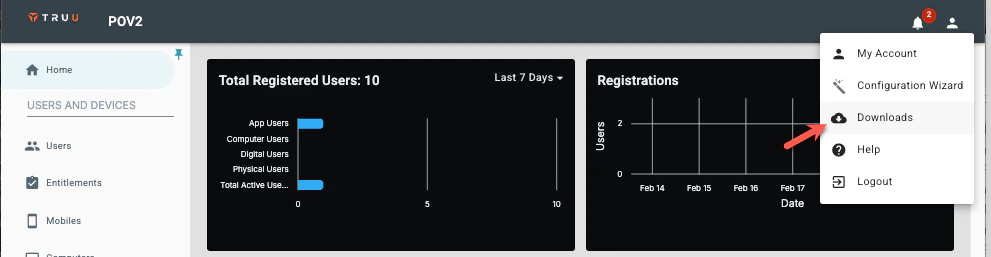
- Navigate to Profile Menu → Downloads.
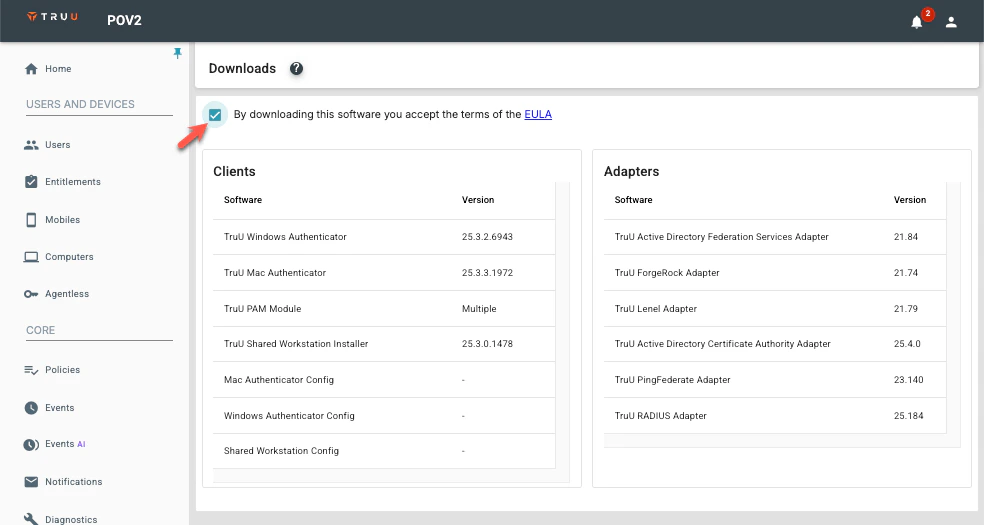
- Accept the EULA.
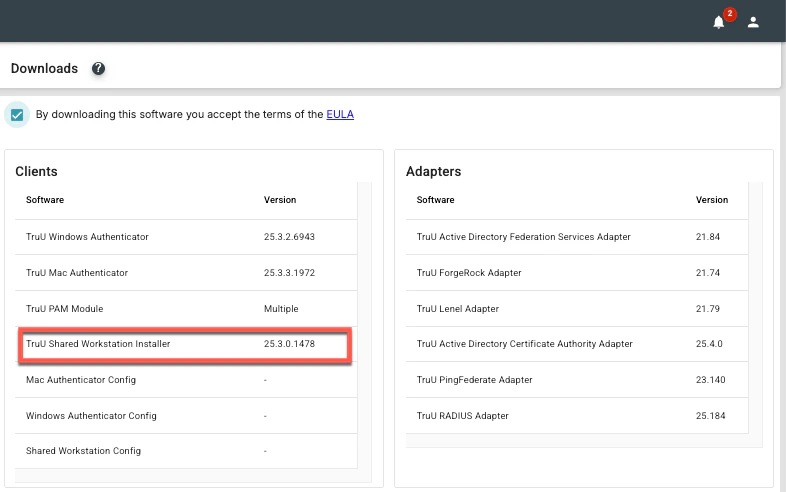
- Download the TruU Shared Workstation Installer.
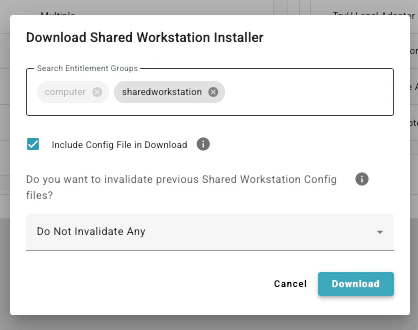
- Once you see the window below,
- Add the Shared Workstation Entitlement group
- Check the “Include Config File in Download” box.
- Select Do Not Invalidate Any
- This will install two files in the Downloads folder.
- Extract the truu-shared-workstation file
- Drag and drop the application file into the truu-shared-workstation file

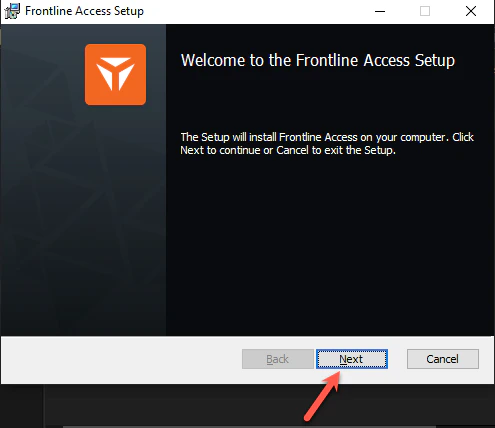
- Double-click the installer file to launch the TruU Shared Workstation installer.

- Click Next
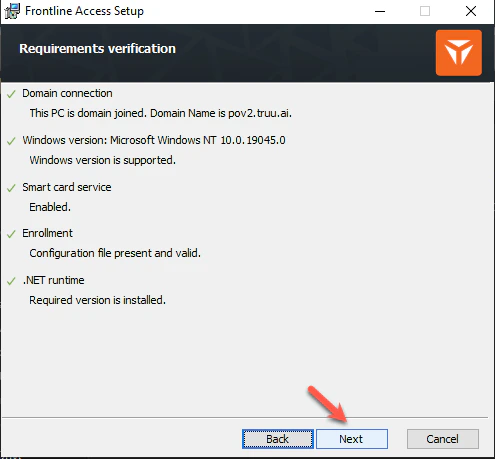
- Ensure all requirements are met. Click Next.
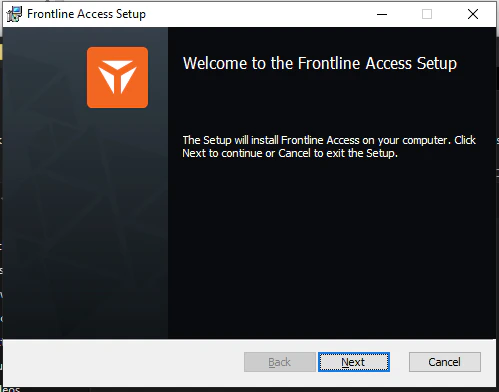
- Follow the prompts to finish Installation
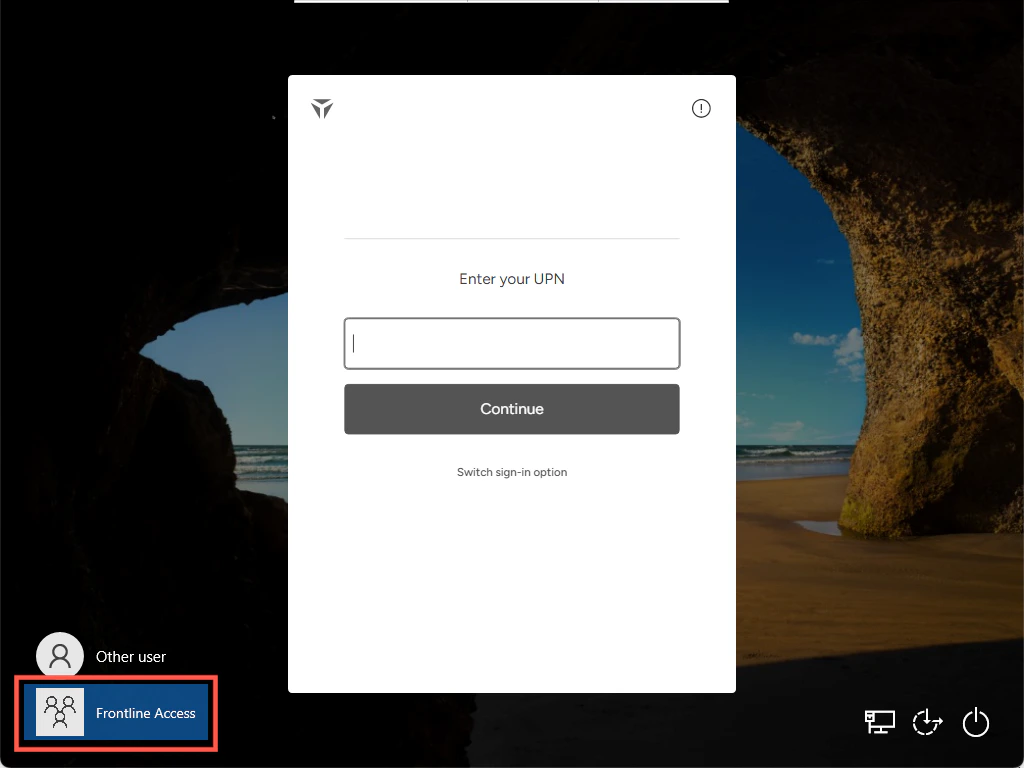
- Navigate to the lock screen to confirm the presence of the Shared Workstation login tab.
Group Policy Setup for Shared Workstaion Deploy SW via SCCM