

Why Two Modalities?
TruU offers two distinct authentication methods for Windows because Microsoft defines three ways a device can be joined to an identity infrastructure — and each join type has different authentication capabilities. The join type is what determines which TruU modality you can use. Before choosing a modality, confirm your device join type. See Microsoft Device Join Types for details.TruU Authentication Modalities
Table below provides the details on TruU modality to be used based on Microsoft device join type.Not sure which join type your devices use? In PowerShell, run
dsregcmd /status on a device and check the AzureAdJoined and DomainJoined fields.TruU SmartCard Authenticator
Recommended for Active Directory joined (domain joined) devices.Prerequisites
- Windows 11 version 24H1 or later
- Requires PKI infrastructure (ADCS, TruU Cloud Trust or third-party CA) — see PKI Configuration & Setup Overview for details.
- For Entra ID Managed domain customer must enable Microsoft CBA to obtain PRT token ( Optional) — see Enable Microsoft CBA for TruU Authenticator for details.
- TruU config file setting must be set as under.
TruU FIDO2 Authenticator
Recommended for Entra hybrid joined or Entra only joined devices.Prerequisites
- Windows 11 version 24H1 or later
-
FIDO2 Security Keys authentication method enabled in Microsoft Entra ID — see Enable TruU FIDO2 Authenticator for Entra ID for details.
If you are using a directory other than Entra ID, you need the Entra ID FIDO2 Enrollment Adapter. This adapter lets TruU verify that a FIDO2 security key has been registered with Entra ID using an OAuth client and mapping attributes. It is required for Windows Authenticator version 24.2 or later in FIDO2 mode. If you are using Entra ID as your directory, this is not needed. Entra ID FIDO2 Enrollment Adapter Guide
- Enable FIDO2 logon on Windows OS — see Enable FIDO2 security key sign-in for Windows for details.
-
Cloud Kerberos Trust configured — see Enable Entra ID Cloud Kerberos Trust for details.
- Required for Hybrid Entra joined devices.
- Optional for Entra joined, required is user need to access on prem resources like printer and files shares.
-
TruU config file must be updated (default is
0, must be changed to1):
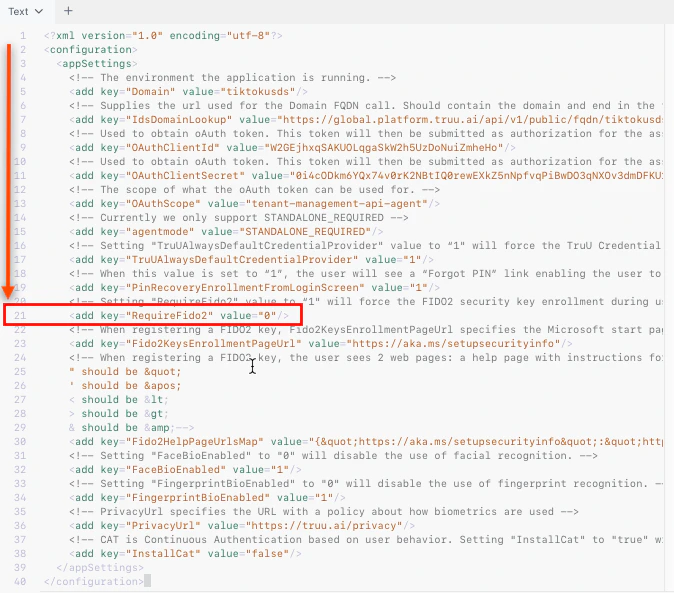
Networking and Firewall Requirements
TruU agent must communicate with TruU cloud and requires internet connectivity at the logon screen of Windows OS. If your organization is blocking any outbound traffic then allow outbound traffic to the following URLs from the client Windows device. TruU URLshttps://global.platform.truu.aihttps://customer.idp.id.truu.aihttps://customer.cert.id.truu.ai