Creating a TruU Webhook Event Logging Adapter

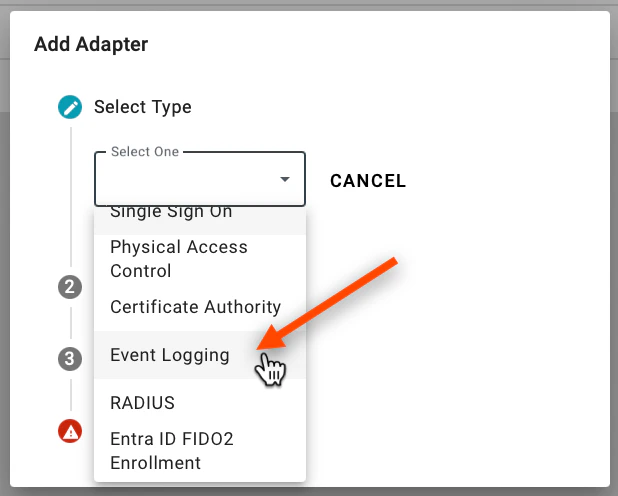
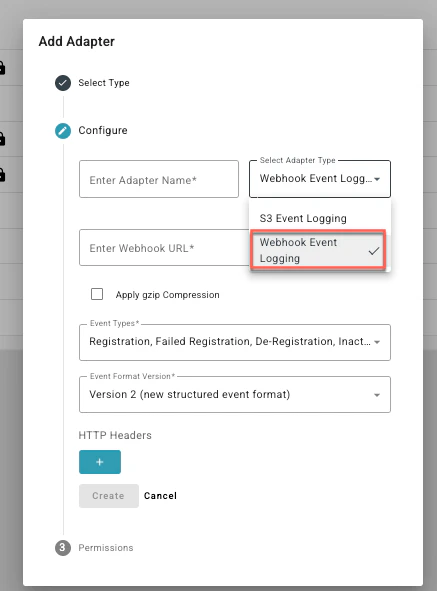
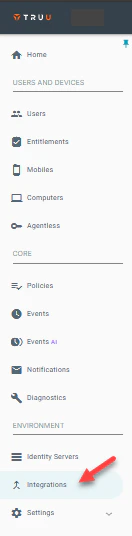
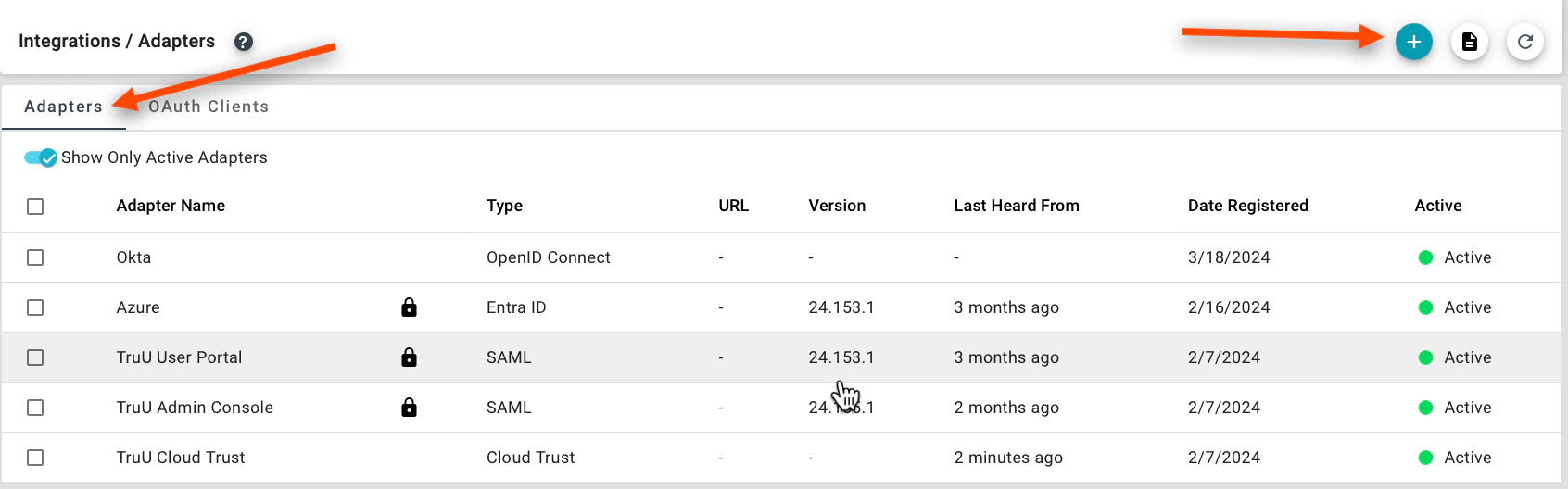
Step 1: Log into the TruU Admin Console and navigate to the “Integrations” tab. Step 2: Navigate to the Adapters tab and click (+) to create a new TruU adapter. Step 3: Select the Event Logging adapter and choose the Event Logging adapter type from the dropdown menu. Step 4: Select Webhook event from the Select Adapter Type Drop down. Step 5: Enter the following information to the adapter: Adapter Name: Provide a name for your adapter. Webhook URL: Provide the URL where you would like to publish the Webhook event data. Apply gzip Compression: Check the box if you would like to compress the data. Event Types: The types of TruU events that can be exported via Webhook. You can choose to export all or a subset of TruU events via Webhook. HTTP Headers: You can optionally choose to add HTTP headers (e.g., if you need to include an API key for integration with a SIEM). Please note:
  • TruU exports events every 15 minutes. If an error occurs during an export, a notification message is displayed in the TruU management console. An error message will also be displayed if there is no event data for TruU to export.
  • When the adapter is initially deployed, TruU will export events from the previous 7 days from which the adapter was first deployed.

S3 Event Logging Adapter Setup Guide RADIUS