Directory Configuration
  1. Go to your “TruU Admin Portal” and, under the “Settings” drop down menu, select Directory. Then, click the (+) to add a new directory
  1. Next, enter all of the the required information in all valid fields:
SettingDescription
Configuration NameA unique name to identify the directory connection. For best practice, directory names should be based on the instance and region where the directory resides (e.g. US-Denver-Production)
Tenant IDThe URL of your Okta tenant (e.g. ‘https://<tenant-name>.okta.com’)
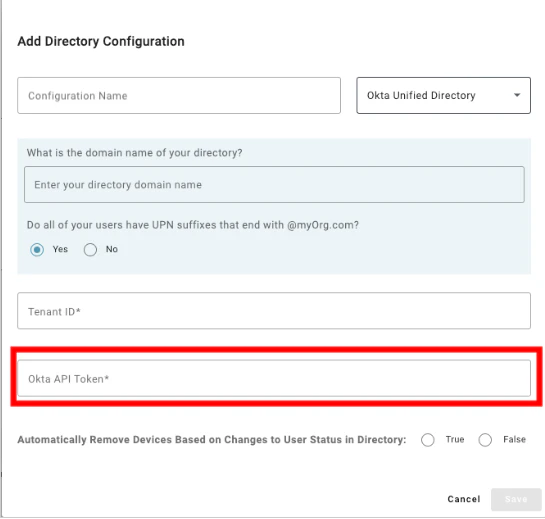
Okta API TokenAn Okta API token authorizes TruU Identity Servers to securely query users in the Okta directory
Automatically Remove Devices Based on Changes to User Status in DirectorySetting this to ‘True’ will automatically unenroll devices when user accounts are removed from the corporate directory. Additionally, you can specify whether devices should be unenrolled for other user account changes such as Account Deactivated, Account Suspended, or Account Locked (differs depending on directory). You can also choose to remove the user record from the admin console entirely
NOTE: If not all of your users have the same UPN suffix that ends with <domain>, this can be set to No and revisited at a later time
  1. In order to insert your Okta API Token, you must create the Okta API Token on your Okta Admin Console. To do so, follow the steps below:
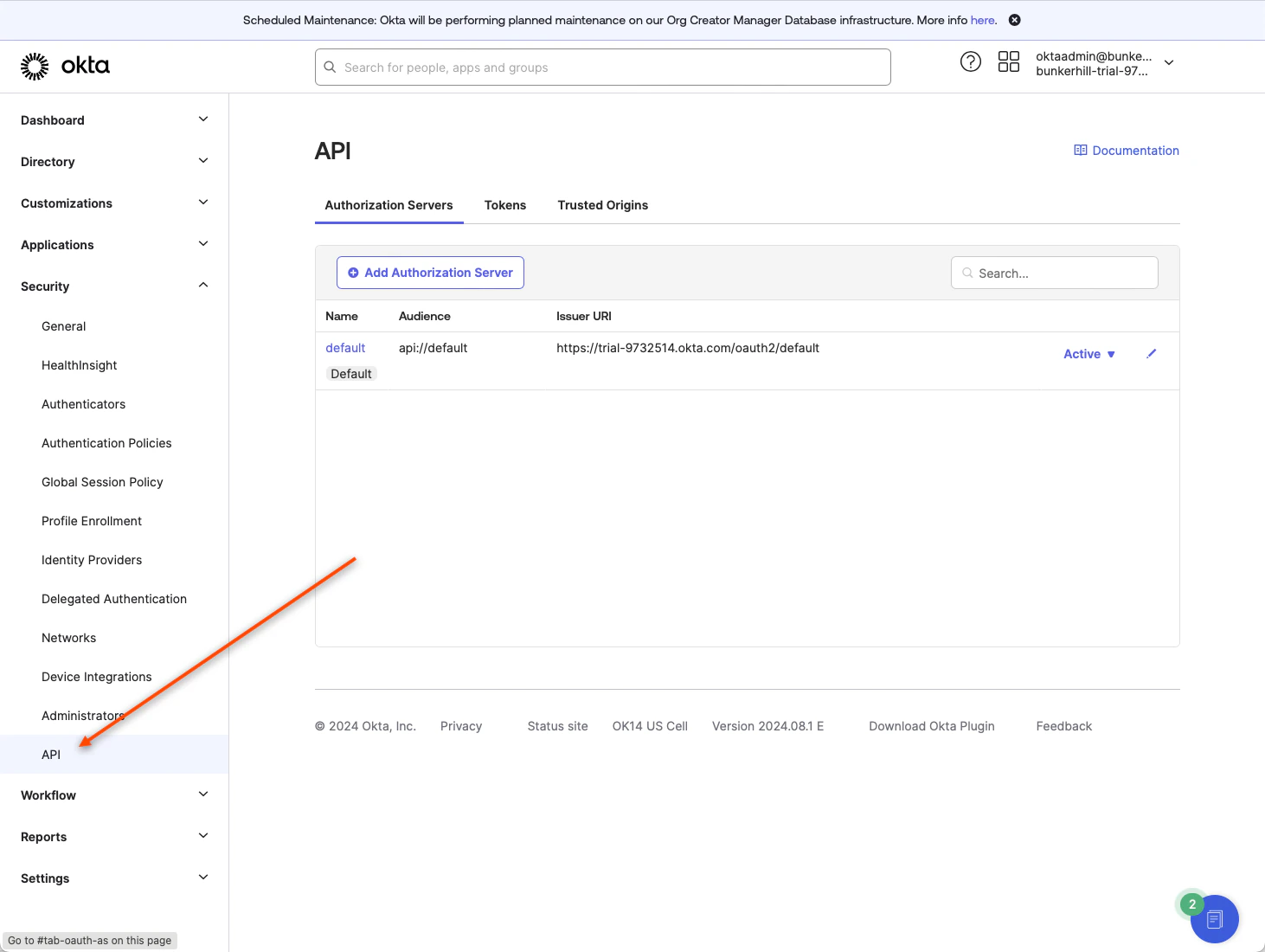
    1. On the Okta Admin Console, navigate to the “Security” dropdown menu and select API
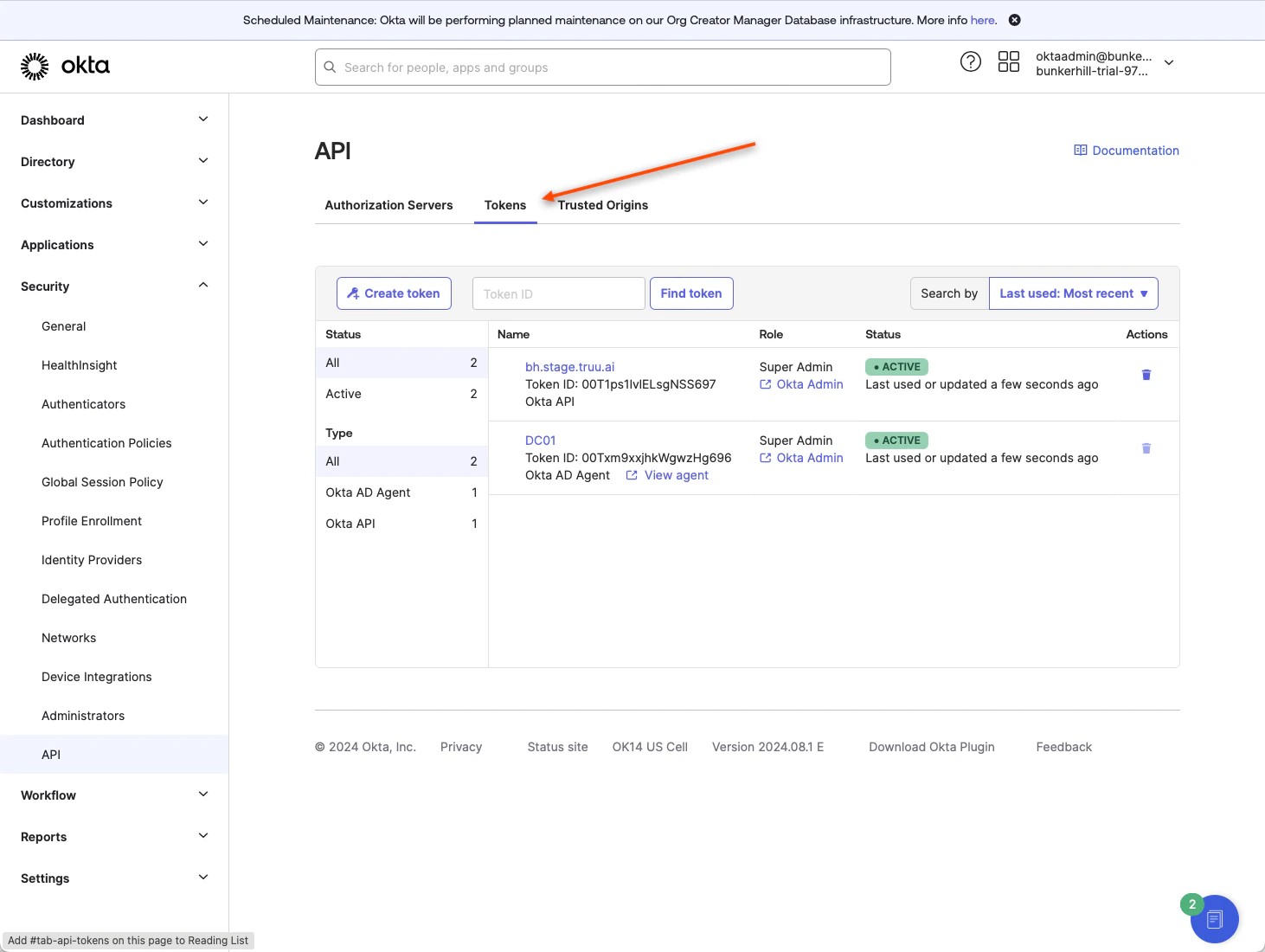
    1. Click Tokens
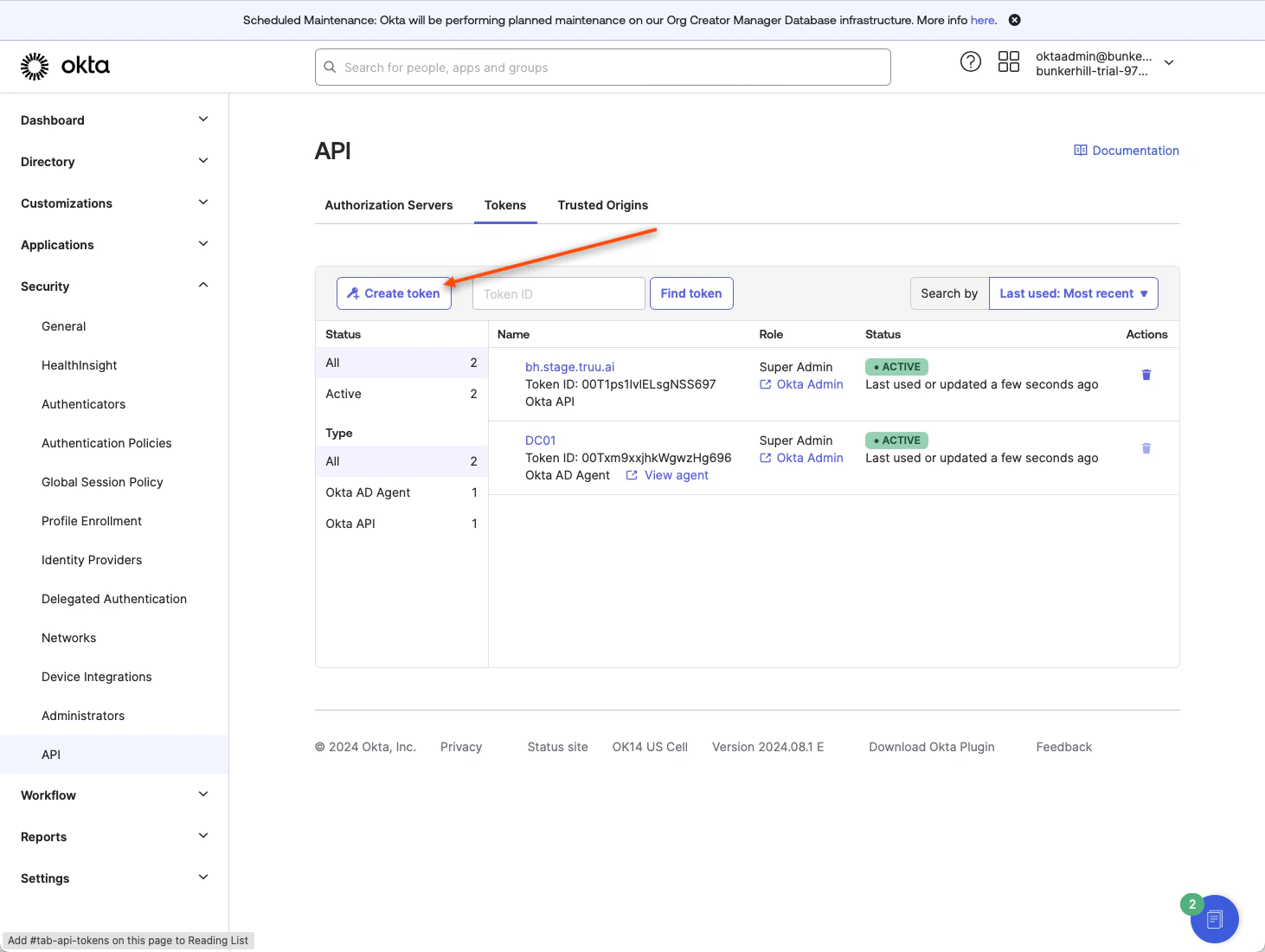
    1. Click Create Token
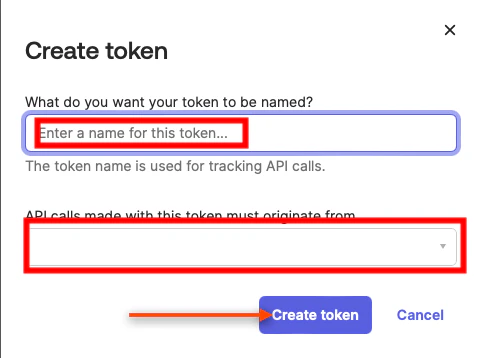
    1. Name your token (we suggest “TruU”) and select Any IP in the second drop down. Then, click Create token
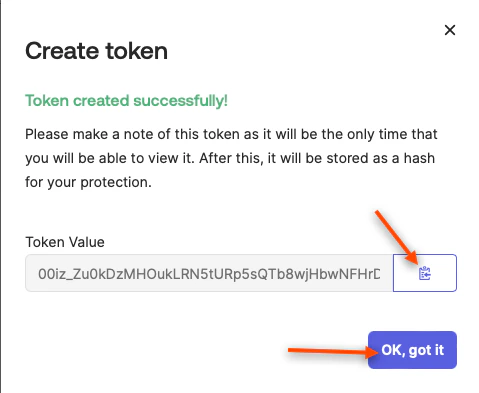
    1. You have now generated your API Token. This “Token Value” you will be able to copy and paste into your TruU Admin Console by clicking the marked “copy” button, and click Ok, got it
    1. This token value will be pasted in the “Okta API Token” section of the Directory Configuration page in the TruU Admin Console as seen below
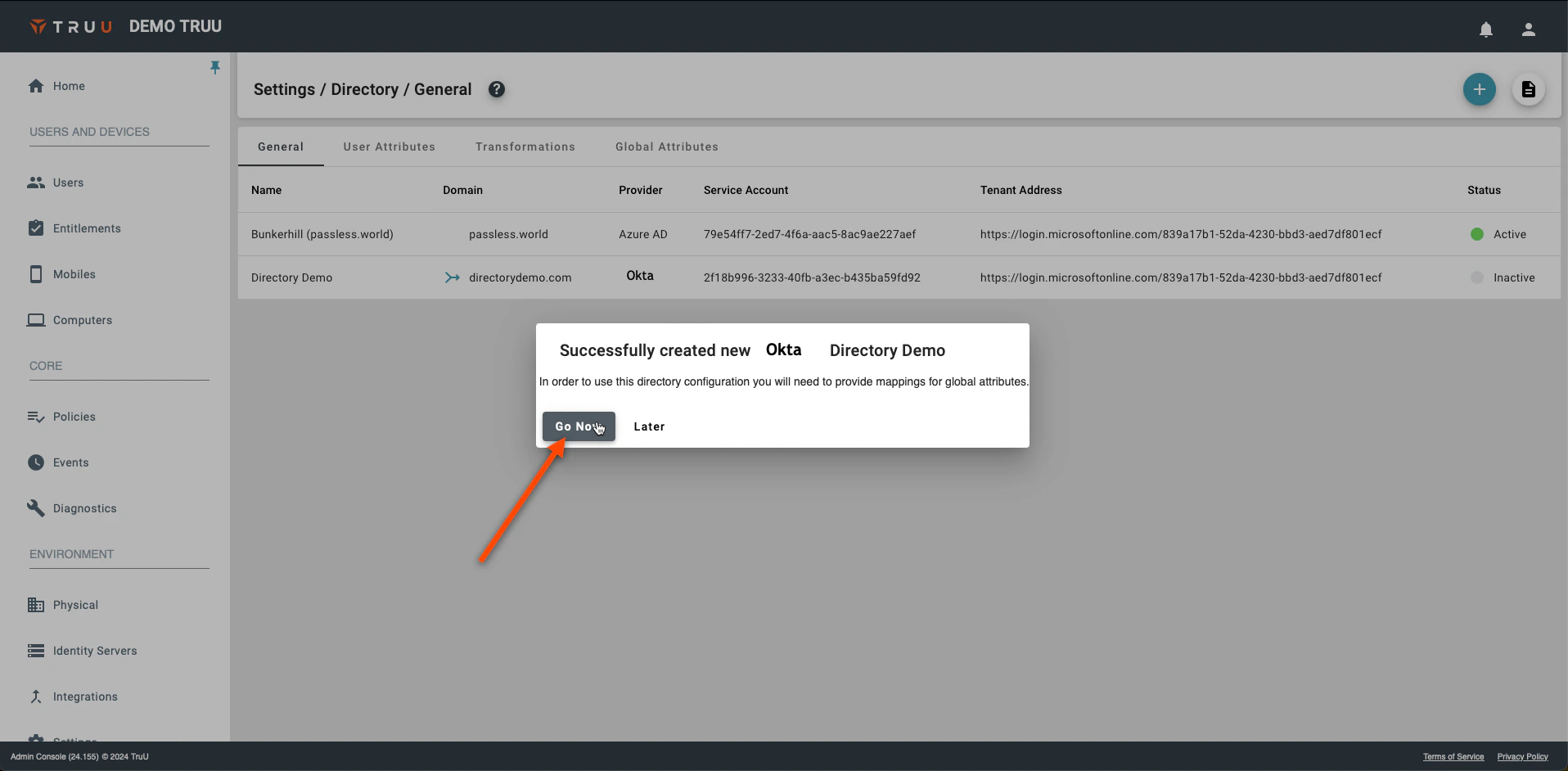
  2. Once you fill in all the fields, click Save. You will be prompted with the following pop-up. Select Go Now
  3. Now make sure you are in the Global Attributes tab and click on the Gear icon in the top right portion of the screen. Here, you are able to select what your Primary User Identifier will be for the user throughout the system. Make sure you click Save on the pop up window
  1. Navigate to the “Identity Servers” tab under the “Environment” section. Click on the Cluster tab, and select your directory. Upon selection, choose your directory configuration in the prompted drop down menu under _Directory Connection
  1. It may require 2-3 minutes, but once you get the “Healthy” diagnostic, you have successfully configured your directory

Entra ID Directory Enable Single Sign On For TruU Portals