

Badge Use Requirements:
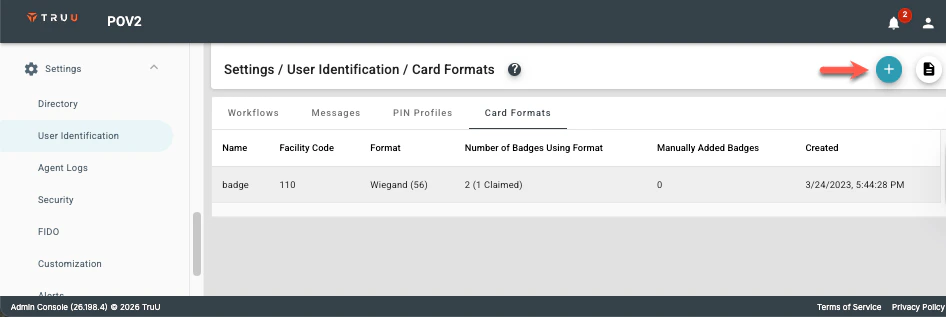
In order for users to use an access badge to access a Shared Workstation, you will need to do the following:- You will need to add the Card Format for the access cards used in your organization so that TruU knows how to read a badge when it is scanned. Go to Settings > User Identification > Card Formats to set this up.
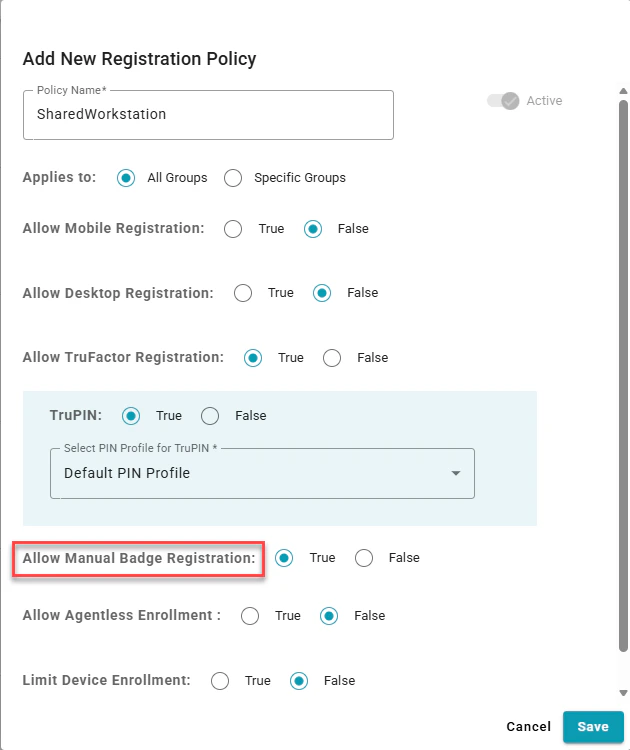
- Enable users to use access badges in one of the following ways:
- If your badge values are in your user directory, you will need to set up a Global Attribute with an ‘Attribute Type’ of ‘Access Badge’.
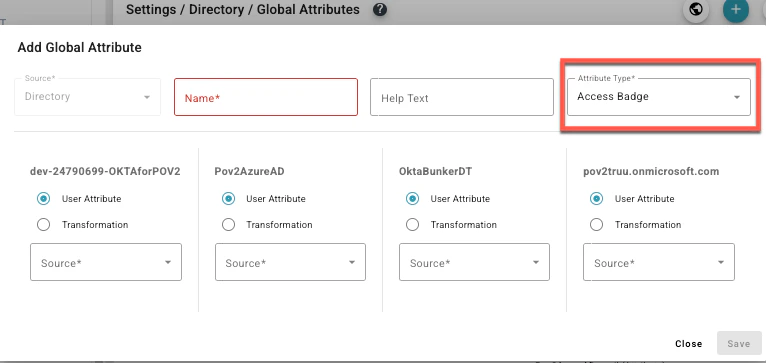
- If your badge values are in your user directory, you will need to set up a Global Attribute with an ‘Attribute Type’ of ‘Access Badge’.
Card Formats
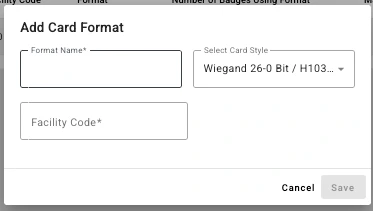
Card Formats define how physical access badges are interpreted by TruU during badge-based authentication. Configure Card Formats for your Shared Workstation users based on your organization’s Physical Access Control System (PACS). In the TruU admin console, navigate to Settings > User Identification > Card Formats and click on the blue plus (+) icon:- Provide a name for the card format.
- Select the card style from the pre-configured dropdown (or configure your own card format by selecting ‘Advanced Configuration’),
- Provide a facility code (value between 1-255).
- Click Save
Creating Policies for Shared Workstation Login Group Policy Setup for Shared Workstaion