

- Shared Workstation Policy: Defines the actual login experience and specifies which authentication factors are allowed on the hardware, such as badges, mobile app scans, or PINs.
- Registration Policy: This is required if your organization intends to utilize TruPIN or Physical Access Badges, as it enables the entitlement group selected to enroll these identities through the TruU User Portal.
Shared Workstation Policy
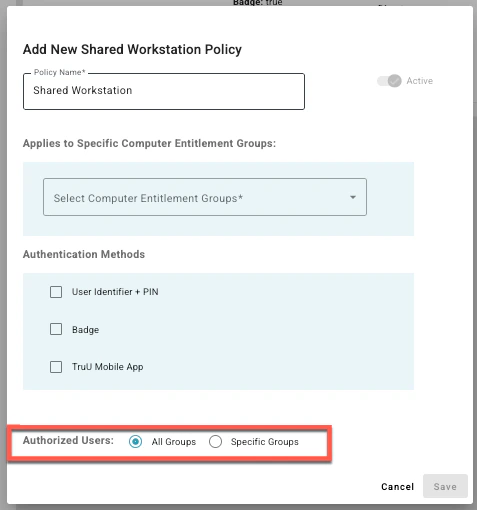
Shared Workstation policies apply to Computer Entitlement Groups (at least one must be selected). The following policies can be set for Shared Workstations:- In the TruU admin console, navigate to Policies > Registration and click the blue plus icon:
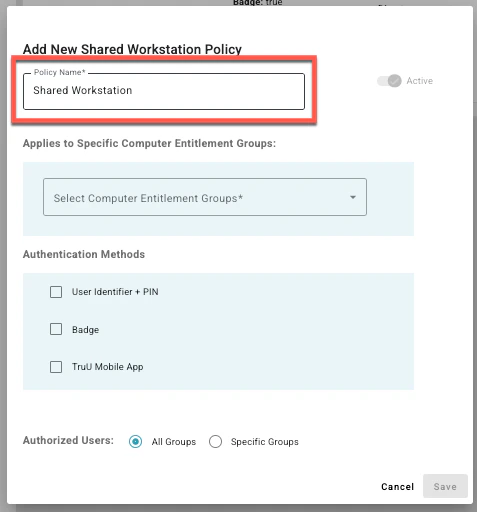
- Set a policy name
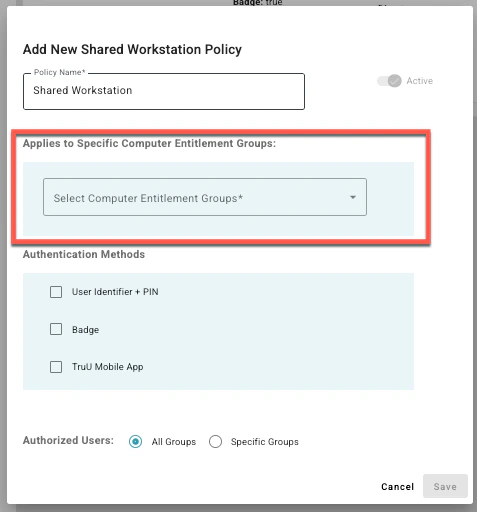
Set which entitlement group the shared workstation policy applies to. (Entitlement Group created here)
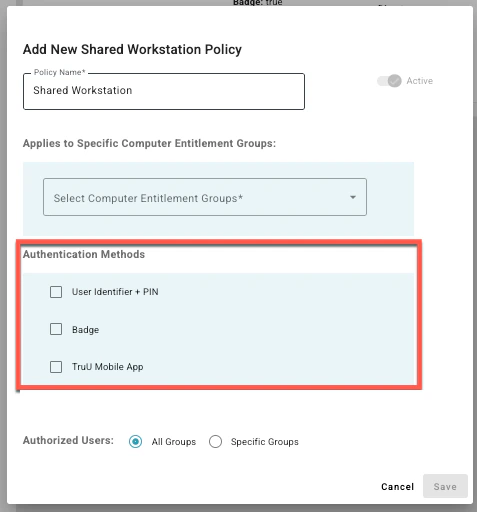
- User Identifier + PIN: When this is selected, users will need to enter a user identifier (e.g. UPN) and a TruPIN to sign-in. (NOTE: a TruPIN is a cloud-based PIN that users can setup in the User Portal. If you would like to use this option, be sure to enable this option for your users using the following guide Policies
- User Identifier Attribute: Select the ‘Primary User Identifier’ for your organization. However, if you would like to use another attribute, you can select any Global Attribute for this value. (You can create a new attribute using the following guides Configuring Primary User Identifier
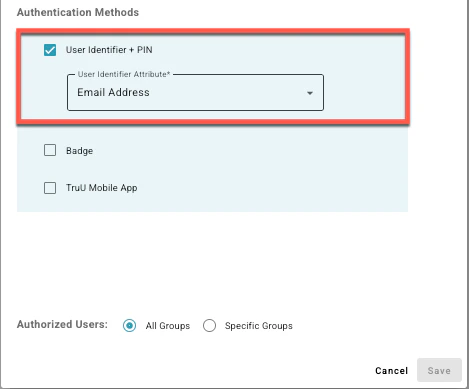
- User Identifier Attribute: Select the ‘Primary User Identifier’ for your organization. However, if you would like to use another attribute, you can select any Global Attribute for this value. (You can create a new attribute using the following guides Configuring Primary User Identifier
- Badge: when this is selected, users will identify themselves by tapping an access badge on an attached card reader.
- Require PIN with Badge: when this option is selected, users will need to enter their TruPIN as a second factor to sign-in to the Shared Workstation.
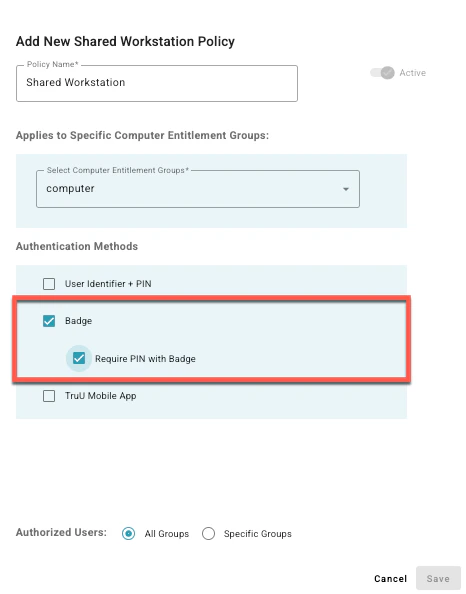
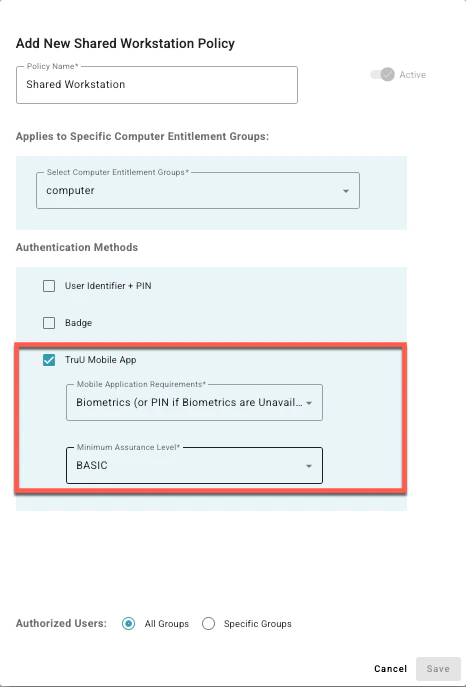
- TruU Mobile App: when this is selected, users enrolled in TruU on their phone can scan a QR code with the TruU Mobile App to sign-in to the Shared Workstation.
- Mobile Application Requirements: This setting defines what the user must provide to authenticate with TruU. The available options are:
- Biometrics Only: When this is selected, the user must authenticate using the built-in biometrics from the mobile device. This means, that users who don’t have supported biometrics on their device will not be able to authenticate to this resource.
- Biometrics (or PIN if Biometrics are Unavailable): When this is selected, the user will be asked to provide biometrics if the device is capable of using biometrics but will accept the application PIN created during enrollment if biometrics are not available.
- PIN Only: When this is selected, the user must provide the application PIN created during enrollment to authenticate.
- Biometrics + PIN: When this is selected, the user must provide both the built-in biometrics from the mobile device and the application PIN created during enrollment to authenticate.
- Minimum Assurance Level: This setting defines the required assurance level for the authenticating device for the user to access the resource. The available options are:
- Basic: When this is selected, users can authenticate with any enrolled device. If you are using an enrollment workflow that requires an identity verification step, users will be able to authenticate to Shared Workstations under this policy setting before the identity verification step has been completed.
- Trusted: When this is selected, users can authenticate using a device that has been enrolled using any form of identity verification.
- Certified: When this is selected, access is restricted to users who have performed an in-person identity verification step.
- Mobile Application Requirements: This setting defines what the user must provide to authenticate with TruU. The available options are:
Registration Policy
- In the TruU admin console, navigate to Policies > Registration and click the blue plus icon:
- Set a policy name
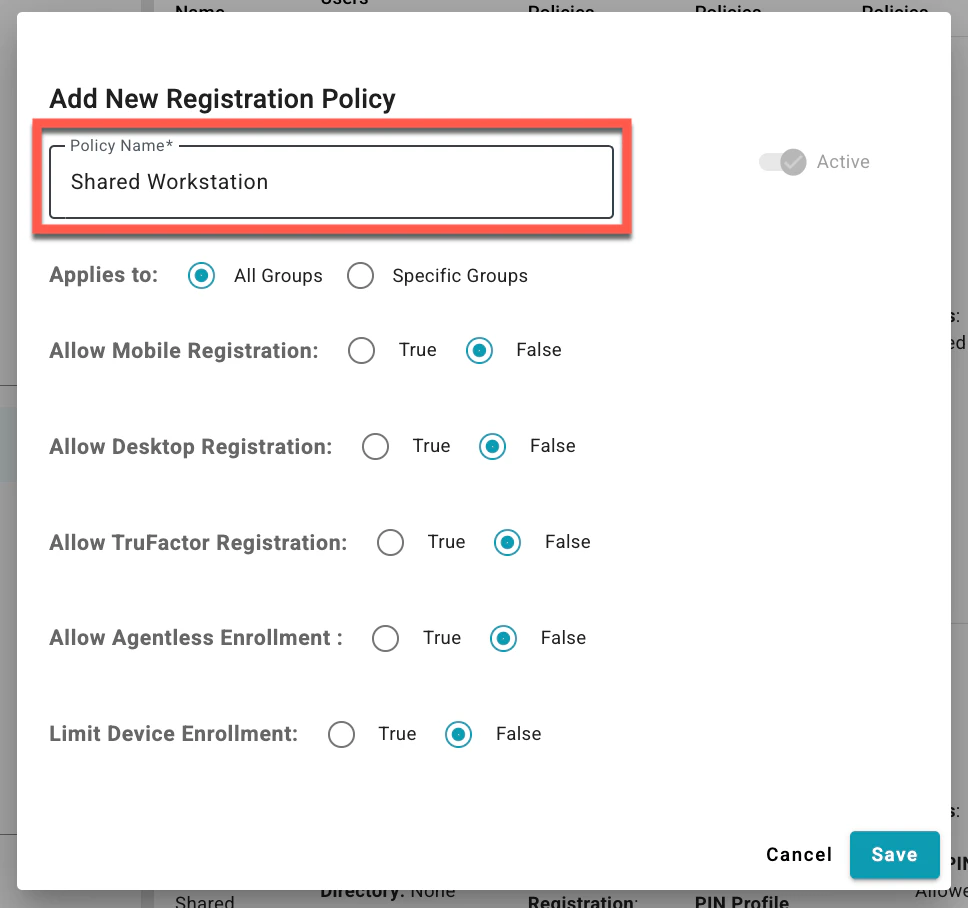
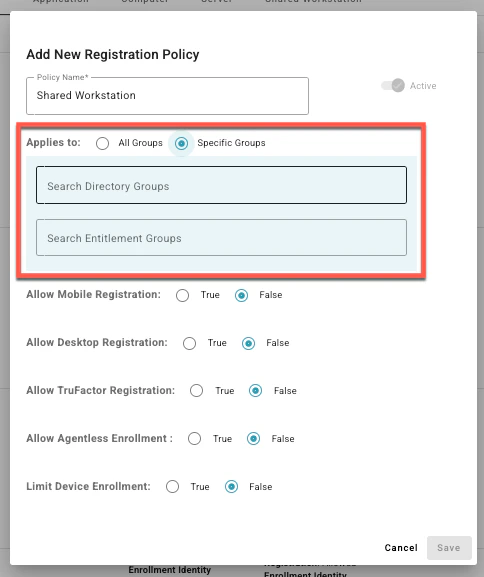
- Set which group the shared workstation policy applies to. The available options are:
- All Groups
- Specific Groups
- Directory Groups: Add groups already created in the directory
- Entitlement Groups: Add entitlement group created in TruU Admin Console
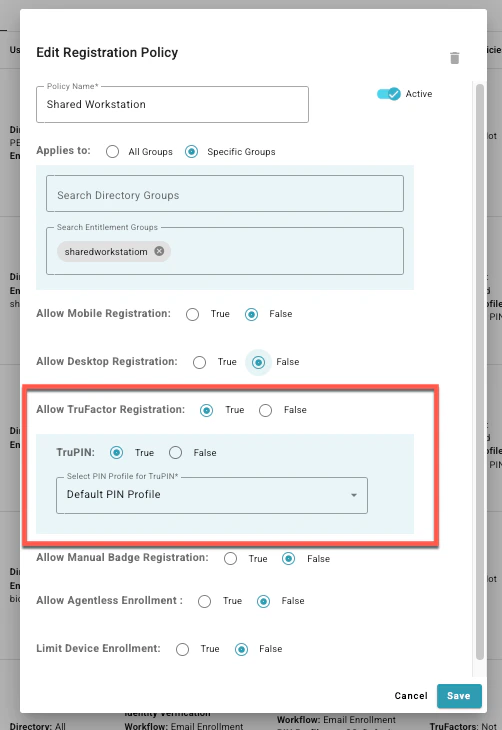
- Allow TruFactor Registration: This setting allows users to create and update their cloud-based TruPIN via the TruU User Portal. A PIN Profile must be assigned. (PIN Profile Set up Guide LINK)
- Set to True to permit registration of TruU cloud-managed factors. For Shared Workstation scenarios, this enables the cloud-based TruPIN factor.
- Set to False to prevent registration of all TruFactors.
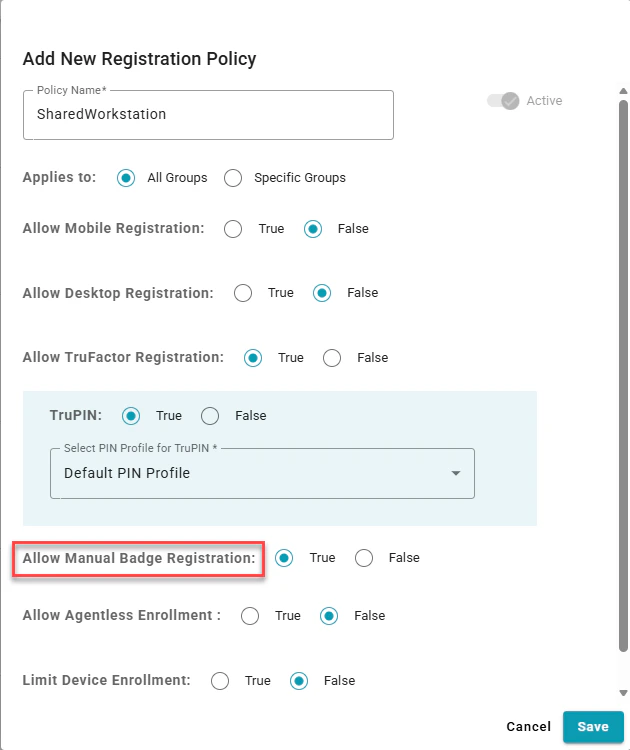
- Allow Manual Badge Registration: Manual badge registration should only be enabled when badge values are not sourced from the corporate directory.
- Set to True to allow users to register an access badge via the TruU User Portal. This badge can be used as a possession factor and user identifier for Shared Workstation authentication.
- Set to False to prevent badge registration through the User Portal.
Creating Entitlement Groups for Shared Workstation Configuring Physical Access Badge for Shared Workstation