

Use Case 1: Source does NOT have TruU installed, but RDP destination does have TruU
Result: TruU login will fail when the destination attempts to login to the operating system Explanation: The user’s login fails because TruU cannot access the locally plugged smart card of the server that the user is attempting to RDP into. This is because the login session is redirected to the client, thereby making only the client’s smart card accessible in the RDP session (WinSCard.dll is replaced in RDP). Microsoft made it this way to for enhanced security reasons Resolution: Install TruU on the original source computer (See Use Case 2 below)Use Case 2: Source has TruU and RDP Destination has TruU
Result: TruU Login will fail when the destination attempts to login to the operating system Explanation: This is because Microsoft has a security feature where they prevent the use of the certificate (smartcard/FIDO) on the remote host from the Lock Screen, as such use is only available during the active user session Resolution: See the guide below:- Log into the Workstation using TruU
- Start the Remote Desktop connection
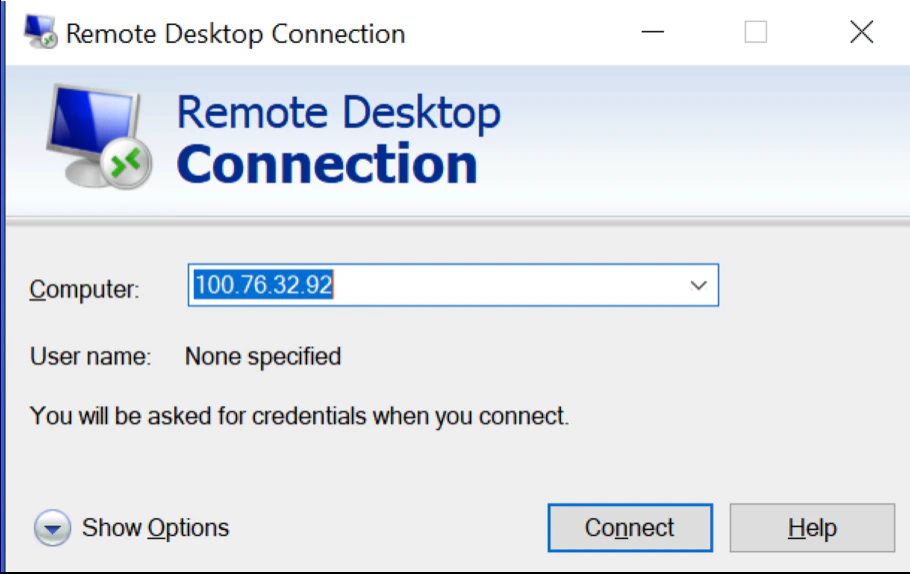
- Enter the name or IP address of the target computer, then click connect
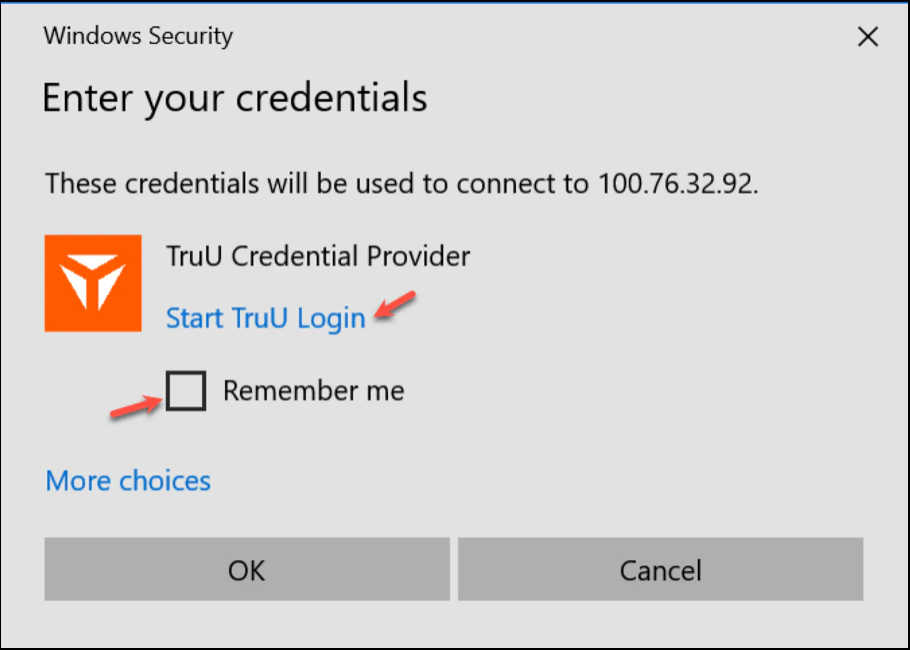
- Select Start Login with TruU
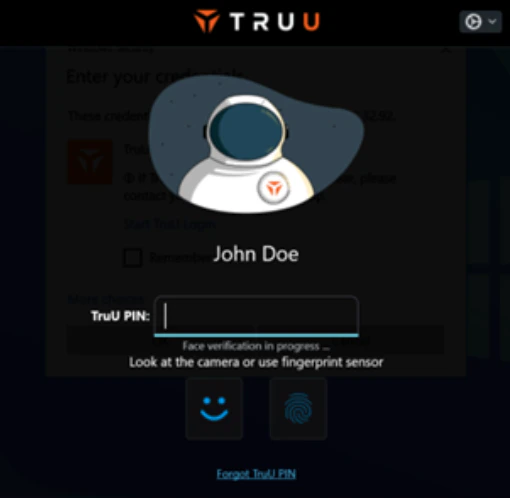
- Provide your TruU PIN or biometrics and answer any prompts for RDP
-
After successful authentication, you will see one of the following:
- Login screen on the target computer
- Select Other user and then select the desired Sign in option
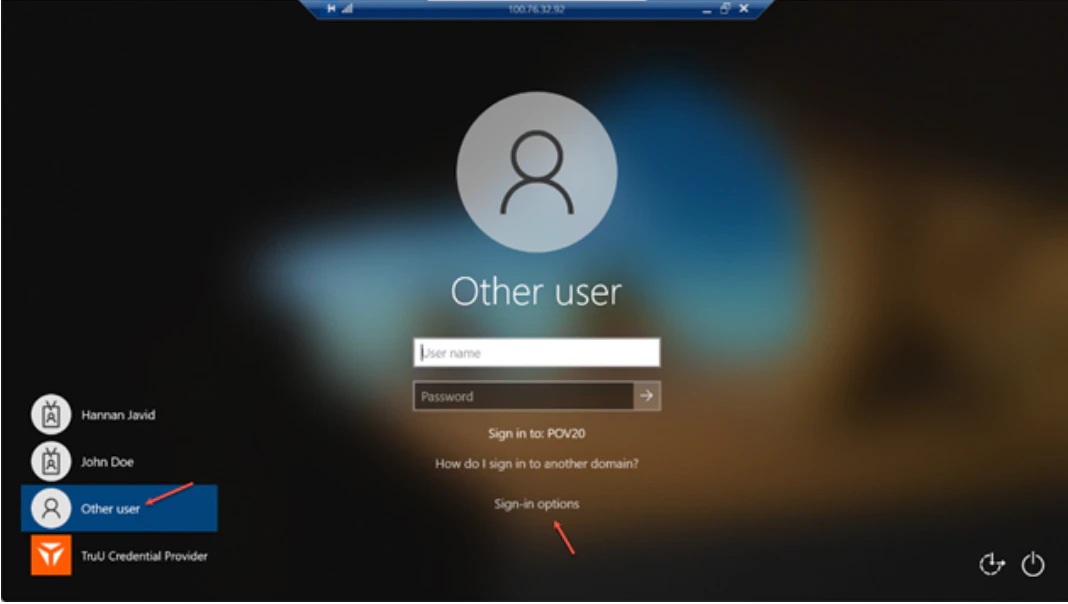
- Select the last smartcard (you will see your login ID on that specific screen) and enter the TruU PIN that you used on the source computer
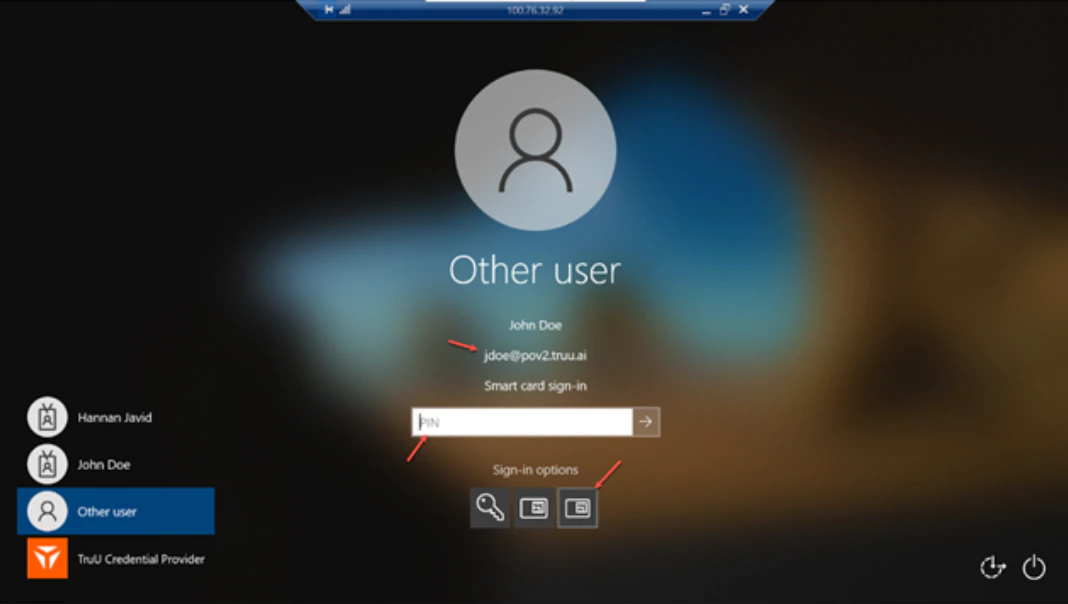
- You will log in to the computer
Use Case 3: Source has TruU, but RDP Destination does NOT have TruU
Result: Fully supported with TruU LoginTruU’s Internationalization How to Determine Whether Agent is using FIDO2 or Cert based login