

Supported Clients
Workflow
At a high-level, the feature works as follows:- Admins upload a biometric use policy PDF to the platform. If a biometric use policy has not yet been created, the Admin can first download a guide for creating the policy from the settings page.
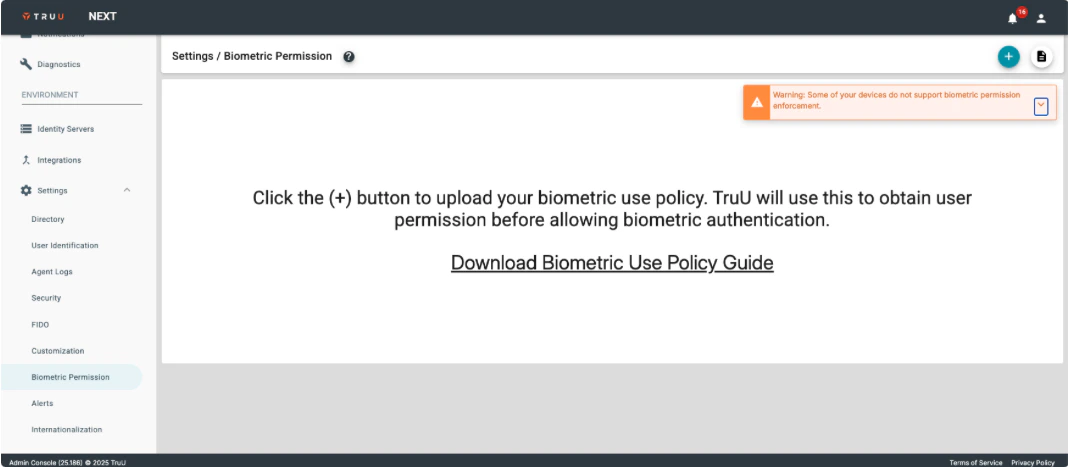
- When uploading the initial policy, if there are already existing users enrolled in TruU, Admins can specify a deadline (up to 90 days out) for users to provide their consent. If permission is not granted by the specified date, the clients will cease to use biometrics until/unless the user grants permission again. If there are no existing users in the tenant, they will not see this option.
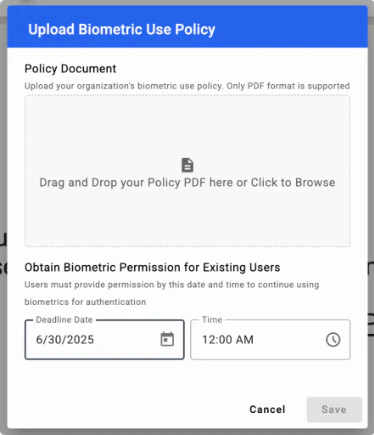
- Once uploaded, the policy will be available to users through the User Portal and the desktop and mobile clients.
- When users go to add their biometrics to the desktop and mobile clients, they will be presented with the biometric use policy if they have not already granted permission to use their biometrics. NOTE: users can remove/add permission at anytime through an enrolled desktop/mobile client and/or the User Portal.
- Biometric permission status will be reflected in the Users table. Details for which policy the user acted on, the device used, and location will be shown in the drill-down page for that user and in data exported from the Users table. Changes to biometric permissions will also be available in the “Events” table.
Mobile Registration Policies
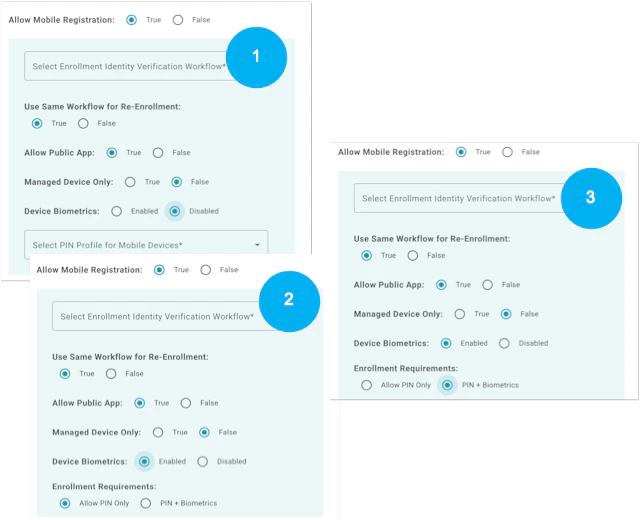
- “Device Biometrics” can be disabled. This prevents users from enrolling biometrics
- When “Device Biometrics” is enabled AND “Allow PIN Only” is set, users may enroll their biometrics if they wish to.
- When “Device Biometrics” is enabled AND “PIN+Biometrics” are set as required, users must enroll their biometrics.
Desktop Registration Policies
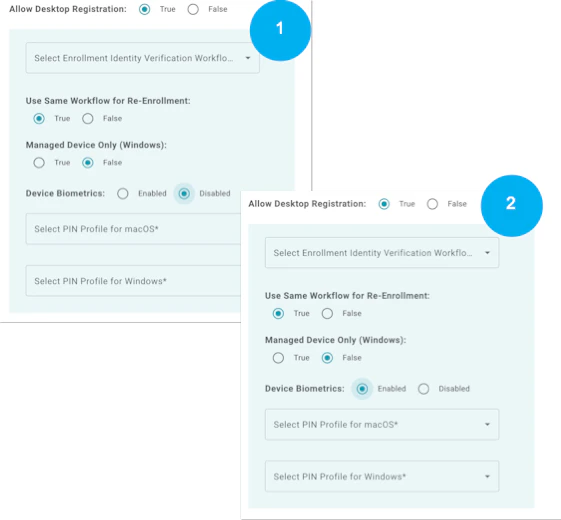
- Device Biometrics can be disabled, thus preventing users from enrolling their biometrics.
- Device Biometrics can be enabled, and users always have the choice to enroll their biometrics (on the desktop clients, users are not required to do so).
User Interactions:
-
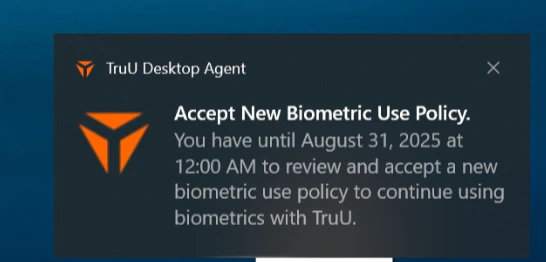
Enrolled users on supported clients will see notifications to review the biometric use policy to continue using biometrics on that device.
- Windows uses device native notification letting users know that they have to review a biometric use policy. Notifications can be dismissed and will be shown daily until the user has taken an action on the policy. If the user does not take an action and the deadline passes, the user will no longer be able to use biometrics.
-
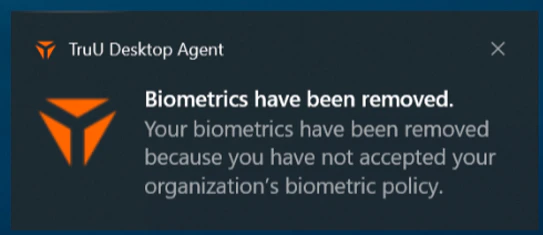
If the policy is rejected on another device, or if the renewal period expires, users will see a notification that their biometrics have been removed.
-
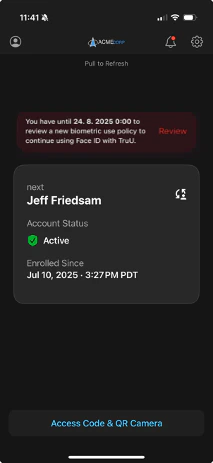
Mobile clients use in-app notifications to inform users that they have a policy to review. Users will see an indicator on the bell icon letting them know there is a pending notification as well as a toast message in the app stating they must review a new biometric use policy to continue using biometrics. Clicking the toast notification brings up the policy. When the bell icon is clicked, the pending notification is shown and can be clicked to bring up the policy for review.
-
On mobile the user will see the following screen when permission has been revoked from another device/user portal or permission has not been provided in time when biometrics are optional:
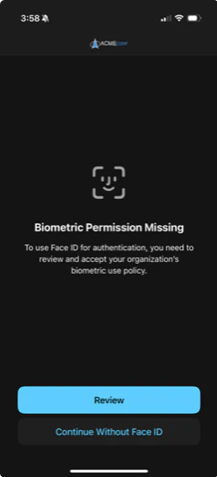
- NOTE: The app cannot be used for authentication until the user takes an action.
-
When biometrics are required, they will see this screen:
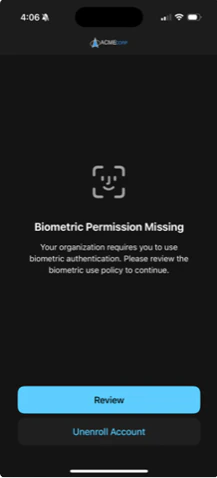
- NOTE: The app cannot be used for authentication until the user takes an action.
-
If the user reviews the policy and decides to reject the policy they will see one of two confirmation dialogs:
-
Biometrics are optional:
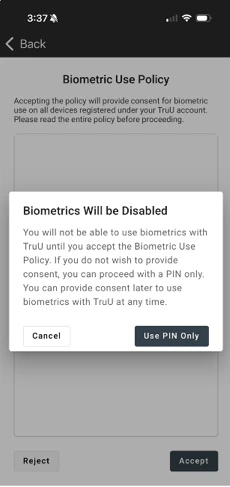
-
Biometrics are required:
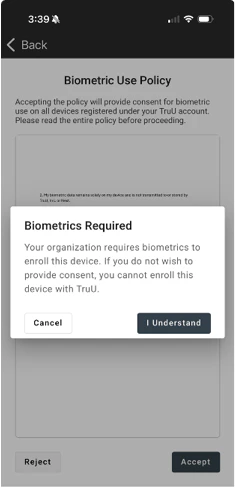
-
Biometrics are optional:
TruU Stale Device Clean-Up TruU’s Kerberos Behavior on MacOS