Documentation Index
Fetch the complete documentation index at: https://docs.truu.ai/llms.txt
Use this file to discover all available pages before exploring further.
Establish Kerberos Key Trust
Create a Kerberos Server object in your on-premises directory
Prerequisites
-
Devices must be running Windows 10 version 2004 or later (Windows 11 is also supported).
-
Windows Server Domain Controller must run Windows Server 2016 or later.
-
AES256_HMAC_SHA1 must be enabled when Network security: Configure encryption types allowed for Kerberos policy is configured on domain controllers.
-
You must have the credentials required to complete the steps in this scenario:
- An Active Directory user who is a member of the Domain Admins group for a domain and a member of the Enterprise Admins group for a forest. Referred to as $domainCred.
- A Microsoft Entra user with the Hybrid Identity Administrator role. Referred to as $cloudCred.
- You also need a Microsoft Entra User CLOUD ONLY account, rather than one with just local global admin rights
-
Users must have the following Microsoft Entra attributes populated through Microsoft Entra Connect:
- onPremisesSamAccountName (accountName in Microsoft Entra Connect)
- onPremisesDomainName (domainFQDN in Microsoft Entra Connect)
- onPremisesSecurityIdentifier (objectSID in Microsoft Entra Connect)
Steps to Enable Kerberos Key Trust
-
Install the AzureADHybridAuthenticationManagement Module
- Open a PowerShell prompt using Run as Administrator.
- Install the AzureADHybridAuthenticationManagement module:
# First, ensure TLS 1.2 for PowerShell gallery access.
[Net.ServicePointManager]::SecurityProtocol = [Net.ServicePointManager]::SecurityProtocol -bor [Net.SecurityProtocolType]::Tls12

# Install or update the AzureADHybridAuthenticationManagement PowerShell module.
Install-Module -Name AzureADHybridAuthenticationManagement -AllowClobber -Force
- Create a Kerberos Server object by using the AzureADHybridAuthenticationManagement module to create a Microsoft Entra Kerberos Server object in your on-premises directory.
-
Select one of the following 4 options to prompt for credentials and execute command to create the new Microsoft Entra ID Kerberos Server object.
- Option One: All credentials (Cloud+Domain)
# Specify the on-premises Active Directory domain. A new Microsoft Entra ID
# Kerberos Server object will be created in this Active Directory domain.
$domain = $env:USERDNSDOMAIN

# Enter a Microsoft Entra Hybrid Identity Administrator username and password.
$cloudCred = Get-Credential -Message 'Enter a Microsoft Entra Hybrid Identity Administrator account.'

# Enter a Domain Administrator username and password.
$domainCred = Get-Credential -Message 'Enter a Domain Administrator account.'

# Create the new Microsoft Entra ID Kerberos Server object in Active Directory
# and then publish it to Microsoft Entra ID.
Set-AzureADKerberosServer -Domain $domain -CloudCredential $cloudCred -DomainCredential $domainCred
- Option Two: Cloud credentials only
-
# Specify the on-premises Active Directory domain. A new Microsoft Entra ID
# Kerberos Server object will be created in this Active Directory domain.
$domain = $env:USERDNSDOMAIN

# Enter a Microsoft Entra Hybrid Identity Administrator username and password.
$cloudCred = Get-Credential

# Create the new Microsoft Entra ID Kerberos Server object in Active Directory
# and then publish it to Microsoft Entra ID.
# Use the current Windows login credentials to access the on-premises AD.
Set-AzureADKerberosServer -Domain $domain -CloudCredential $cloudCred
- Option Three: All credentials using modern authentication
-
# Specify the on-premises Active Directory domain. A new Microsoft Entra ID
# Kerberos Server object will be created in this Active Directory domain.
$domain = $env:USERDNSDOMAIN

# Enter a UPN of a Hybrid Identity Administrator
$userPrincipalName = "[email protected]"

# Enter a Domain Administrator username and password.
$domainCred = Get-Credential

# Create the new Microsoft Entra ID Kerberos Server object in Active Directory
# and then publish it to Microsoft Entra ID.
# Open an interactive sign-in prompt with the given username to access Microsoft Entra ID.
Set-AzureADKerberosServer -Domain $domain -UserPrincipalName $userPrincipalName -DomainCredential $domainCred
- Option Four: All cloud credentials using modern authentication
-
# Specify the on-premises Active Directory domain. A new Microsoft Entra ID
# Kerberos Server object will be created in this Active Directory domain.
$domain = $env:USERDNSDOMAIN

# Enter a UPN of a Hybrid Identity Administrator
$userPrincipalName = "[email protected]"

# Create the new Microsoft Entra ID Kerberos Server object in Active Directory
# and then publish it to Microsoft Entra ID.
# Open an interactive sign-in prompt with the given username to access Microsoft Entra ID.
Set-AzureADKerberosServer -Domain $domain -UserPrincipalName $userPrincipalName
-
Verify the Microsoft Entra Kerberos Server Object
- Run the following command to confirm that the object was created successfully:
# When prompted to provide domain credentials, use the userprincipalname format ([email protected])
Get-AzureADKerberosServer -Domain $domain -UserPrincipalName $userPrincipalName -DomainCredential (Get-Credential)
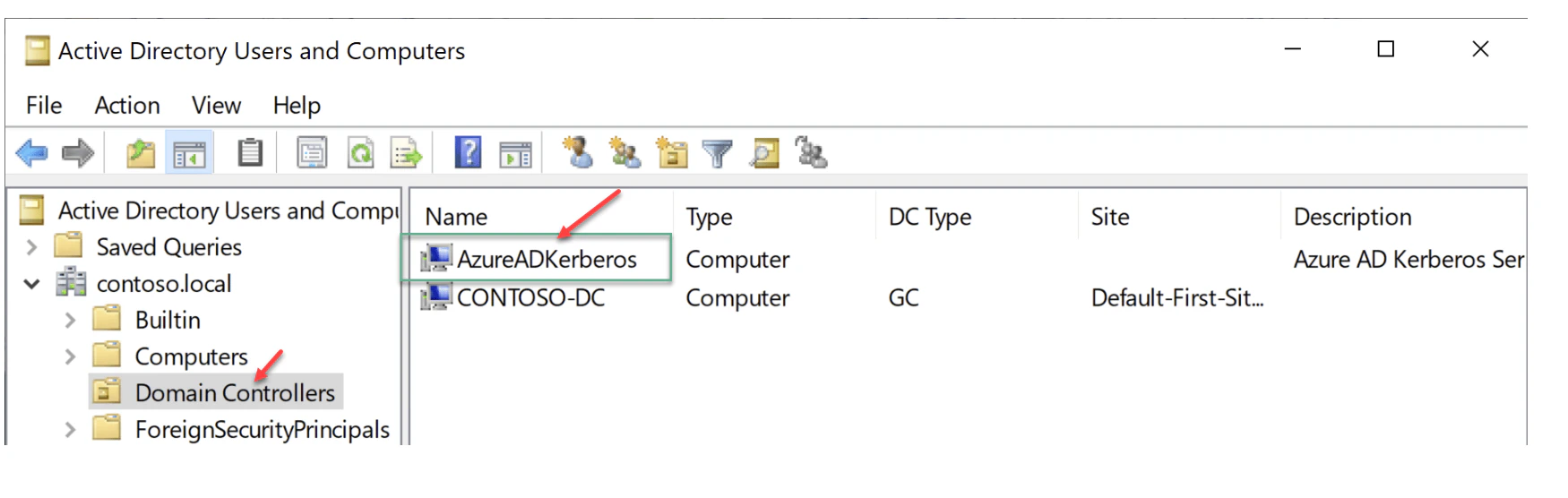
- Plan to Rotate the Kerberos Keys
- Create a plan to periodically rotate the krbtgt keys for your Kerberos Server object. It is recommended to rotate keys every 90–180 days for security. Use the following command to rotate the key:
-
Rotate-AzureADKerberosServerKey -Domain $domain
Upgrade TruU CA Adapter
General User FAQs
