

- Login with the TruU Passwordless Sign-in.
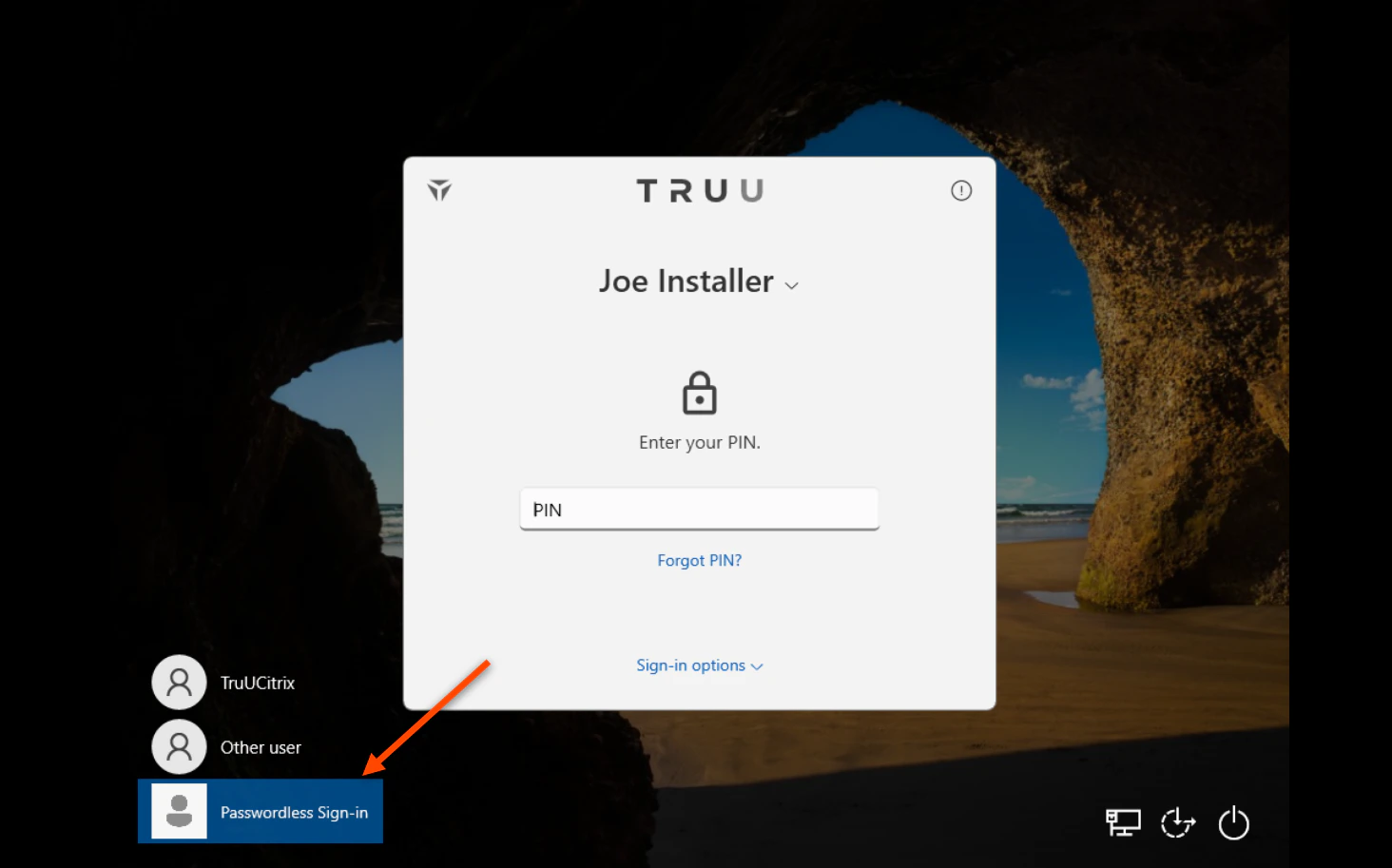
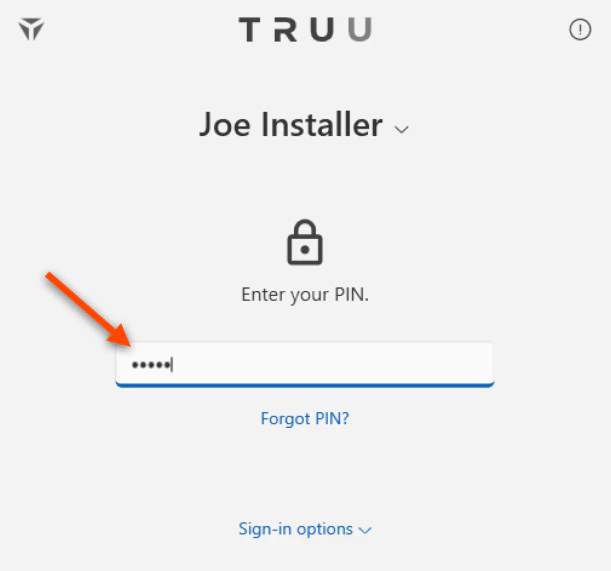
- Enter your TruU PIN (or scan your registered biometrics).
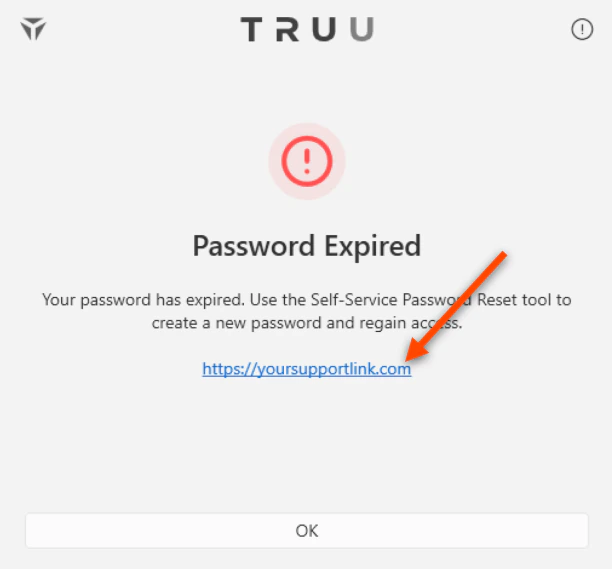
- Below shows the Password Expired dialog when a user’s password has expired. Click the link initiate the password reset process.
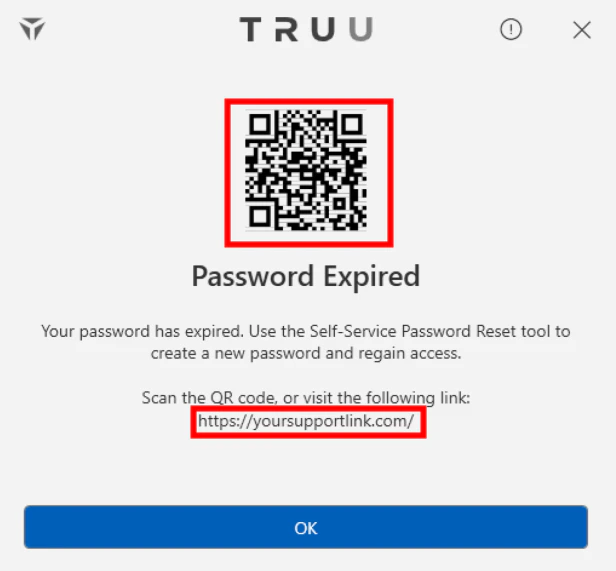
- You will be directed to the following screen. Use your mobile device to either scan the QR code presented on the screen (which will direct you to your company’s password reset link) OR manually enter the link and complete the password reset steps.
- Reset and login to your Windows workstation.
For the Admin, this is Configurable by Config File
- The admin must set the custom service desk URL in the config file prior to deploying the TruU Windows Desktop agent. In the application.config file, ensure that you add the following values:

Registry key - For purposes of testing, a reg key can be set.
- Find the TruU Credential Provider in the registry. Right-click and create a new string value and name it “ssprUrl” and then set the value to your self service URL.
- Restart the TruUService in Services.msc.
TruU’s Interaction with External Cameras Network and Port Requirements