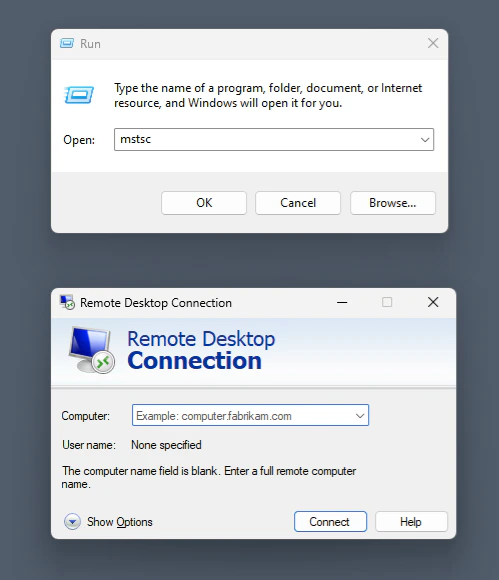
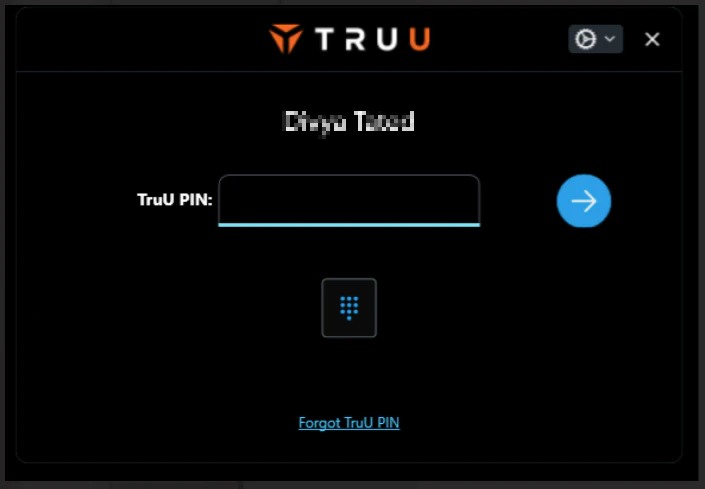
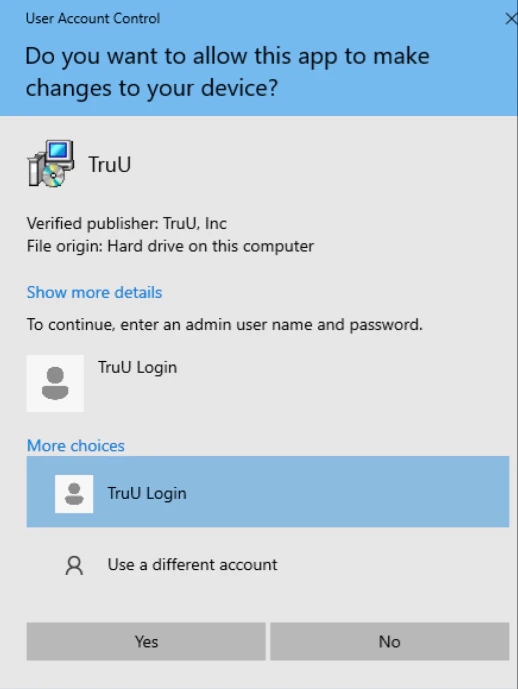
To access these two features, follow the steps below:
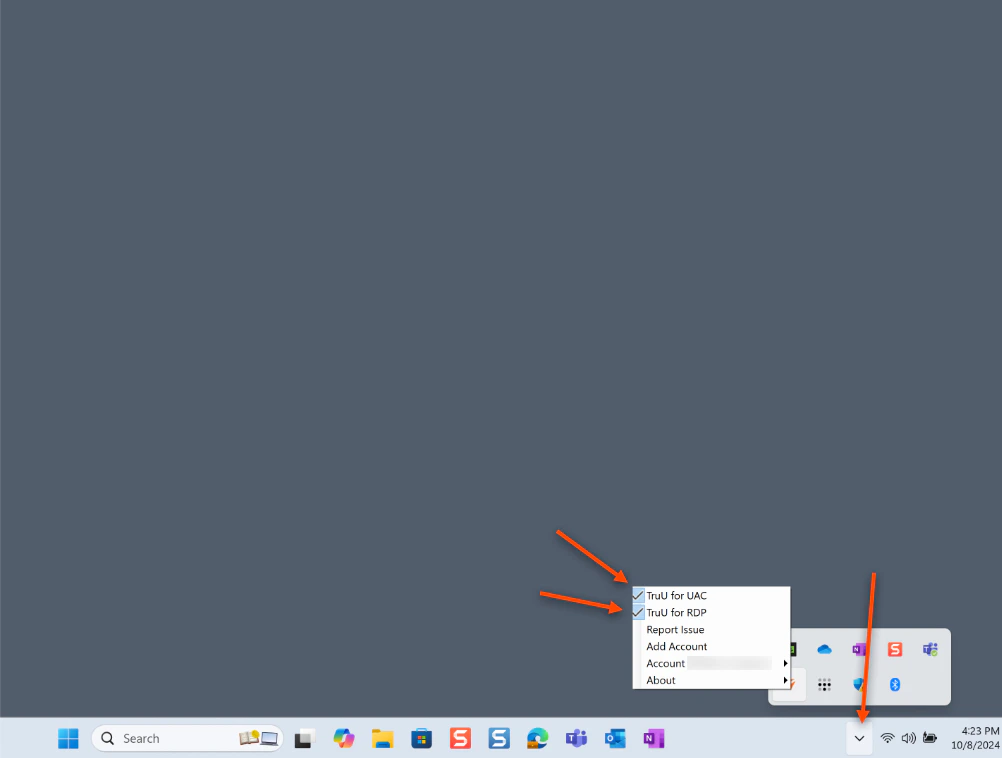
  1. Navigate to the “Down Arrow” icon on the bottom right corner of your screen. Then, click the TruU icon. Here, you can see the two options as to what features - whether it be RDP or UAC - you wish to use
RDP TruU enhances Remote Desktop Protocol (RDP) sessions by prompting users to authenticate using their biometrics or PIN, ensuring secure and seamless access. This feature provides an additional layer of security, making remote access convenient and highly secure. To disable TruU for RDP, use the command below. This can be deployed for individual users or groups:
HKLM\\SOFTWARE\\Microsoft\\Windows\\CurrentVersion\\Authentication\\Credential Providers\{5fd3d285-0dd9-4362-8855-e0abaacd4af6}" /v TruuForRdpFeatureEnabled /t REG_DWORD /d 0 /f
UAC TruU integrates with User Account Control (UAC) by prompting users to authenticate using their biometrics or PIN, ensuring secure elevation of privileges. This feature enhances security by verifying user identity before allowing administrative actions. To disable TruU for UAC, use the command below. This can be deployed for individual users or groups:
HKLM\SOFTWARE\Microsoft\Windows\CurrentVersion\Authentication\Credential Providers\{5fd3d285-0dd9-4362-8855-e0abaacd4af6}" /v TruuForUacFeatureEnabled /t REG_DWORD /d 0 /f

MacOS Binding to AD: Consider the Alternatives TruU’s Internationalization