

How to Create an Agentless-Only Registration Policy
Step 1: Access the Policies Section
- Log into the TruU Admin Console
- Navigate to Policies > Registration
- You will see your existing policies listed
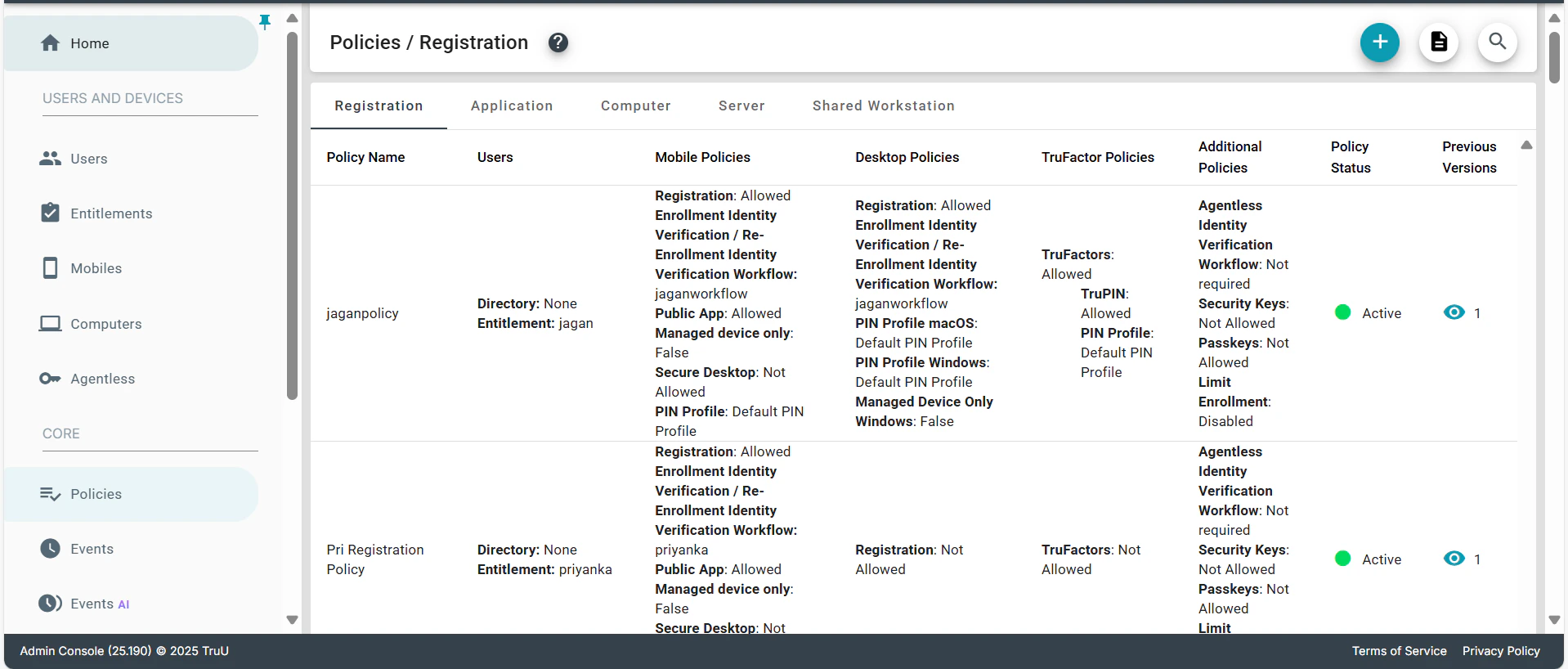
Step 2: Create New Policy
Click the “Add New Registration Policy” button to open the creation form.Step 3: Configure Policy Settings
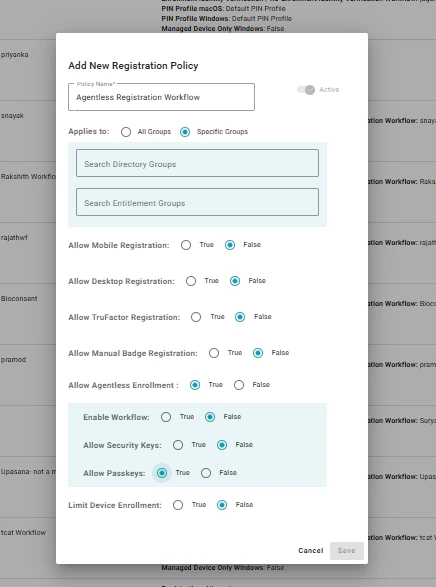
Fill in the policy configuration form with these exact settings:Basic Information:
- Policy Name: “Agentless Registration Workflow”
- Status: Keep as “Active”
Group Assignment:
- Select “Specific Groups” (not “All Groups”)
- Use the search to find and select your agentless user group
Registration Method Settings:
- Allow Mobile Registration: False
- Allow Desktop Registration: False
- Allow TruFactor Registration: False
- Allow Manual Badge Registration: False
- Allow Agentless Enrollment: True
- Allow Passkeys: True
- All other options: False
Step 4: Save and Set Priority
- Click “Save” to create the policy
- Drag the new policy to the top of your policies list
- Policies are evaluated from top to bottom
Verification Steps
- Check the policy appears in your policies list
- Test with a user account from the target group
- Verify only agentless options appear during registration
- Monitor the Events section for successful registrations
Agentless (Passkey) FAQs TruU Flow Diagrams