

Overview
- The TruU Stale Device Clean-Up feature automatically identifies and manages devices that have been inactive, helping maintain a clean and secure device inventory. This guide explains how to configure and understand the behavior of this feature.
Configuration Settings
- To configure Stale Device Clean-Up, navigate to Admin Console > Settings > Security > General and locate the Stale Device Handling section
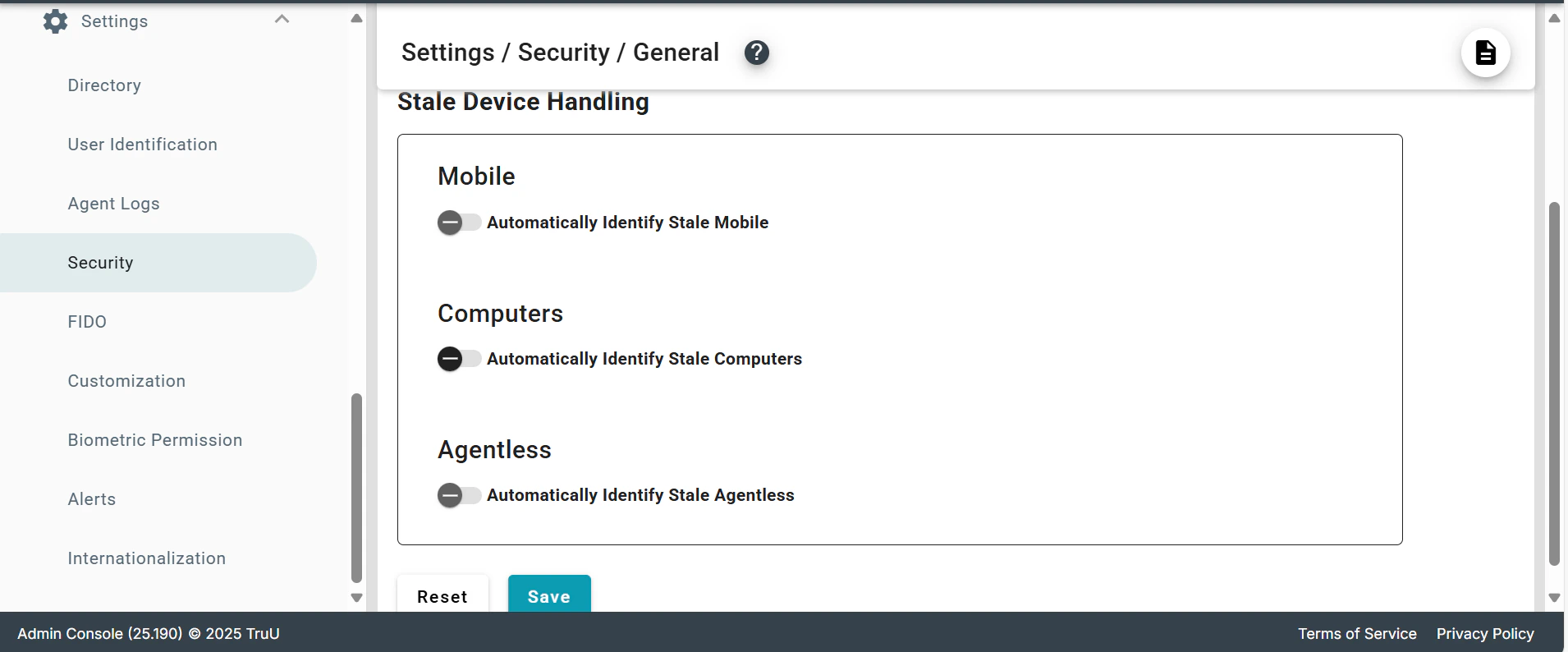
- Enable the feature for each device type (Mobile, Computers, Agentless) and configure the specific settings for Computers:
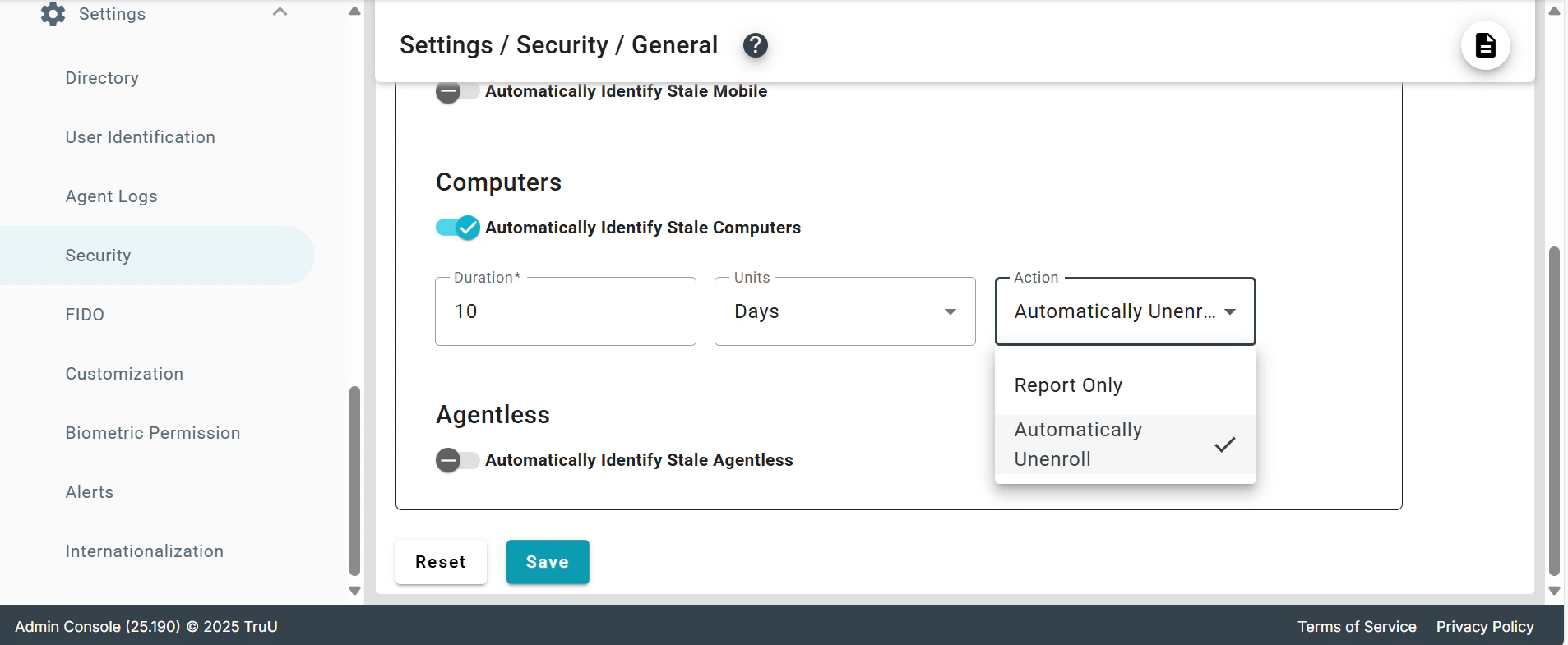
- Enable: Check “Automatically Identify Stale Computers”
- Duration: Set the number of days of inactivity (Example: 10 days)
- Units: Time unit (Days)
- Actions: Choose between “Report Only” or “Automatically Unenroll”
- Save: Click “Save” to apply changes
Dormant Status Activation
- When “Automatically Identify Stale Computers” is enabled and “Report Only” is selected in the Actions dropdown, stale devices will show as Dormant in the Admin Console.
- The system begins monitoring immediately after saving the configuration.
- Devices are identified based on the configured Duration setting.
Automatic Unenrollment Behavior
- If “Automatically Identify Stale Computers” is enabled and configured to “Automatically Unenroll” in the Actions dropdown, devices are unenrolled within an hour (via a scheduled task).
- The unenrollment process runs automatically based on the configured duration settings.
Dormancy Criteria
- Devices are considered dormant if they have not been used for authentication and have not “heartbeated” (checked in to the platform) for the configured duration period. This means devices that are online but no one is enrolled will not be considered as dormant.
- The inactivity period is determined by the “Duration” setting configured in the Settings > Security > General.
Unenrollment Results
- After the scheduled task runs, accounts are unenrolled, and event is recorded.
- Workstations are removed from the TruU Admin Portal and event is recorded.
- The audit logs capture complete details of the unenrollment process for compliance and tracking.
Agent Behavior on Stale Device
- Once device is removed from TruU, even though user has the TruU agent, they will not be able to enroll using TruU. Admin will have to uninstall and reinstall the agent to reenable the device with TruU. We are working enhancements (some of them are already in the version 25.2.x) to improve the user experience.
Version Device Behavior
NOTE: On MacOS machines, the stale device cleanup feature does not uninstall the client, it just unenrolls the device from TruU. On Windows machines, setting stale device cleanup both uninstalls the client from the device as well as unenrolls the user from TruU.
PIN Hammering Biometric Permission