

- You do not need to send logs to TruU. Sometimes, however, when we have an issue, we may be asked by IT Support to send our TruU logs for investigation. When you send logs to TruU, they will be reviewed by the TruU support team. Sending logs helps the TruU team gain insights into any potential issues and aids in resolving them efficiently. Refer to the Submitting Logs - Windows Guide
- Please follow the Pin Recovery - Windows Guide. Essentially, users will need to re-enroll to reset their PIN
- You need to be connected to the VPN, or the company’s network (or in office) to enroll your Windows Workstation
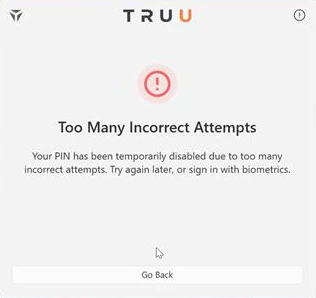
- With the Windows Authenticator, we protect the PIN by disallowing its use after too many wrong attempts. The default value for this is 8 allows incorrect attempts
- Your PIN does not expire. You will not be required to change your PIN. If you forget your PIN, please follow the Forgot PIN - Windows Guide. If you want to change your PIN, please follow the Change PIN - Windows Guide
- You need to be connected to the VPN, or the company’s network (or in office) to enroll your Windows Workstation
- This means that your device does not have the biometric hardware to support either fingerprint or face

- When the user is locked out, the screen below will appear. The account will be locked for 1 hour. After that, the user gets 8 more tries to enter the correct PIN. The user can also choose to reset the PIN by clicking “Forgot PIN” or re-enroll.
- Yes, the user can enroll in two different accounts with different fingerprints
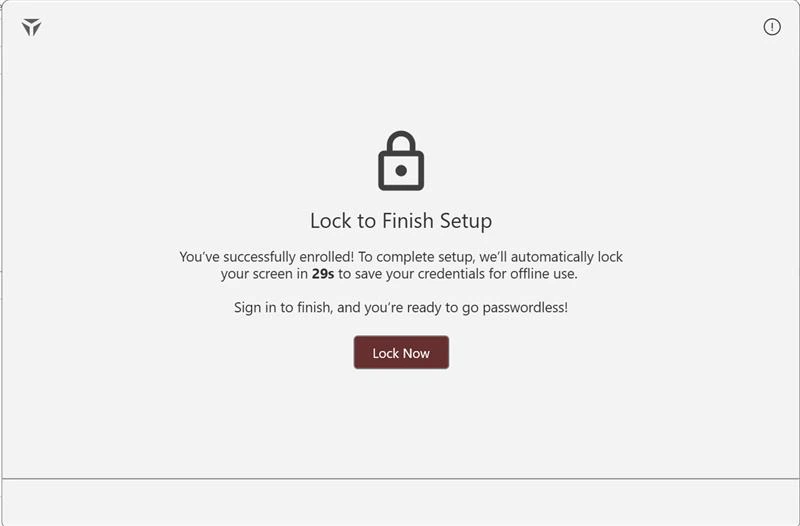
- After you create your PIN, you will be prompted to with the button saying “Lock now”. You can either click this button to lock immediately or wait for 40 sec to lock automatically.
Enrollment FAQs macOS FAQs