

Introduction: How does TruU interact with External Cameras?
This process, called facial authentication, allows you to log in to your work applications quickly and securely without typing a password. It uses advanced technology to ensure it’s really you—it can even tell the difference between a live person and a photograph. A Quick Note on Security: The external camera feature works best with Infrared (IR) cameras. IR cameras see depth and detail invisible to the human eye, which makes the authentication process significantly more secure against fraud.Which cameras are certified to work with TruU?
The following cameras are officially certified to work with the TruU facial authentication system. That said, any camera with IR support should function properly with TruU. The two primary TruU-Certified IR cameras are:External Camera Functionality Details
This section explains how TruU interacts with your computer’s cameras and how to resolve common issues.-
How does TruU handle multiple cameras?
-
TruU follows a specific selection priority order when multiple cameras are available:
- External Cameras
- Built-in Internal Cameras
- This means:
-
TruU follows a specific selection priority order when multiple cameras are available:
- If an external camera is connected, TruU will always use it for both enrolment and authentication, even if your laptop lid is open and its internal camera is available.
- If no external camera is connected, TruU will use your laptop’s internal camera (if it is compatible).
- External Camera will only be in use when connected. If device is disconnected, we will always default to internal IR camera if available. If device does not have internal IR camera, we will not show camera icon.
Scenario: Laptop Lid Closed with Only an Internal Camera
The Situation: You are using a laptop (like an HP ZBook) with its lid closed, connected to an external monitor. Your laptop has a compatible internal IR camera. You do not have an external camera connected. Expected Behavior: You see a message: “Open your lid to add your face.” Why This Happens: For security and performance reasons, when the laptop lid is closed, the internal camera is automatically disabled by the computer’s hardware. TruU cannot access a camera that the computer has turned off. This is the expected behaviour if an external camera is not provided. The Solution:- Open your laptop lid. This will reactivate the internal camera.
- OR, connect a TruU-certified external camera to your laptop. The external camera will work regardless of the laptop lid’s position.
What should I know about first-time camera setup?
Driver Installation: When connecting a camera for the first time, it may take a few moments for drivers to install automatically Reboot Required: In some cases, users may need to reboot their computer to make the camera usable Verification: After connection and any required reboot, test the camera in Windows Camera app to confirm functionalityTroubleshooting Table
| Screenshots | Possible Cause | Solution |
|---|---|---|
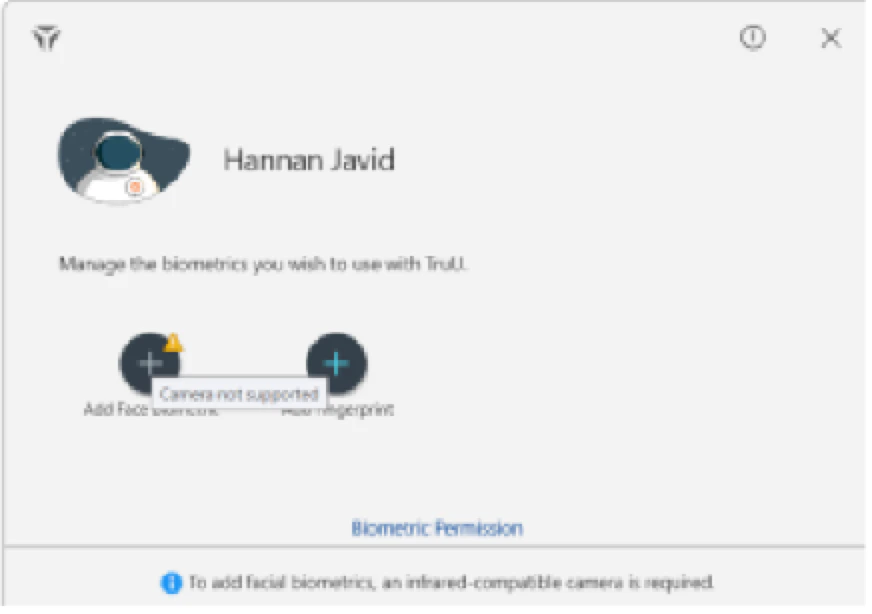 | 1. The only camera available is a non-IR camera (e.g., Logitech C920e). |
- Your laptop lid is closed, disabling the internal camera.
- The camera drivers are not installed correctly. | 1) Use a TruU-certified IR camera.
- Open your laptop lid or connect an external camera.
- Check the Device Manager on Windows to see if the camera is detected. Try unplugging and re-plugging the camera. |
|
 | 1. No camera is connected or available.
- The camera is unplugged or broken.
- System permissions are blocking access. | 1) Ensure a camera is connected and your laptop lid is open.
- Try a different USB port. Test the camera in another app like Windows Camera.
- Check your OS settings to ensure the TruU app has permission to use the camera. |
Frequently Asked Questions (FAQ)
Question: How do I know if my camera is properly connected?- Check if the camera appears in Windows Camera app. If it works there, it should work with TruU.
- Try unplugging and reconnecting the USB cable, or restarting your computer.
- Sit about 1-2 feet (30-60 cm) away for best results.
- Yes, IR cameras work in low light because they use infrared technology.
- Glasses are usually fine. For major changes, you may need to re-enroll your face.
- Some camera drivers need to load during system startup to work properly with security features. A restart ensures everything loads correctly.
How to Disable Password Login on Windows Configure the Self-Service Password Reset URL for WA