
Registering a Custom Domain in Entra ID
Step 1: Sign into the portal with a user who has Global administrator role Step 2: Search and run Entra Active Directory service Step 3: Navigate to Custom domain names and start the registration flow by clicking on Add Custom Domain Step 4: Verify ownership of the domain at the end of the process. This is usually done by adding a TXT record with a specific value in a primary DNS server for your domain. Note that this process may take some time as DNS records have TTL set in hours in some cases
Creating a New Entra ID Adapter Using TruU Admin Console
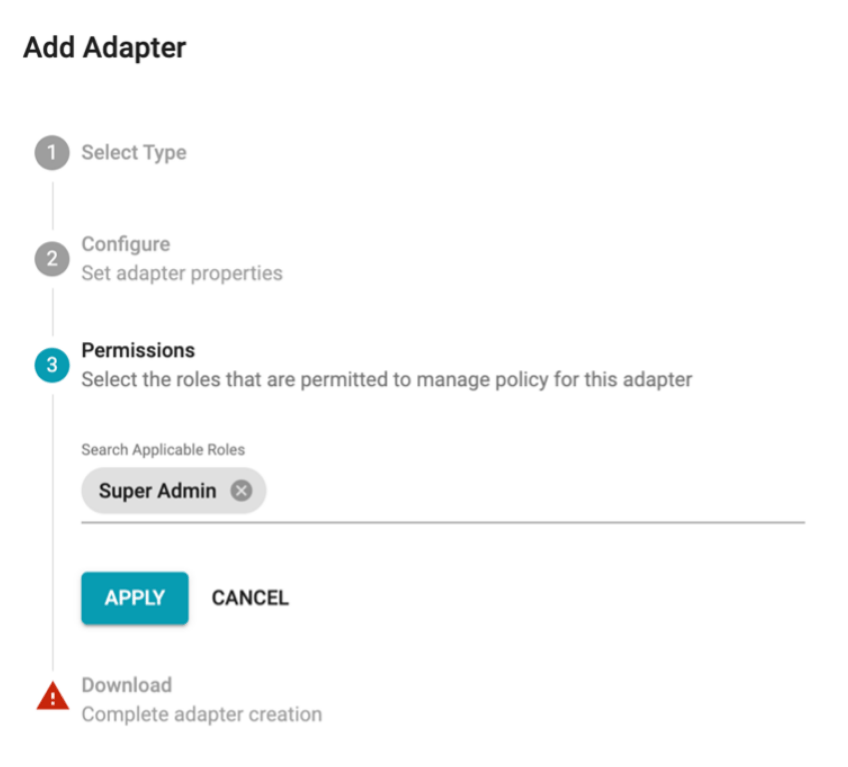
Step 1: Navigate to Integrations and click on the (+) in the top right corner Step 2: Add a new Single Sign On adapter by clicking the (+) in the upper right corner Step 3: Select Entra ID type and click Create Step 4: Enter the adapter descriptive name, the public URL where the IDS will be available, the domain which is going to be federated, and select a certificate validity period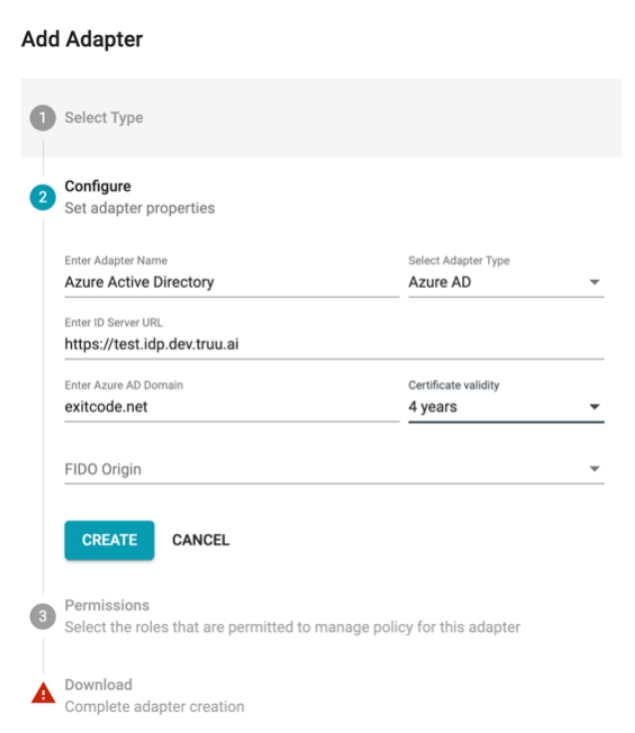
Setting Up Entra ID to TruU Federation Using a PowerShell Script
Step 1: Run Powershell 64 app on Windows as administrator Step 2: Copy and Paste the following script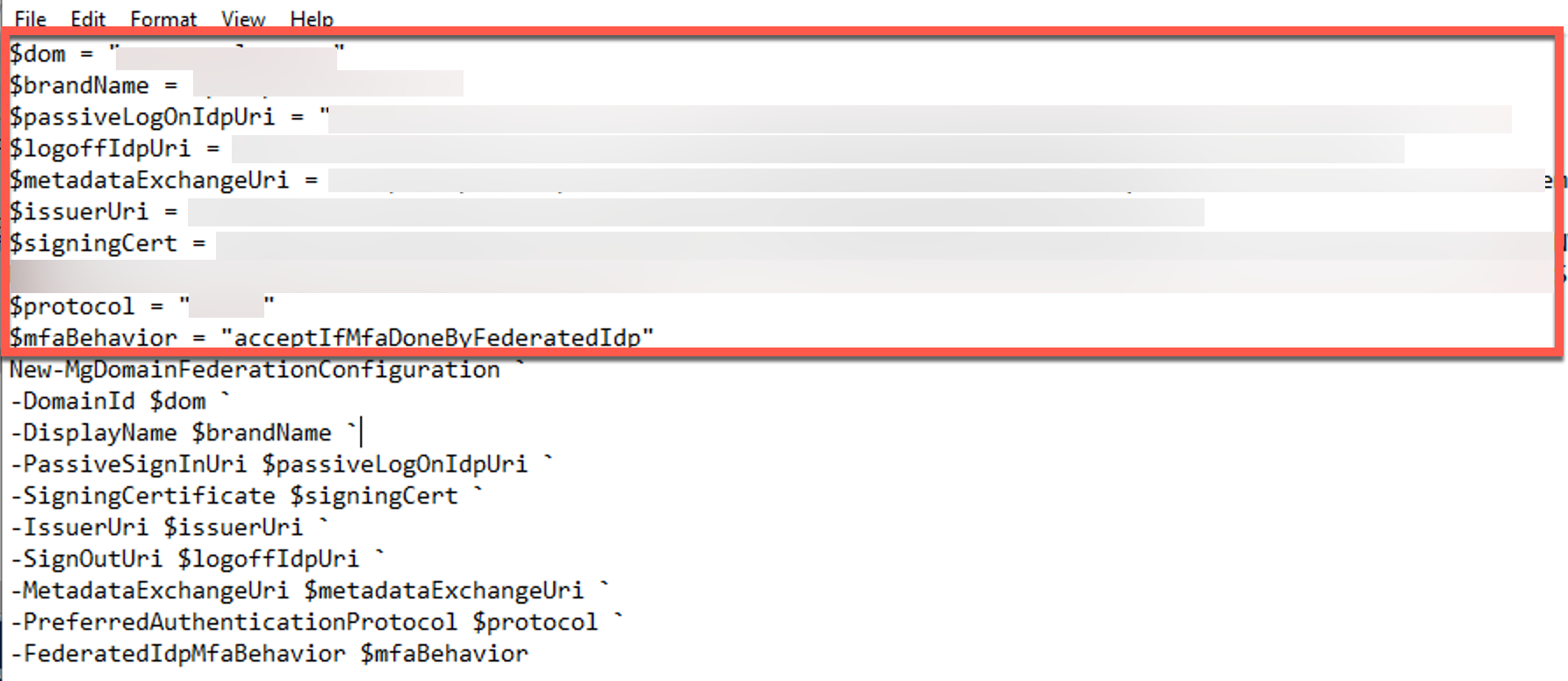
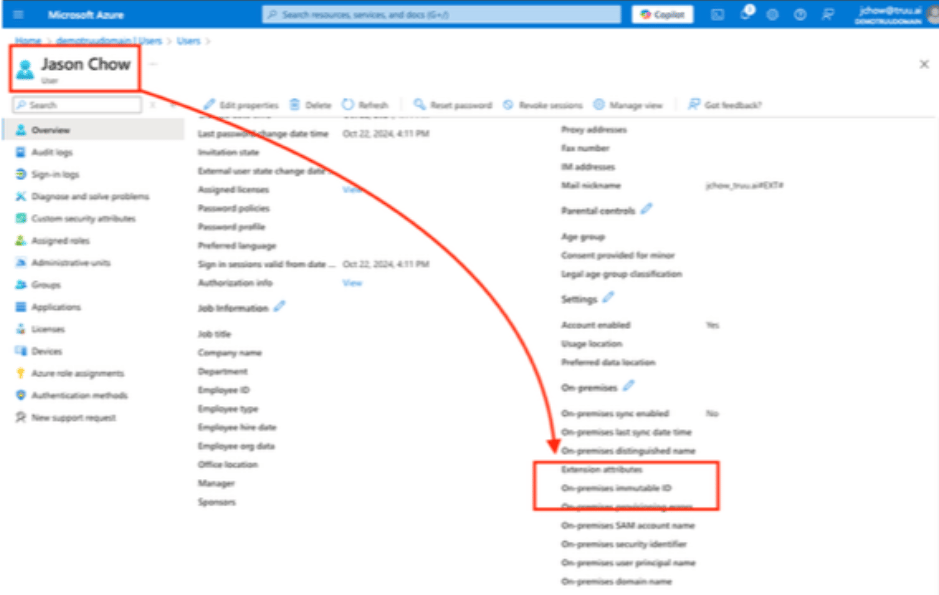
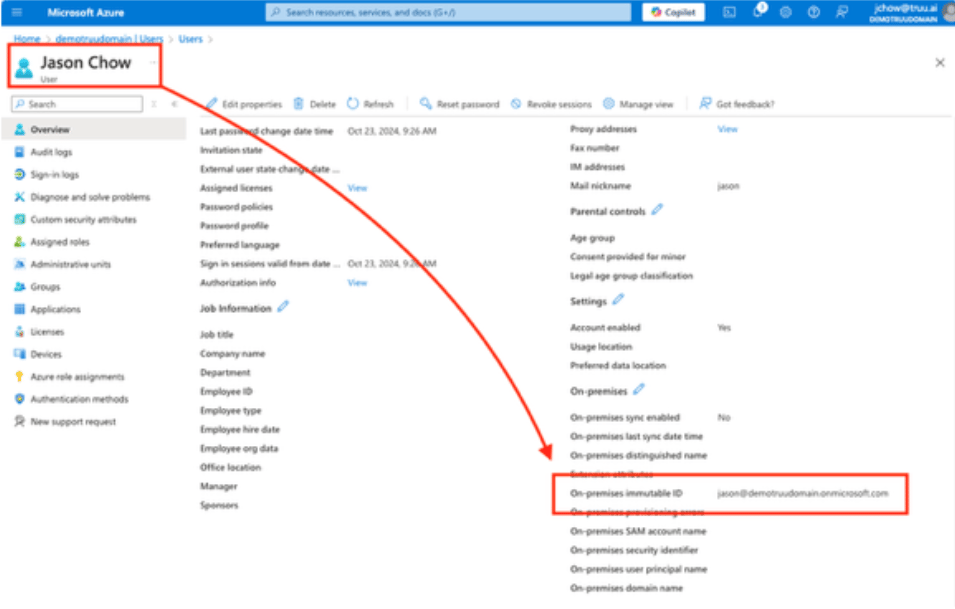
Ensuring All Users in the Federated Domain Have “ImmutableId” Field Configured
All users from the federated domain must have ImmutableId field specified. For existing users run a powershell command similar to this one: Set-MsolUser -UserPrincipalName “test1@exitcode.net” -ImmutableId “test1@exitcode.net” To create a new user, use Powershell: New-MsolUser -UserPrincipalName “test2@exitcode.net” -ImmutableId “test2@exitcode.net” -DisplayName “Test User 2” Note, once you federate a domain, you won’t be able to create users for that domain in Entra Portal directly. In that case, only two options are available: Use New-MsolUser command Use Entra ID Connect syncTesting Federated Authentication
After all of the above steps have been completed, test the federated authentication. Try to sign into Entra Portal or Office365 with one of test AAD users. You should be redirected to TruU authentication page. Once you approve the request on your mobile device, you should be automatically signed into portal or office.Reverting Federation
To revert federation and switch authentication back to managed mode, you can use the PowerShell command:Prerequisites
Domain Properties
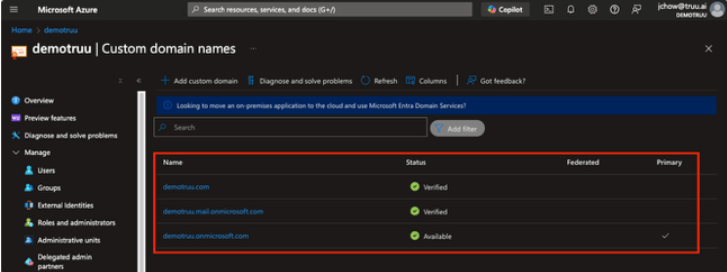
Before federating an Entra ID domain with TruU, review all configured domains within the customer’s Microsoft Entra ID tenant. The domain to be federated must meet the following prerequisites:- The domain MUST be in a Verified state.
- The domain CANNOT be the Primary domain.
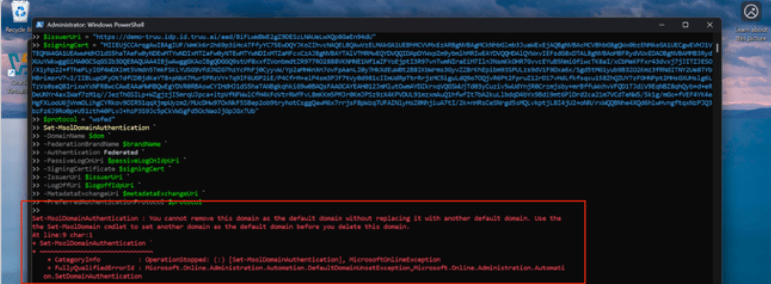
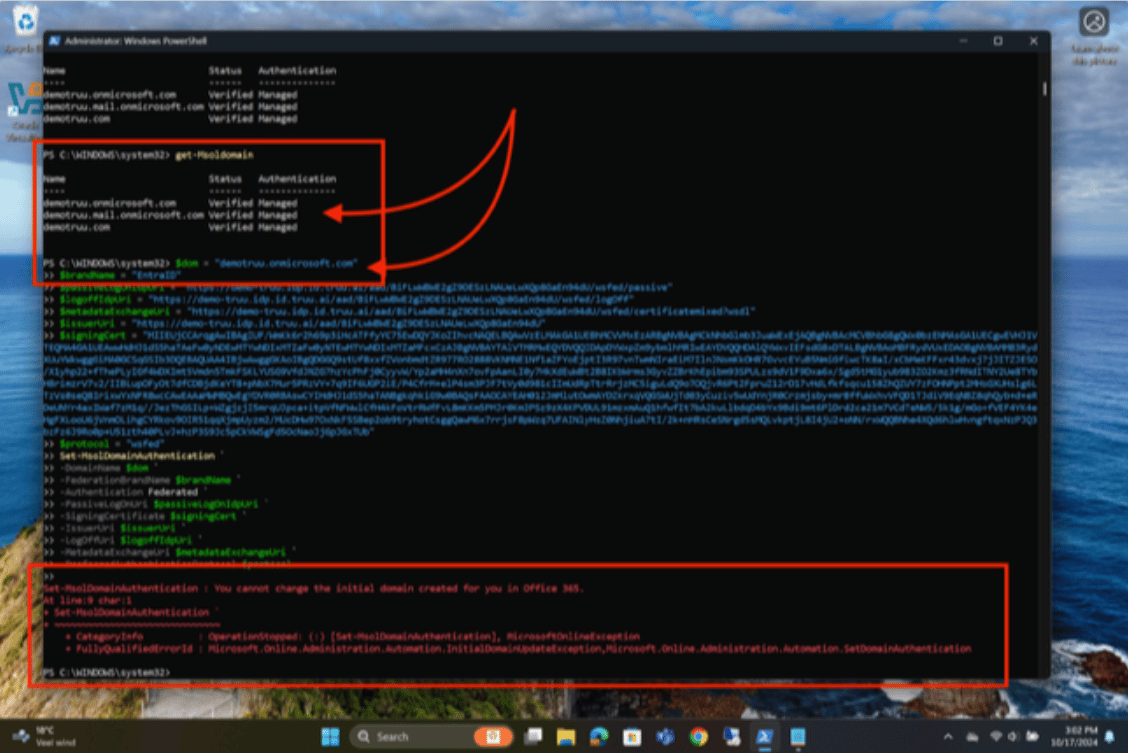
- The domain CANNOT be the default onmicrosoft.com domain created with the tenant.
Reverting a Federated Domain
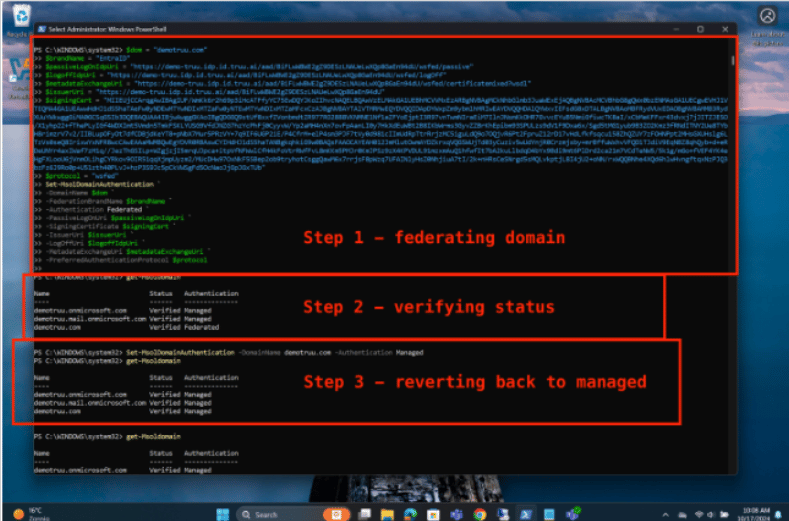
Although users will not be locked out of Microsoft Entra ID during a domain cut-over, it is recommended to keep the revert command available in case the domain needs to be returned from Federated to Managed authentication. The example below demonstrates the complete workflow:- Step 1 – Federate the demotruu.com domain to TruU.
- Step 2 – Verify that the demotruu.com domain has been successfully federated.
- Step 3 – Revert the demotruu.com domain back to Managed authentication and verify the updated status.
Federating the Default onmicrosoft.com Domain
The default onmicrosoft.com domain created for a Microsoft 365 tenant cannot be federated with TruU or any third-party identity provider. For cloud-only organizations that only use the default onmicrosoft.com domain, complete the following steps before federation:- Create a secondary custom domain.
- Change the UPN suffix for all users to the new custom domain.
- Configure the new custom domain as the Primary domain.
- Verify that users can successfully sign in to Microsoft Entra ID and access federated resources using the new domain suffix.
- After completing these steps, proceed with federating the new custom domain with TruU.
Immutable ID
Another federation prerequisite is the presence of an On-premises Immutable ID for every synchronized user. An Immutable ID is automatically populated for users synchronized from on-premises Active Directory to Microsoft Entra ID. For cloud-only users, the provided PowerShell scripts can be used to manually configure the Immutable ID by using the user’s UPN as the Immutable ID value.