

Sign-in methods
Open Settings → Security.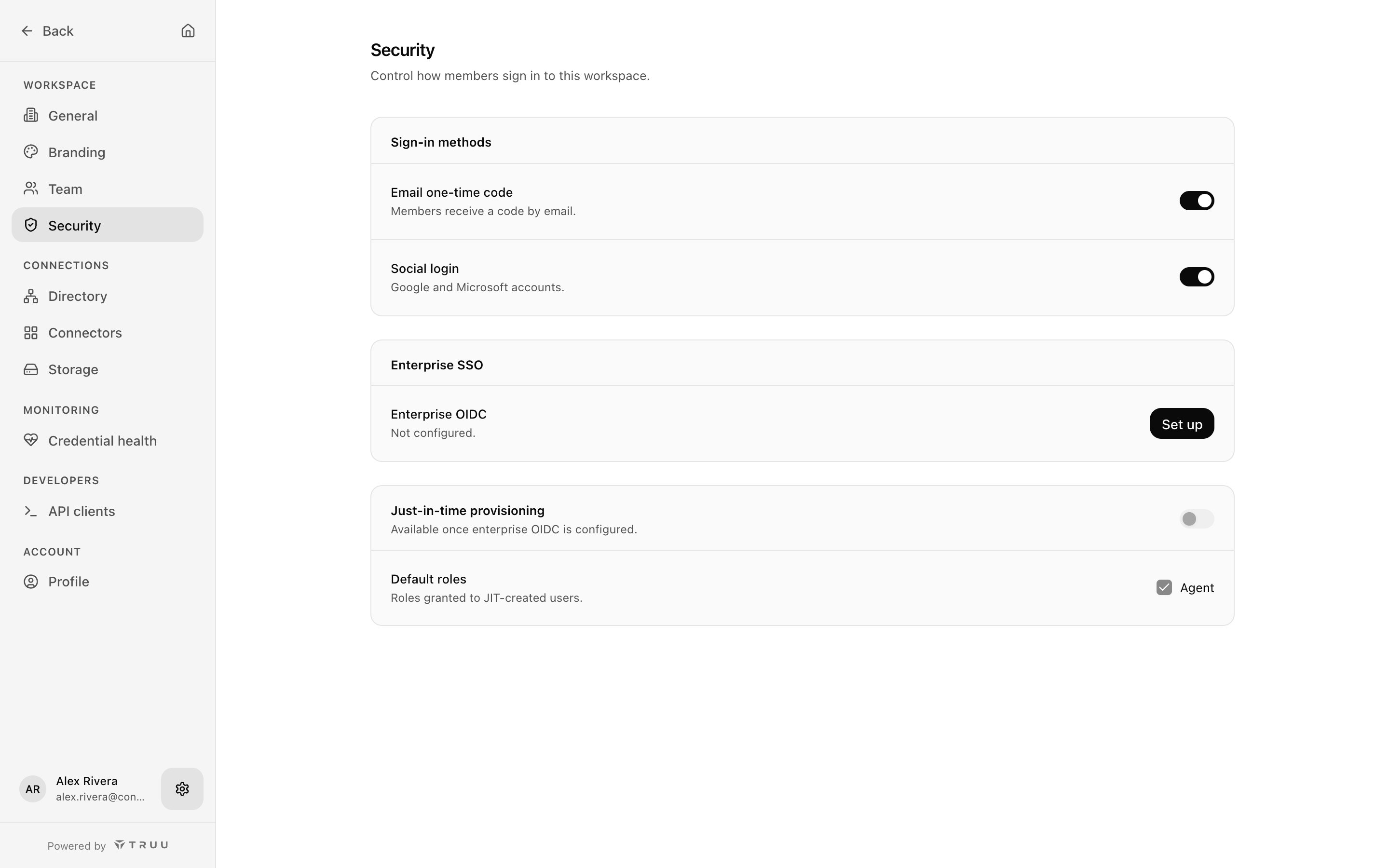
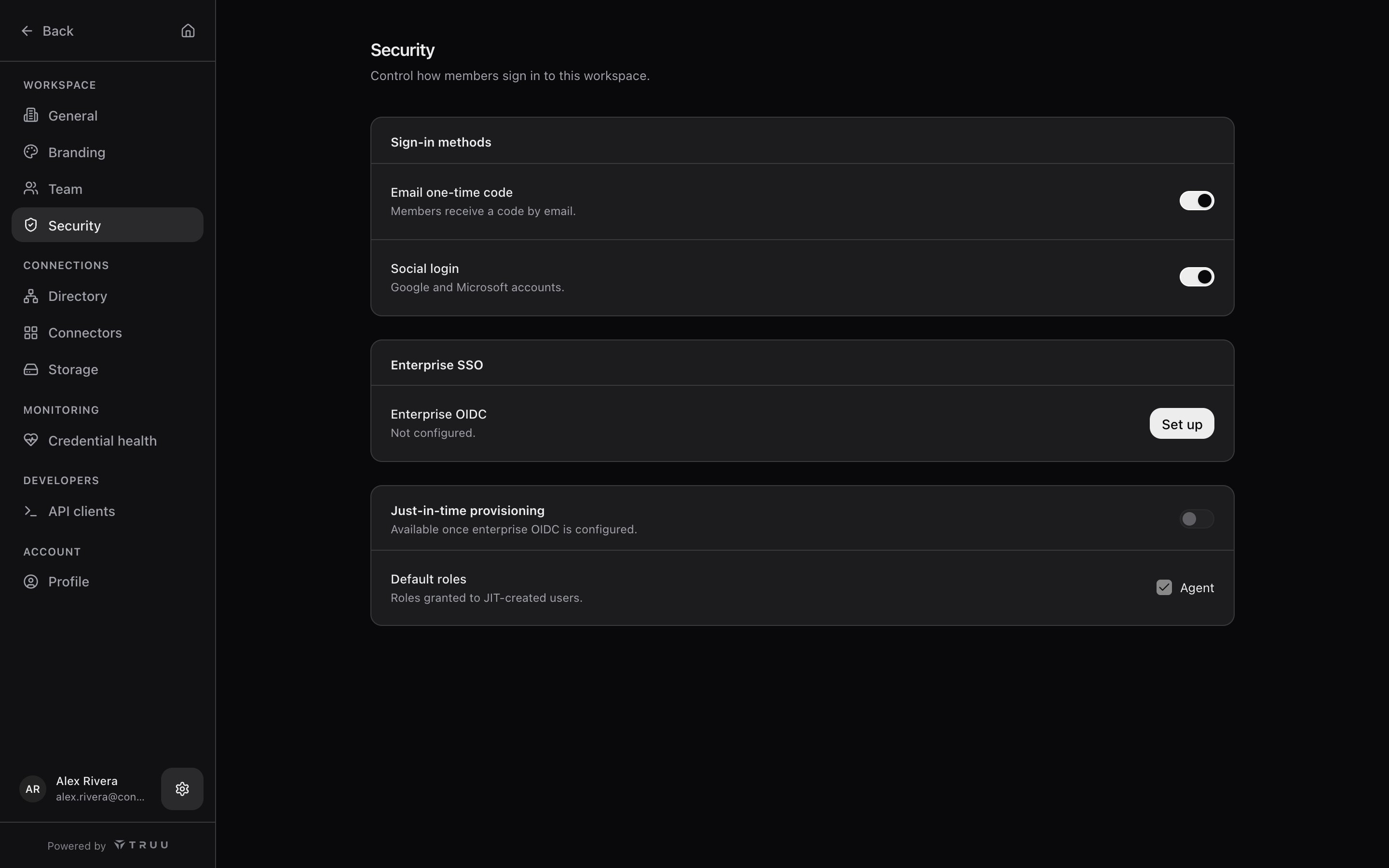
Sign-in attempts, successful and failed, are audited, and repeated failures cause a temporary lockout.
Passkeys
Each person manages their own passkeys under Settings → Profile → Passkeys → Add passkey, up to 10 per person. Once added, choose Sign in with a passkey on the sign-in page. While enterprise SSO is on, only Owners can sign in with a passkey. Passkeys are phishing-resistant and work with Touch ID, Windows Hello, Android and iOS devices, and hardware security keys such as YubiKey.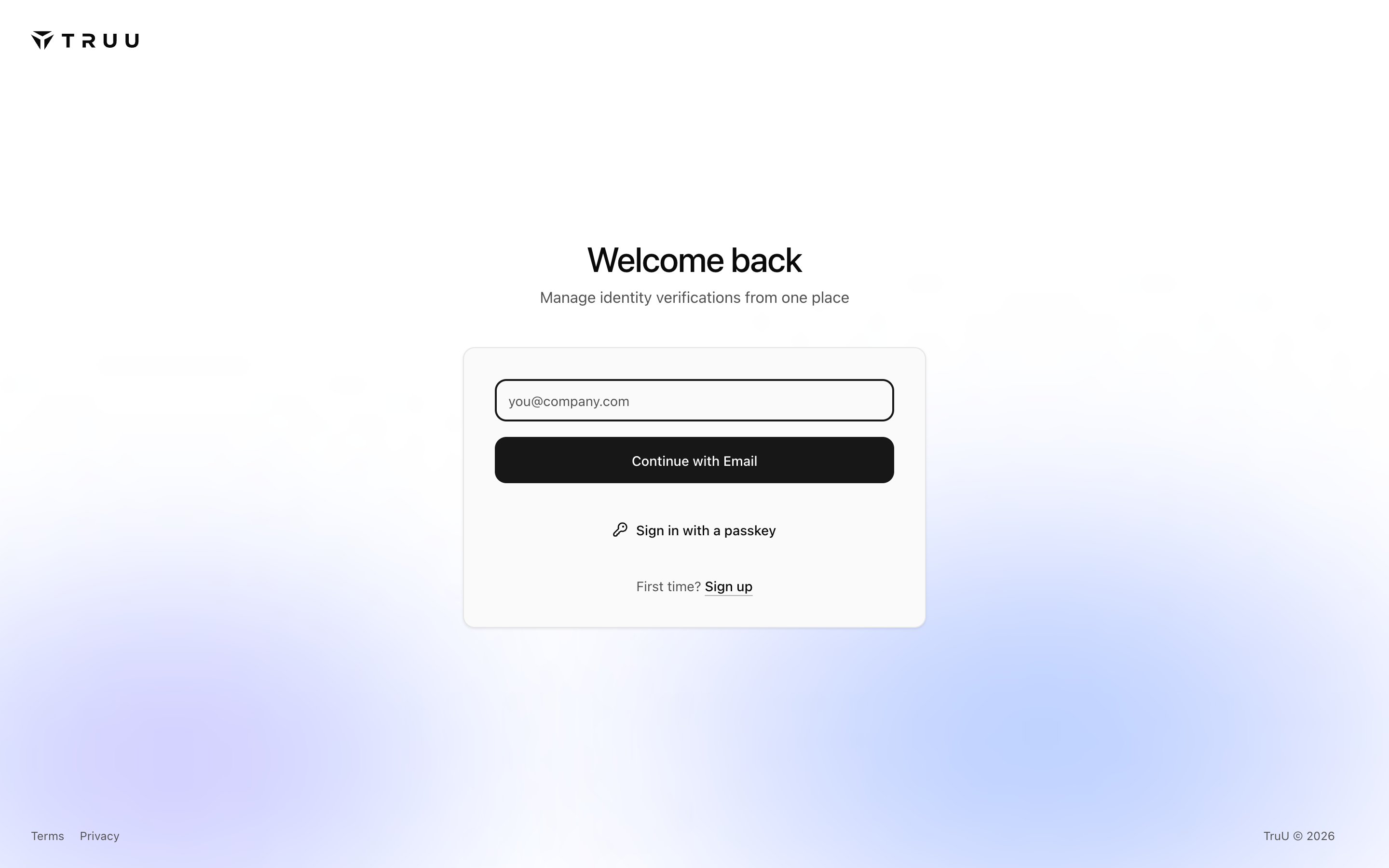
Enterprise SSO
1
Make sure an Owner has a passkey
Once SSO is on, it becomes the only way to sign in, apart from Owners’ passkeys. If your identity provider has an outage or someone changes the app, an Owner with a passkey can still get in. If no Owner has one, turning SSO on shows a warning, “Enable SSO with no way back in?”, with Add a passkey first or Enable anyway. Enroll passkeys for at least two Owners before you continue.
2
Register an OIDC app with your identity provider
Create a web application (OIDC) in your identity provider. Add the Redirect URI shown in TruU as an allowed callback, and grant the Scopes TruU lists for your provider (
openid, profile and email, plus offline_access for Microsoft and Okta). Assign the people who should be able to sign in.3
Set it up in TruU
Under Enterprise SSO, choose Set up, pick the Provider, and enter:
The client secret is stored in a managed secrets service and never shown again.
4
Test, then rely on it
Sign in through SSO in a private browser window before closing your current session. While SSO is on, Email one-time code and Social login are switched off; to change them, remove SSO first.
SSO recovery
An identity provider change (a renamed app, a rotated secret, a changed issuer) can break SSO for everyone at once. The SSO recovery card under Security lists each Owner as having a passkey or not. “No owner has a passkey. If single sign-on fails, no one can sign in.” means you should fix that today. If you’re locked out anyway, contact support.Just-in-time provisioning
With enterprise SSO on, turn on Just-in-time provisioning to create members automatically the first time they sign in through SSO. They receive the Default roles you set, which can only be Agent. This lets a help desk team sign in without individual invitations. Admin and Owner are never granted automatically; promote people under Team. JIT also needs a verified email domain, read from a connected Microsoft Entra ID directory (withOrganization.Read.All consented), so that only people from your organization are provisioned. With an Okta directory, JIT isn’t available.
Workspaces
One account can belong to several workspaces, for example a production workspace and a test one, or separate subsidiaries each with their own directory.- Switch workspace and New workspace are in the account menu at the bottom of the sidebar.
- Find your workspaces on the sign-in page sends a code to your email, then lists every workspace you belong to.
- Each workspace has a short code (Settings → General) that identifies it at sign-in. The link icon next to the workspace name copies a sign-in link that opens straight into this workspace, useful for teammates.
- One email address can create up to five workspaces.