

About TruU Passwordless
TruU Passwordless is the enrollment and authentication platform for Windows and macOS sign-in. Enrollment is the moment of highest risk: whoever enrolls a device becomes that user. The TruU Passwordless connector lets the registration policy call IDV before enrollment completes, so a new device is bound only to a person who has verified. The connection is between your IDV workspace and your passwordless tenant. No third party is involved.What the connection enables
The passwordless tenant does not read your directory connection, use cases, or audit trail. It holds one API client limited to running verifications.
Prerequisites
- An IDV Console account with the Owner or Admin role.
- A TruU Passwordless tenant administrator who can approve integrations in the passwordless admin console.
- A connected directory in IDV. The passwordless tenant identifies the user by UPN or email; IDV resolves that against your directory.
- At least one flow. One-click setup creates one for you.
One-click setup from TruU Passwordless
The fastest path, if you’re starting in TruU Passwordless and don’t have an IDV workspace yet (or want to link an existing one).1
Start from TruU Passwordless
In the TruU Passwordless admin console, choose Set up TruU IDV. You’re taken to TruU IDV to sign in or create your account.
2
Create or link a workspace
Create a new IDV workspace, or link one you already own.
3
Share the directory
A new workspace uses the Entra ID directory already connected to TruU Passwordless, so there’s no second app registration to create. When linking an existing workspace, sharing the directory is optional. TruU checks that the shared app has
User.Read.All, Group.Read.All and Organization.Read.All and tells you if consent is missing.4
Get a ready-made flow
For a new workspace, setup turns on the baseline factors and creates the Catch All Flow plus a flow named Passwordless Enrollment (Face, then ID + selfie, then Knowledge + SMS), and links the two consoles. Passwordless Enrollment becomes the default reported to Passwordless when it can run, which needs a proofing vendor; otherwise the Catch All Flow is used. For an existing workspace, your flows are kept and Passwordless Enrollment is added only if it doesn’t exist.
5
Require verification in a registration policy
Back in TruU Passwordless, on the connected TruU IDV card, choose the registration policy (for example Desktop Registration) and the flow, then Enable.
Connect from TruU IDV
1
Start the link in the IDV Console
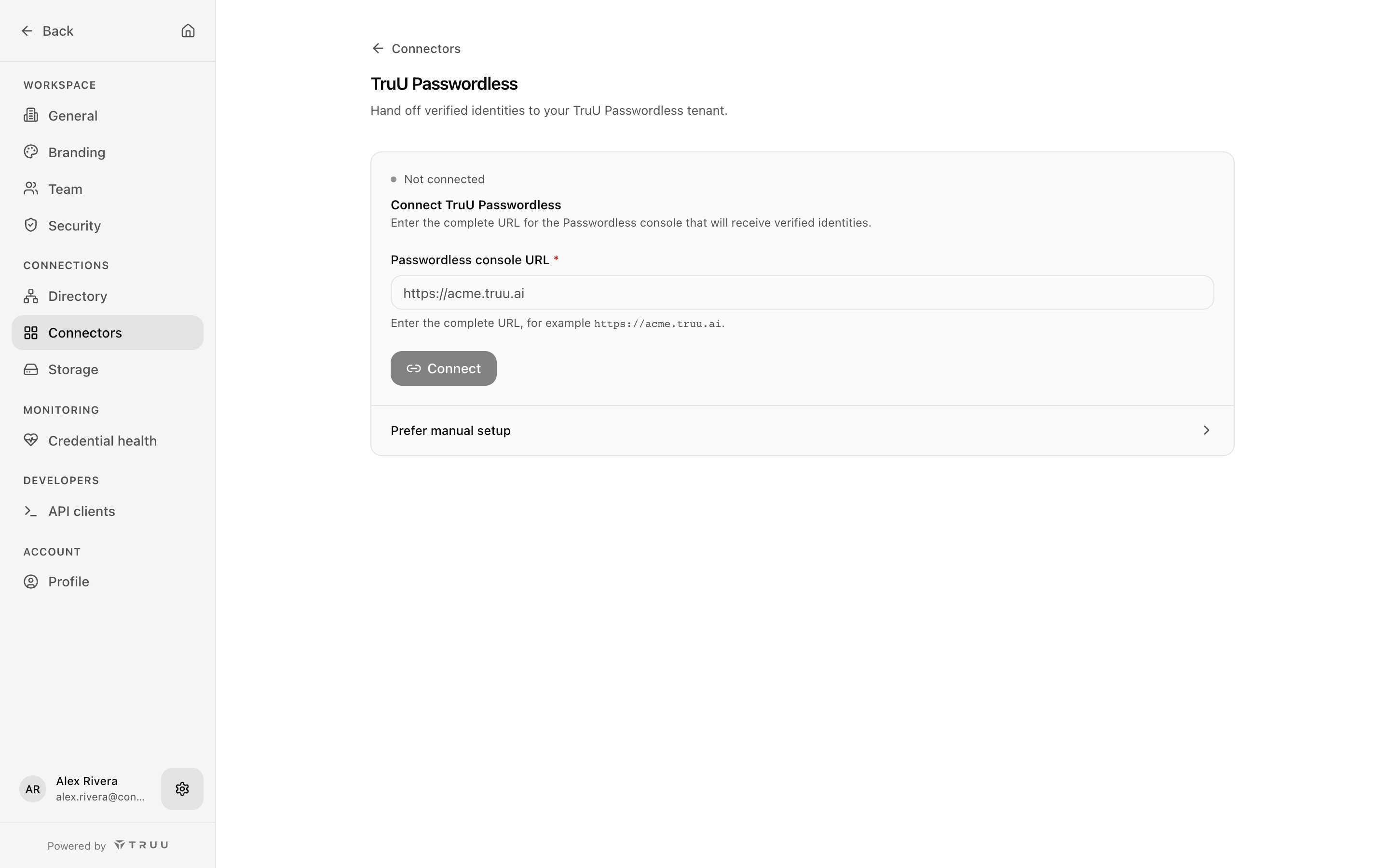
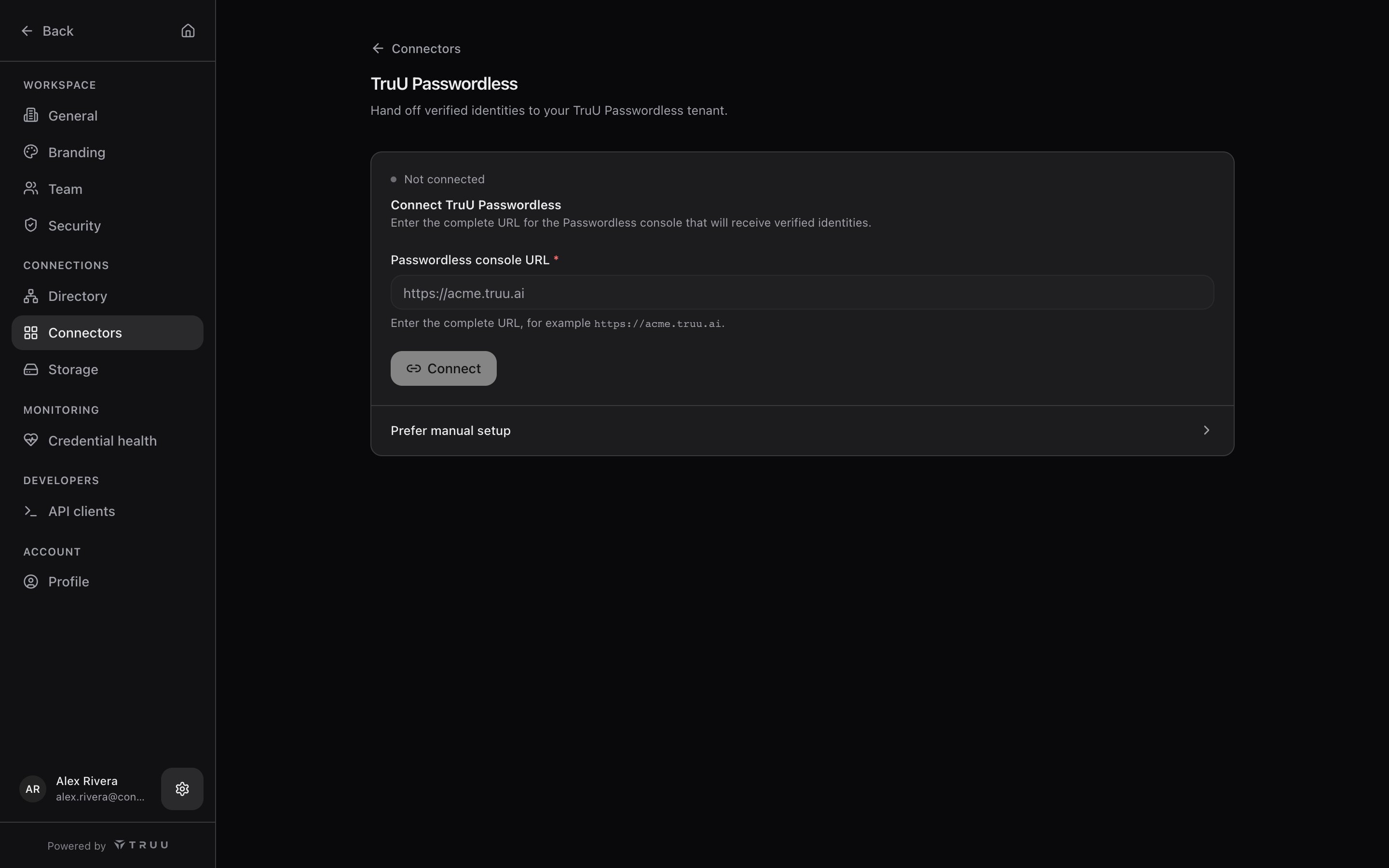
Go to Settings → Connectors → TruU Passwordless. Enter the Passwordless console URL (the complete URL, for example
https://acme.truu.ai) and choose Connect. IDV opens your passwordless admin console in a new window.2
Approve in the passwordless admin console
Sign in as a passwordless tenant administrator and approve the link. The approval creates an API client in your IDV workspace limited to the
idv:verification scope and hands its credential to the passwordless tenant.Connection status
After approval the connector card shows Connected, the Tenant, the Console, and the Client ID the link uses. It shows Pending while the credentials exist but have not authenticated yet. Validated at save: the API client authenticates from the passwordless tenant. Not validated at save: that the registration policy has selected a flow.Verifying the connection
The connector card moves from Pending to Connected the first time the passwordless tenant authenticates with its API client. Your IDV flows then appear in the passwordless admin console. Then run one enrollment end to end: enroll a test device as a test user, complete the verification on the phone, and confirm enrollment finishes and the request appears in Activity with the passwordless channel as the requester.How it works
Flows in the registration policy. Once linked, the passwordless admin console’s registration policy lists your IDV flows. Choose one per registration policy (for example, a strict flow for new hires and a lighter one for re-enrollment). The flow the registration policy names is the one that runs. Verification at enrollment. When a user enrolls, the passwordless tenant calls IDV with the user’s UPN or email. IDV creates a verification request, the user completes it (on the enrolling device or on their phone by QR), and IDV returns the outcome. Enrollment continues only on Verified. Hosts. IDV calls the TruU Passwordless platform API for your tenant. The passwordless tenant calls the TruU IDV API at the base URL shown when the API client was created. Secrets. The API client’s credential is stored hashed in IDV and in the passwordless tenant’s secrets store. Disconnect on the connector card revokes the passwordless client and removes the saved connection, and both consoles show disconnected. Linking and disconnecting are audited.Gotchas and troubleshooting
- Approve fails with a permission error. The signed-in passwordless account is not a tenant administrator. Approvals need that role on the passwordless side; an IDV Owner is not enough.
- Flows do not appear in the registration policy. The connection is still Pending, or the flow was just created. Confirm the connector shows Connected, then refresh the registration policy editor.
- Enrollment stalls at a camera step. Camera steps hand off to the phone with a QR code; make sure the employee scans it and keeps the computer window open.
- User cannot be resolved. The UPN sent by the passwordless tenant does not match the directory. Check that the tenant and the IDV directory are the same Entra tenant and that the user exists.
- Verification succeeds but enrollment reports failure. The registration policy points at a flow that was deleted or renamed. Select an existing flow.
- Not validated at save. Registration policy flow selection, and whether the directory covers the users who will enroll.
Related pages
Flows
What a flow is and how columns work.
How use cases work
How IDV decides which flow a user may run.
Windows TAP
Issue a Temporary Access Pass after a successful verification.
Audit events
Connector events.