

About proofing
Document and selfie proofing captures a government-issued ID, matches it against a live selfie, and checks liveness. In TruU IDV it is one factor, Proofing, used in flows like any other. The user completes capture on their own phone through the verification page; no app install. The check itself runs on a vendor. TruU supports two account models:
You choose the provider per Proofing factor configuration in Factors, so an onboarding flow and a help desk flow can use different providers or settings.
What the connection enables
TruU does not send the user’s email, phone, employee ID, address, directory photo, or any other attribute to the vendor. The expected name is the only identity input, and it is used for the name match.
Prerequisites
- An IDV Console account with the Owner or Admin role.
- For bring-your-own: an account with the vendor, a configured workflow or template on their side, and API credentials. See the vendor page for the exact values.
- End users need a phone with a camera. Desktop webcams can complete capture but fail often; the verification page offers a QR handoff to the phone by default.
Get your credentials
Depends on the provider.
All vendor credentials are shown once, stored in a managed secrets service, and never returned by any API.
Settings
Open Factors → Proofing. Choose the Proofing vendor first; vendor-specific fields are on each vendor page.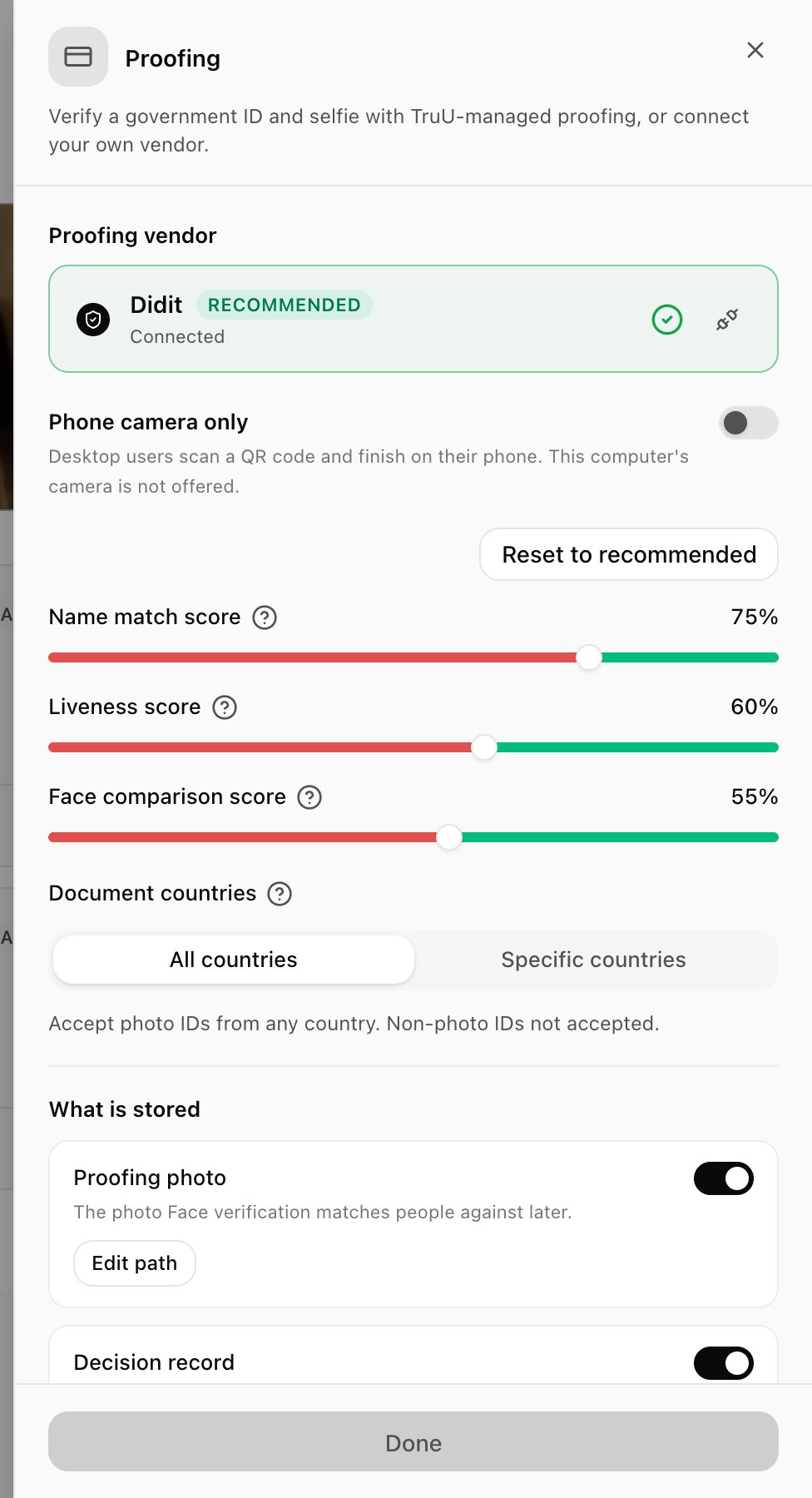
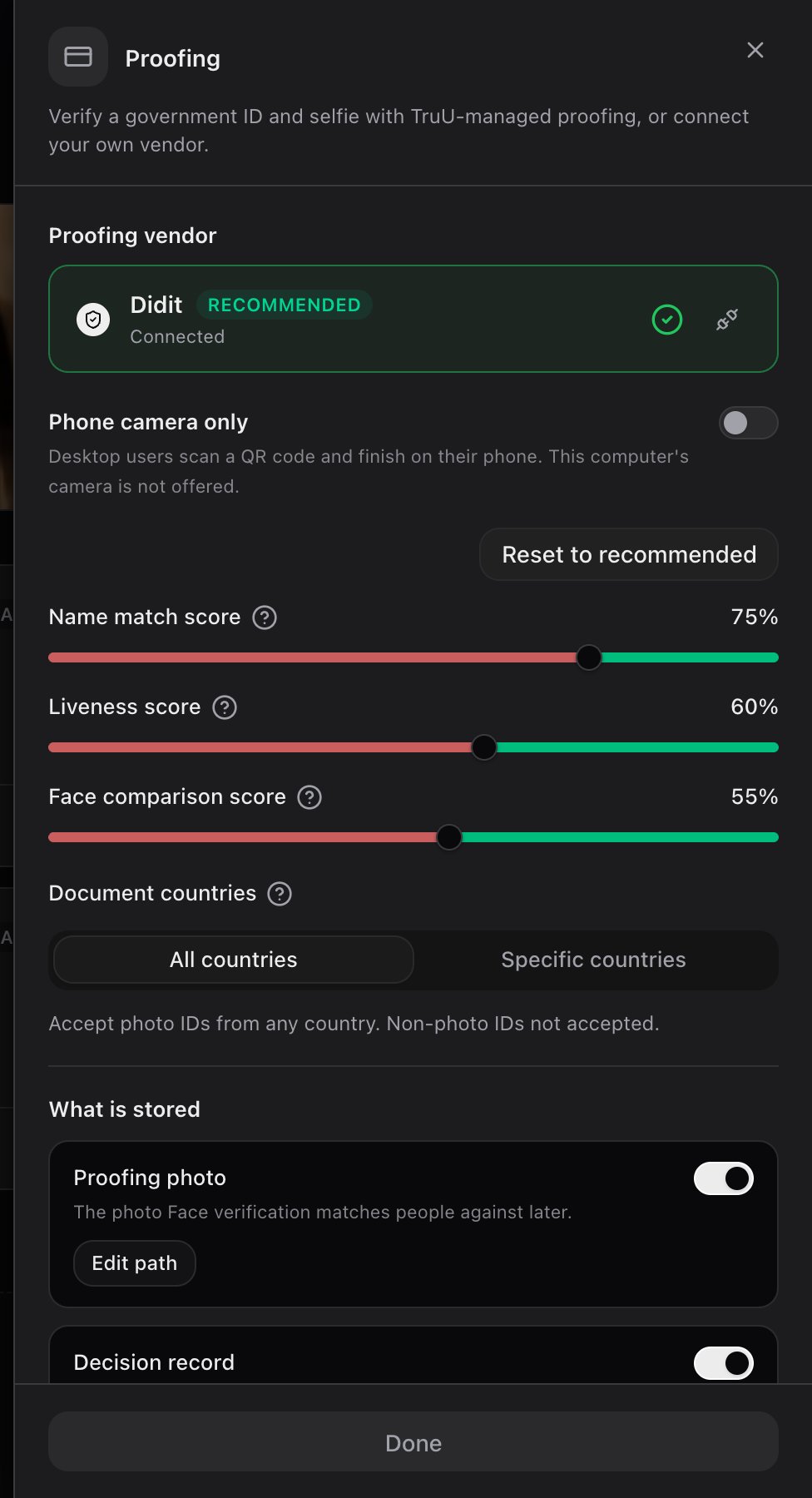
Reset to recommended restores the three scores. For PingOne Verify, Persona and Entrust, document and matching rules are set in your vendor account; see each vendor page.
What is stored
Store picks where these files go: the TruU managed store or one of your own (Add store). Store this photo separately sends the Proofing photo to a different store from the decision records. ID images and liveness video otherwise stay with the vendor.
Directory matching and decline rules
- Date of birth and address matching: Match date of birth and Match address compare the document with the value in your directory or, with an HR system connected, in HR. Choose the source for each. Address matching isn’t offered for Entrust, whose document check returns no address.
- Require active employment: with an HR system connected, fails verification when HR shows the person as inactive or has no record of them.
- When HR can’t answer: checks that read HR fail open. If HR is down or disconnected, they’re skipped and the verification continues; TruU doesn’t fall back to your directory. See When HR is unavailable.
- Decline rules: how Didit treats specific findings, such as expected-details mismatch, invalid MRZ, inconsistent data, multiple faces or a duplicated face. These are set in Didit and shown here for reference.
Verifying the connection
Credential health checks the vendor credentials daily and on demand:
A test verification on a phone is the real check: confirm the request shows Verified with Proofing in the column it used, and that a decision record appears in your store.
How it works
Session. TruU creates a session with the vendor and hands the user to the vendor’s capture UI inside the verification page (or by QR to the phone). The vendor performs document authenticity, selfie match, and liveness. When the session completes, TruU collects the result. What comes back. Outcome (pass, fail, or needs review), the result of each check, the fields extracted from the document (name, date of birth, document number, expiry, issuing country, document type), and the selfie image. TruU does not receive biometric templates. Name matching. TruU compares the extracted name against the expected name from your directory with a fuzzy comparison that tolerates accents, hyphenation, middle names, name order, and common transliterations. A failed name match fails the factor even when the vendor passed the document. Date of birth match (optional). When on, the extracted DOB must equal the mapped directory attribute. Most directories do not hold DOB; leave it off unless coverage is high. Decision record. With Decision record on, TruU writes a record of the outcome, each check’s result, the name match result, and the fields read from the document when the check completes. It goes to your write store if you have one under Your stores, otherwise to TruU managed storage partitioned for your organization. The verification request carries the outcome and the record’s reference; consoles show confidence bands, not raw scores. Face extraction. With Proofing photo on, the selfie from a passed check is stored as the user’s face reference (in your write store or TruU managed storage). Later verifications can then use the Face factor without a directory photo. Proofing-derived references match better than most directory photos, which are often old or small. Vendor session deletion. For the integrated provider, TruU deletes the session on the vendor side after the decision record is written. For bring-your-own providers the session stays in your vendor account under your contract. Hosts. TruU calls only the vendor’s API hosts for the provider you selected; see each vendor page. The user’s browser loads the vendor’s capture UI from the vendor’s hosts.Gotchas and troubleshooting
- Desktop capture loops on “move closer” or “move further”, or the camera never starts. Webcams and pages rendered in a mobile layout on desktop fail capture frequently. Use the QR handoff to the phone; it succeeds where the desktop did not. Tell agents to recommend the phone by default.
- Camera is unavailable on the Windows lock screen. Expected. The phone handoff is the path there.
- Name match fails for a user the vendor passed. The directory name is a preferred name, an initial, or includes a suffix the document does not. Loosen the name match setting for your provider, or fix the directory value. The request detail shows both names.
- Every session fails before capture. The accepted documents or countries do not cover what the user holds, or the vendor workflow has its own restrictions that conflict with yours. Loosen one side.
- Needs review outcomes pile up. The vendor returned an inconclusive result (glare, cropped document, expired ID). Ask the user to retry with a clear, uncropped photo of a valid document.
- Face factor still unavailable after proofing. Proofing photo is off, or the proofing check did not pass. Only passed checks deposit a reference.
- Not validated at save. TruU does not check that your vendor account has volume or that the workflow accepts the documents your users hold.
Related pages
Didit
The integrated provider.
Entrust (Onfido)
Bring your own Entrust account.
Persona
Bring your own Persona account.
PingOne Verify
Bring your own PingOne environment.
Data handling
What is stored from proofing and where.
Storage
Where the decision record and face reference are written.