

What is stored
TruU IDV writes a small set of files outside its database, depending on your Proofing and Face settings.
Audit records and verification requests aren’t stored here. They stay in TruU’s database and are exported from Activity. See Data handling.
TruU managed or your own
Open Settings → Storage.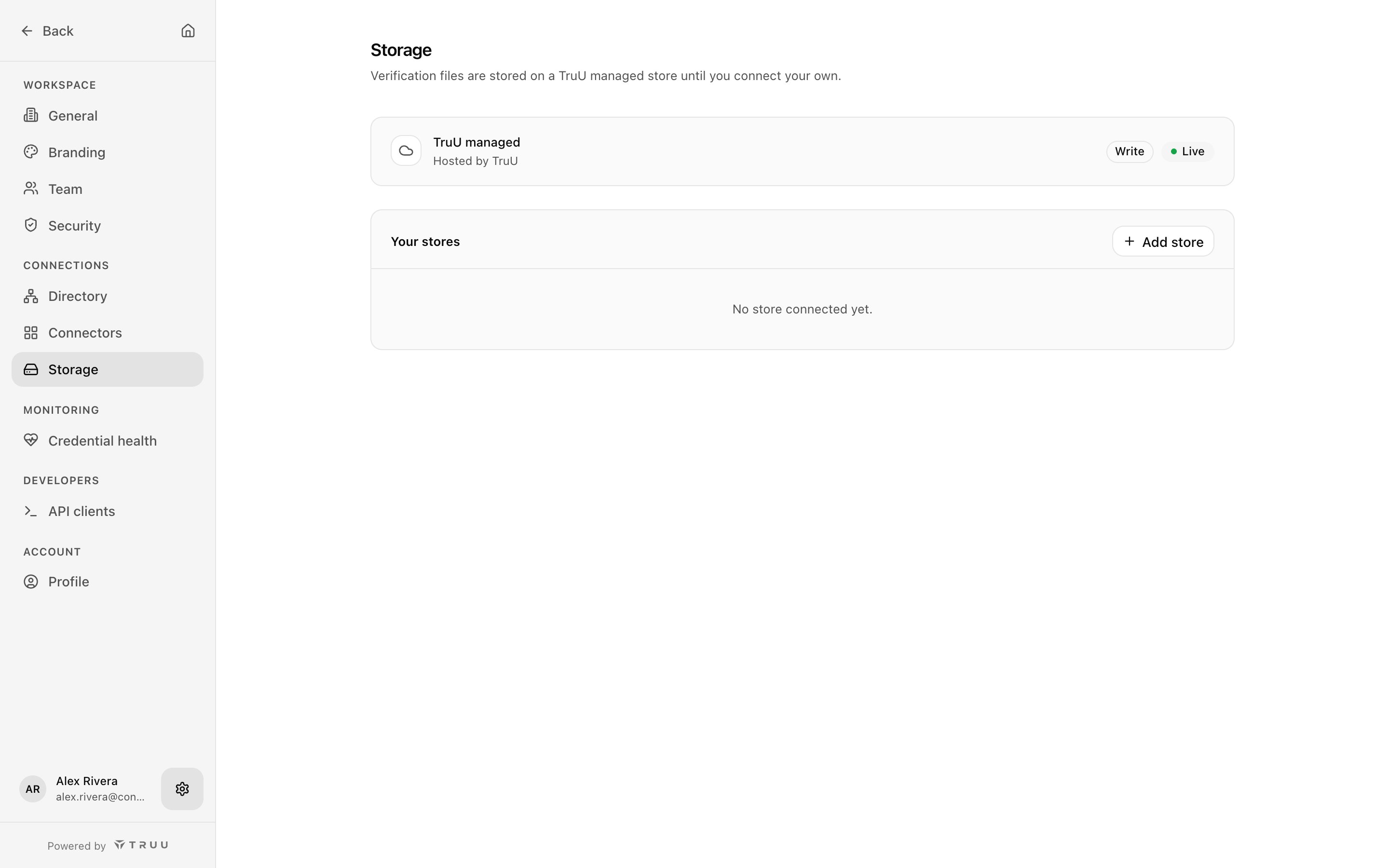
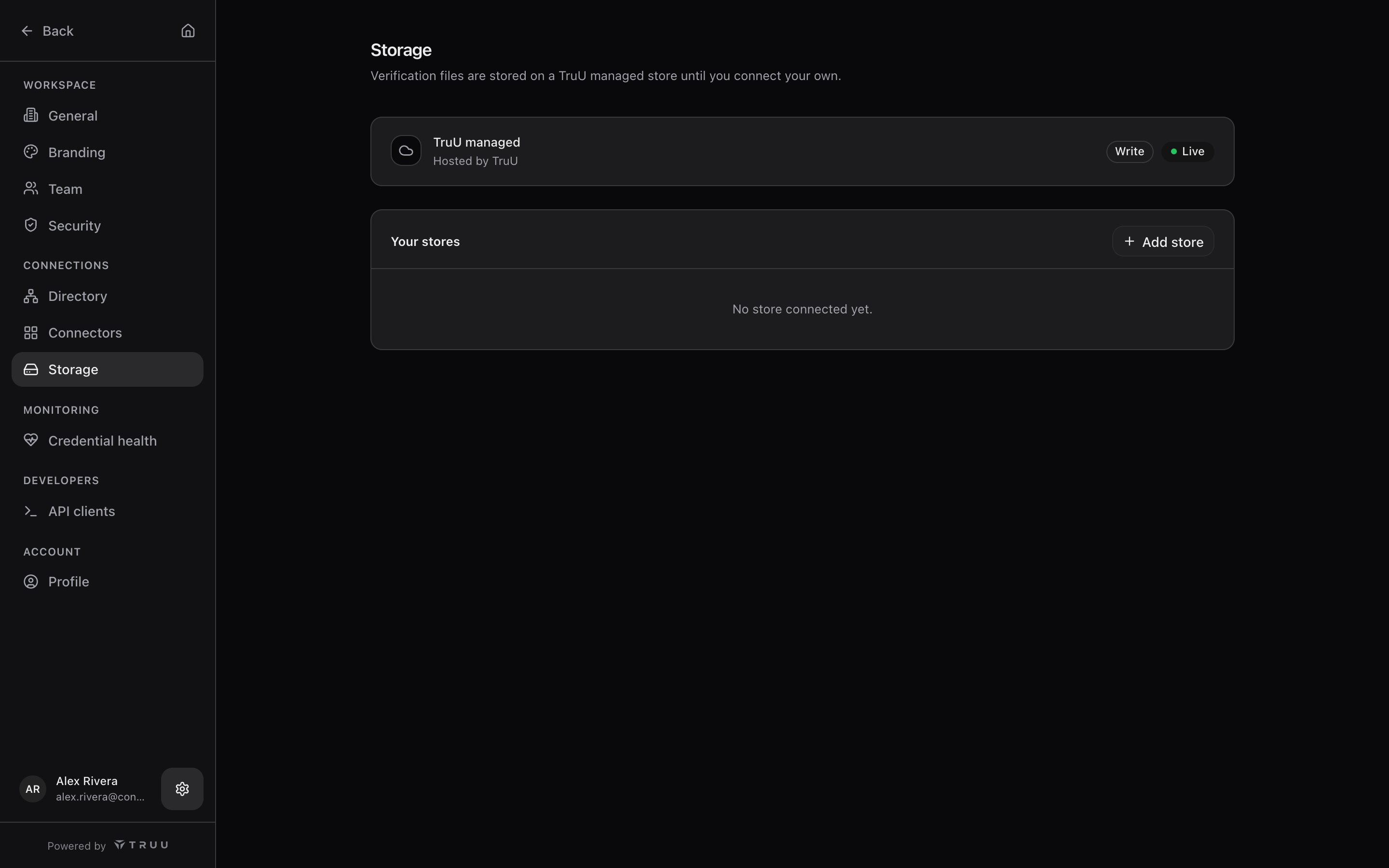
- TruU managed is the default. Files go to storage TruU operates, separated per organization and encrypted at rest. Nothing to set up.
- Your stores are Amazon S3 buckets or Azure Blob containers you own, under your retention rules and, optionally, encrypted with a key only you hold.
- Read: Face uses this store to look up reference photos.
- Write: Proofing writes decision records and face-on-file deposits here.
If your cloud team can’t provision a bucket yet, start on TruU managed storage, go live, and migrate later. Nothing else about your configuration changes.
Before you start
- An Owner or Admin seat in TruU IDV.
- Someone who can create a bucket or container and a scoped credential in your cloud account.
- The bucket doesn’t need to be public, and shouldn’t be. TruU connects outbound over HTTPS; nothing is opened on your side.
- For face encryption: an AES key (16, 24 or 32 bytes; 32 recommended) that you generate and keep.
Amazon S3
Permissions
Create an IAM user (or role with access keys) dedicated to TruU, and attach an IAM policy scoped to the bucket and, if you use one, a key prefix.s3:ListBucket matters even though TruU never lists: without it, S3 answers a check for a missing object with 403 instead of 404. If the bucket uses default SSE-KMS encryption, also allow kms:GenerateDataKey and kms:Decrypt on the key.
Fields
Azure Blob
Permissions
Create a container for TruU. Choose how TruU authenticates:
For a SAS token, scope it to the container and grant only:
Set an expiry that matches your rotation schedule, and rotate the token in TruU before it expires.
Fields
Account key and SAS token connect to the Azure public cloud (
core.windows.net). For Azure US Government or China (core.usgovcloudapi.net, core.chinacloudapi.cn), use Connection string.
Add the store
1
Open Add store
Settings → Storage → Add store. Choose Amazon S3 or Azure Blob and enter the fields above. The store is named after the bucket or container.
2
Choose access
Tick Read, Write or both. At least one is required.
3
Test the connection
Choose Test connection. With Write ticked, TruU writes a small
.janus-probe object (overwritten on each test, not deleted afterwards). With Read only, TruU checks it can read the bucket and writes nothing. The test times out after 10 seconds. A failed test shows the reason and nothing is saved.Face encryption
Turn on face encryption for one of your stores to encrypt face photos with an AES key you supply. The store shows Encrypted.- AES mode: GCM (recommended), CBC or CTR. CBC and CTR don’t detect tampering; choose them only if your own tooling requires it.
- Encoding: how you paste the key: Hex or Base64.
- GCM options (GCM only):
- Include 1-byte key version (0x01) before the nonce: on by default. Prefixes each file with a version byte so you can tell which key encrypted it when you rotate keys, and keeps files compatible with TruFace.
- Bind AAD to the object key: off by default. Authenticates the file’s full object key (its path in the bucket, UTF-8) as additional authenticated data, so a file copied or renamed to a different path fails to decrypt instead of being accepted.
- Changing the mode or GCM options requires re-entering the key.
- Keep the key somewhere durable. TruU can’t read those photos back without it, and you’ll need it (and the mode) to decrypt them yourself.
With Bind AAD to the object key on, pass the object key as the AAD when decrypting.