

About Windows TAP
A Temporary Access Pass (TAP) is a time-limited code Entra ID accepts as a sign-in method, intended for onboarding and recovery. The Windows TAP connector issues one in your tenant when a verification passes for a use case set to issue one, and shows the code on the verification success screen. This connector acts after a verification. The user signs in with it and enrolls their permanent credentials. Typical uses: day-one onboarding, recovery when a user has lost every authenticator, and passwordless credential resets.What the connection enables
The directory connection stays read-only; TAP issuance uses a separate app registration with one write permission. The setup script also turns on the Temporary Access Pass authentication method in your tenant (for all users, or for one group with
-TargetGroupId) and sets its limits to TruU’s defaults: default and minimum lifetime 60 minutes, maximum 480, one-time use on. Review your existing TAP settings before running it.
Prerequisites
- A connected Microsoft Entra ID directory. TAP issuance is Entra-only.
- Entra ID P1 (or higher) licensing; the Temporary Access Pass authentication method requires it.
- Temporary Access Pass enabled as an authentication method in your tenant for the users in scope (Entra admin center → Protection → Authentication methods → Temporary Access Pass).
- A Global Administrator to run the PowerShell setup script. It signs in with
Application.ReadWrite.All,AppRoleAssignment.ReadWrite.AllandPolicy.ReadWrite.AuthenticationMethod. - An IDV Console account with the Owner or Admin role.
Get your credentials
The setup script creates a dedicated TAP provisioner app registration and registers it with your workspace. Review the permission before running it.
This is the only permission the app holds. It cannot read user attributes, groups, or other authentication methods.
1
Start setup in the IDV Console
Go to Settings → Connectors → Windows TAP and choose Get setup command. The console generates a short-lived setup token and shows a one-line PowerShell command that downloads the current script and runs it with that token.
2
Run the script as an Entra administrator
Paste the command into PowerShell signed in to the target tenant. The script creates the app registration, adds
UserAuthMethod-TAP.ReadWrite.All, grants admin consent, enables the TAP method, and registers the credentials with your workspace. Nothing is copied by hand; the client secret is stored in a managed secrets service and never returned.Entra can take a minute to propagate a new app registration. If the first health check fails right after the script finishes, wait and retry.
Set up manually instead
Set up manually instead
Register an app named, for example, “TruU TAP Provisioner” (separate from the directory reader app). Add the
UserAuthMethod-TAP.ReadWrite.All application permission and grant admin consent, create a client secret, and turn on Temporary Access Pass under Protection → Authentication methods in the Entra admin center. Then choose Set up manually instead and enter the Client ID and Client secret.Connect in TruU
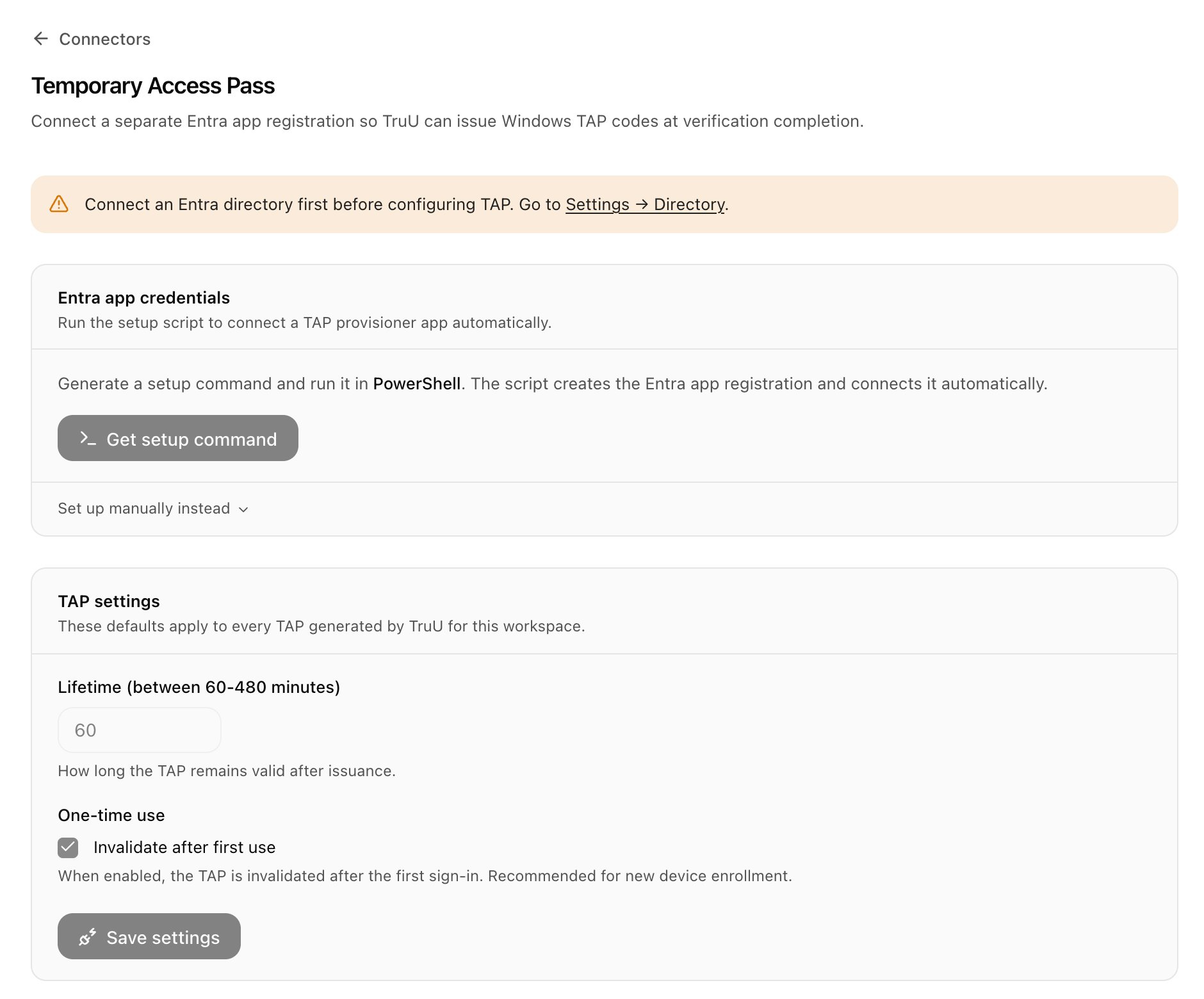
Then turn it on per use case: in Use Cases, open each use case that should issue a pass (for example Onboarding or Credential reset) and set When it ends → Passed to Issue a Temporary Access Pass. Only verifications for those use cases issue a pass. Integration enabled must also be on; when it’s off, TruU skips issuing passes everywhere. See How use cases work.
Registration is one-time per workspace. To re-register with a different app, delete the configuration first.
Validated at save: the app can obtain a token. Not validated at save: that the TAP authentication method is enabled for the users in scope; that failure shows at issuance time.
Verifying the connection
Checks run at registration, on demand from Credential health, and daily. Then run one end-to-end test: complete a verification as a test user for a use case set to issue a pass, confirm the code appears on the success screen, and sign in with it.
How it works
Issuance. On success, TruU creates a TAP on the user with the configured lifetime and one-time-use setting and shows the code to the user on the success screen with its expiry. The code is shown once, there, and nowhere else. Where the code is shown. Only on the verified user’s success screen (web verification page, or the phone if the verification was handed off by QR). The agent sees a TAP issued outcome on the request detail in the help desk app, never the code. The code is not stored by TruU and does not appear in audit records. Failure handling. If issuance fails (the user already has an active TAP, TAP is not enabled for the user, licensing, or Entra rejects the call), the verification result stands and the request detail shows TAP could not be issued so the agent can follow up. Revoking. To revoke a pass before it expires, delete it in the Entra admin center. Passes also expire on their own at the lifetime, and a single-use pass is consumed at first sign-in. Disconnecting the connector does not revoke passes already issued. Hosts. TruU only ever callslogin.microsoftonline.com and graph.microsoft.com for this connector.
Secrets. The provisioner client secret is held in a managed secrets service. Setup-token issuance, registration, setting changes, and issuance outcomes are recorded in the audit trail.
Gotchas and troubleshooting
- Health check fails right after setup. Propagation delay or missing admin consent. Wait a minute, retry, then confirm consent on the app registration.
- Issuance fails with a method-not-enabled error. The Temporary Access Pass method is not enabled in the tenant, or the user is outside its target group. Fix in Authentication methods.
- Issuance fails with a licensing error. The user has no Entra ID P1 license.
- User already has an active TAP. Entra allows one active pass per user. Revoke the existing one in the Entra admin center and resend the verification.
- User is verifying on the Windows lock screen and cannot see the code. The lock screen has no camera, so the verification ran on the phone; the code is shown on the phone’s success screen. Tell users to keep the phone until they have signed in.
- Agent asks for the code. By design the agent never sees it. If the user lost it, revoke and run a new verification.
- Not validated at save. TAP method enablement, user licensing, and conditional access policies that may block TAP sign-in for the user.
Related pages
How use cases work
Where the after-success action is set for each use case.
Microsoft Entra ID
The read-only directory connection TAP issuance builds on.
TruU Passwordless
Verify before enrollment instead of, or alongside, a TAP.
Credential health
Where the checks above appear.