

About PingOne MFA reset
Resetting MFA is the riskiest routine help desk task. The PingOne MFA connector turns it into an audited, automatic action that runs only after a verification succeeds for a use case you choose. This connector acts after a verification. It is separate from PingOne Verify, which is a proofing vendor; you can use either or both. TruU IDV removes the user’s registered devices in your PingOne environment; the user re-enrolls on their next sign-in.What the connection enables
TruU does not read other users or change MFA settings. If the user chooses authenticator app (TOTP) re-enrollment after the reset, TruU creates a TOTP device for them to activate.
Prerequisites
- A PingOne environment with PingOne MFA, and users whose PingOne username equals their UPN in your TruU directory.
- A PingOne administrator who can create a worker application.
- An IDV Console account with the Owner or Admin role.
- Outbound HTTPS from TruU to PingOne’s API host for your region (TruU’s side).
Get your credentials
1
Note the environment ID and region
In the PingOne admin console, open Environment → Properties and copy the environment ID. Note the region:
us, eu, ap, ca, or au.2
Create a worker application
Under Applications, add a Worker application dedicated to TruU. On its Roles tab, grant the Identity Data Admin role scoped to the environment that holds your users. Copy the client ID and client secret; the secret is shown once.
Connect in TruU
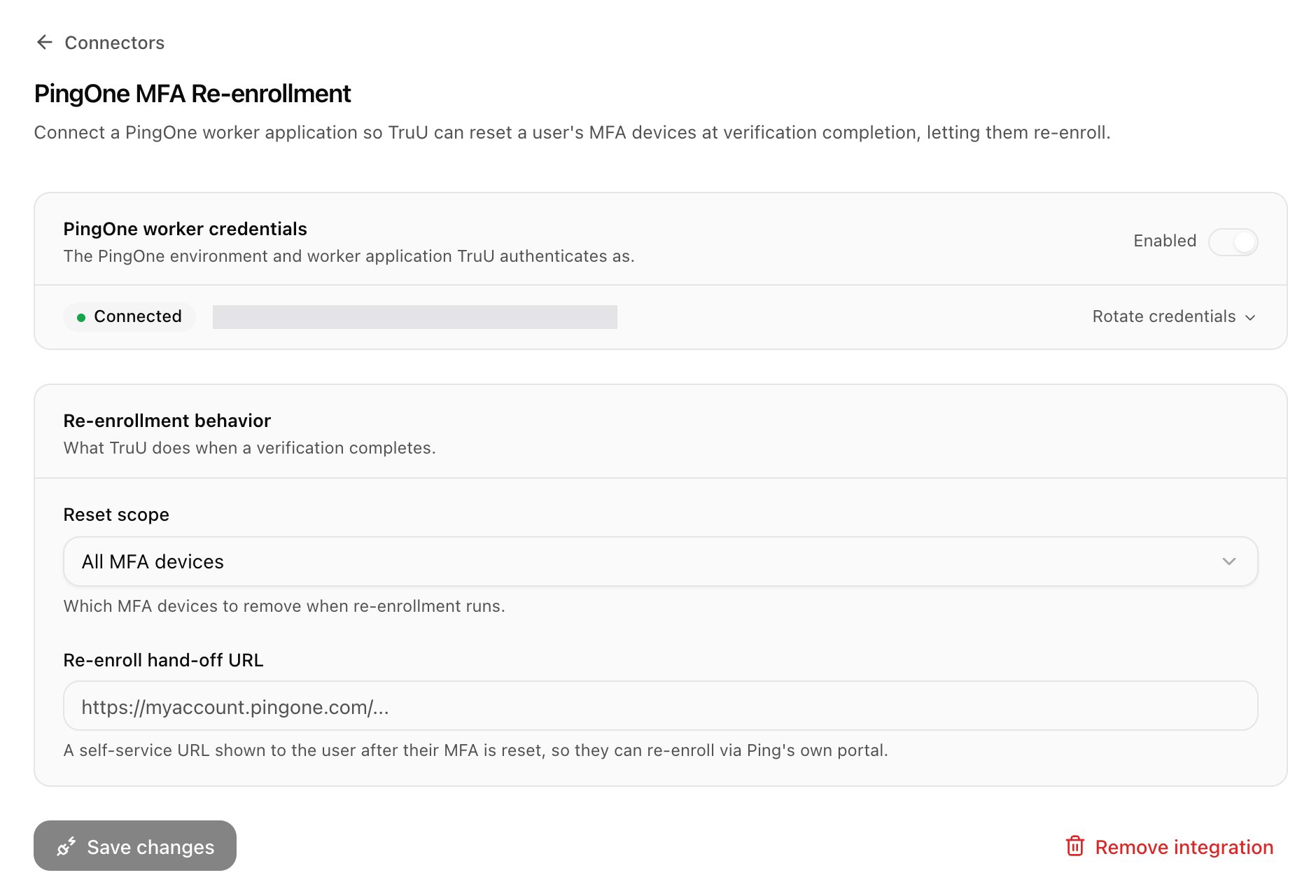
Then turn it on per use case: in Use Cases, open each use case that should reset MFA (typically Credential reset and Helpdesk) and set When it ends → Passed to Ping re-enrollment. Only verifications for those use cases trigger a reset. See How use cases work.
Validated at save: the worker credentials authenticate in the selected region and environment. Not validated at save: that every directory user has a matching PingOne identity.
Verifying the connection
User lookup and device deletion rights are confirmed at the first real reset, so run the end-to-end test below.
Checks run at save, on demand from Credential health, and daily. Then run one end-to-end test with a test user who has a registered device: complete a verification for a use case set to Ping re-enrollment, confirm the device disappears in PingOne, and confirm the request shows the reset outcome.
How it works
Reset. On success, TruU looks up the user in PingOne by username (their UPN), lists their MFA devices, and deletes those within the reset scope. The user sees a confirmation on the success screen, an authenticator app (TOTP) re-enrollment option where your PingOne environment allows it, and your handoff URL if set. The agent sees a “PingOne MFA reset” outcome on the request detail. Failure handling. A failed reset never undoes the verification. When a reset succeeds, the request detail in the help desk app shows PingOne MFA reset under Post-verification actions. Common causes of a failed reset: no PingOne username matches the user’s UPN, the worker role cannot read or delete devices, the regional API did not respond, or the client secret was rotated or expired. Hosts. TruU only ever calls PingOne’s API and auth hosts for your region. Secrets. The client secret is held in a managed secrets service. Rotate it by pasting a new secret on the connector card; the superseded value is deleted. Connector changes, tests, and every reset outcome are recorded in the audit trail.Gotchas and troubleshooting
- Reset does not happen for people who clearly exist in PingOne. The PingOne username is not the directory UPN or email. Compare one user side by side and align the attribute PingOne is matched on.
- FIDO2 keys were removed when you expected them kept. Reset scope is All MFA devices. Switch to Mobile and authenticator app devices only.
- Reset happens on help desk verifications you did not intend. Ping re-enrollment is set on more use cases than you meant. Review When it ends on each use case.
- Secret rotated in PingOne, not in TruU. Resets fail until the new secret is pasted in. Credential health shows the failing check.
- User cannot re-enroll after the reset. Your PingOne MFA settings require a device type the user cannot use, or self-enrollment is off. That is PingOne configuration; the hand-off URL is the place to point users at instructions.
- Not validated at save. Identity matching coverage and your PingOne enrollment settings.
Related pages
How use cases work
Where the after-success action is set for each use case.
PingOne Verify
Document proofing through your PingOne environment.
Credential health
Where the checks above appear.
Audit events
Connector and reset outcome events.