

About ServiceNow
The TruU Identity Verification app lets help desk agents verify a caller from the record they are already working, before a password reset, MFA reset, or account recovery. The agent chooses Verify Identity, TruU sends the caller a verification link, and progress and the final result come back to the record as work notes. This connector starts verifications, both for agents working a record and for employees through your own catalog items (see Self-service with Flow Designer). The app is a scoped application (x_truu_idv). It adds:
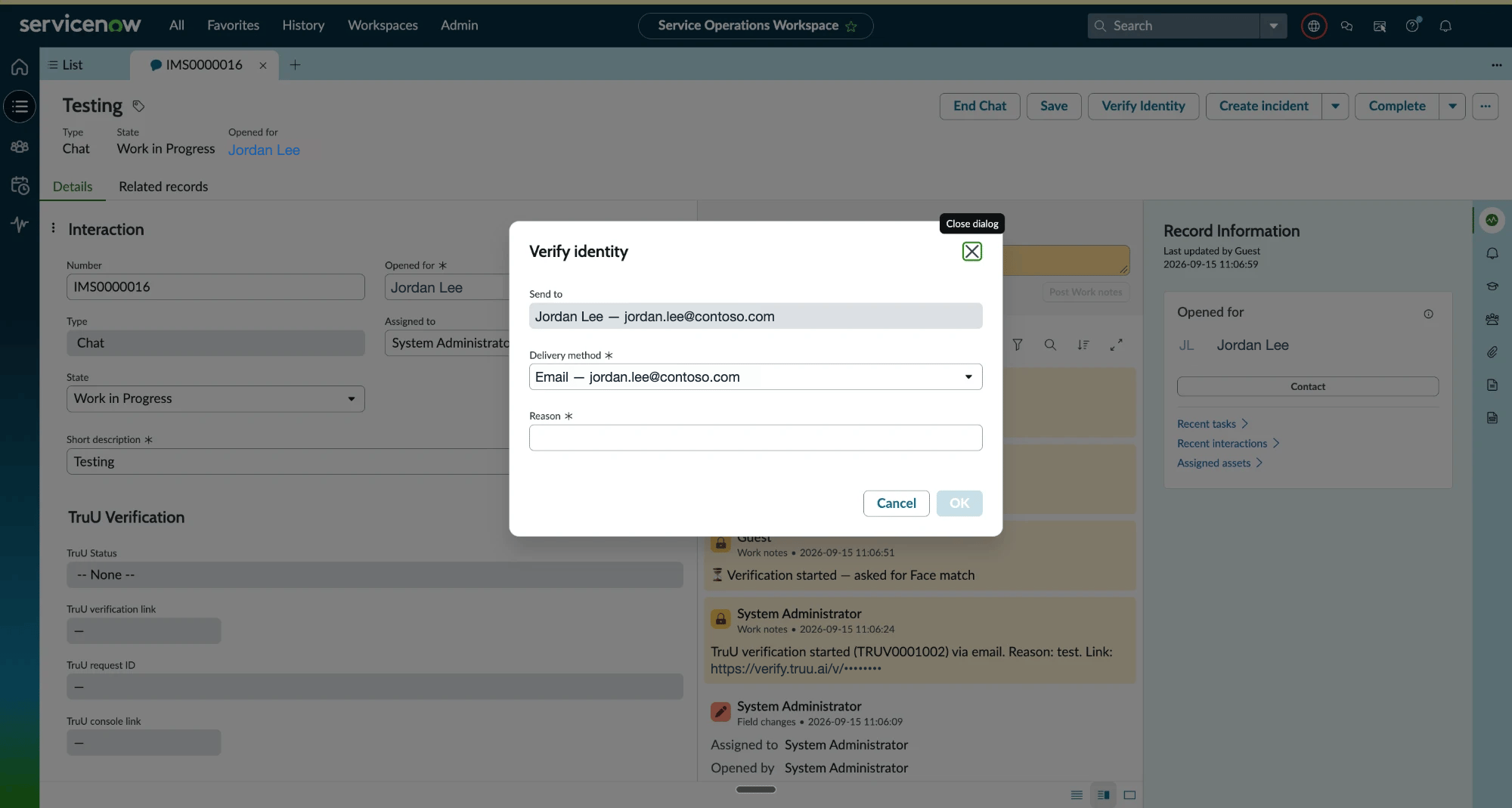
An agent chooses Verify Identity on an Interaction. The link goes to the contact on file, and progress comes back as work notes.
- A Verify Identity action on Incident, Interaction, and Requested Item records.
- A Verification Requests list.
- A TruU: Verify Identity and Wait subflow and a TruU: Create Verification Request action for Flow Designer.
- Privacy Policy and Contact Support links in the app menu.
- Three roles for people, plus an integration role that Connect assigns to the app’s own integration user.
Prerequisites
- ServiceNow: ITSM with Incident, Interaction Management, or Service Catalog, depending on the records you want the action on.
- TruU: an Owner or Admin seat, a connected directory (Entra ID or Okta), and email or SMS delivery for the people agents will verify.
- Network: see Network. No MID Server is needed.
Install and assign roles
1
Get the app
Email idv@truu.ai for the TruU Identity Verification update set (XML), then load, preview and commit it in your instance under System Update Sets → Retrieved Update Sets.
2
Assign roles
The app also ships
x_truu_idv.integration. Connect assigns it to the app’s integration user (see How TruU authenticates to your instance). Don’t assign it to people.Connect to TruU
1
Generate a connect link
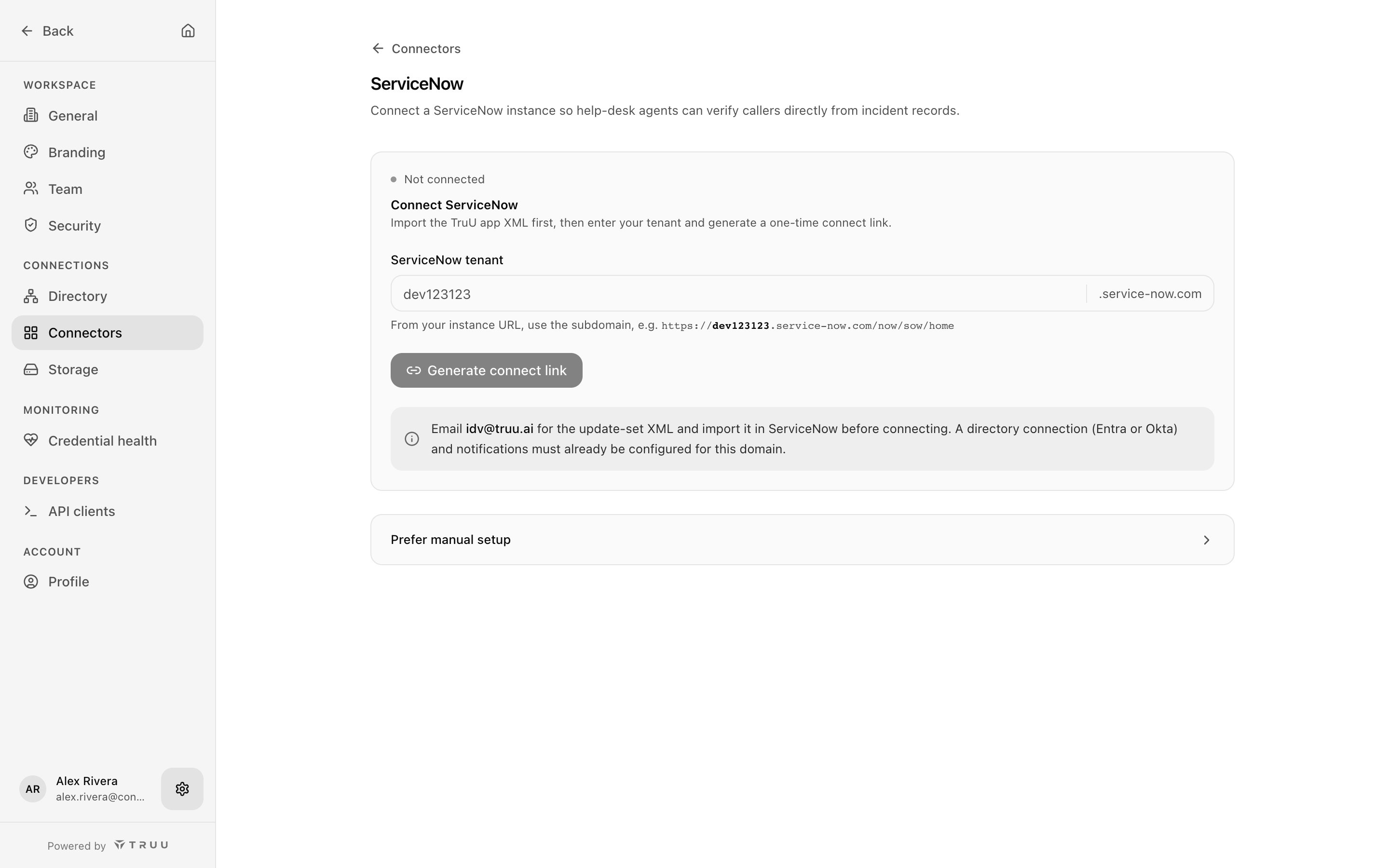
In the IDV Console, go to Settings → Connectors → ServiceNow, enter your ServiceNow tenant (the subdomain of your instance URL, for example
dev123123), and choose Generate connect link. The link works once and expires after 15 minutes.2
Open it in your instance
Open the link while signed in to your instance with the
x_truu_idv.admin role. It opens the app’s Connect to TruU page with the linking code filled in.3
Connect
Accept the TruU Terms of Service and Privacy Statement, then select Connect. The page does not connect until you do. Connect:
- Creates a web-service-only user,
truu.idv.integration, with thex_truu_idv.integrationrole. - Creates an OAuth client named TruU Identity Verification that runs as that user, with a new random secret. On a reconnect, it replaces the previous client only once TruU has accepted the new one.
- Checks that your instance issues a client-credentials token to that client, before the linking code is used.
- Sends TruU the OAuth client ID and secret, and stores the TruU API key in an encrypted property that only
x_truu_idv.admincan read or change.
Connect from the Global application. The OAuth client is a Global record, and ServiceNow won’t save it while the application picker is set to a scoped app. Connect tells you if this happens.
If you aren’t the ServiceNow admin, send them the connect link. They open it while signed in with the
x_truu_idv.admin role and select Connect. The link still works once and expires after 15 minutes.Can't open the link?
Can't open the link?
Under the connect link, the console also shows the bare linking code. Copy it, open the app’s Connect to TruU page in your instance (TruU Identity Verification → Connect to TruU), paste the code and select Connect. The same 15-minute, single-use rules apply.There is no manual setup that skips the Connect page: the integration user and OAuth client that TruU authenticates with are created there.
How TruU authenticates to your instance
The app’s events endpoint,/api/x_truu_idv/truu_idv/events, is not public. ServiceNow accepts a call to it only when it is authenticated and the caller holds x_truu_idv.integration.
- TruU to your instance: TruU requests an access token from your instance’s
/oauth_token.dowith the OAuth client created at Connect (client-credentials grant) and sends it as a bearer token with each event. The token runs astruu.idv.integration, which can’t sign in to the UI and has no password. TruU reuses a token until shortly before it expires and requests a new one when your instance rejects it. - Your instance to TruU: the app calls the TruU API with its API key, stored as an encrypted property that only
x_truu_idv.admincan read or change. - Rate limit: the endpoint allows 3,600 requests per hour for the integration role. Find it under System Web Services → REST → Rate Limit Rules as TruU IDV events.
truu.idv.integration user. Connecting again turns both back on.
What the app reads and writes
TruU does not read ServiceNow tables. The only calls TruU makes into your instance are requesting an OAuth token and delivering verification events to the app.
Network
No MID Server, VPN, or inbound firewall change on your own network is needed.
Settings admins change
The app’s settings are under its Properties module and requirex_truu_idv.admin.
Leave the API base URL property blank. Blank means the app uses the TruU API at
agent.truu.ai; change it only if TruU support asks you to.
Flow Designer
Use the app’s Flow Designer content to require verification inside your own catalog items or automations.Self-service with Flow Designer
Employees can verify themselves from the ServiceNow portal, with no agent involved: put verification in front of a catalog item such as “Reset my MFA”.1
Create a flow on the catalog item
In Flow Designer, create a flow with the Service Catalog trigger for your catalog item.
2
Add the subflow
Add TruU: Verify Identity and Wait as the first action and set its inputs:
3
Act on the result
The subflow returns Verified (true or false) and the Verification Request record. Add a flow condition so the fulfillment steps run only when Verified is true.
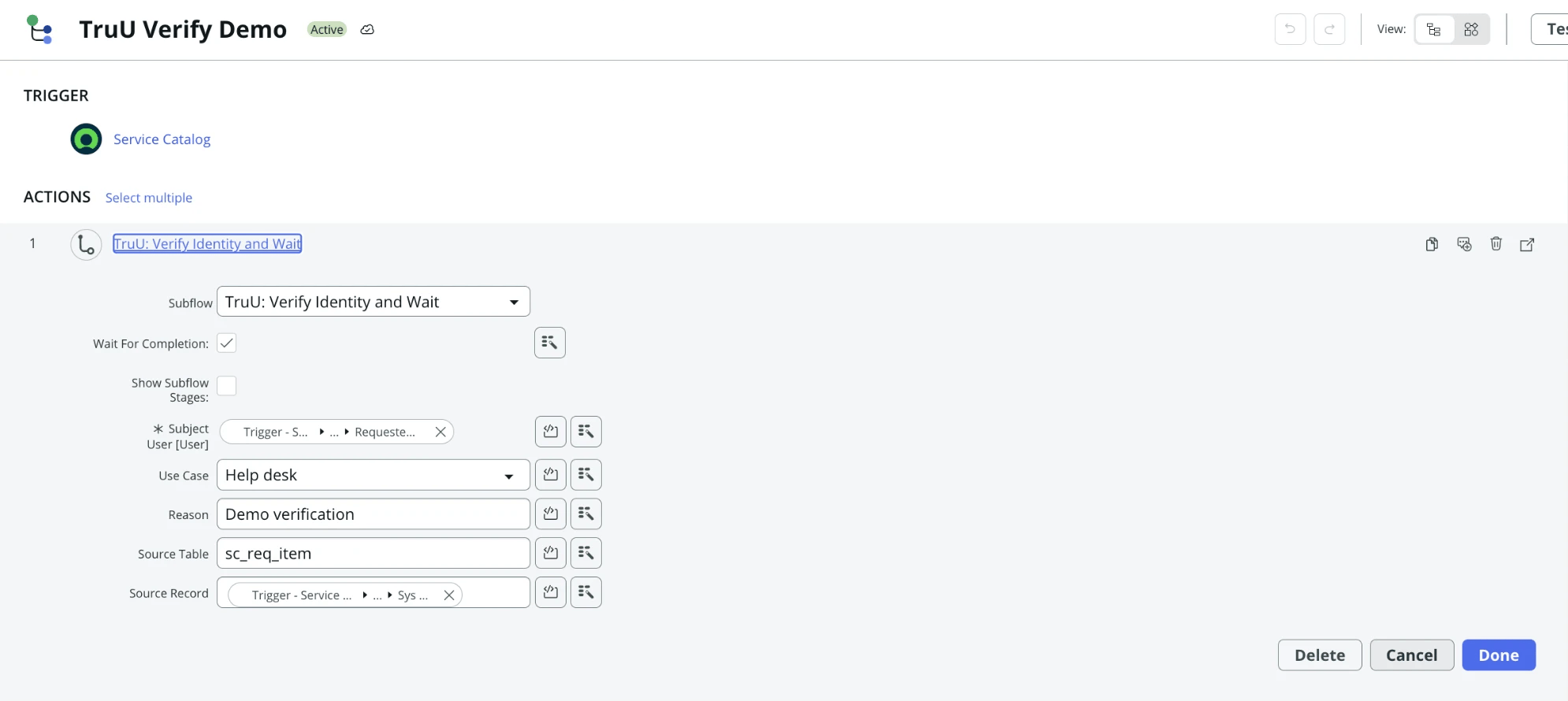
A Service Catalog flow that verifies the requester before fulfillment.
Verifying the connection
- In the IDV Console, run Test connection on the ServiceNow connector. It sends a test event to your instance and reports the result.
- Open a test Incident, choose Verify Identity, and send a link to a test user by email.
- Complete the verification on the test user’s phone.
- Confirm the work notes and status field update on the Incident and a row appears in Verification Requests.
Troubleshooting
Known issues
- Upgrading the app clears its credentials. After any upgrade, generate a new connect link and connect again, then publish the subflow.
- Upgrading to 1.1.3 or later needs a reconnect. Earlier versions authenticated events with a shared secret, which 1.1.3 removes. Connect again to create the integration user and OAuth client; until you do, results don’t reach your records.
- Which use case is used. The Verify Identity action sends Helpdesk. Flow Designer content sends the use case you pick: Help desk (Helpdesk), Pre-hire (Onboarding) or Password reset (Credential reset). See How use cases work.
Related pages
Solution guide: verified help desk
Roll out verified resets end to end.
Creating verification requests
The agent workflow the app mirrors.
Network and allowlists
Every host TruU uses.
Permissions and roles
Why the app cannot change your TruU configuration.