

Where branding applies
- The verification page employees open from a link, on phones and computers.
- The proofing capture step, so it doesn’t feel like leaving your site (Didit picks up your colors automatically).
- Verification emails.
Set it up
Open Settings → Branding. Changes show in the live preview on the right; switch between Desktop and Mobile, and choose Save when you’re done.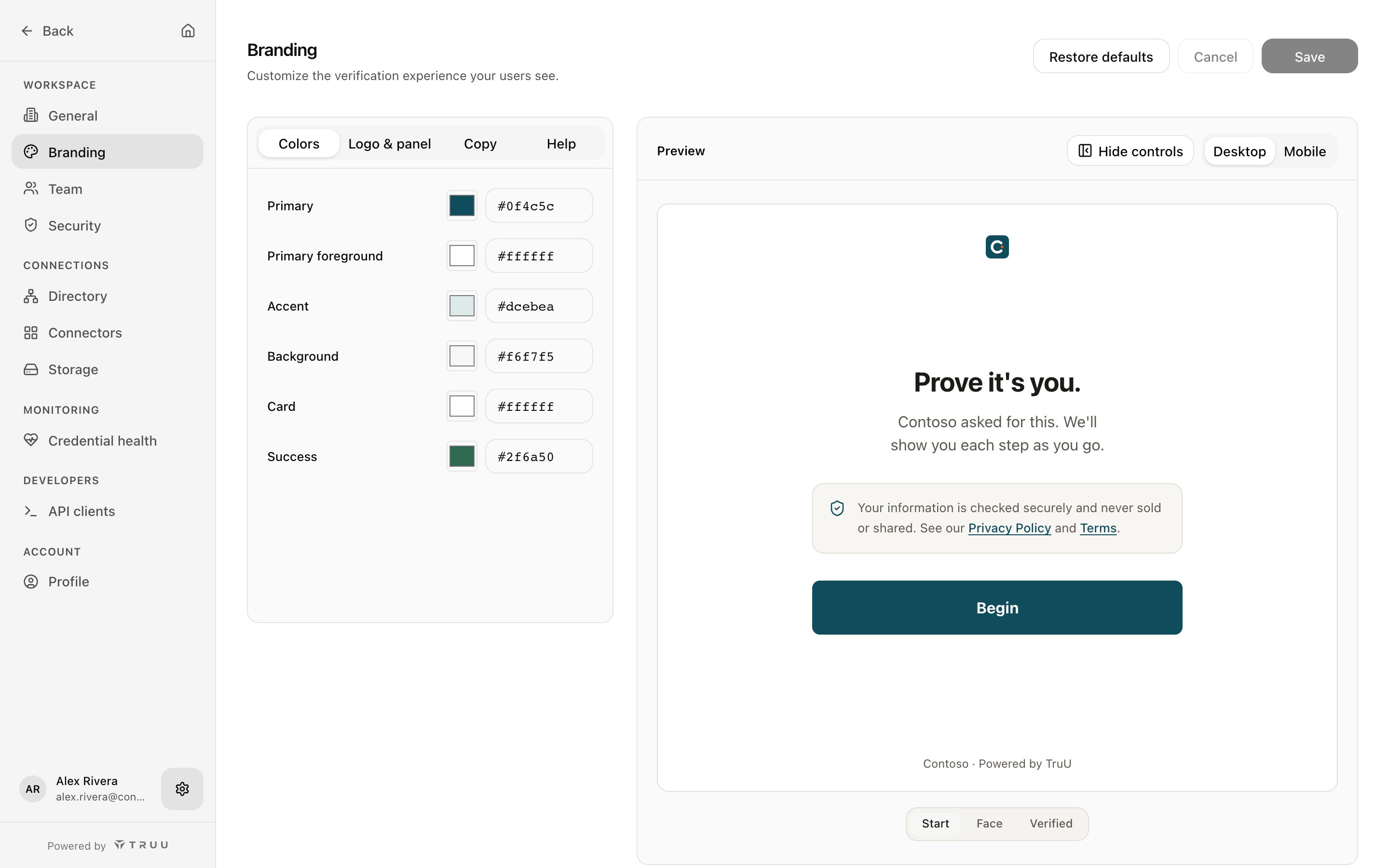
Colors
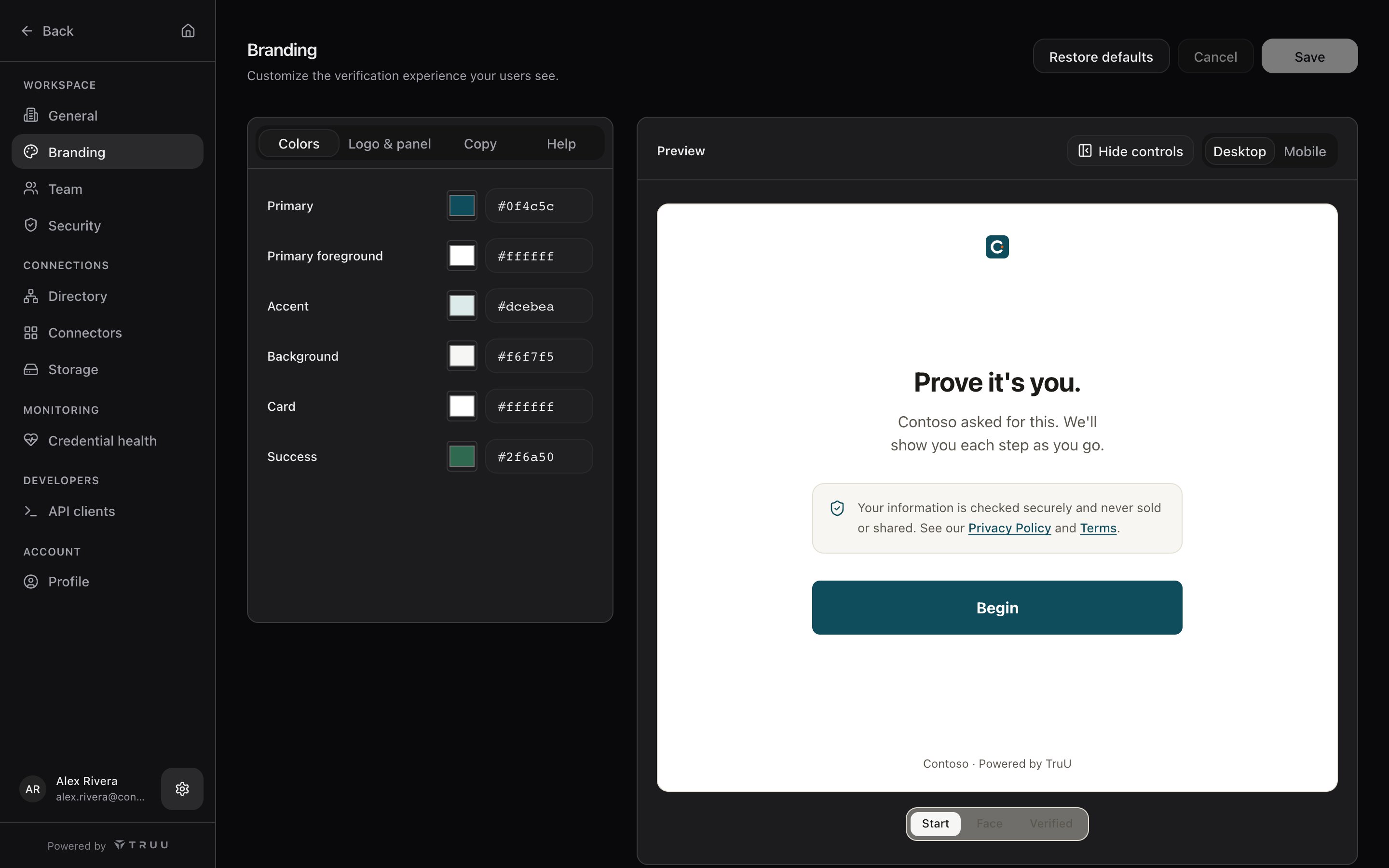
Primary, Primary foreground, Accent, Background, Card and Success. The preview warns when text and background colors don’t have enough contrast to read.Logo and panel
Copy
The message that explains why the person is being verified comes from the use case, not from branding.
Help
Set a support email. Employees who get stuck should reach your help desk, not TruU’s.
Restore defaults resets branding to TruU’s defaults.
Related
- What to expect: what employees see
- How use cases work: the message each use case shows