

Why you got this link
Your organization uses TruU to confirm that the person asking for something sensitive is really you. You will usually get a link when:- You called the help desk to reset a password, reset your sign-in app, or unlock your account.
- You are setting up a new computer or phone for work.
- You are joining the company and need to prove who you are before your first day.
- You asked for it yourself from your organization’s verification page.
How to tell it is genuine
A genuine TruU verification link:
- Arrives at a work email address or phone number your organization already has on file, or is given to you directly by the help desk agent you are talking to.
- Opens a page on verify.truu.ai showing your organization’s name and logo, and says why you’re being asked.
- Never asks for your password, your sign-in app code, your bank details, or your card number.
- Expires on its own. A help desk link lasts 30 minutes, a reset link 1 hour, and an onboarding link 7 days.
Use your phone
Open the link on your phone, even if you are at your computer. Phone cameras work far better for the face and ID steps than laptop webcams, which often cannot focus or do not start at all. If you’re verifying on a computer, including while setting up a new Windows PC or Mac, steps that need a camera show a QR code. Scan it with your phone camera to continue there. You will not lose your place. Find a spot with even light, hold the phone at eye level, and take off sunglasses or a hat.What the steps look like
The page first says who asked and why. Nothing starts until you tap Begin.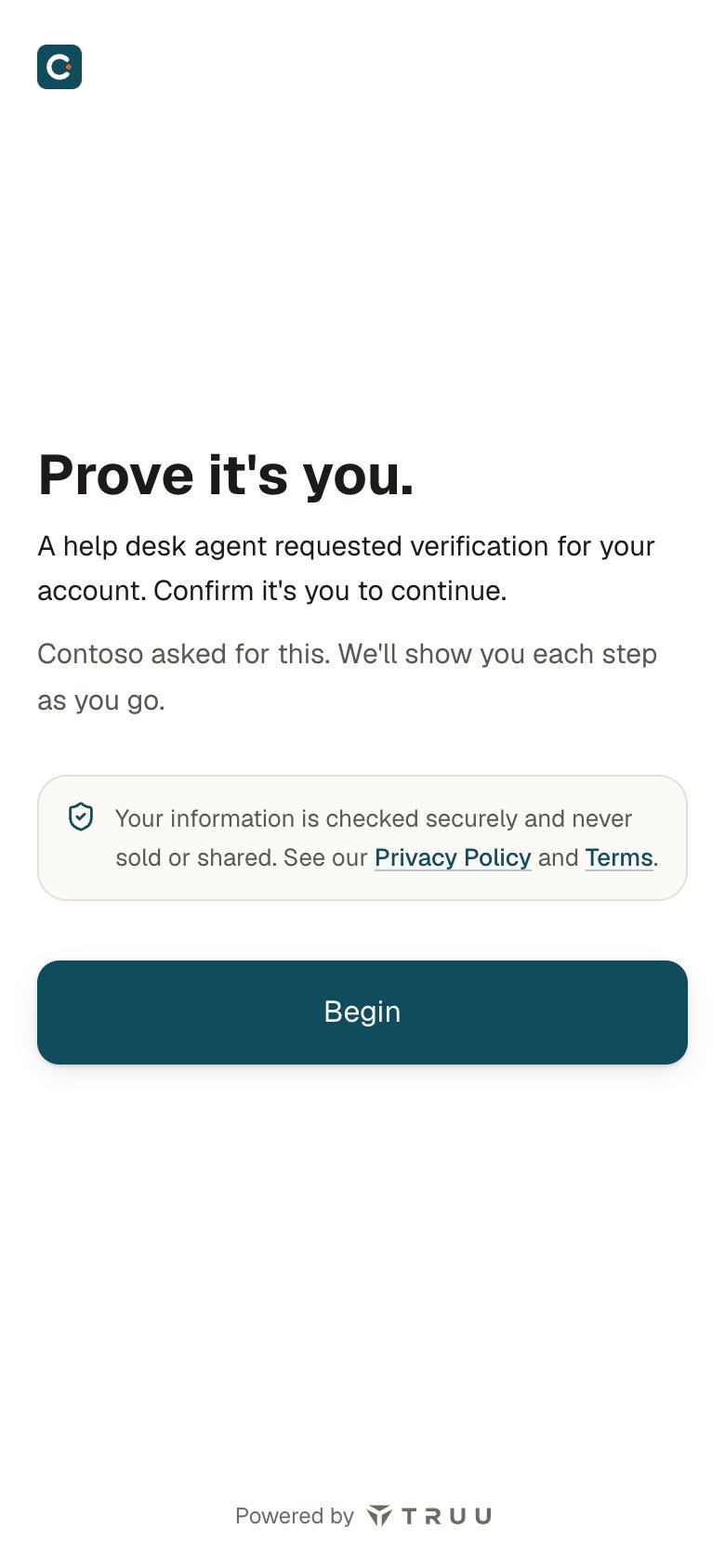
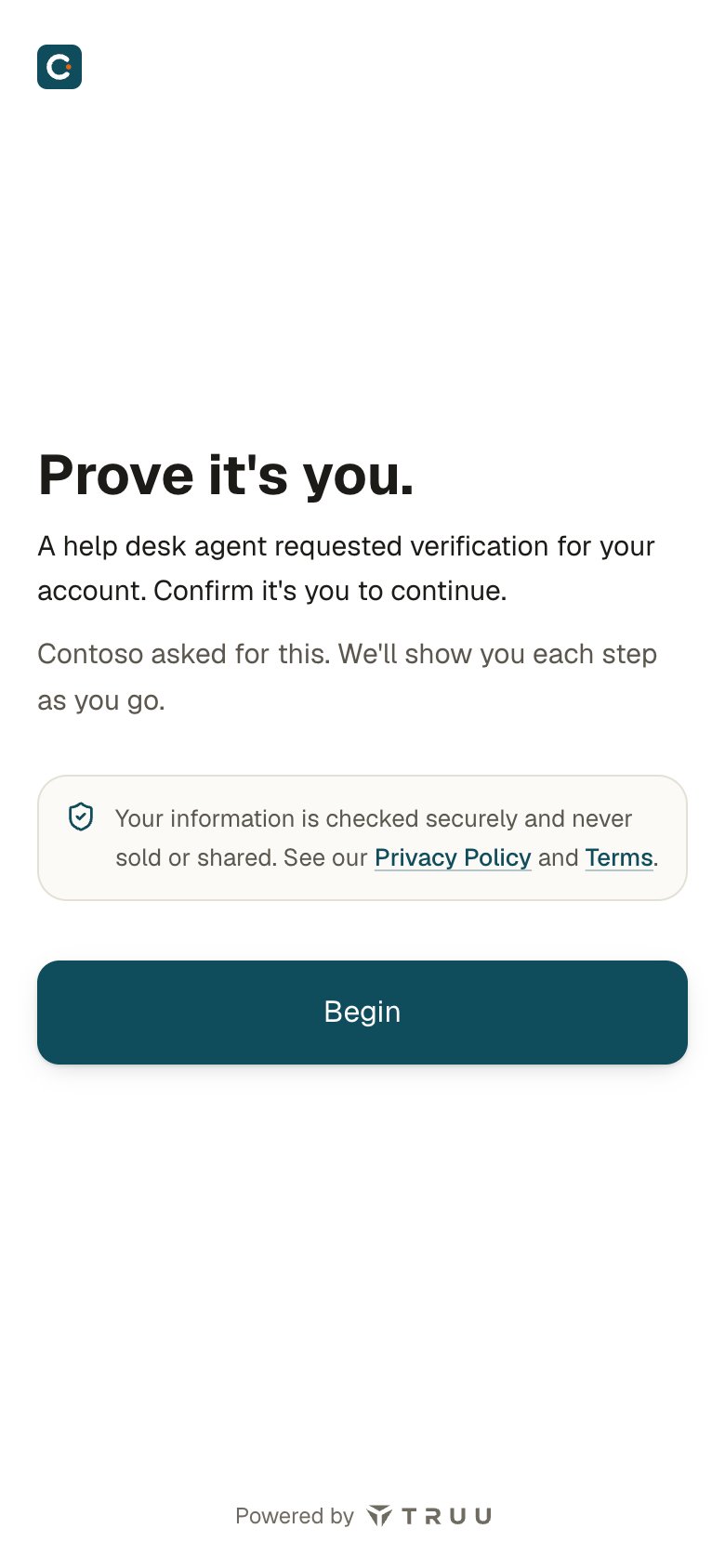
The first screen of a verification on a phone.
Face check
Face check
Your phone asks to use the camera. Hold the phone at eye level and follow the prompts (“move closer”, “hold still”). It takes a few seconds. The page compares your face with the photo your organization has on file.
ID document check
ID document check
You photograph a government-issued ID, such as a driver’s licence or passport, then take a selfie. Lay the ID flat, avoid glare, and keep all four corners in the frame. Have the ID ready before you tap Begin.
One-time code
One-time code
A 6-digit code is sent to your work email or phone. For email you choose from a list of partly hidden addresses. For text messages you type the last four digits of your phone number first, as a check that the phone is yours. The code works for a few minutes. If it does not arrive, wait a moment and tap Resend; you can resend a limited number of times.
Questions about you
Questions about you
You type an answer such as your employee number. The answer is checked against your organization’s records. The page never shows you the right answer.
Badge
Badge
You tap your badge on the reader attached to the computer or kiosk. Hold it there until the page confirms.
When you are done
A confirmation screen says you are verified. If you were on the phone with the help desk, they already see it; you do not need to tell them. If the verification was part of setting up a computer, the computer continues on its own; you can put your phone down. If your organization issued you a temporary sign-in code, it appears on this screen along with how long it is valid.If it fails
The page tells you plainly when a step did not pass and what to do next. A few things to know:- You have a limited number of attempts. Each attempt starts when you tap Begin.
- Opening the link twice is the most common problem. If the page says the verification is already open somewhere else, go back to that tab or device, or close it and open the link again.
- If the link has expired, ask the help desk for a new one. The old link will not work again.
- If you run out of attempts, the request ends. The help desk will follow their own process, which may include a different kind of check. They will not simply ask you security questions instead.