

How it works
- The employee starts from the self-service portal, by typing
verify meto the Microsoft Teams bot, from a ServiceNow catalog item, or from your own tool through the API. - TruU sends a verification link to a contact already on file in your directory.
- The employee completes the flow the Credential reset use case assigns them.
- On success, TruU does what the use case says: records the result for your process to act on, issues a Windows Temporary Access Pass, or resets the employee’s PingOne MFA devices.
Before you start
- A connected directory with email addresses, and mobile numbers in E.164 format if you want text delivery. See SMS.
- A flow suited to unattended recovery. Avoid a column that relies only on factors an attacker with the employee’s email could pass; a Face or Proofing column first is a good default.
- For automatic recovery, a connector: Windows TAP or PingOne MFA.
Set it up
1
Route the Credential reset use case
In Use Cases → Credential reset, set the flow for Everyone and add rules for groups that need a different one. See How use cases work.
2
Choose what happens after
Under When it ends → Passed:
- Report only: record the result; your own process does the reset.
- Issue a Temporary Access Pass: Entra ID issues a TAP so the employee can sign in and register a new method.
- Ping re-enrollment: TruU removes the employee’s PingOne MFA devices so they can register again.
3
Publish the portal
Share the portal URL where employees look for IT help: the intranet, the ticket portal, or a QR code at the service desk. See below.
Self-service portal
The portal is a public page unique to your workspace where an employee requests their own verification link. No agent is involved, and every guarantee of an agent-sent request still applies.- Address:
https://verify.truu.ai/self-portal/<short code>. Your workspace’s short code is in Settings → General. - Identify: the employee enters their work email or sign-in name. Only people in your connected directory can continue.
- Deliver: the employee picks Email or Text message, shown masked, from the contacts on file. The portal never accepts a typed-in destination and never shows a full address or number.
- Verify: the link opens the standard verification page, and the Credential reset use case decides the flow.
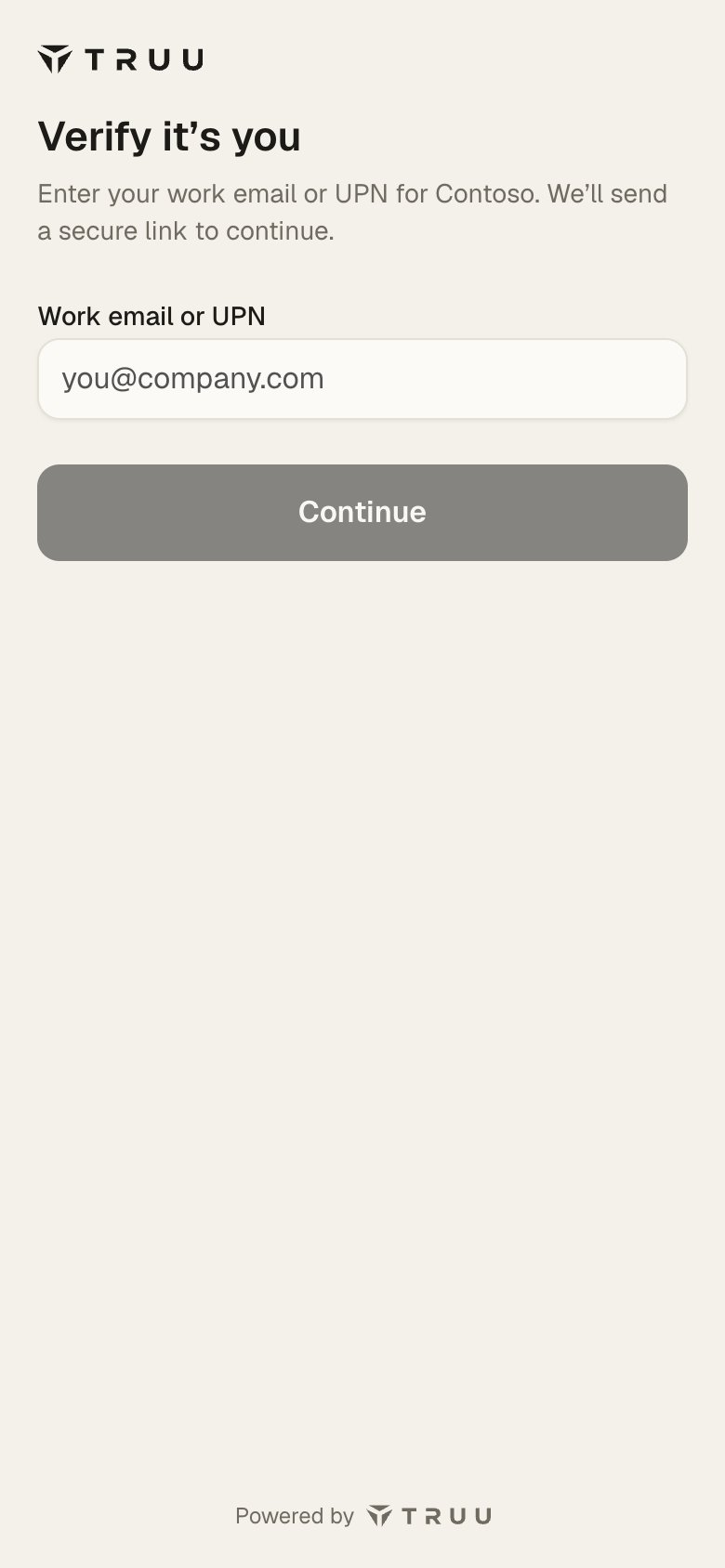
The self-service portal on a phone.
If many employees don’t see Text message, their directory mobile numbers are missing or not in E.164 format. Expect most employees to use Email until that is fixed. See SMS.
From Teams or ServiceNow
- Microsoft Teams: turn on Self-service on the Teams connector and allow Credential reset for it. Employees type
verify meto the bot and get their link in the chat. See Microsoft Teams. - ServiceNow: put TruU: Verify Identity and Wait in front of a catalog item with Use Case set to Password reset. See Self-service with Flow Designer.
From your own tools
To start a reset verification from your own portal or chatbot, create a link with the API and the use case keyreset. See API quickstart.