

Factors at a glance
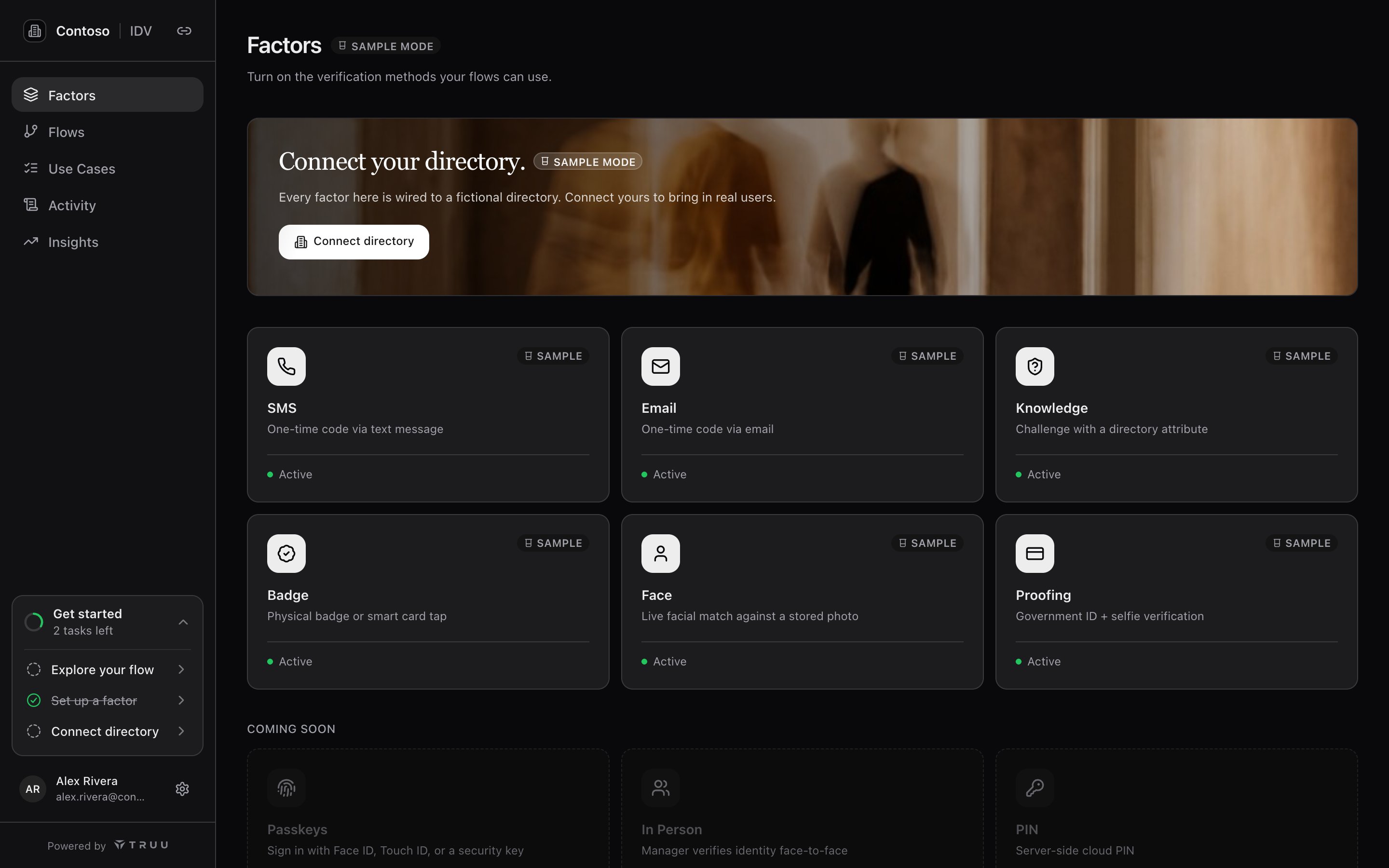
Open Factors in the console to see every factor, whether it is active, and what it needs. Select a factor to open its settings.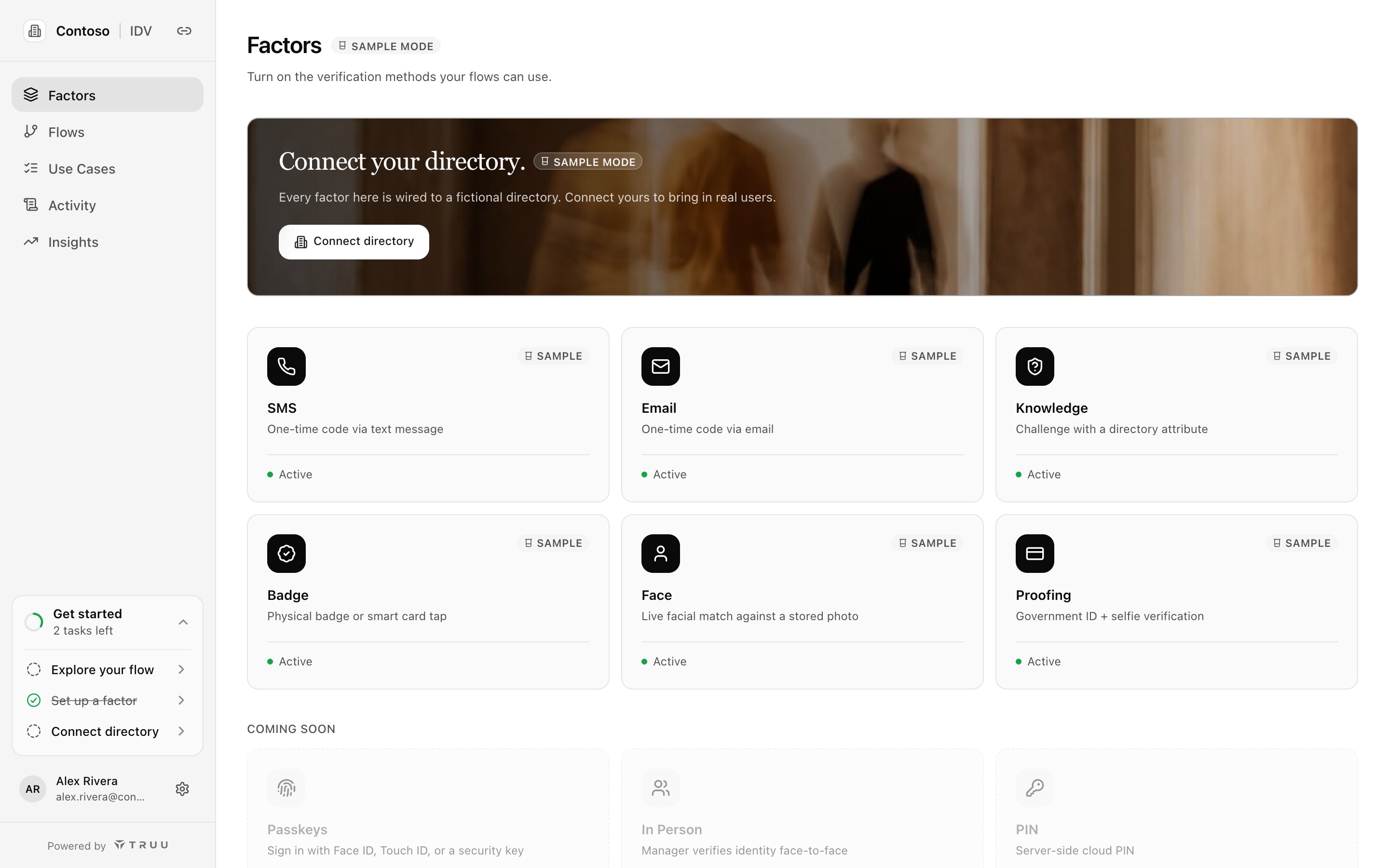
Strength
Each factor’s strength feeds the assurance shown on every column in the flow builder.- Strong: Face and Proofing bind the verification to a physical person, not an account.
- Moderate: SMS, Email and Badge prove control of something the employee holds. Treat Badge as weaker where badge numbers are printed on the card or widely known.
- Weak: Knowledge. Directory facts are what a social engineer collects before calling the help desk.
When a factor is offered
A factor is only offered when the employee can complete it on the device in front of them:
The verification page checks this before offering a column, so employees never see a step they can’t finish. That is why every flow needs a fallback column. The employee can also choose Try another way to move to the next column.
Settings every factor shares
- Active: inactive factors can’t be added to flows and aren’t offered in flows that already use them. Before turning one off, check the flows that use it.
- Attempts per run: how many tries an employee gets at this factor in one verification before it fails and the flow moves on.
- Attribute lists: factors that read your directory (SMS, Email, Knowledge, Badge) take an ordered list of attributes. TruU tries them in order and uses the first one that has a value for each employee.
Not factors: actions after verification
Issuing a Windows Temporary Access Pass or resetting PingOne MFA devices happen after a successful verification. They are set on each use case, not in flows. See How use cases work.Related
- Flows and templates
- Connect your directory: attribute mapping and coverage