

Update the Domain Controller GPO
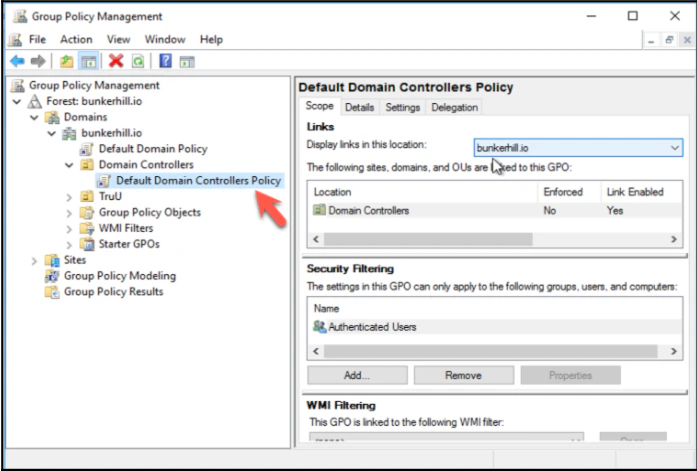
- Go to “Group Policy Management”.
- Edit the “Default Domain Controller Policy”.
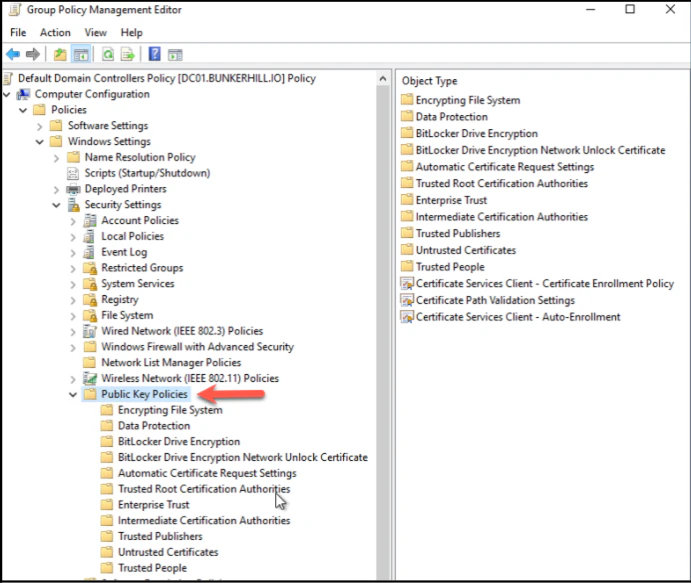
- Go to “Computer Configuration” > “Windows Settings” > “Security Settings” > “Public Key Policy”.
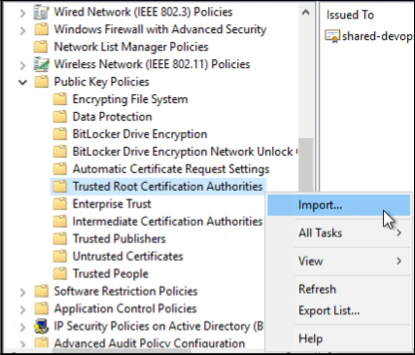
- Right Click on Trusted Root Certification Authorities and Click Import.
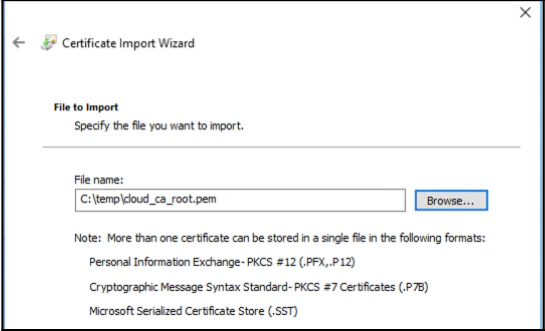
- Import the TruU Cloud CA Trust root certificate.
- Right Click on Intermediate Certification Authorities and Click Import.
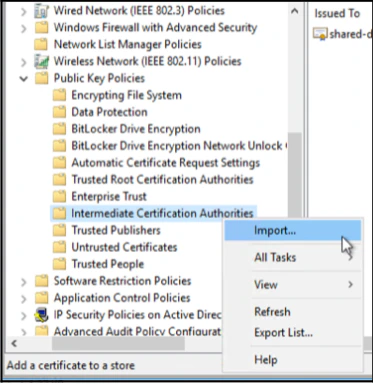
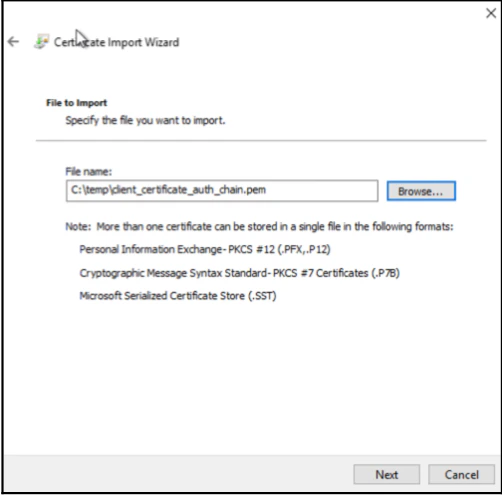
- Import the Certificate Authority Chain.
Validation
- Go to Domain Controller.
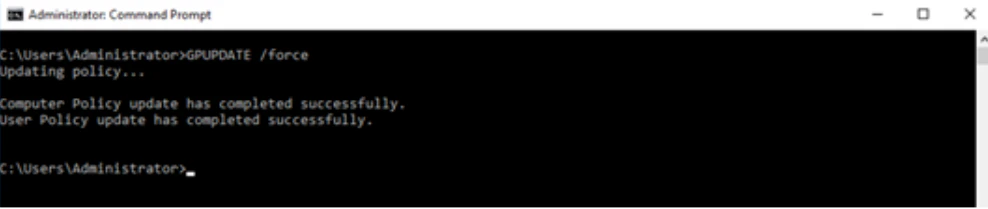
- Open the command prompt as administrator and run GPUPDATE /force.
- Open local domain controller certificate store.
- Open Run on the server by pressing Windows Key + R..
- In Run type in certlm.msc and hit Enter.
- Go to the “Trusted Root Certification Authorities” and then “Certificates”, you will see the root certificate.
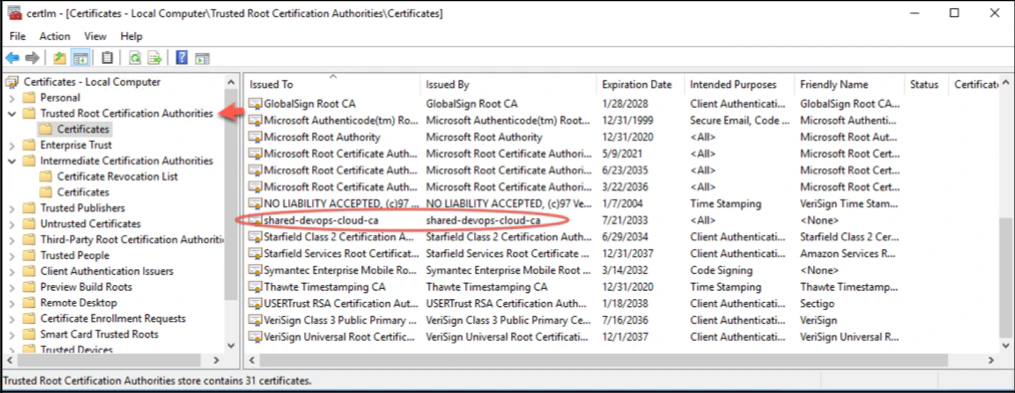
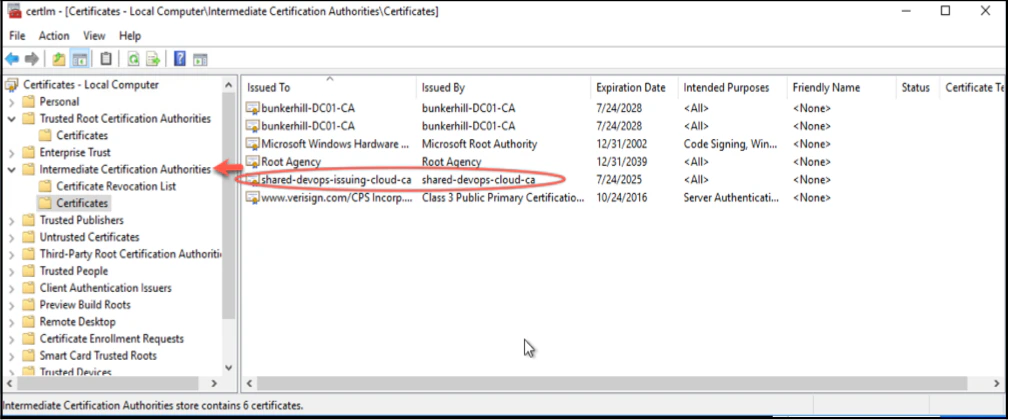
- Go to the “Intermediate Root Certification Authorities” and then “Certificates”, you will see the issuing certificates certificate.
Add Issuing CA Cert to NT Auth Store Add Issuing CA Cert to NT Auth Store Add TruU Cloud Trust Certificates to Computers