

Create a GPO and link it to computers OU
- Go to Group Policy Management.
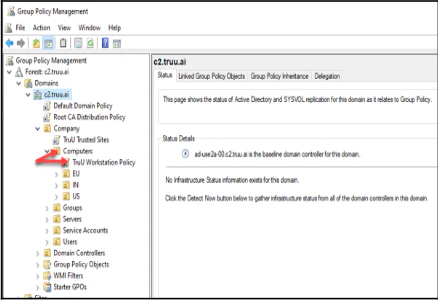
- Create a new group policy at your Computers OU to apply to your workstations.
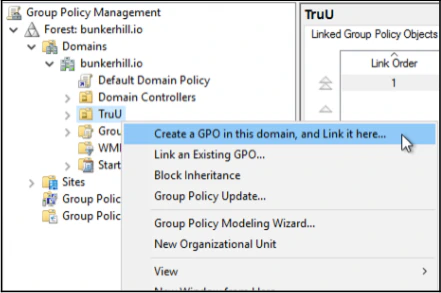
- Edit the new group policy for the workstations.
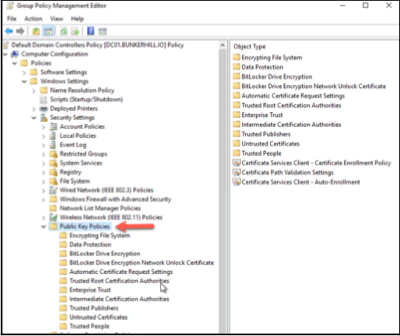
- Go to “Computer Configuration” > “Windows Setting” > “Security Settings” > “Public Key Policy”
- Right Click on Trusted Root Certification Authorities and Click Import
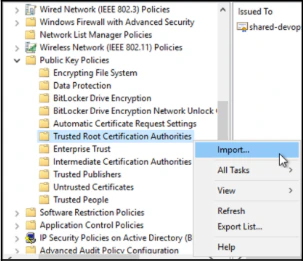
- Import the TruU Cloud CA Trust root certificate
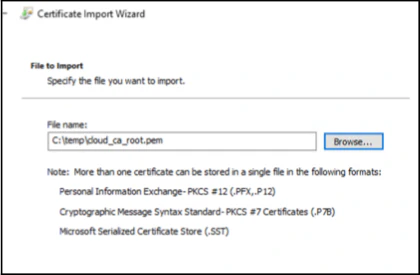
- Right Click on Intermediate Certification Authorities and Click Import
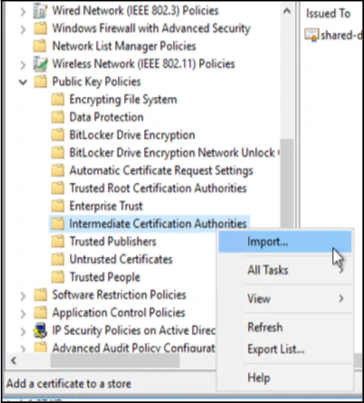
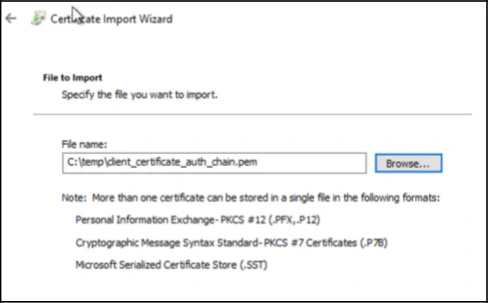
- Import the Certificate Authority Chain
Validation
- Go to any workstation that is in the OU.
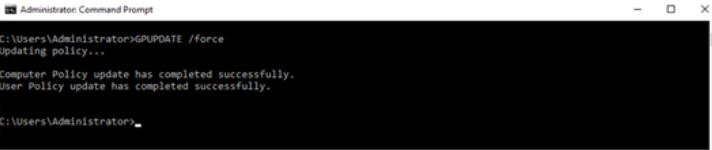
- Open the command prompt as administrator and run GPUPDATE /force.
- Open local computer certificate store
- Open Run on the server by pressing Windows Key + R.
- In Run type in certlm.msc and hit Enter.
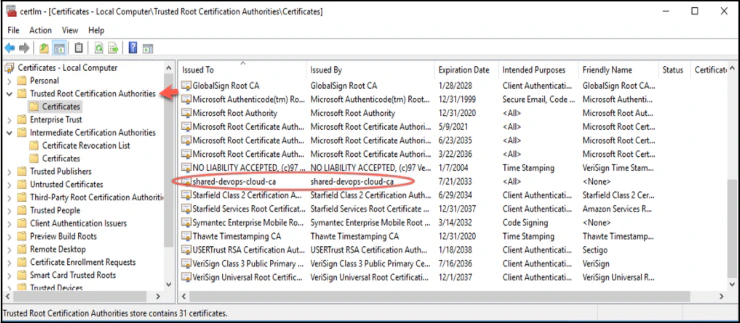
- Go to the “Trusted Root Certification Authorities” and then “Certificates”, you will see the root certificate.
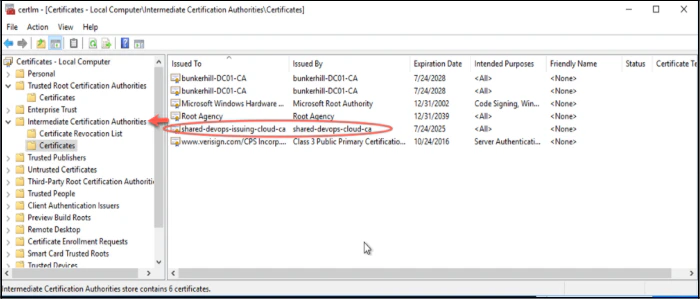
- Go to the “Intermediate Certification Authorities” and then “Certificates”, you will see the issuing certificates certificate.
Add TruU Cloud Trust Certificates Domain Controllers