

Prerequisites
-
Create Enrollment Program Token
- Download the Intune public key certificate
- Add MDM server and download server token
- Save Apple ID and upload the Token in Intune
- Create an Apple enrollment profile
- Assign, reassign or unassign devices in Apple Business Manager
- Access to Apple Business Manager
- Intune Admin Portal access
-
The mac device should be listed in the Apple Business manager device list. If not, please have the mac added by following the steps in this link
Add a new Mac using Apple Configurator for iPhone
-
Make sure that the Apple MDM push certificate has been setup and active
Get an Apple MDM Push certificate for Intune - Microsoft Intune
Create Enrollment Program Token
1. Download the Intune public key certificate
The public key certificate is needed to request a trust-relationship certificate from Apple Business Manager.- In the Microsoft Intune admin center, go to Devices > Enrollment
- Select the Apple tab
- Under Bulk Enrollment Methods, select Enrollment program tokens
- Select Add
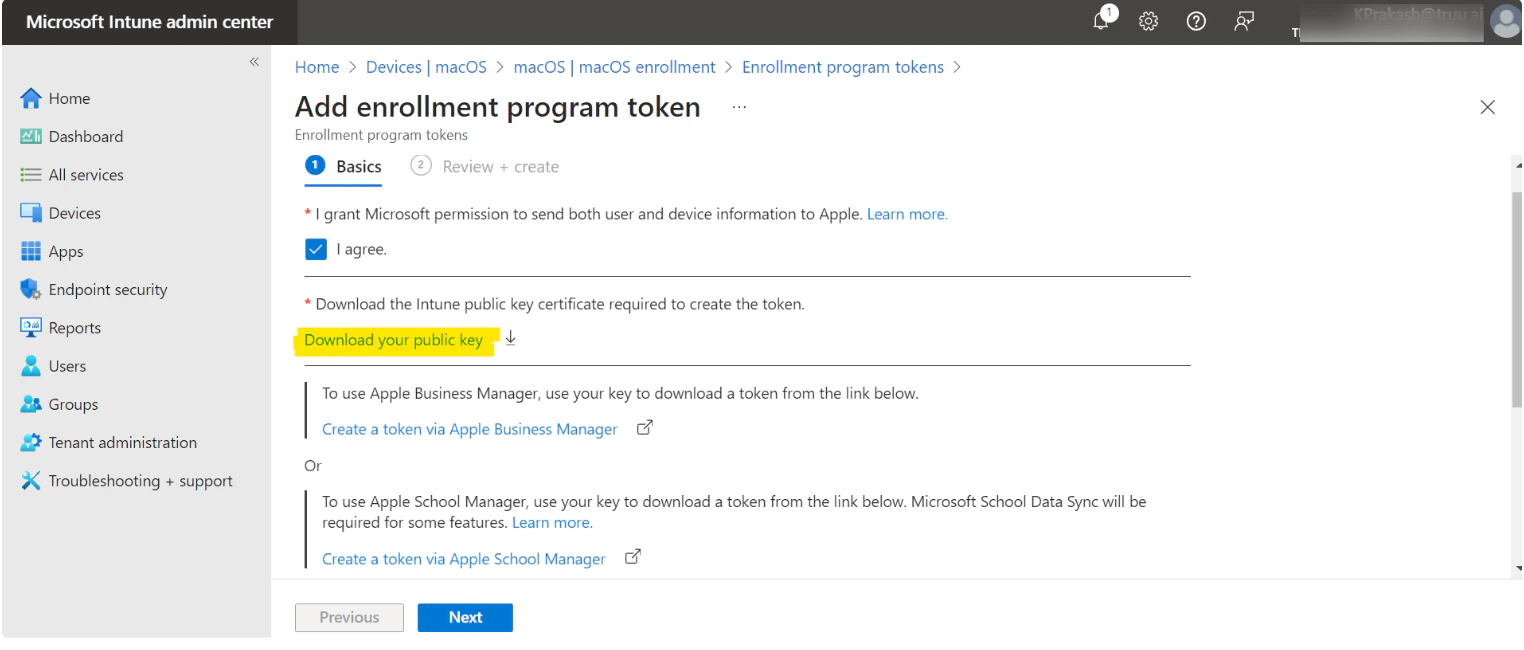
- Select I agree to grant permission to Microsoft to send user and device information to Apple
- Select Download your public key and save the key as a PEM file locally. The key will be used to get the MDM server token in the next step
2. Add MDM server and download server token
- In Apple Business Manager, sign in as a user that has the role of Administrator or Device Enrolment Manager
- Select your name at the bottom of the sidebar, select Preferences, then select MDM Server Assignment
- Select the Add button, then enter a unique name for the server
- Upload the public key certificate file which was generated in the previous step, then select Save
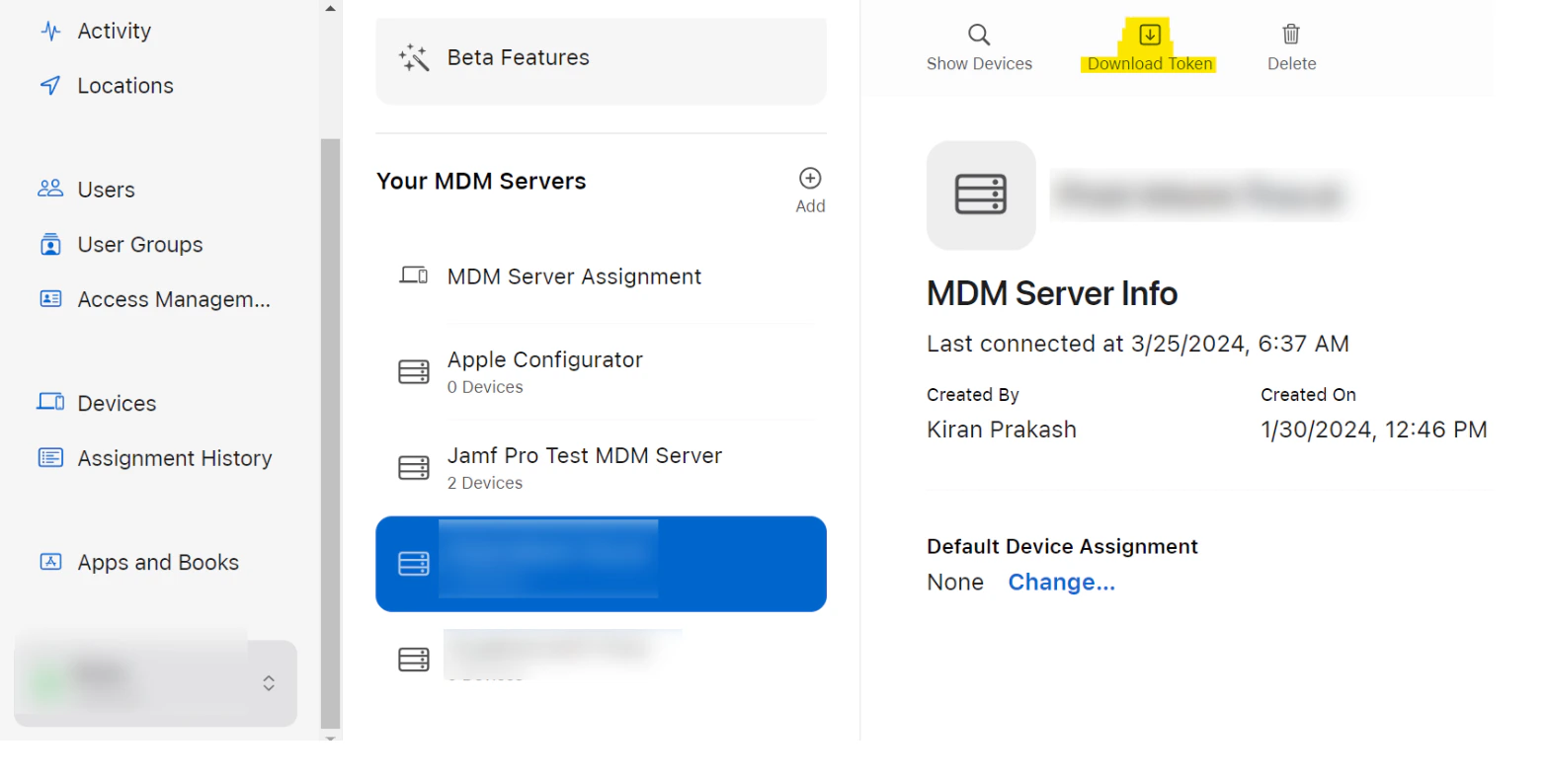
- Select the Download button, then select Download Token (.p7m file)
3. Save Apple ID and upload the Token in Intune
- Return to the Intune admin portal
- Enter the Apple ID used to download the server token. (Note: This ID is the Apple ID you need to use to renew the token every year)
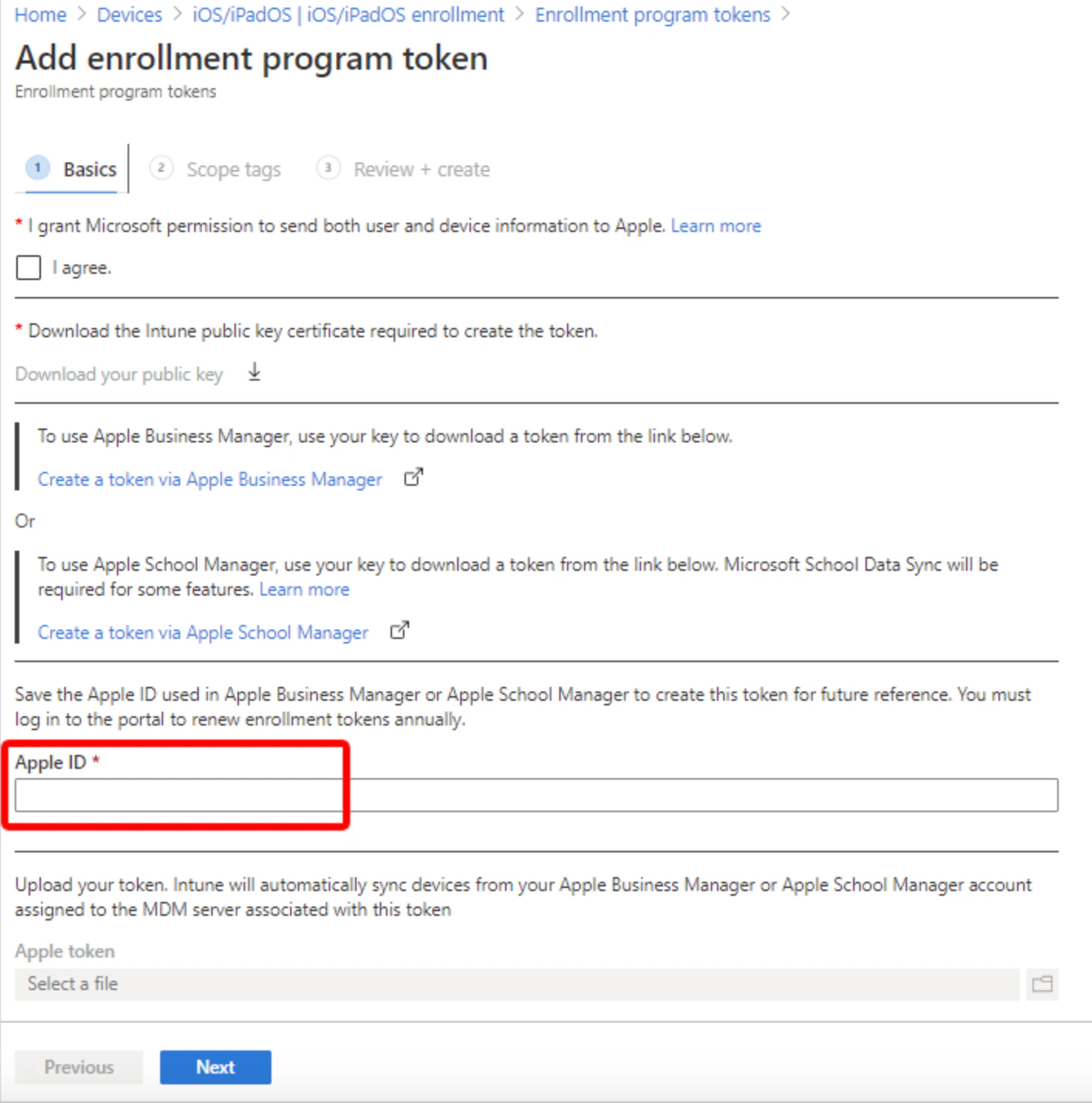
- Browse to the server token (.p7m file) on your device which was downloaded in the previous step and add it in Apple token
Create an Apple enrollment profile
The profile defines the enrollment experience for your organization’s Mac devices, and enforces enrollment policies and settings on enrolling devices. The profile is deployed to assigned devices over-the-air.- In the admin center, go to Devices > Enrollment
- Select the Apple tab
- Under Bulk Enrollment Methods, select Enrollment program tokens
- Select an enrollment program token
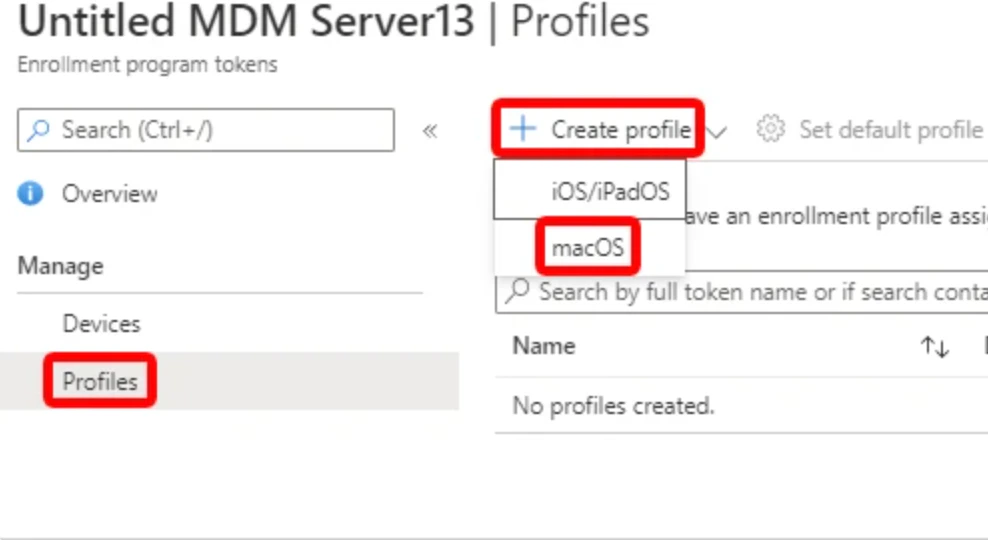
- Select Profiles > Create profile > macOS
- For Basics, enter a name and description for the profile and select Next
- On the Management Settings page, configure User Affinity. User affinity determines whether devices enroll with or without an assigned user
- Setup Assistant with modern authentication
- Await final configuration enables a locked experience at the end of Setup Assistant to ensure your most critical device configuration policies are installed on the device. Can be set to Yes or No as per your organization requirement
- You can enforce Locked enrollment to prevent users from unenrolling their devices from Intune. Select Yes to disable the Mac settings in System Preferences and Terminal that allow users to remove the management profile. After the device enrolls, you can’t change this setting without wiping the device. Click on Next
- Optionally, on the Account Settings page, you can configure the local primary account on targeted Macs
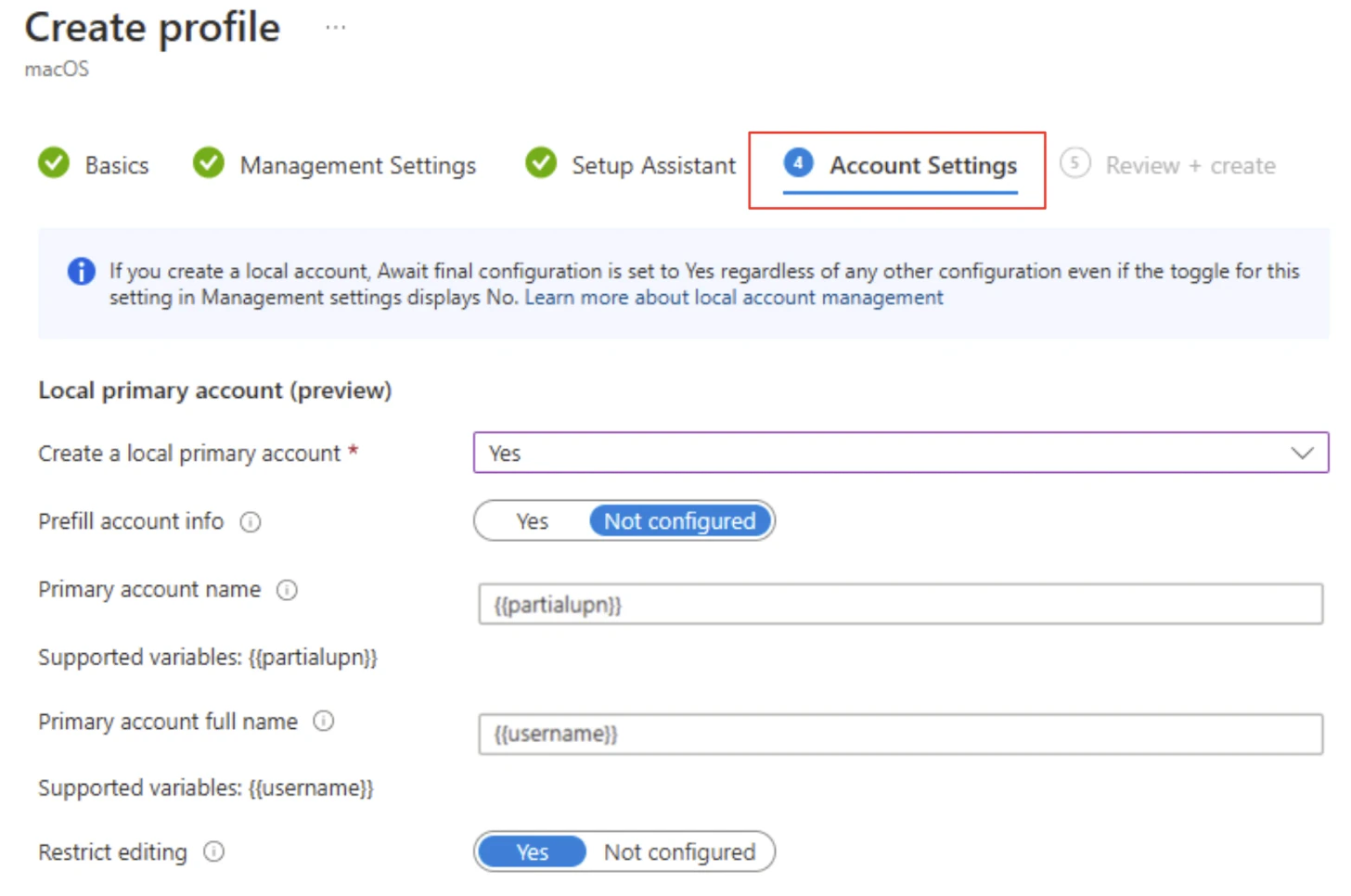
- Enter the details as per your organization requirement and click on Next
- On the Setup Assistant page, configure the Setup Assistant experience as per your organization needs
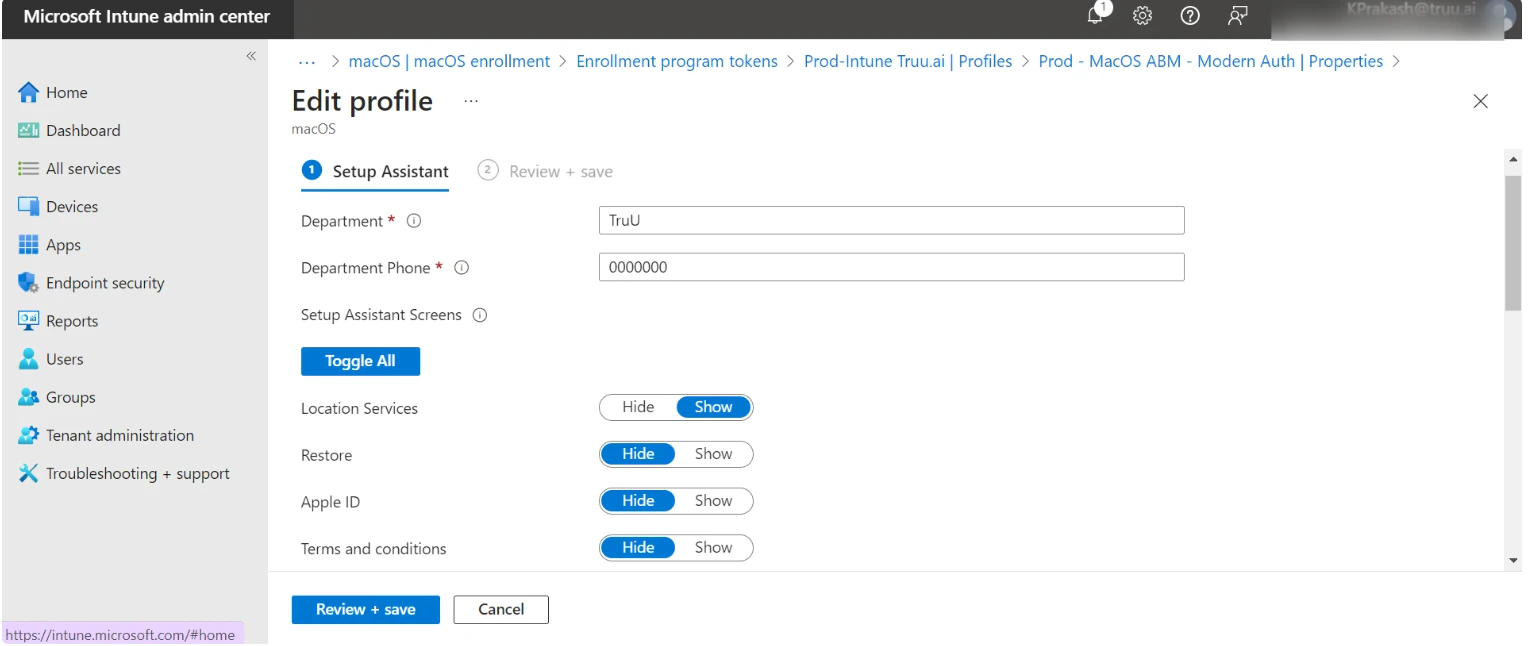
Assign, reassign or unassign devices in Apple Business Manager.
- In Apple Business Manager ,sign in as a user that has the role of Administrator or Device Enrolment Manager
- Select Devices in the sidebar, search for a device in the search field, then select the device from the list
- After you have searched for the devices, select the total number of devices at the top of the list, then select Edit next to Edit MDM Server
-
Do one of the following:
- Choose “Assign to server”, then choose the MDM server you want to assign or reassign the device to. (Assign the device to MDM server created in 2.Add MDM server and download server token )
- Choose Unassign to unassign the device from an MDM server Note: If you select a device that is unassigned, you will not see the unassigned option
- Select Continue
- Carefully read the dialogue, then select Continue A new activity generates a list of the devices that are assigned or reassigned to the selected MDM server, or unassigned from an MDM server. You can wait for the activity to complete, or select Close to close the window
ADE/DEP JAMF Setup Manually Adding a Device to Apple Business Manager