

Login as Administrator User and configure the below process
To disable of popup selection of Certificate in Chrome configure the below steps:- Open Run console and type regedit.exe and click Enter
- On the Left Panel traverse through HKEY_LOCAL_MACHINE -> SOFTWARE ->
- Right click on Policies and click on New -> Key and name it “Google”
- Right click on Google and click on New -> Key and name it “Chrome”
- Right click on Chrome and click on New -> Key and name it “AutoSelectCertificateForUrls”
- Right click on AutoSelectCertificateForUrls and click on New -> String Value and input it as “1”
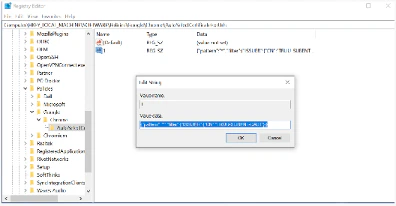
- Double click on the “1” and add the following code:
- Click OK
To disable of popup selection of Certificate in Microsoft Edge configure the below steps:
- Open Run console and type regedit.exe and click Enter
- On the Left Panel traverse through HKEY_LOCAL_MACHINE -> SOFTWARE ->
- Right click on Microsoft and click on New -> Key and name it “Edge”
- Right click on Edge and click on New -> Key and name it as “AutoSelectCertificateForUrls”
- Right click on AutoSelectCertificateForUrls and click on New -> String Value and it as “1”
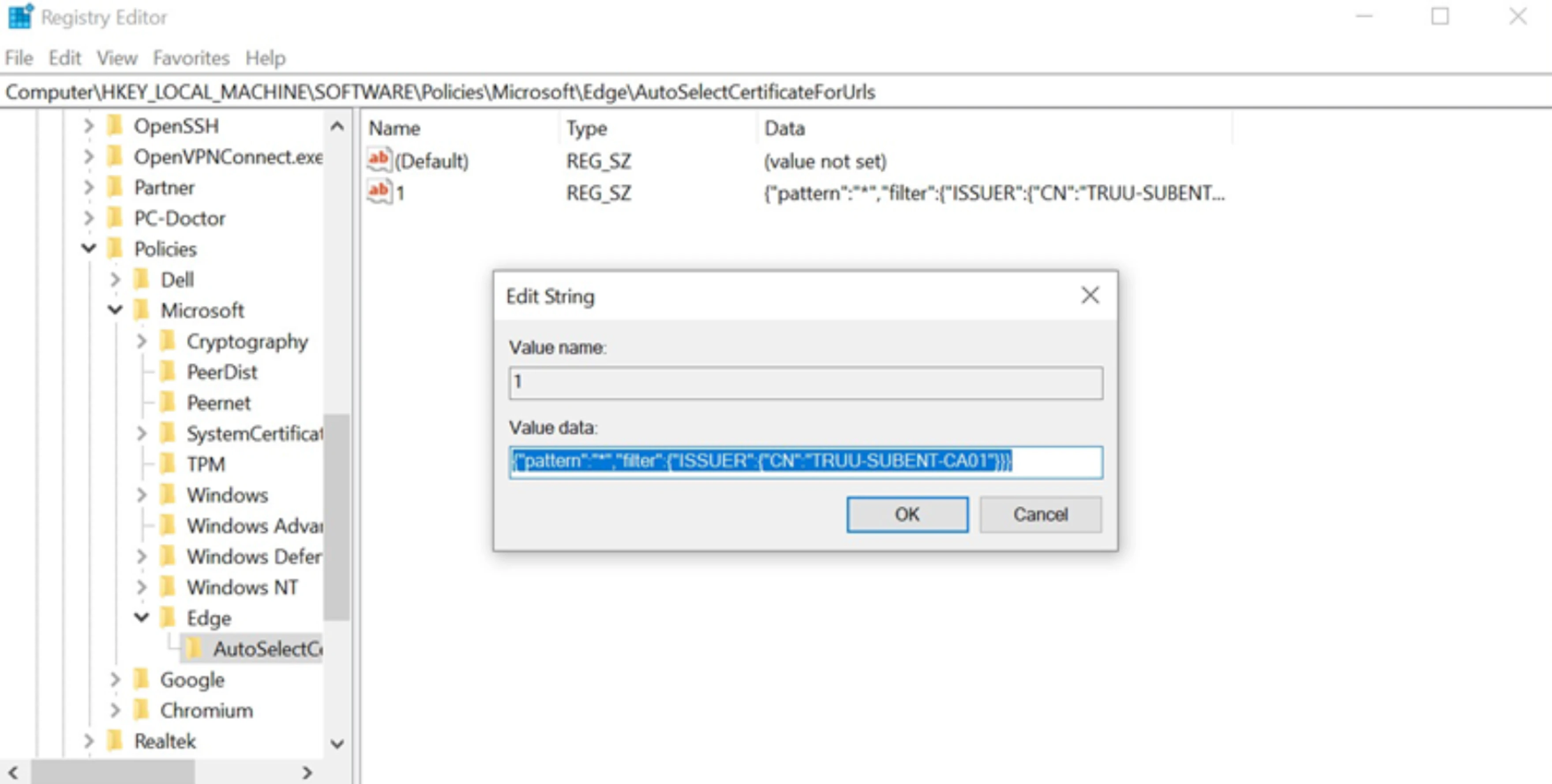
- Double click on “1” and add the following code:
- Click OK
To disable of popup selection of Certificate in Chromium configure the below steps:
- Open Run console and type regedit.exe and click enter
- On the Left Panel traverse through HKEY_LOCAL_MACHINE -> SOFTWARE ->
- Right click on Policies and click on New -> Key and name it as “Chromium”
- Right click on Chromium and click on New -> Key and name it as
- Right click on AutoSelectCertificateForUrls and click on New -> String Value and it as “1”
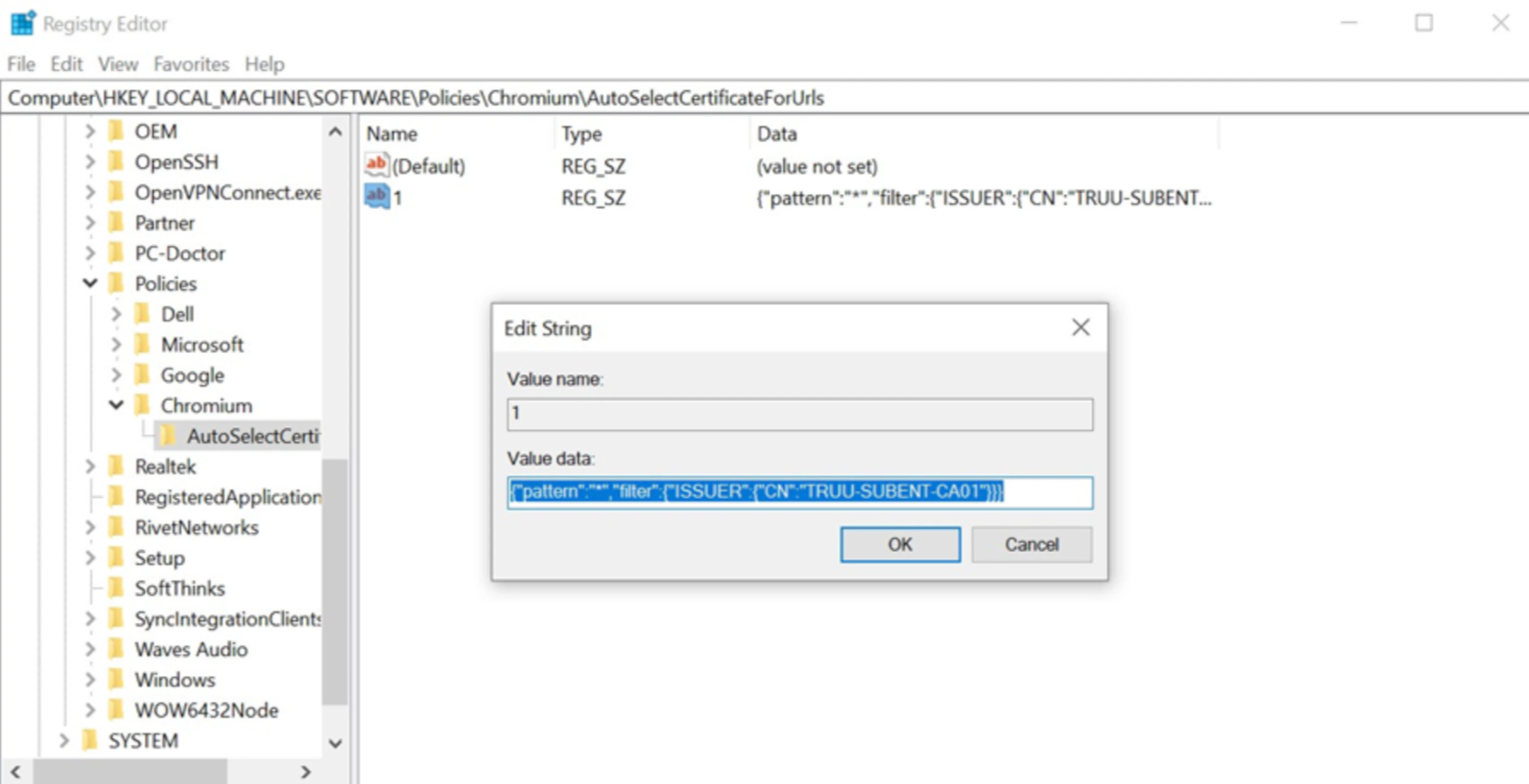
- Double click on “1” and add the following code:
- Click OK