

Scope
Platform: Windows 10/11 (Intune-managed) Browsers: Google Chrome, Microsoft Edge Use Cases: TruU SSO/browser flows that need local device access (loopback/local network)Microsoft Edge via Intune
- Go to Intune admin center → Devices → Configuration profiles → Create profile.
- Search for the setting name: Allow sites to make requests to local network endpoints.
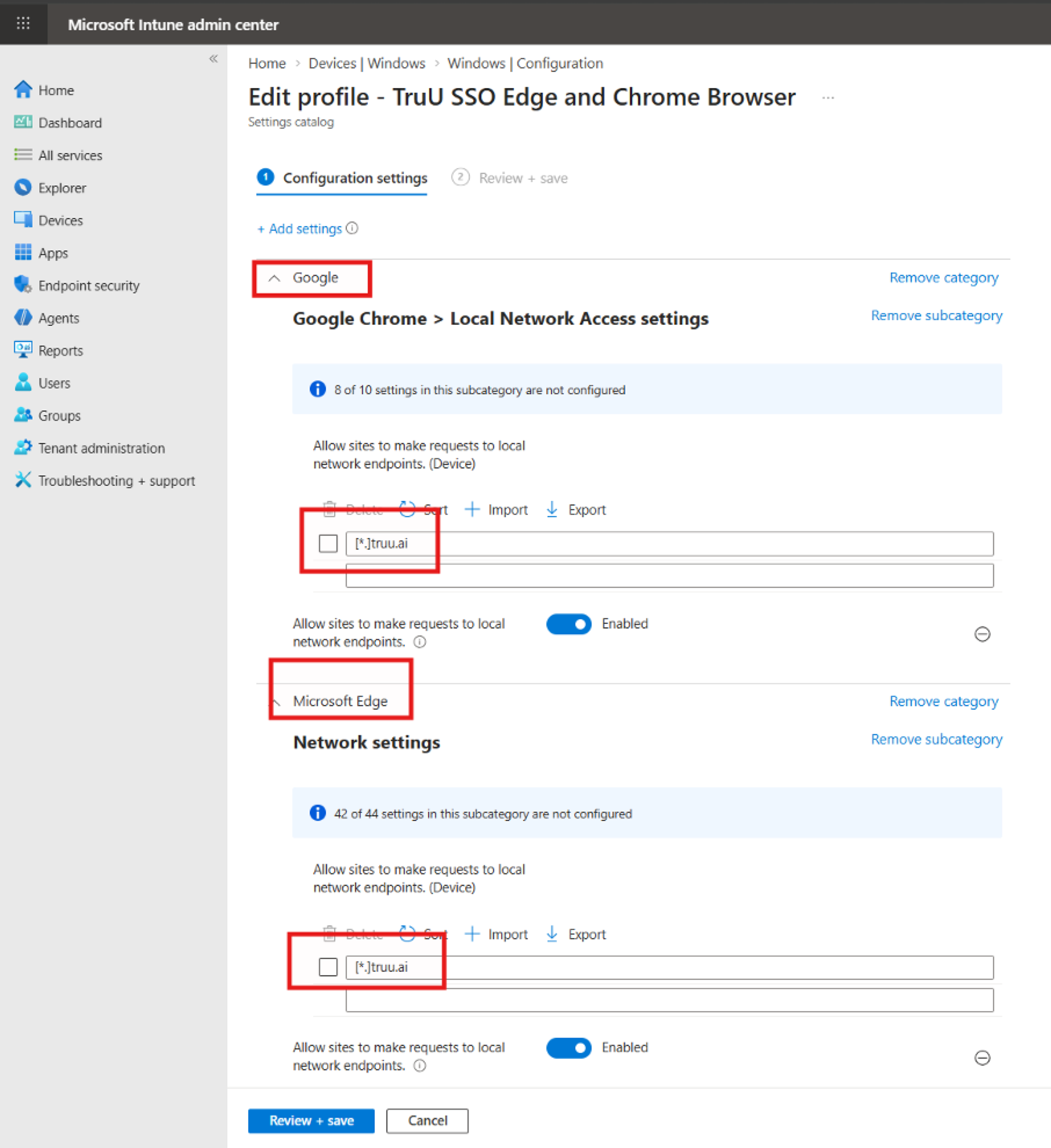
- Select Edge and Chrome (If you would like to allow TruU SSO on both the browsers)
- Assign to target Windows device groups. Then, click Save and deploy.
- Verify on endpoint Check registry:
- Then, check browser for edge://policy and Chrome://policy