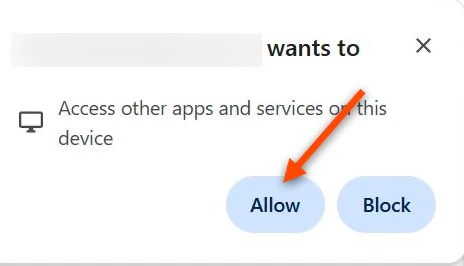
Required Configuration
Allow TruU domains to access other apps and services on the device using this value: [*.]truu.ai1. Download the latest Chrome policy templates
Go to the Chrome Enterprise download page, select Management, choose Chrome ADM/ADMX templates, and download the package.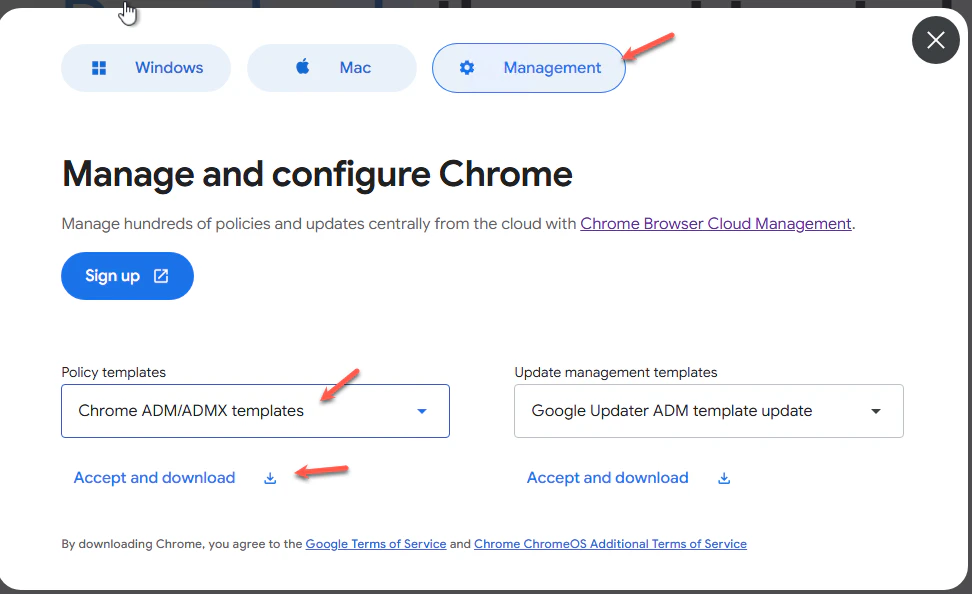
2. Import the Chrome ADMX/ADML templates
Extract the download and copy the Chrome ADMX file(s) into your Group Policy Central Store or local PolicyDefinitions folder. Copy the matching ADML language files into the appropriate language folder.3. Open the Target GPO
In Group Policy Management Editor, edit the GPO that applies to the target Windows devices.4. Browse to the Chrome policy
Navigate to the Computer Configuration → Policies → Administrative Templates → Google → Google Chrome → Local Network Access settings. Then, open Allow sites to make network requests to the local device.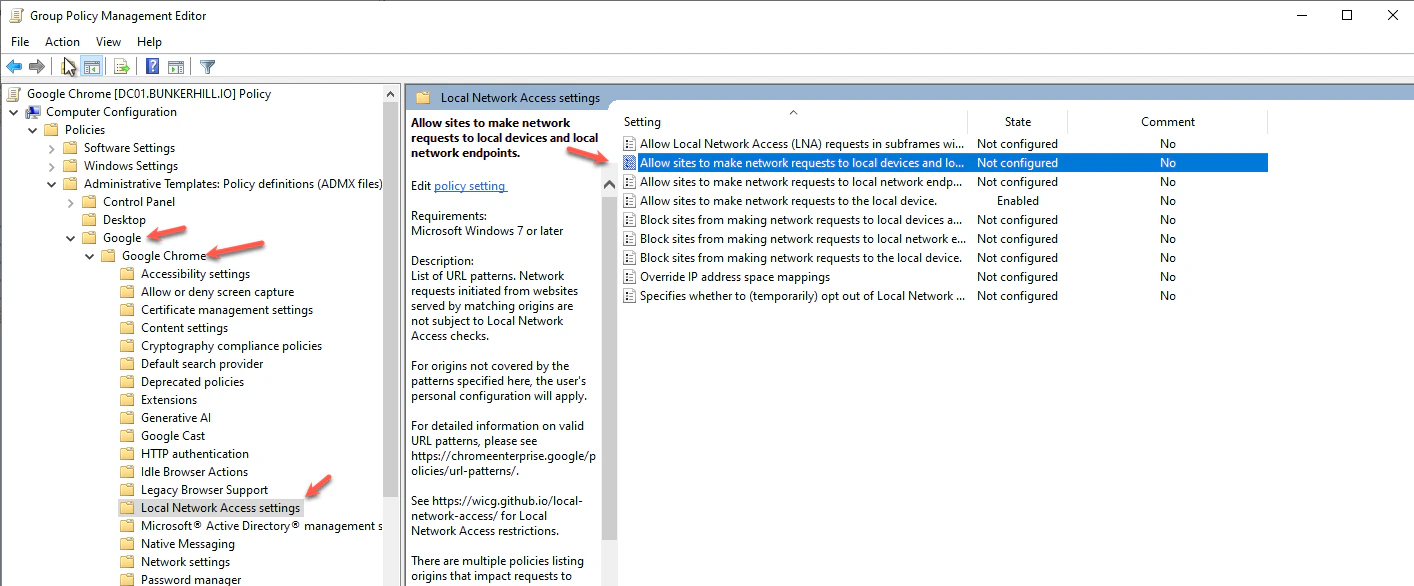
5. Enable the policy
Set the policy to Enabled, then click Show…6. Add the TruU allowlist entry
Add this value: [*.]truu.ai Click OK, then Apply.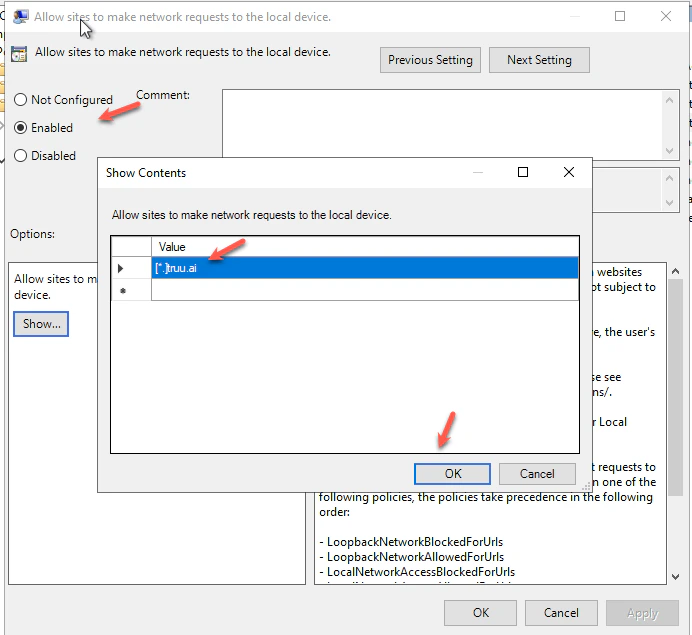
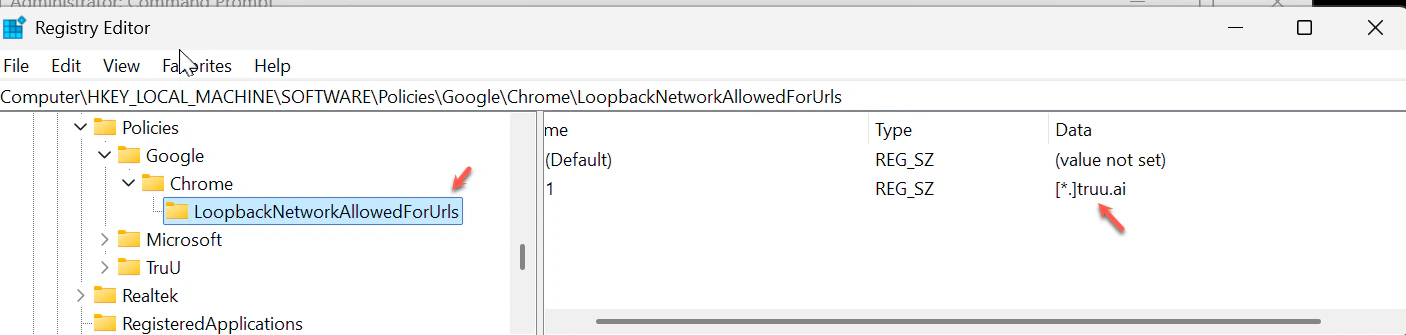
7. Verify the registry entry
On a target machine, confirm this registry path exists:- 1 = [*.]truu.ai
8. Refresh policy
Run:9. Confirm in Chrome
Open: chrome://settings/content/loopbackNetwork Verify [*.]truu.ai appears under allowed sites.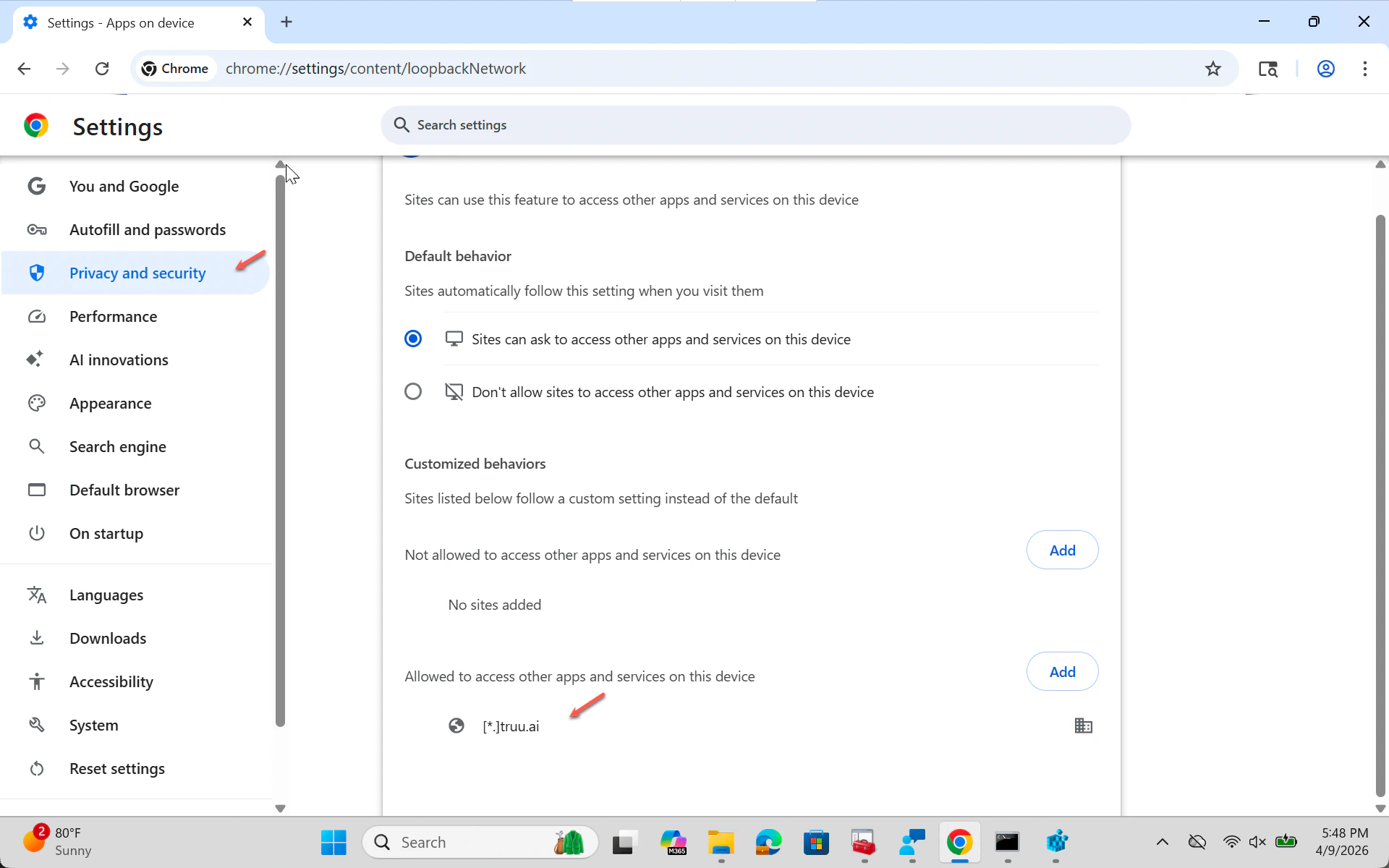
10. Validate the user prompt
Once applied, TruU browser flows that access local device services should now be properly allowlisted.