1. Download the latest Microsoft Edge policy templates
Go to the Microsoft Edge enterprise policy template download page and download the correct Windows Policy package for your environment. Microsoft’s Edge policies are deployed through the MSEdge.admx administrative template.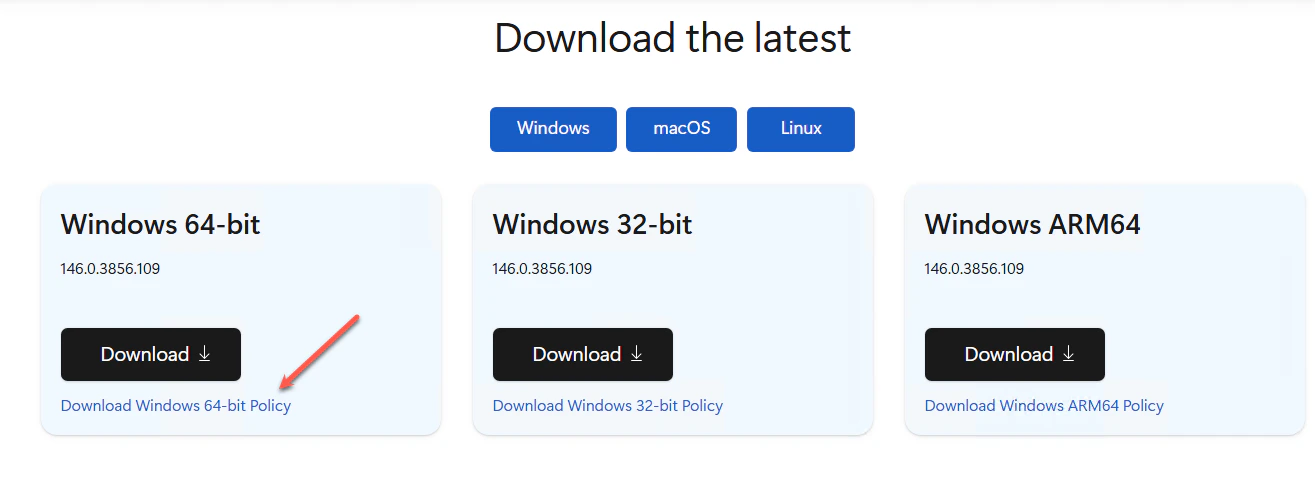
2. Import the Edge ADMX/ADML templates
Extract the package and copy MSEdge.admx into your Group Policy Central Store or local PolicyDefinitions folder. Copy the matching ADML language files into the appropriate language subfolder. Microsoft’s documented Group Policy configuration for Edge relies on the Edge ADMX template.3. Open the target GPO
In the “Group Policy Management Editor”, open the GPO that applies to the target Windows devices. This should be configured as a mandatory Edge policy.4. Browse to the Edge network policy
Navigate to the Computer Configuration → Policies → Administrative Templates → Microsoft Edge → Network settings. Then, open **Allow sites to make network requests to local devices and local network endpoints. **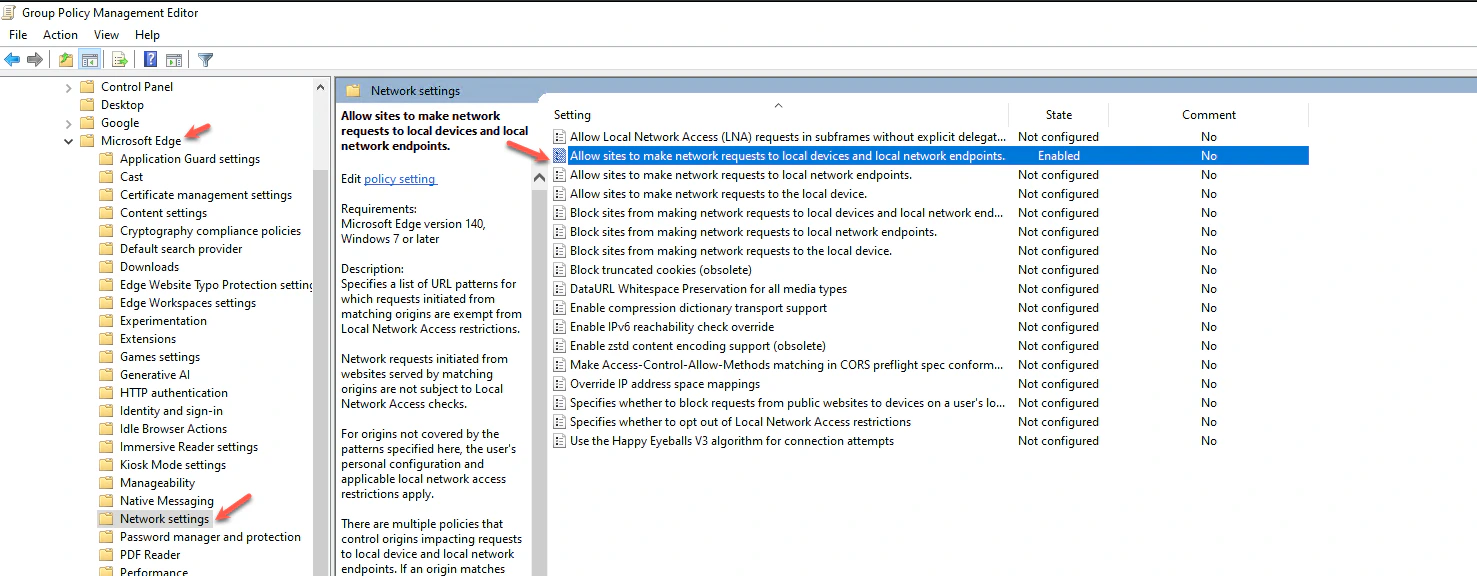
5. Enable the policy
Set the policy to Enabled, then click Show… Microsoft documents this policy as a list of strings, so each allowed origin is added as a separate list entry.6. Add the TruU allowlist entry
Add this value: [*.]truu.ai Click OK, then Apply. Microsoft’s example syntax for this policy includes wildcard URL patterns such as [*.]example.edu, which matches the format shown in your screenshot.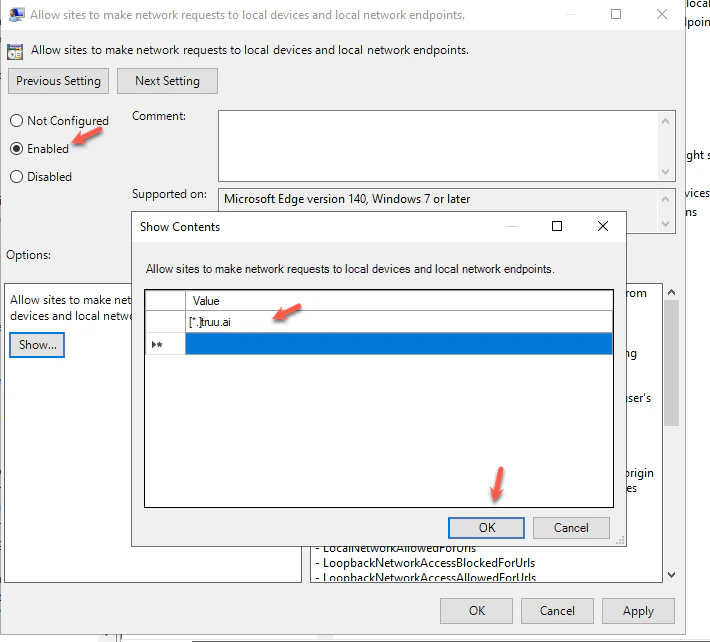
7. Deploy GPO to your device
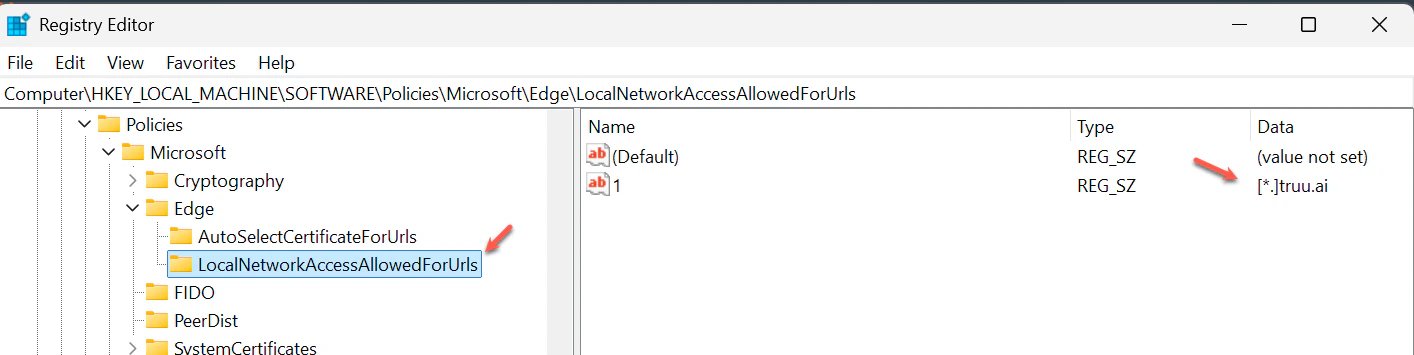
Deploy the updated GPO to the target endpoint so the device receives the new Edge policy. Microsoft notes that Edge supports dynamic policy refresh, but standard GPO deployment to the device is still the required administrative step.8. Verify the registry entry
On the endpoint, confirm the policy was written to:- 1 = [*.]truu.ai
9. Confirm in Edge settings
Open edge://settings/privacy/sitePermissions/allPermissions/localNetwork and verify [*.]truu.ai appears under allowed sites for local network access. Microsoft’s end-user documentation shows “Local network access” under Privacy, search, and services → Site permissions → All permissions.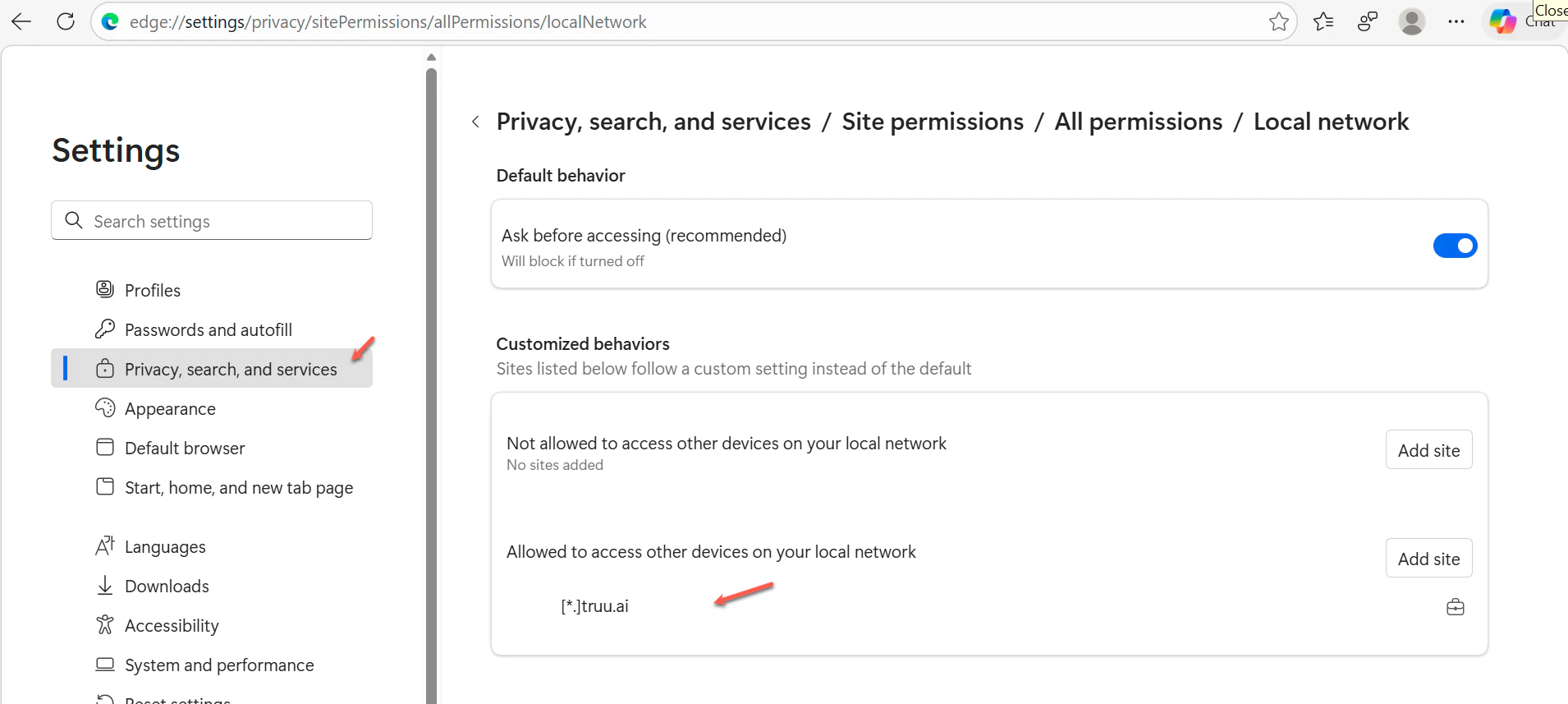
10. Validate the user prompt
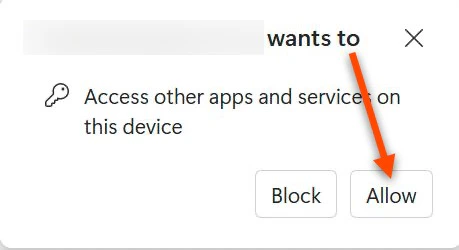
Test a TruU page and confirm the expected Edge permission prompt behavior for local device access. Microsoft documents Local Network Access as a managed permission area in Edge, with enterprise control available through policy.