

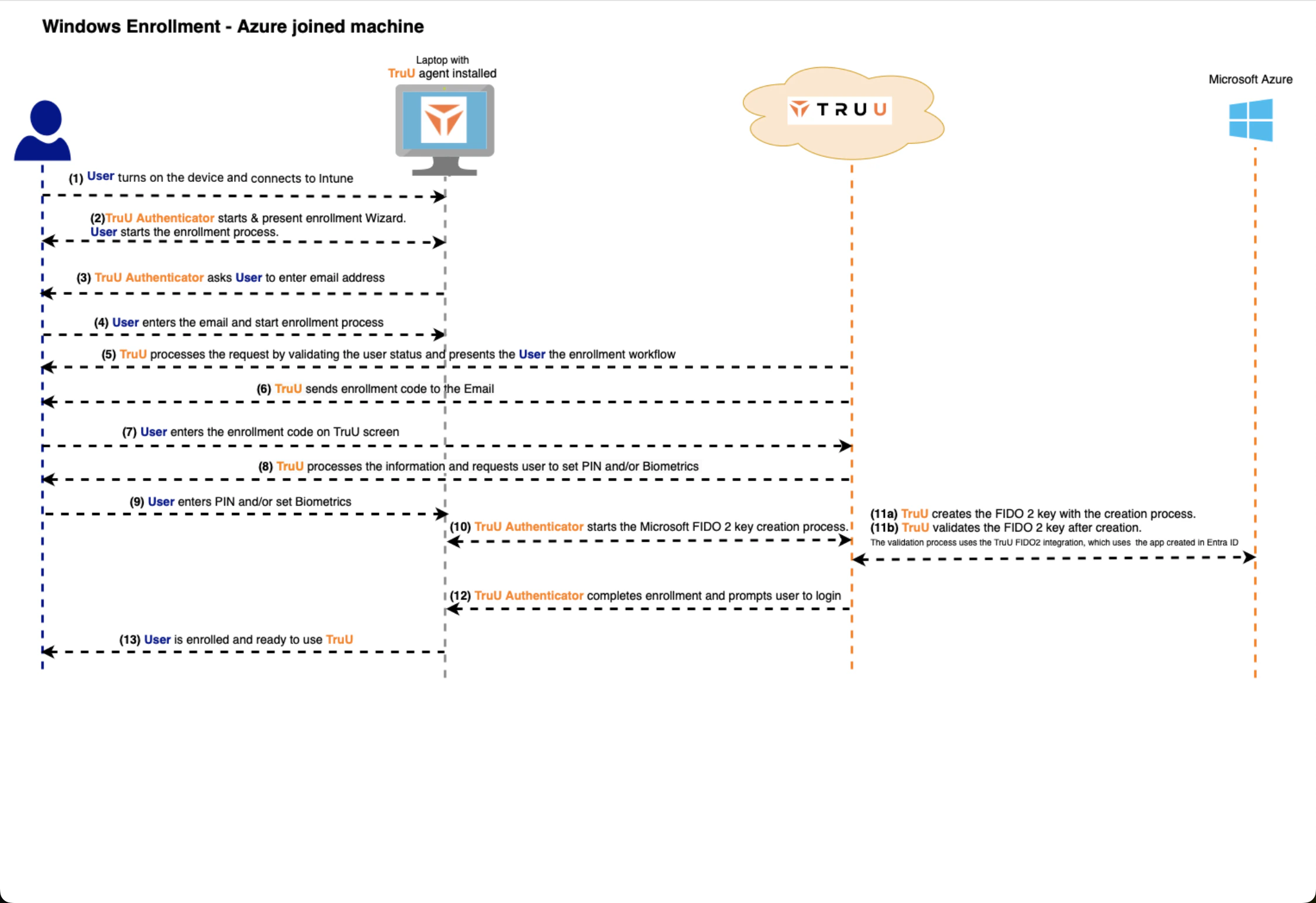
- User turns on the device and connects to Intune
- The TruU Authenticator started and presents the enrollment wizard, beginning the enrollment process
- The TruU Authenticator asks the User to enter their email address
- The User enters their email address and starts the enrollment process
- TruU processes the request by validating the user status, thereby presenting the User with the enrollment workflow
- TruU sends enrollment code to the email
- User enters the enrollment code on the TruU prompted screen
- TruU processes the information and requests the user to set PIN and/or Biometrics
- User enters PIN and/or sets Biometrics
- TruU Authenticator starts the Microsoft FIDO2 key creation process
- TruU Authenticator completes the enrollment and prompts the user to login
- User is enrolled and is ready to use TruU
Custom Policy Creation Federating EntraID to TruU