

1. Overview
This guide provides the steps required to configure TruU as a SAML 2.0 Identity Provider (IdP) within PingFederate, enabling passwordless authentication for the TruU User Portal. 1.1 Authentication Flow End-to-End Flow1.2 Prerequisites Ensure the following are in place before proceeding:
- User navigates to the TruU User Portal login page.
- Portal redirects to PingFederate for authentication.
- PingFederate presents both login options:
- Username / Password (Active Directory)
- “Sign in with TruU Passwordless”
- On passwordless selection, PingFederate delegates to the TruU SAML IdP Connection.
- TruU authenticates the user and returns a SAML assertion to PingFederate.
- PingFederate issues a SAML assertion to the User Portal (SP Connection).
- User is logged into the portal.
- PingFederate Admin Access
- Active Directory / LDAP Data Store — AD-Directory already configured.
- AD Password Credential Validator (AD-PCV) — already configured in PingFederate.
- TruU Admin Console Access — with permissions to configure SAML integrations.
- TruU User Portal — deployed and accessible.
PART A — TRUU ADMIN CONSOLE: SAML CONFIGURATION
2. Configure TruU as a SAML Identity Provider
Log in to the TruU Admin Console and complete the following steps to create a SAML adapter that will act as the IdP for PingFederate. 2.1 Create the SAML Adapter
- Step 1: Log in to the TruU Admin Console.
- Step 2: Navigate to Integrations → Single Sign-On.
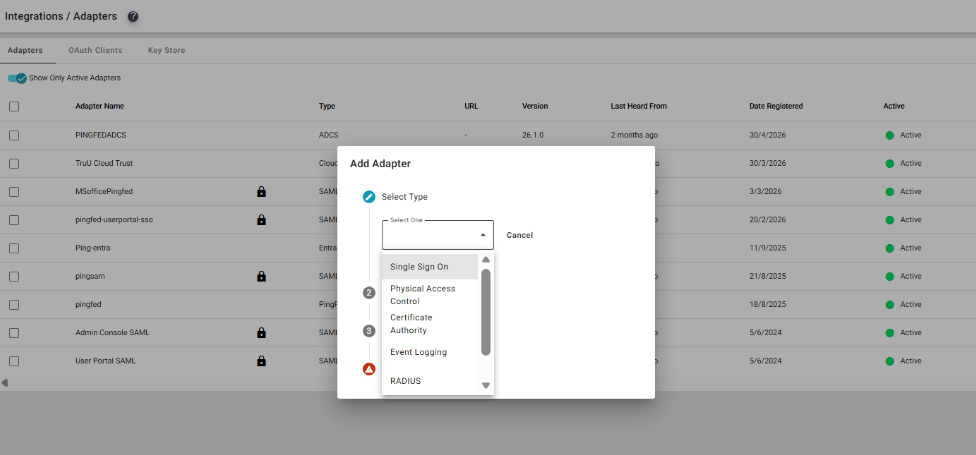
- Step 3: Click Add and select Adapter Type: SAML.
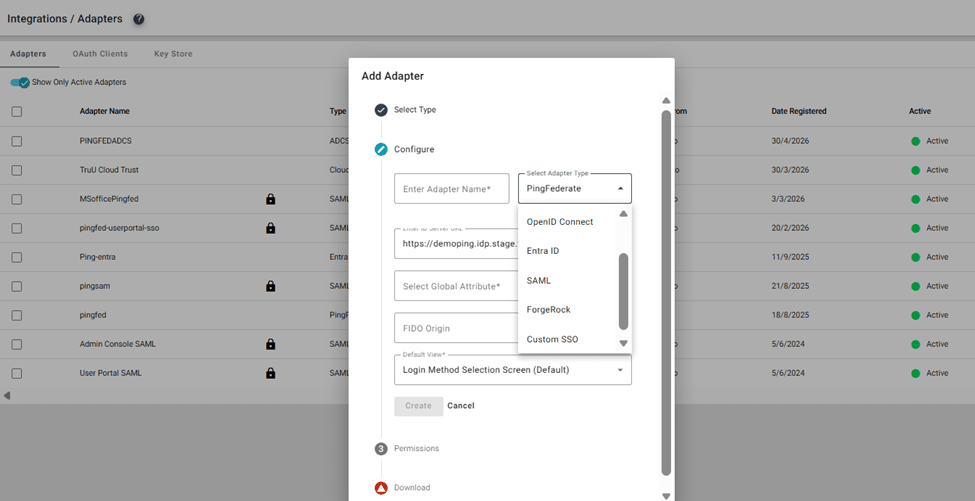
- Step 4: Enter the Adapter Name and set FIDO Origin to your environment-specific IdP domain (e.g.,demoping.idp.truu.ai).
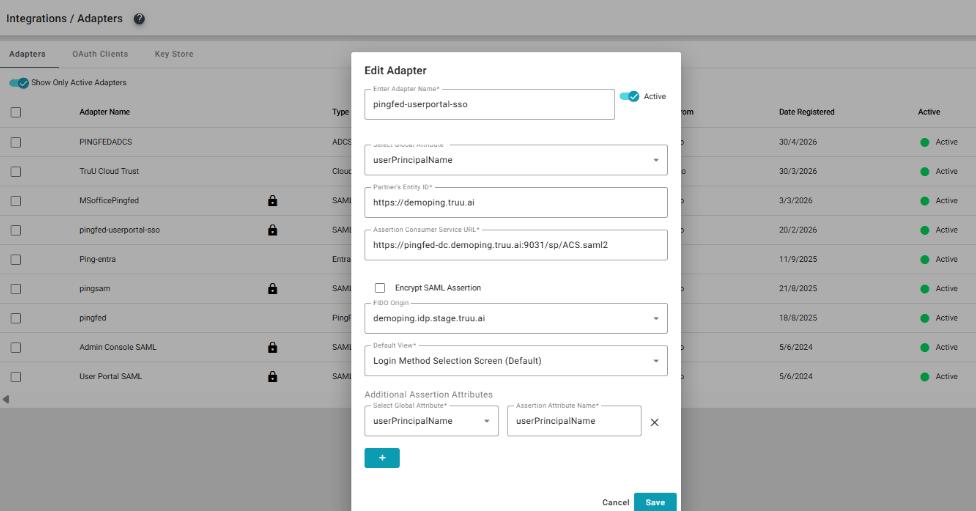
- Step 5: Under Assertion Attributes, add: userPrincipalName.
- Step 6: Set the Partner’s Entity ID and ACS URL to match your PingFederate SP Connection values.
- Step 7: Click Download IDP Metadata and save the file — this will be needed in Part B.
2.2 Configure User Portal Metadata (TruU Side)
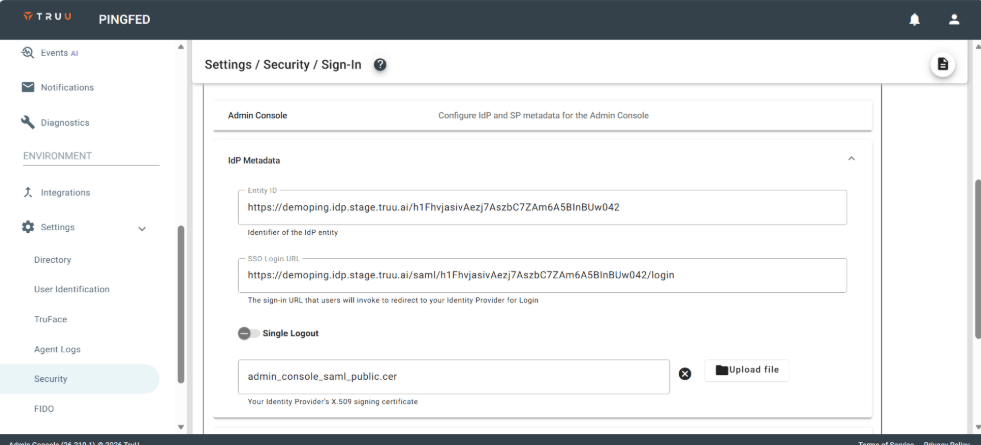
Step 1: In the TruU Admin Console, navigate to Settings → Security → Sign.
Step 2: Click User Portal → Configure IdP and SP Metadata.
Step 3: In the IdP Metadata section, provide:
- Entity ID — the PingFederate IdP entity ID
- SSO Login URL — the PingFederate SSO endpoint.
- IdP Signing Certificate — import the PingFederate signing certificate (X.509).
PART B — PINGFEDERATE: TRUU IDP CONNECTION
3. Register TruU as an IdP Connection in PingFederate
This section configures PingFederate to trust TruU as a SAML 2.0 Identity Provider. The TruU IDP Metadata file downloaded in Step 2.1 is required. 3.1 Create the TruU IdP Connection Step 1: Log in to the PingFederate Admin Console.Step 2: Navigate to Authentication → Integration → IdP Connections.
Step 3: Click Create Connection.
Step 4: On the Connection Type tab, select: Browser SSO Profiles → SAML 2.0.
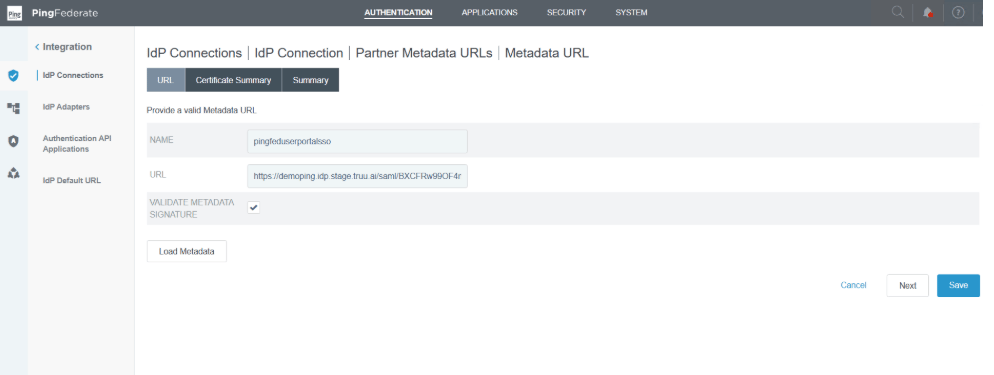
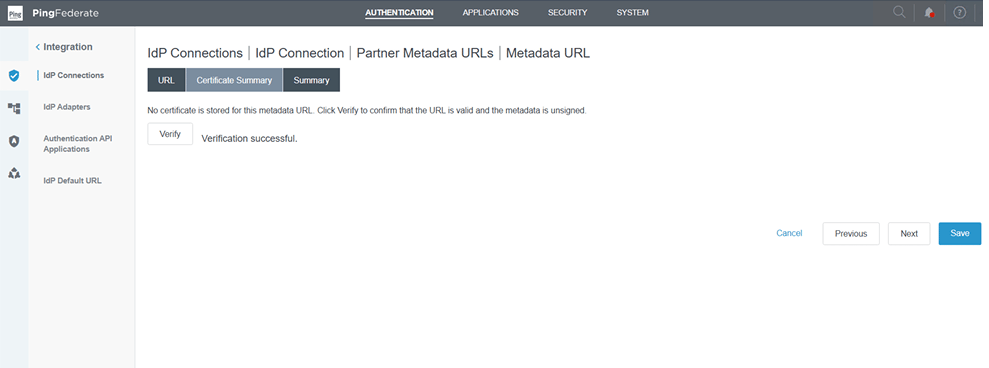
Step 5: On the Connection Options tab, check: Browser SSO. 3.2 Load TruU Metadata Step 6: On the General Info tab, click Metadata URL → Manage Partners Metadata URL.
Step 7: Provide a name and the TruU metadata URL (or upload the downloaded XML file).
3.3 Configure Browser SSO
Step 10: Select Browser SSO → Click Configure Browser SSO.
Step 11: Enable both IdP-Initiated SSO and SP-Initiated SSO.
Step 12: Under User-Session Creation, click Configure User-Session Creation → select Account Mapping. 3.4 Attribute Contract Step 13: In the Attribute Contract section, add the attribute: userPrincipalName.
Step 14: Save the attribute contract.
3.5 Target Session Mapping & Policy Contract
Step 15: Under Target Session Mapping, select Map Authentication Policy.
Step 16: Create a new Policy Contract (e.g., TruUUserPortalContract).
Step 17: In Contract Attributes, add: userPrincipalName. Save.
Step 18: Under Attribute Retrieval, select: Use only the attributes available in the SSO Assertion. 3.6 Contract Fulfillment Map the assertion attributes to the policy contract as follows:
3.7 Protocol Settings
- Click Protocol Settings → Configure Protocol Settings.
- Under SSO Service URLs, confirm both POST and Redirect endpoints are populated automatically from the TruU IDP Metadata. The URLs should appear as follows:
NOTE : These SSO Service URL values are extracted automatically from the TruU IDP Metadata file. The adapter ID segment in the URL path is unique to your TruU environment and will differ from the example above. Do not modify these values manually.
3.8 Credentials
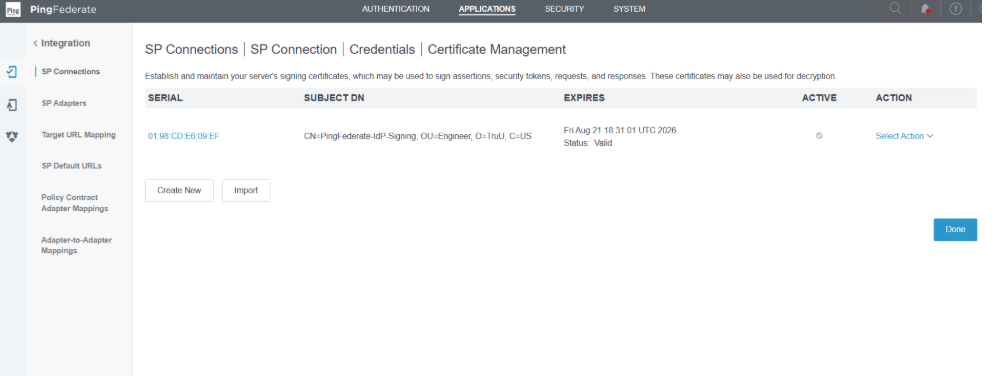
Step 19: Navigate to the Credentials tab.
Step 20: Set Trust Model to: Unanchored.
Step 21: In Certificate Management, import the X.509 Signing Certificate from the TruU IDP Metadata file.
PART C — PINGFEDERATE: USER PORTAL SP CONNECTION
4. Configure the TruU User Portal SP Connection
This SP Connection defines how PingFederate issues SAML assertions to the TruU User Portal after a user successfully authenticates. 4.1 Create the SP Connection Step 1: Navigate to Applications → Integration → SP Connections.Step 2: Click Create Connection.
Step 3: On Connection Type, select: Browser SSO Profiles → SAML 2.0.
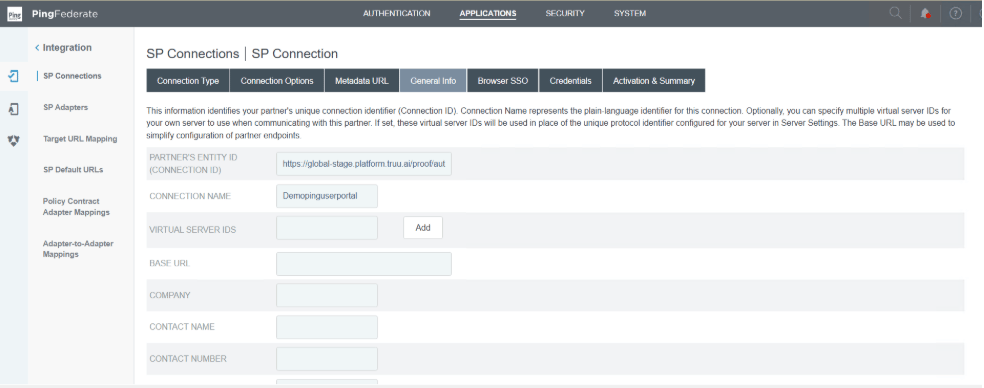
Step 4: On Connection Options, check: Browser SSO. 4.2 General Info Step 5: On the General Info tab, set the Partner Entity ID:
4.3 Browser SSO — Assertion Creation
Step 6: Select Browser SSO → Configure Browser SSO.
Step 7: Enable both IdP-Initiated SSO and SP-Initiated SSO.
Step 8: Under Assertion Creation, click Configure Assertion Creation → select Standard. 4.4 Attribute Contract
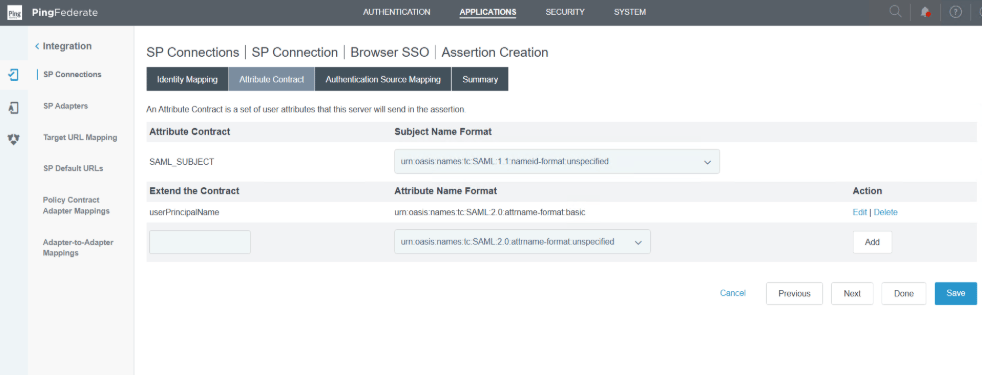
Step 10: Select the Policy Contract created in Step 3.5 (e.g., TruUUserPortalContract).
Step 11: Mapping Method: check Use only the Authentication Policy Contract values in the SAML assertion. 4.6 Contract Fulfillment
4.7 Credentials
Step 12: Navigate to Credentials → Configure Credentials.
Step 13: Select the PingFederate Signing Certificate.
Step 14: Click Save SP Connection.
PART D — PINGFEDERATE: AUTHENTICATION POLICY
5. Configure the Authentication Policy
The Authentication Policy orchestrates which authentication mechanism is invoked based on user selection. It wires together the HTML Form Adapter (username/password) and the TruU IdP Connection (passwordless) into a single unified policy for the User Portal. 5.1 Policy Overview
5.2 Policy Tree
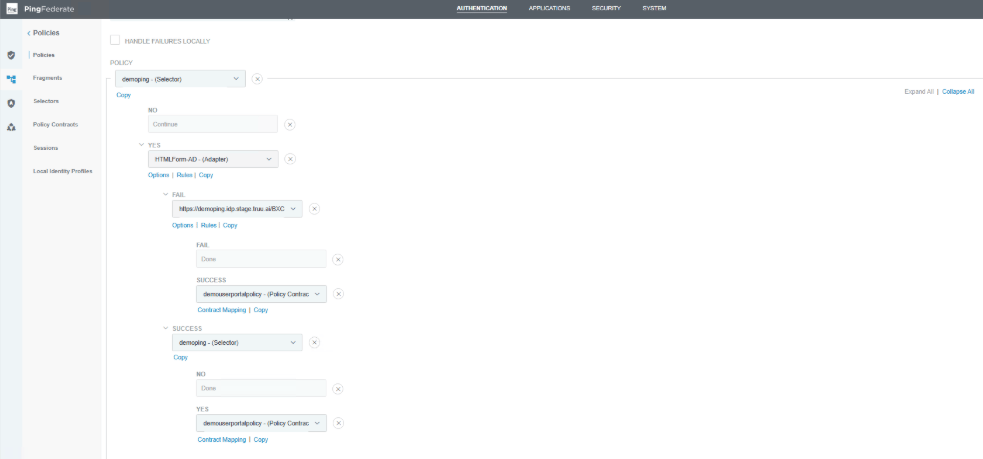
5.3 Contract Mapping — TruU IdP Connection (SUCCESS)
When TruU IdP Connection authentication succeeds, map attributes to the Policy Contract as follows:
5.4 Contract Mapping — HTML Form Adapter (SUCCESS)
When HTML Form Adapter (AD) authentication succeeds, map attributes:
Step 15: Click Save on the Authentication Policy.
PART E — VERIFICATION
6. Verify the Integration
Once all configurations are saved, complete the following tests to validate end-to-end functionality. 6.1 Username / Password Login TestStep 1: Open the User Portal URL (e.g., https://demoping.stage.portal.truu.ai/login).

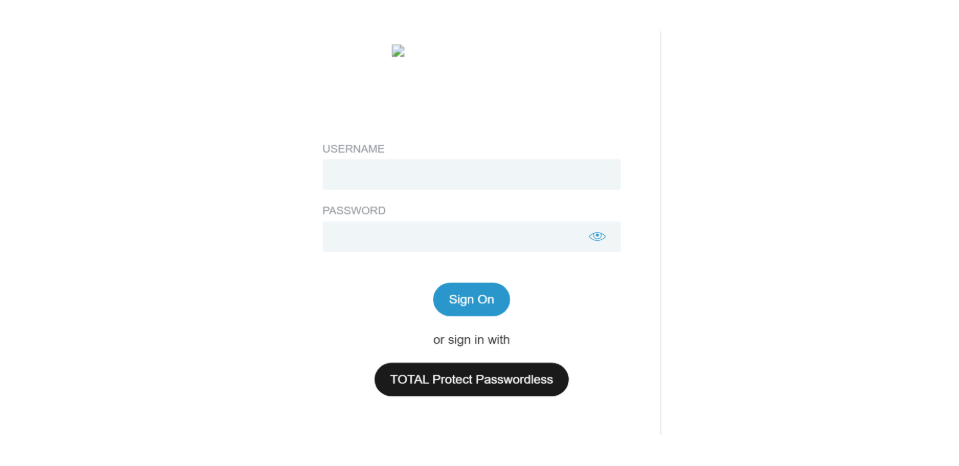
6.2 TruU Passwordless Login Test
- Step 5: Open the User Portal URL.
- Step 6: Click Sign In with TruU Passwordless.
- Step 7: Confirm redirect to the TruU IdP verification screen.
- Step 8: Authenticate via the TruU mobile app or QR code.
- Step 9: Confirm redirect back to PingFederate and then to the User Portal.