

Highlights
- Improved Event Data for Failed Workflow Attempts
- Encrypted SAML Assertions
- Special Case Attributes for Manager
- Switch Login Option for Workflow-based Authentication
- Improved Report Delivery for Large Datasets
- Better Control Over Approved FIDO Devices
- Support for Local Cloud Trust CRL
Enhancements
Improved Event Data for Failed Workflow Attempts
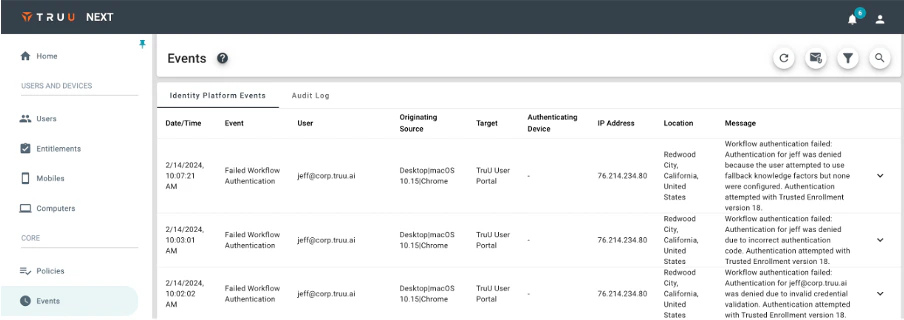
- We have updated our Event Data to provide better insight into workflow (enrollment and authentication) failure events. Rather than providing a generic message that the user could not properly complete the workflow, we indicate why the workflow failed (e.g., user did not answer knowledge questions correctly, user did not enter the correct enrollment code, or user indicated they did not have access to their email or phone when the workflow required user to provide a code).
Encrypted SAML Assertions
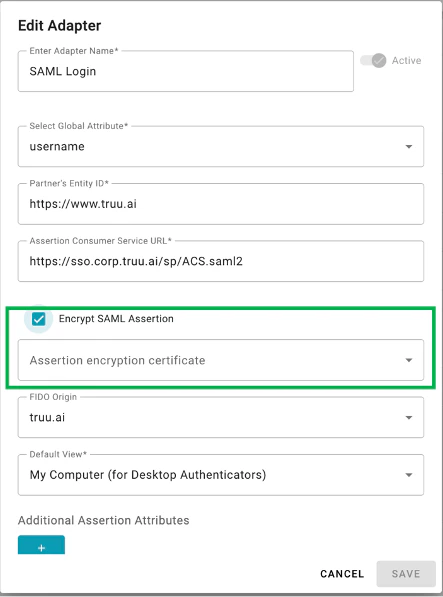
- When using the SAML adapter as a delegated IdP with another IdP (e.g. PingFederate) or wanting to federate an SP that requires encrypted assertions, we now support encrypting the SAML assertions to prevent threat actors from being able to see what is being passed in the assertion. To use this feature, the Admin must export and upload the public certificate of the IdP or SP to the SAML adapter in the Admin Console.
Special Case Attributes for Manager
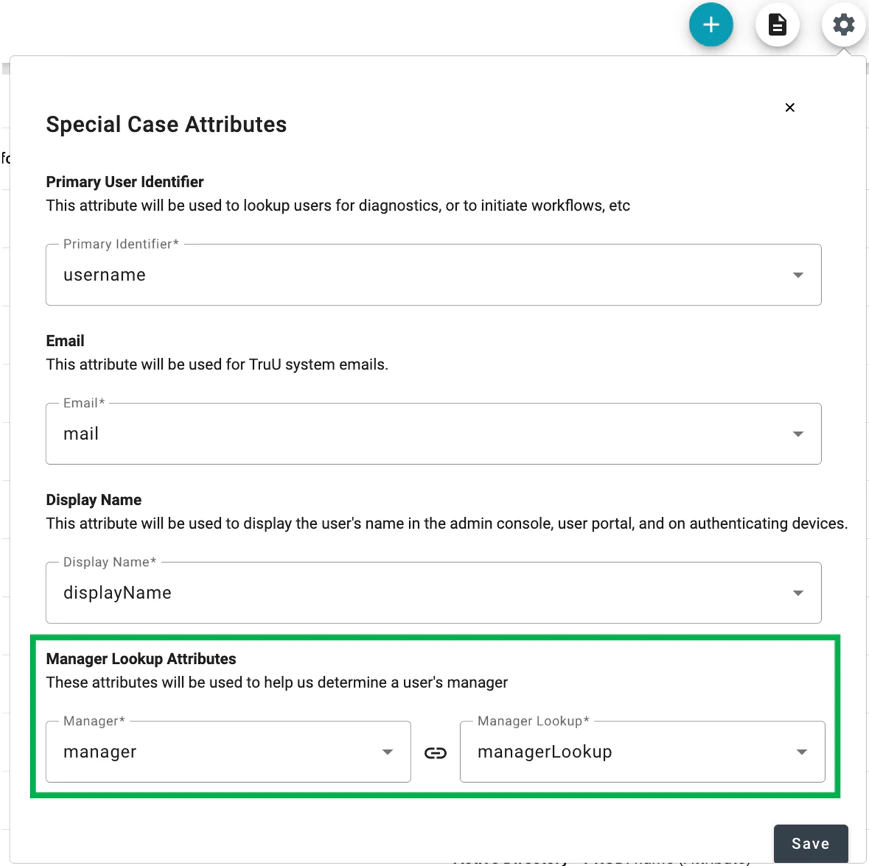
- We have found that when using cloud directories to lookup a user’s manger (either for sending an invitation or for routing an identity verification request), the way in which the manager attribute may be stored can vary. For this reason, we’ve added “Manager Lookup Attributes” as “Special Case Attributes” in the “Global Attributes” page in the Admin Console. This feature enables the Admin to specify which user attribute your directory uses to indicate who is the manger (“Manager”) and which attribute TruU should use to look up the manager in the directory (“Manager Lookup”).
Switch Login Option for Workflow-based Authentication
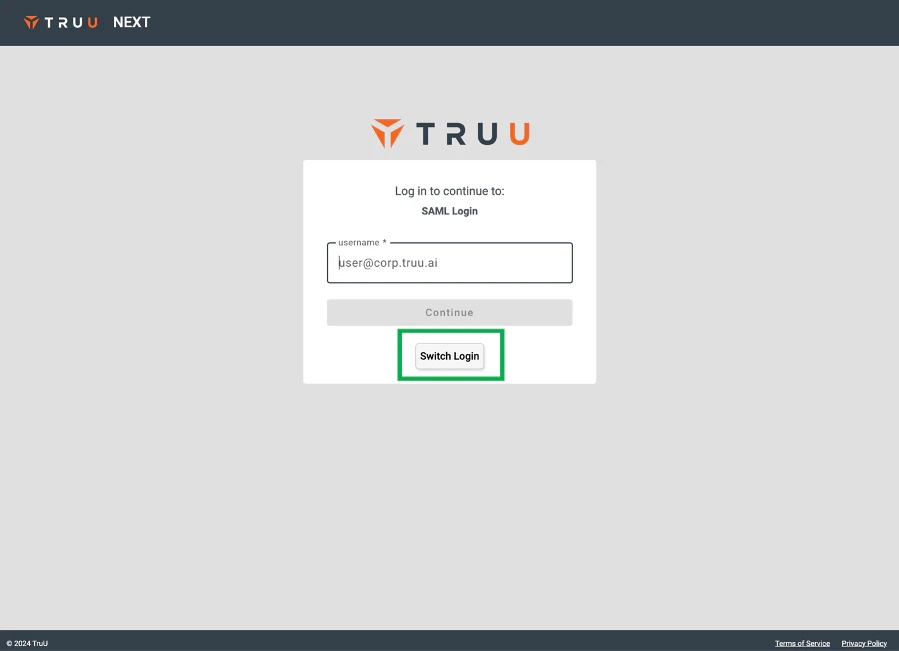
- We’ve added a “Switch Login” option to make it easier to navigate away from a workflow-based authentication for application login to use a different login method (e.g. using a TruU-registered computer, phone or hardware token).
Improved Report Delivery for Large Datasets
- We’ve improved the “Send Reports” function for sending User/Device and/or Event data from TruU to yourself, or another Administrator, for large datasets. We found that some of our customers with large datasets were not able to receive the emails as they exceeded the file size limit imposed by our mail service. Now, we are more intelligent about how those files are sent and break the large datasets into multiple files and send multiple emails to ensure delivery of the reports.
Better Control Over Approved FIDO Devices
-
Customers have asked us for an easier way of defining which FIDO devices can be used by their users. Specifically, customers wanted to be able to set rules to require their users to use FIDO keys with biometrics (or passcodes), but didn’t want to have to maintain an allowed list for this. With this release, we’ve added a new nested registration policy for 3rd party FIDO devices to specify which verification methods are allowed:
- Passcodes: users can enroll any FIDO key that supports passcode authentication only.
- Biometrics: users can enroll any FIDO key that supports biometric authentication only.
- Passcodes or Biometrics: users can enroll any FIDO key.
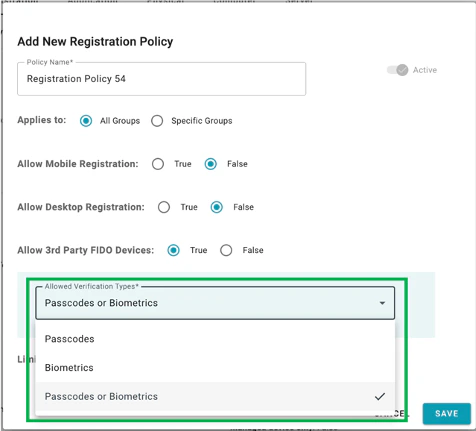
- NOTE: If an allowed list has been created, this policy will be ignored, and the allowed list will be honored.
Support for Local Cloud Trust CRL
-
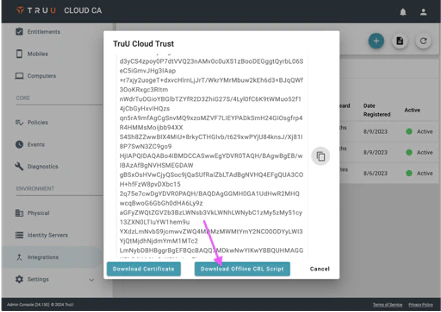
When using TruU Cloud Trust (TruU’s managed PKI service) for Windows desktop login and Azure Certificate Based Authentication, customers must configure their directory to refer to TruU’s certificate revocation list for authentication. Enterprises often prevent their Domain Controllers from accessing the Internet where the CRL is hosted in the TruU Cloud. With this release, we’ve made it easy for customers to replicate their CRL in their own environment so that their Domain Controllers can look to internal resources to validate Cloud Trust certificates. Now, our Cloud Trust customers can:
- Download an “Offline CRL Script” from the Admin Console and modify it for their environment
- Create a daily process to execute the script
- Configure one or more servers to host the local CRL
- Configure DNS so that your Domain Controllers refer to the internal resource(s) for the CRL.
Bug Fixes
- We have fixed an issue where event reporting for “Magic Link Sent” showed the IP Address / location as the IP Address / location of where the service is running and not the location of the user.
- We have fixed an issue that prevented certain attributes (e.g. sAMAccountName) from being used as the primary identifier for users in Azure.
Known Issues
PLAT 24.151 Release Notes PLAT 24.148 Release Notes